
Stats
See how your shop is doing on the Stats page: track your sales, find your best-selling products, get to know your customers, and check how your marketing is performing.
Pro plan feature — Upgrade to Pro to access this feature.
Direct link: /site/admin/reports/stats
See how your shop is doing on the Stats page: track your sales, find your best-selling products, get to know your customers, and check how your marketing is performing.
Overview
Your Stats page gives you a clear picture of how your business is doing online. You can see revenue trends, where visitors drop off before ordering, which products are bringing in the most money, who your top customers are, and how well your announcements are performing — all without needing any extra tools.
Steps
1. Check the quick summary on your Dashboard
Your Dashboard includes a Traffic & Performance section that gives you a quick snapshot of the past 30 days — Visitors, Carts, Orders, and Revenue all at a glance.
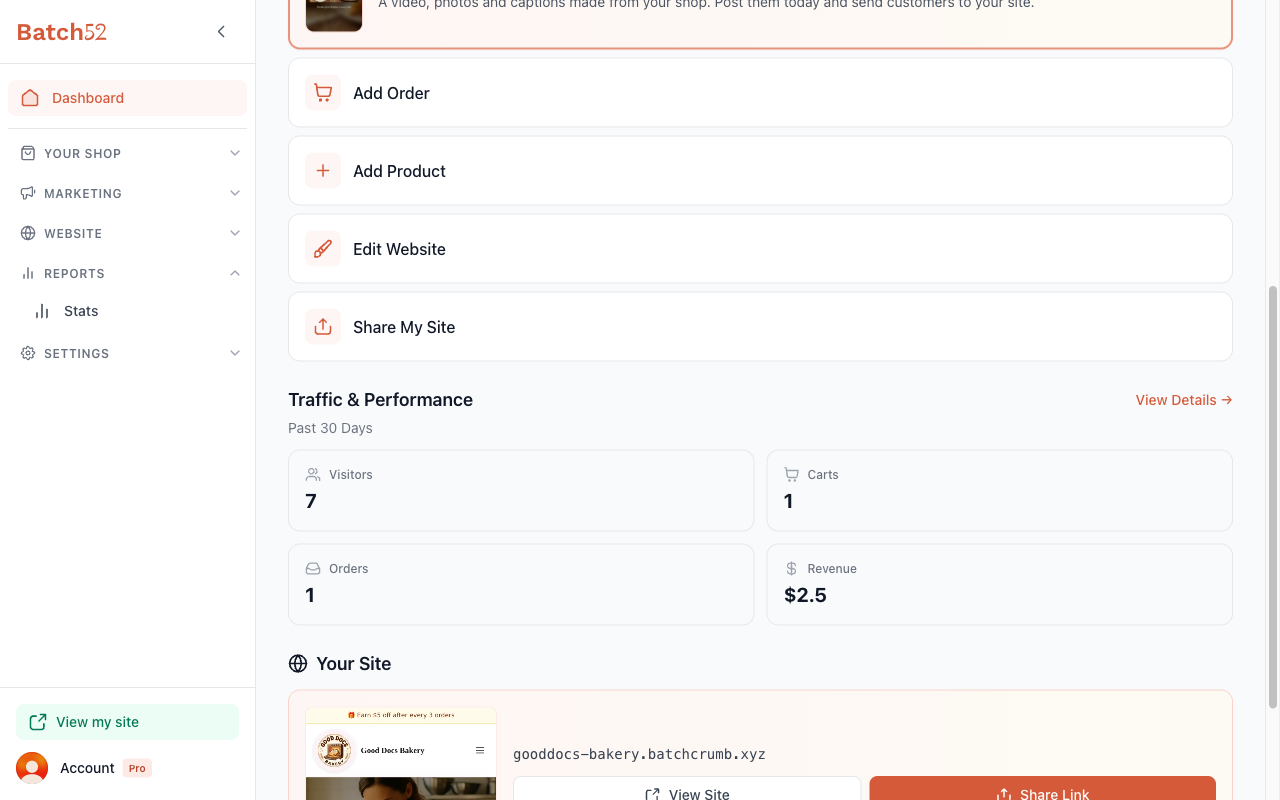
Click View Details → to jump straight to the full Stats page.
2. Open the Stats page
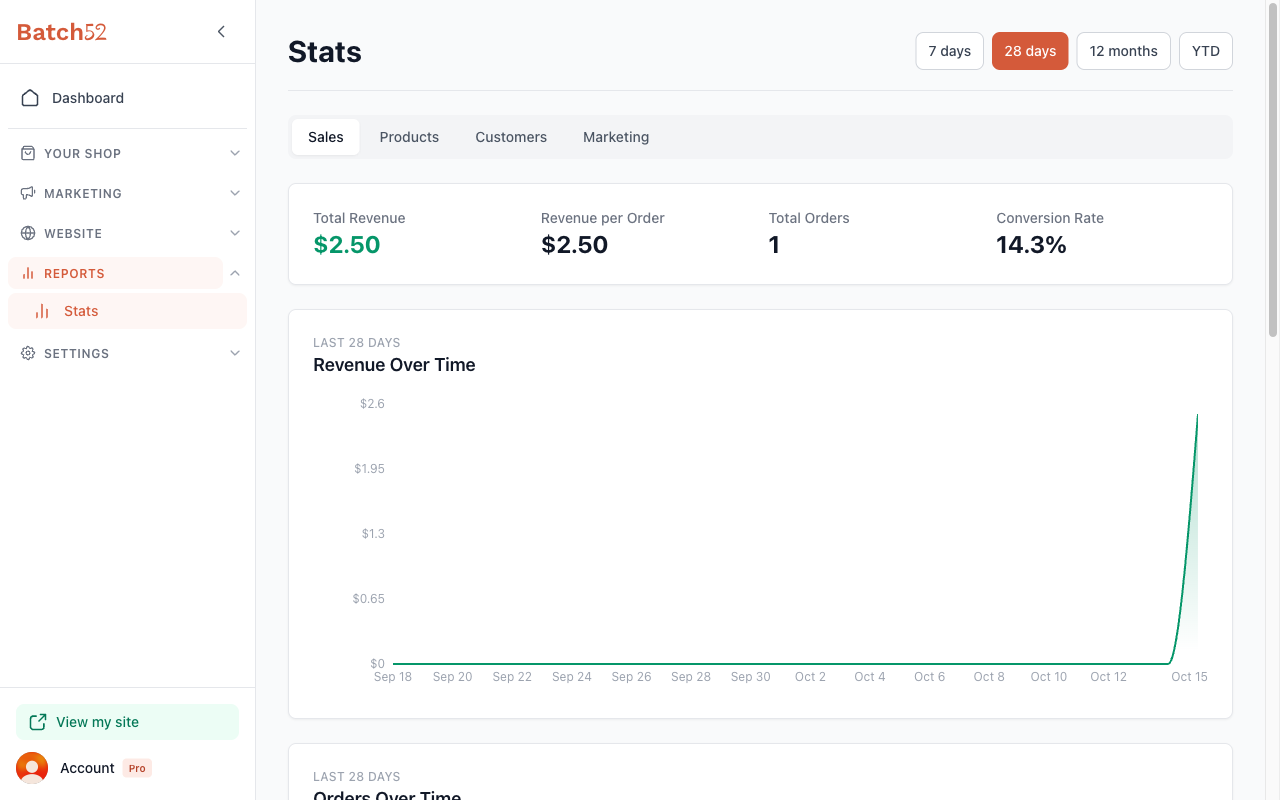
You can also get there from your admin sidebar: click Stats under Reports (clicking Reports itself opens the same page). The Sales tab opens by default.
3. Choose a time period
At the top right of the page, you'll see four time period options:
- 7 days — the past week
- 28 days — the past four weeks (selected by default)
- 12 months — the past year
- YTD — year to date
Click any option to update all the charts and numbers on the page.
4. Review your sales summary and trends
At the top of the Sales tab, four summary cards give you a quick snapshot:
- Total Revenue — how much you've earned in the selected period
- Revenue per Order — your average order value (total revenue divided by number of orders)
- Total Orders — how many orders came in (cancelled orders don't count)
- Conversion Rate — the percentage of site visitors who placed an order
Below the summary cards, two line charts show how your sales are trending:
- Revenue Over Time — a day-by-day breakdown of your earnings, so you can spot your busiest days
- Orders Over Time — how many orders you received each day
When you pick 12 months (or YTD after January), both charts group your numbers by month instead of by day.
These charts make it easy to see patterns — like whether weekends are busier than weekdays, or if a particular promotion drove a spike in sales.
5. Read your Conversion Funnel
Scroll down on the Sales tab to find the Conversion Funnel. It shows exactly where visitors drop off on the way to placing an order.
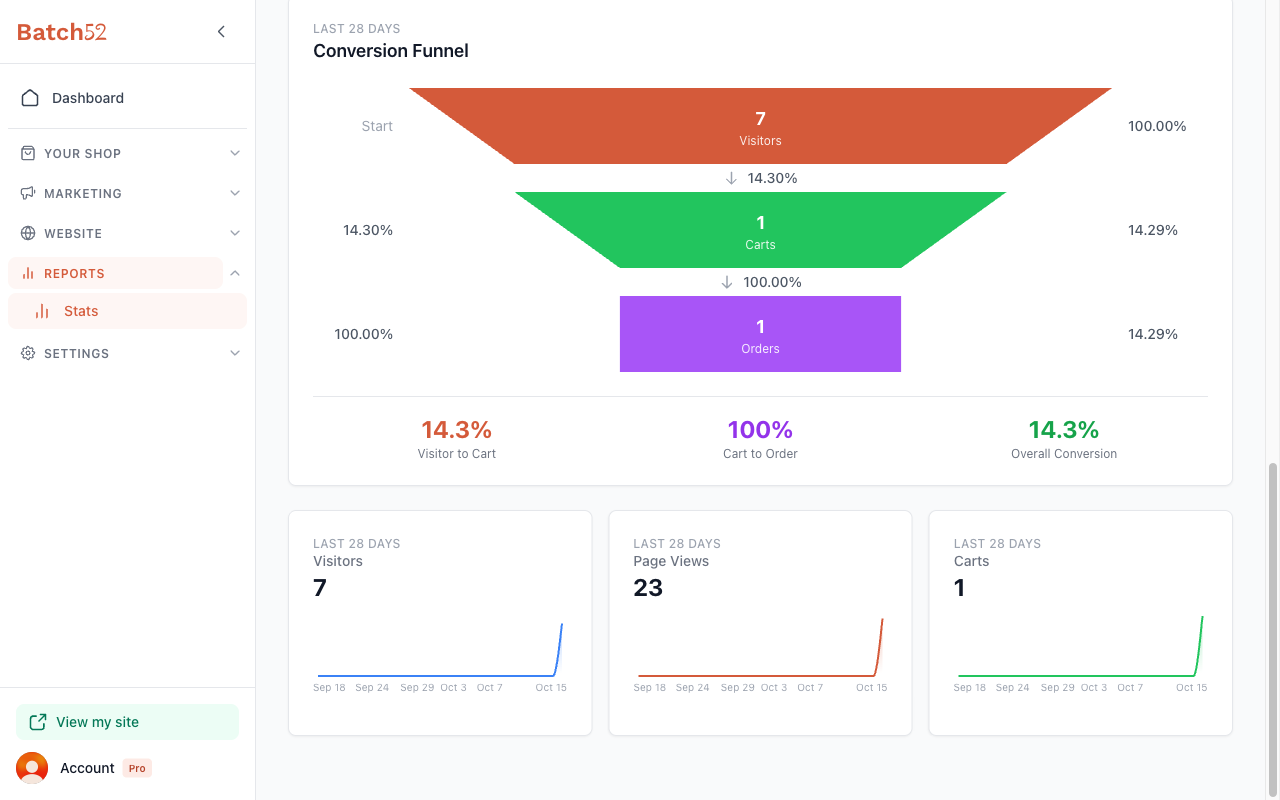
The funnel shows three stages:
- Visitors (orange) — everyone who came to your site
- Carts (green) — visitors who added something to their bag
- Orders (purple) — people who completed checkout
Between each stage, you'll see the conversion percentage — how many people moved on to the next step. At the bottom, three summary numbers break it down:
- Visitor to Cart — what percentage of visitors added something to their bag
- Cart to Order — what percentage of people with items in their bag actually checked out
- Overall Conversion — what percentage of all visitors ended up placing an order
Below the funnel, three mini charts show how your traffic is trending over time:
- Visitors — unique people visiting your site
- Page Views — total pages viewed (one visitor can view many pages)
- Carts — how many shopping bags were created
These help you spot patterns — like whether a social media post drove a spike in visitors, or whether traffic is growing steadily over time.
6. Check the Products tab
Click the Products tab to see your best-selling items.
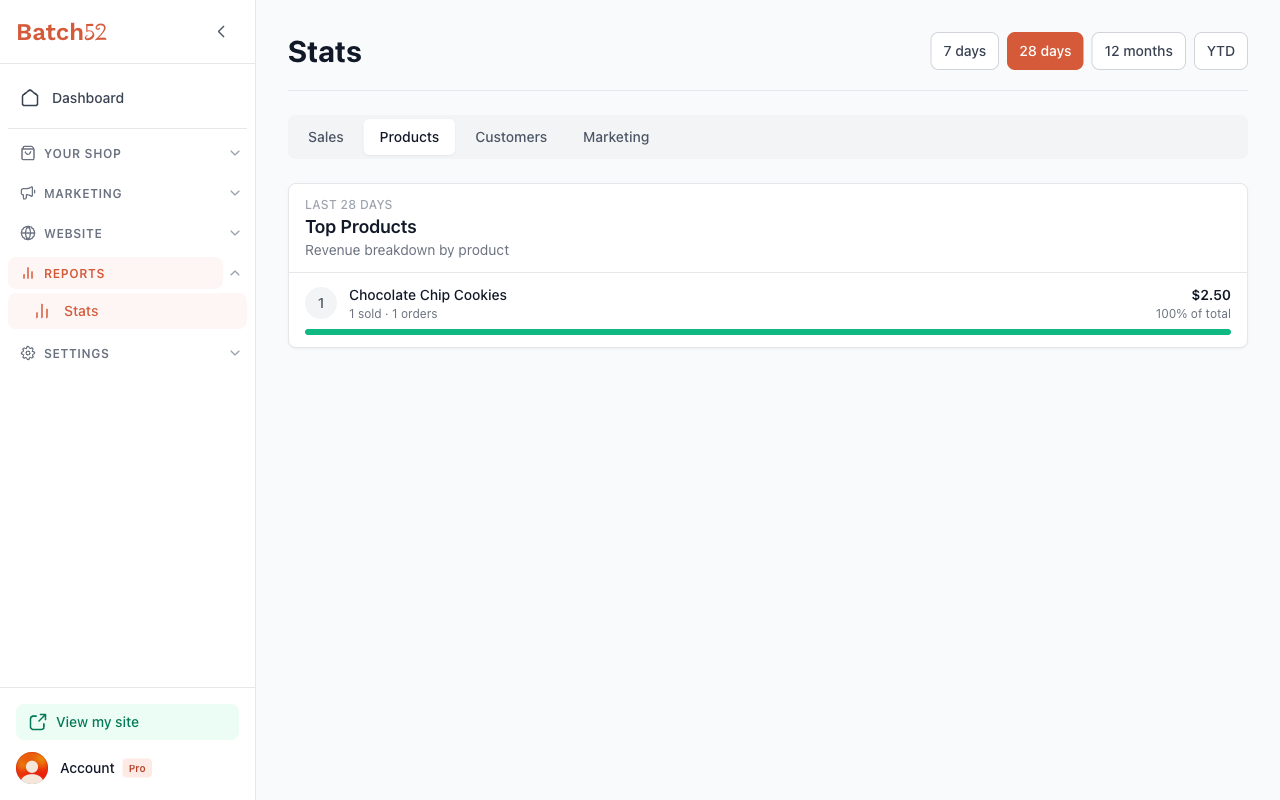
The Top Products section ranks your products by revenue. Each product shows:
- The product name and how many units were sold across how many orders
- The total revenue amount and its percentage of your overall sales
- A progress bar showing its share of revenue compared to your top seller
7. Check the Customers tab
Click the Customers tab to learn about the people ordering from you.
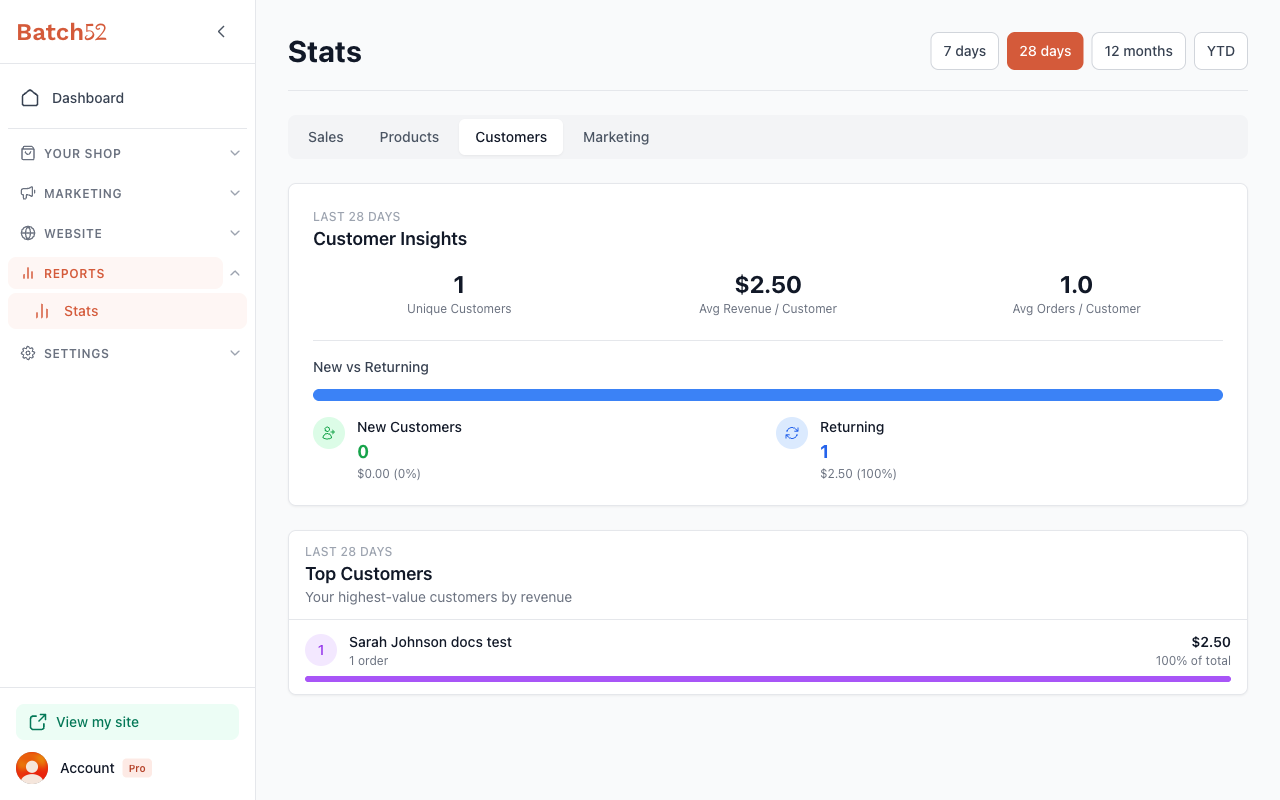
Customer Insights at the top shows:
- Unique Customers — how many different people ordered
- Avg Revenue / Customer — how much each customer spends on average
- Avg Orders / Customer — how many orders each customer places on average
The New vs Returning section breaks down whether your orders are coming from first-time buyers or repeat customers, including revenue from each group.
The Top Customers section ranks your highest-value customers by total revenue, showing their order count and percentage of your total sales.
8. Check the Marketing tab
Click the Marketing tab to see how your announcements are performing.
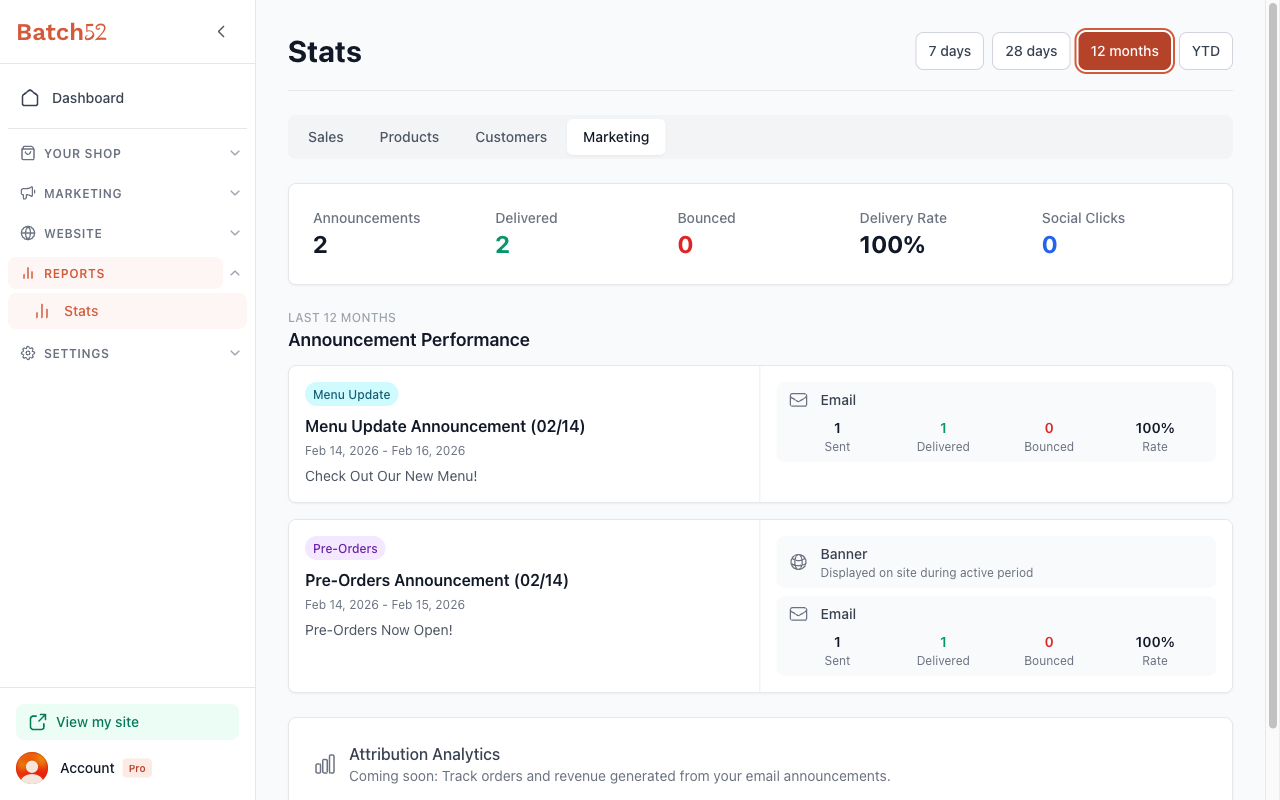
Summary cards at the top show:
- Announcements — number of announcements sent
- Delivered — emails successfully delivered
- Bounced — emails that couldn't be delivered
- Delivery Rate — percentage of emails that reached your customers
- Social Clicks — clicks from social sharing links
The Announcement Performance section shows each individual announcement with:
- The announcement type, title, and date range
- Whether a banner was displayed on your site
- Email delivery breakdown (Sent, Delivered, Bounced, Rate)
Tips
- Check your stats regularly — even a quick weekly glance helps you spot trends and make better decisions about what to bake next.
- The Products tab is especially useful before a big baking weekend. See what's been selling well and plan your batches accordingly.
- If your Revenue per Order feels low, consider adding bundle deals or complementary products (like cookies + jam) to encourage bigger orders.
- If your Visitor to Cart rate is low, your product photos or descriptions might need some love — visitors are looking but not feeling tempted to add anything.
- If your Cart to Order rate is low, something might be tripping people up at checkout. Double-check that your payment methods and pickup details are clear.
- A healthy Overall Conversion rate for a cottage food business is typically 2–10%. Don't worry if yours seems small — even a small improvement can mean a lot more orders.
- The Customers tab helps you understand how loyal your customer base is. A healthy mix of new and returning customers means you're attracting new people while keeping your regulars coming back.
- Compare different time periods to see the impact of changes you've made — for example, check 7 days after running a promotion, updating product photos, or sharing your site on social media.
- The Marketing tab only shows data when you've sent email announcements. If it looks empty, try creating your first announcement.