Understanding Your Dashboard
Your dashboard is the first thing you see when you log in — it's your home base for keeping tabs on orders, site traffic, and quick shortcuts to the things you do most.
Your dashboard is the first thing you see when you log in — it's your home base for keeping tabs on orders, site traffic, and quick shortcuts to the things you do most.
Overview
The dashboard gives you a bird's-eye view of your bakery business. At a glance, you can see how many orders need your attention, check your recent traffic numbers, and jump straight to common tasks like adding a product or sharing your site link.
What You'll See
Setup Banners
When you first get started, you'll see helpful setup prompts at the top of your dashboard. These walk you through the essentials:
- Choose Your Address — Pick your site's web address (like
my-bakery.batch52.com) - Add Your Logo — Upload your logo so it appears on your site, emails, and link-in-bio page
- Add Your Social Links — Connect your Instagram, Facebook, or TikTok
- Add a Payment Method — Set up how customers can pay you (Cash, Venmo, PayPal, etc.)
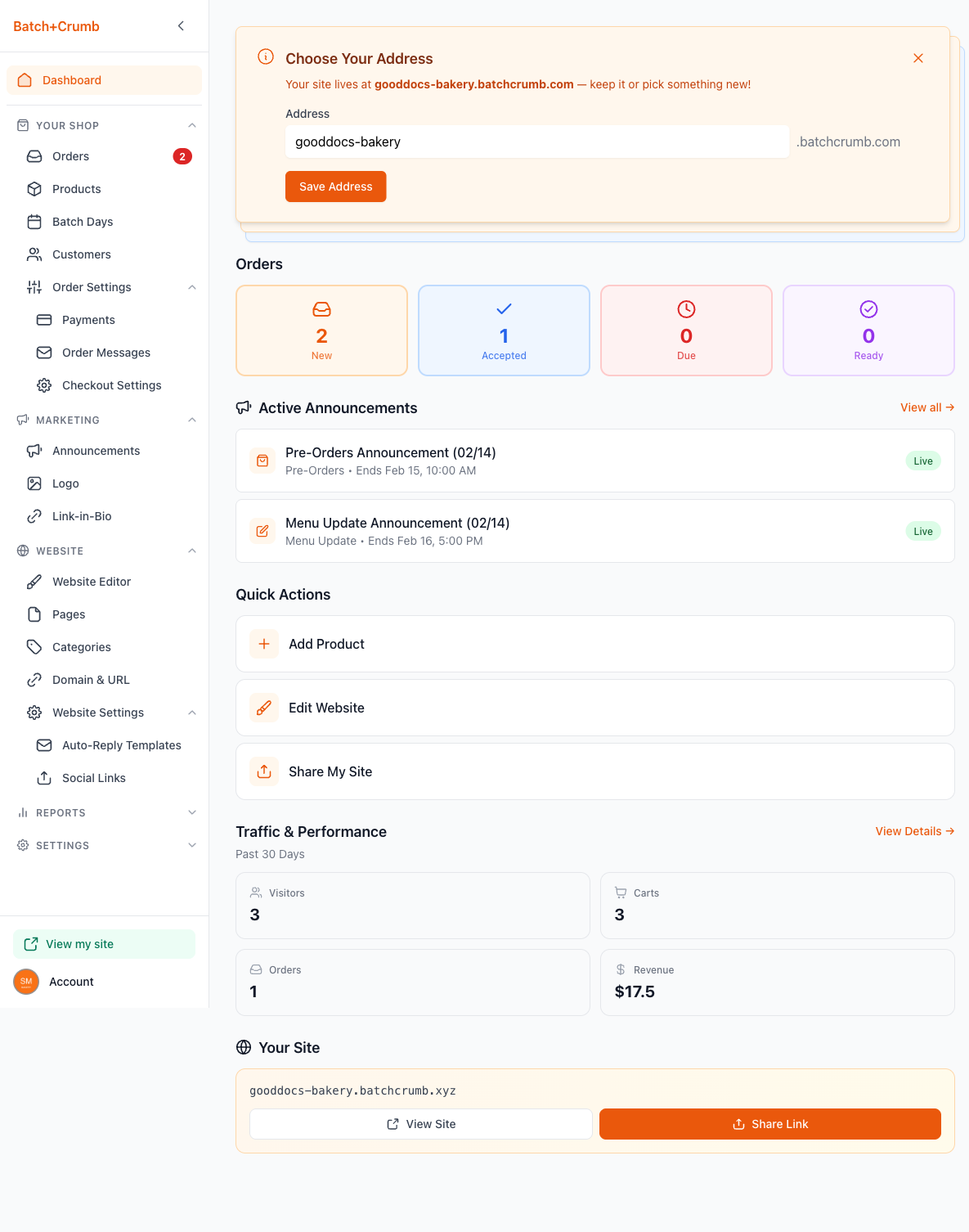
Each banner has a dismiss button (the X in the corner) if you want to skip it for now. Once dismissed, the next setup step appears. After you've completed or dismissed them all, your dashboard shows just the good stuff.
Orders
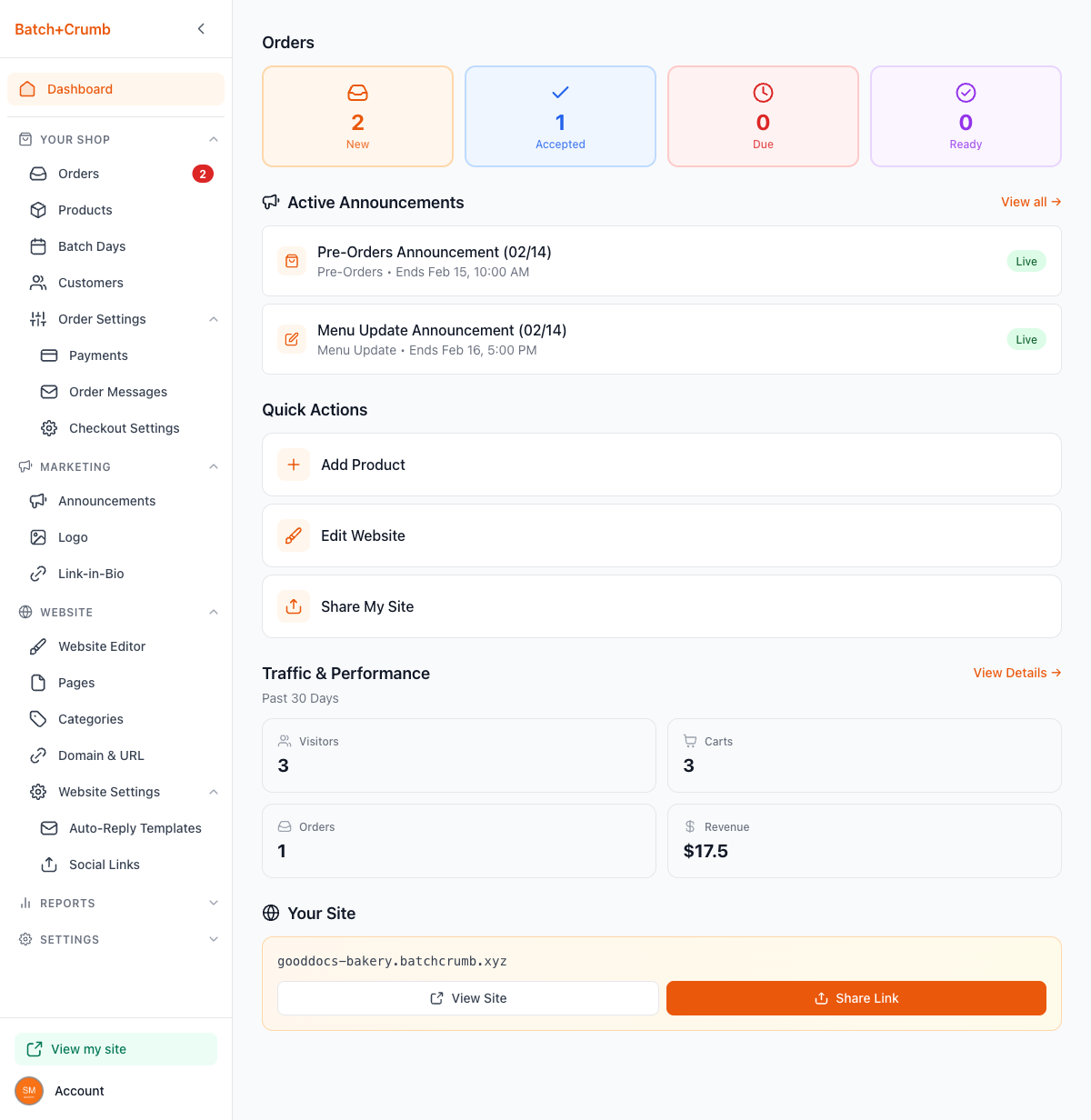
The Orders section shows four color-coded cards that give you an instant read on where things stand:
- New (orange) — Orders that just came in and need your attention
- Accepted (blue) — Orders you've accepted and are working on
- Due (red) — Orders with upcoming due dates
- Ready (purple) — Orders that are ready for pickup
Click any card to jump straight to those orders. The number on each card tells you exactly how many orders are in that status.
Active Announcements
If you have any live announcements running, they'll show up here with their type (like "Pre-Orders" or "Menu Update"), end date, and a Live badge. Click an announcement to manage it, or hit View all to see your full announcements list.
Quick Actions
Three handy shortcuts for the things you'll do most often:
- Add Product — Opens the product creation form right away
- Edit Website — Takes you to the website editor to tweak your site's look
- Share My Site — Copies your site link to your clipboard so you can paste it into a text, email, or social post
Traffic & Performance
This section shows your key numbers for the past 30 days:
- Visitors — How many people visited your site
- Carts — How many started a cart (added items)
- Orders — How many placed an order
- Revenue — Your total revenue for the period
Click View Details to see a more detailed breakdown in your reports.
Your Site
At the bottom of the dashboard, you'll find your site's web address (like my-bakery.batch52.com) along with two buttons:
- View Site — Opens your public site in a new tab so you can see what customers see
- Share Link — Copies your site link to your clipboard
The Sidebar
The sidebar on the left is your navigation hub for the entire admin. Here's what you'll find:
- Your Shop — Orders, Products, Batch Days, Customers, and Order Settings (Payments, Order Messages, Checkout Settings)
- Marketing — Announcements, Logo, and Link-in-Bio
- Website — Website Editor, Pages, Categories, Domain & URL, and Website Settings (Auto-Reply Templates, Social Links)
- Reports — Your site stats and performance data
- Settings — Business Information and Subscription
At the very bottom of the sidebar, you'll see a View my site link and your Account button.
Tips
- Check your dashboard first thing each day — the Orders section tells you right away if any new orders need your attention
- Use the Share My Site button whenever someone asks about your bakery — it's the fastest way to get your link
- Keep an eye on the Traffic & Performance numbers to see if your marketing efforts (like announcements or social posts) are driving more visitors
- If the setup banners reappear, it just means there's a setup step you haven't completed yet — no rush, but completing them helps your site look its best