Post Your Social Kits
Batch52 turns your own photos, logo and prices into a ready-to-post video, photo set, Story image and captions. Here's how to open a kit, post each piece, and change its vibe.
Included in all plans
Direct link: /site/admin/social-kits
Batch52 turns your own photos, logo and prices into a ready-to-post video, photo set, Story image and captions. Here's how to open a kit, post each piece, and change its vibe.
Overview
Posting on Instagram and Facebook keeps customers coming back, but making something that looks good between bakes is hard. So Batch52 makes it for you. When something worth posting happens in your shop, like your shop going live or a new product with a photo, you get a social kit: a short video with music, four photos for a carousel, a Story image, and captions to go with them.
Everything in a kit is built from your own photos, logo and prices. Nothing is ever posted for you. You look it over, and if you like it, you post it yourself in a few taps.
The email that tells you a kit is ready
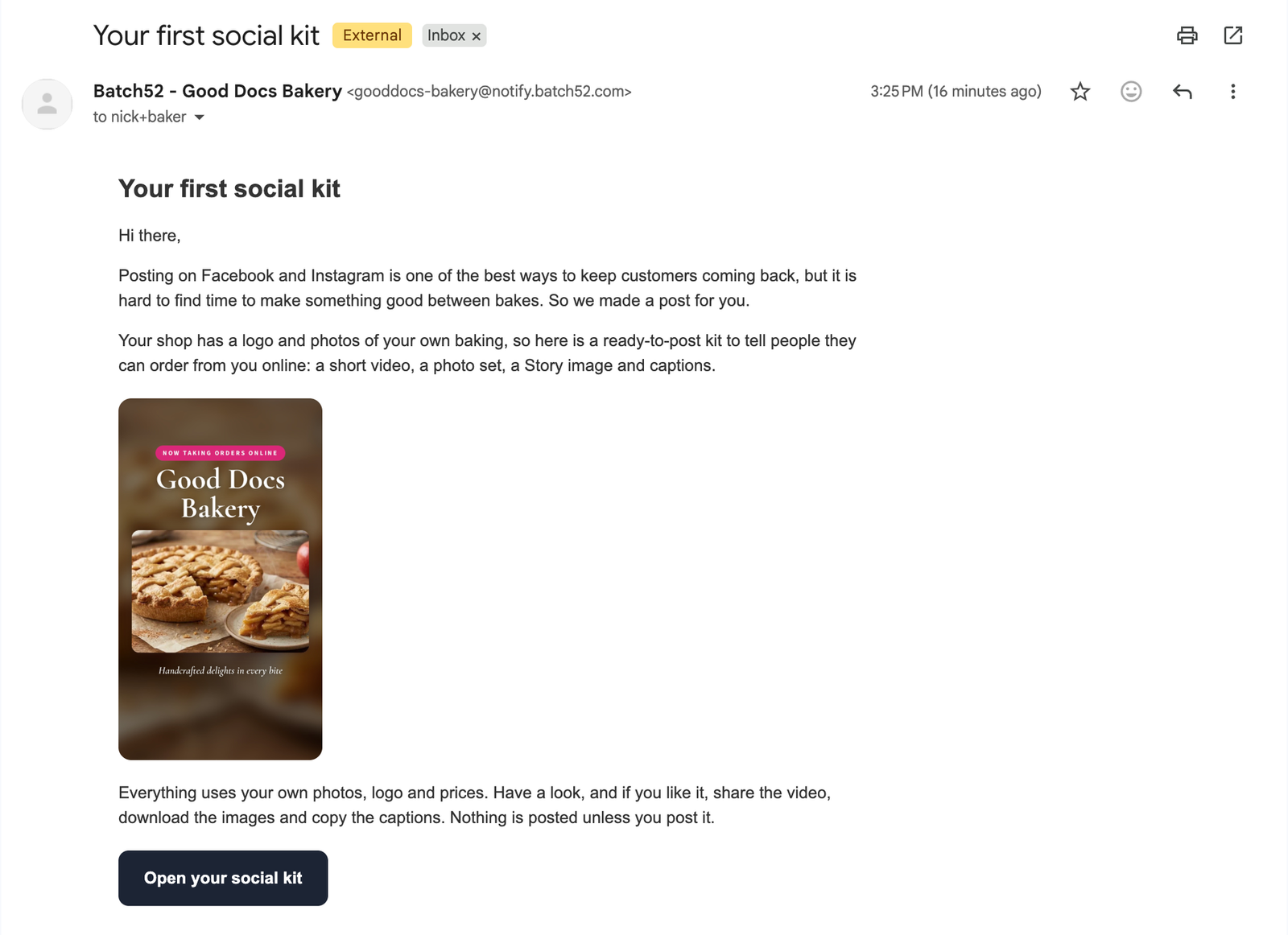
Every time a new kit is ready, Batch52 sends you an email from your shop's name, so you don't have to keep checking. The subject is the kit's title: your very first one is Your first social kit, and later ones say things like A social kit for your shop or Your new social kit followed by the product's name.
The email says why you got the kit and what's in it, shows a preview of the kit's Story image, and reminds you that nothing is posted unless you post it. Click Open your social kit to go straight to that kit in your admin.
Steps
1. Open your social kits
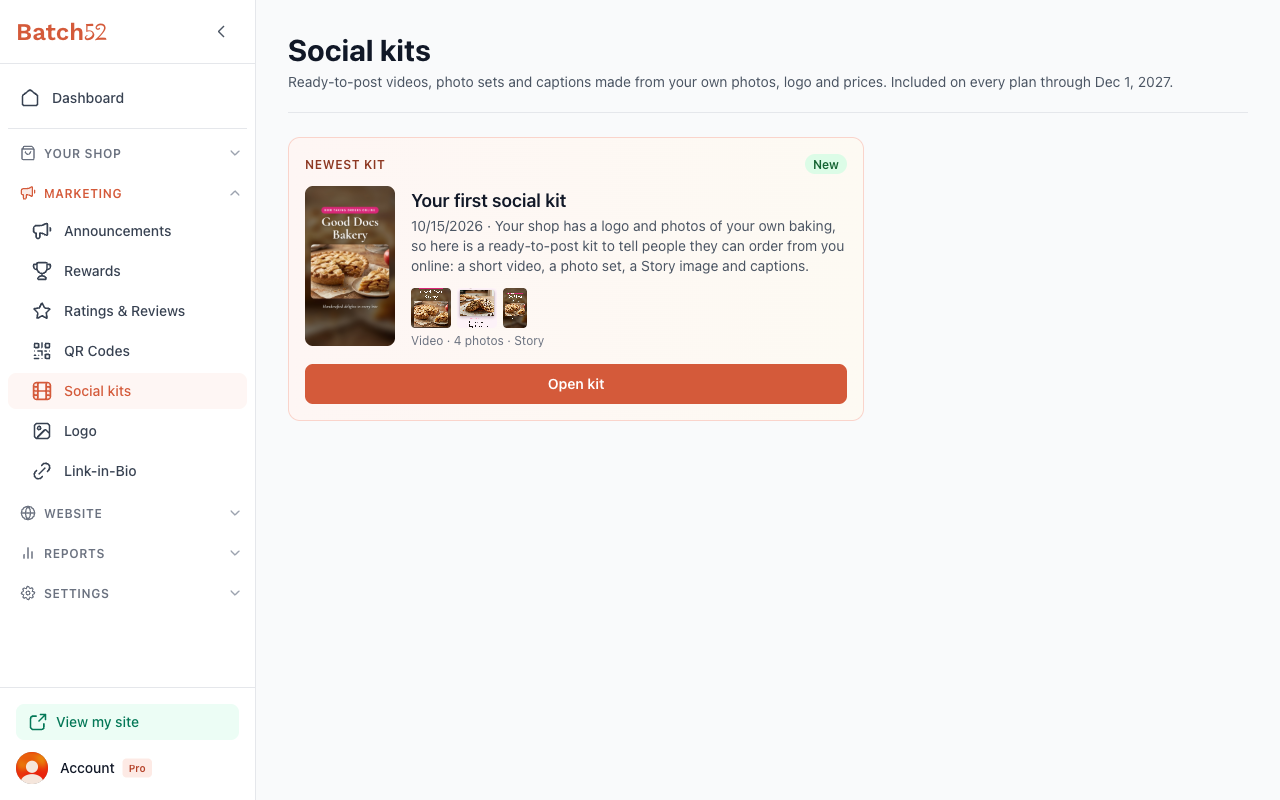
In your admin sidebar, go to Marketing → Social kits. Your newest kit sits at the top in a highlighted Newest kit card, with a green New tag until you've opened it. The card shows the kit's title, the date it was made, a line about why you got it, and small previews of the pieces (Video · 4 photos · Story).
Click Open kit to see everything in it.
No kits yet? The page says No kits yet. Kits are made when something worth posting happens in your shop, and a shop needs a logo and three products with photos of its own to get one. If you're missing either, upload your logo and add photos to your products.
2. Post the video
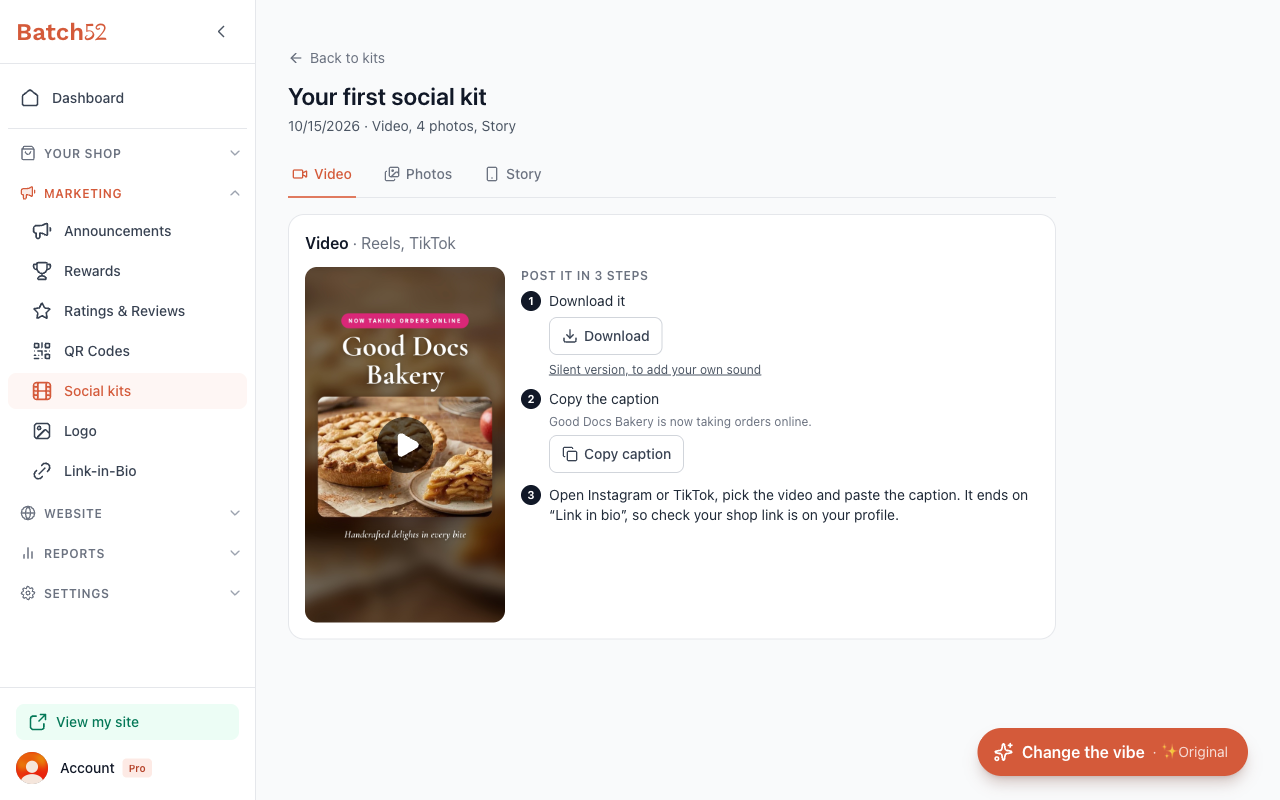
The kit opens on the Video tab, marked for Reels, TikTok. Click the play button on the preview to watch it full screen with its music. It opens in the same viewer you use to change the vibe (step 5), starting on your current vibe. Next to the preview is Post it in 3 steps:
- Download it: click Download to save the video. If you'd rather use a trending sound from Instagram or TikTok, click Silent version, to add your own sound instead and add the sound in the app.
- Copy the caption: the first line of the caption is shown so you know what you're copying. Click Copy caption and you'll see a quick Copied confirmation.
- Open Instagram or TikTok, pick the video and paste the caption. The video ends on "Link in bio", so make sure your shop link is on your profile.
3. Post the photo set
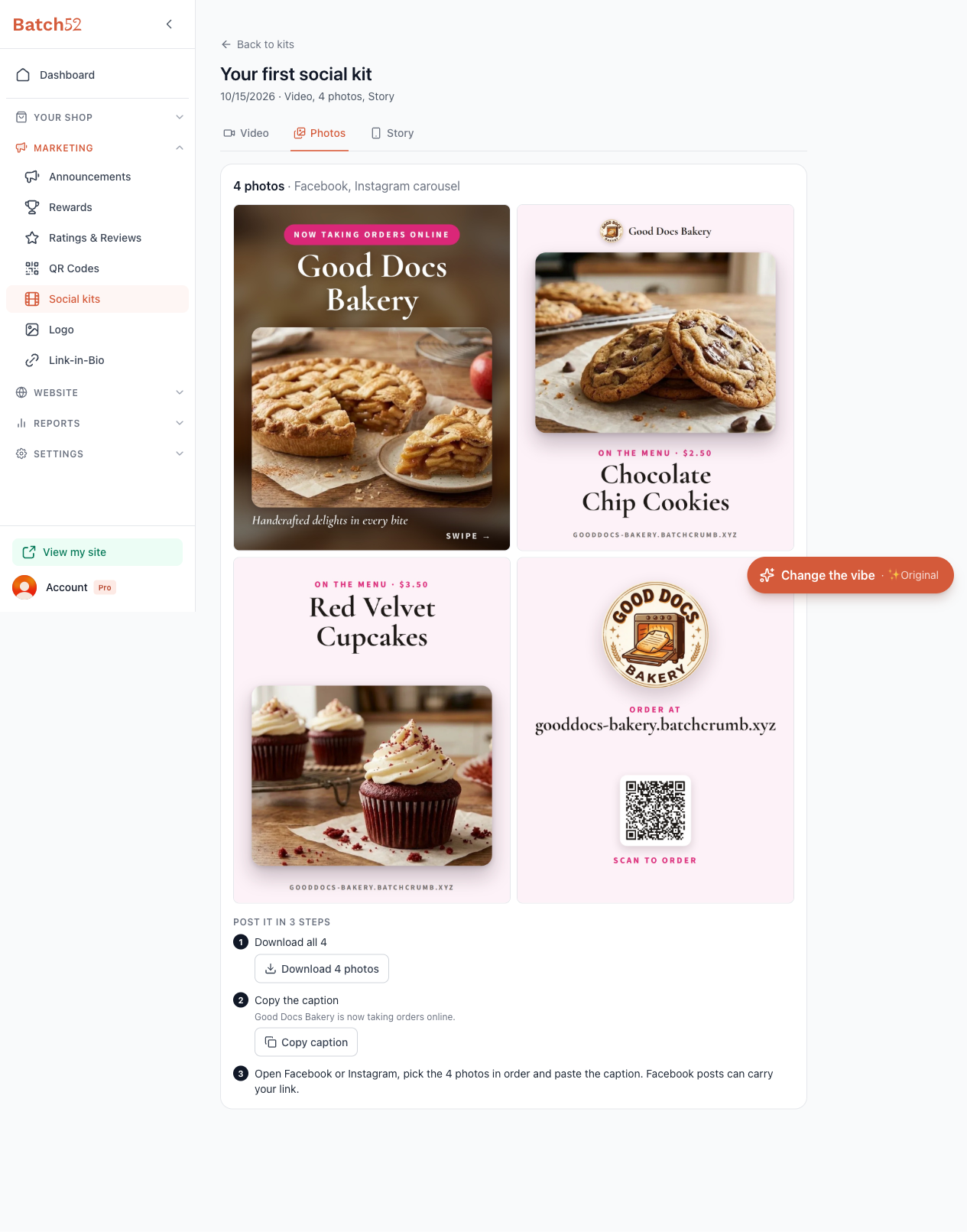
Click the Photos tab. This one is for a Facebook, Instagram carousel: four square images that tell a little story in order. For Good Docs Bakery that's a "Now taking orders online" cover, a Chocolate Chip Cookies card with its price, a Red Velvet Cupcakes card, and a closing card with the shop's web address and a Scan to order QR code.
- Click Download 4 photos to save all four at once.
- Click Copy caption.
- Open Facebook or Instagram, pick the four photos in order and paste the caption. Facebook posts can carry your link, so this is a good one for local Facebook groups too.
4. Post the Story
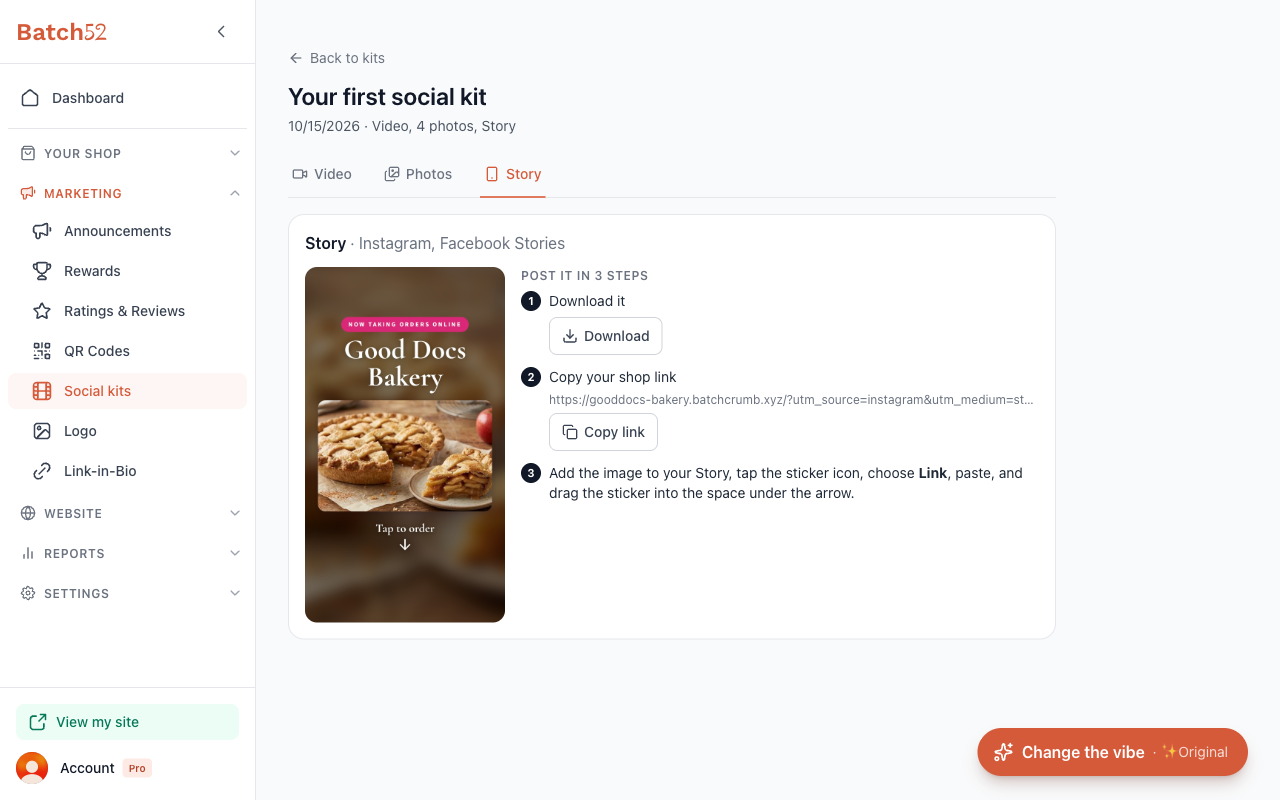
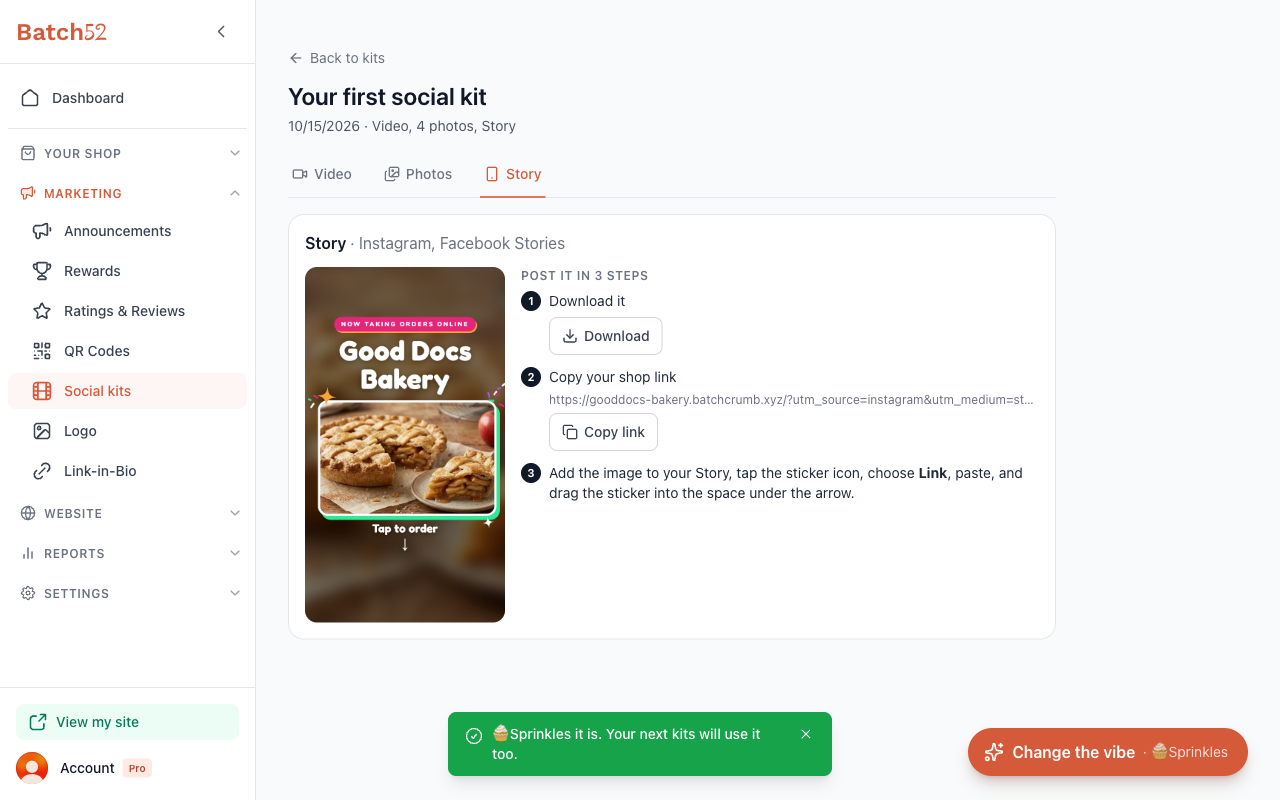
Click the Story tab, for Instagram, Facebook Stories. Stories are where people can tap straight through to your shop, so the image leaves a space under a "Tap to order" arrow for a link sticker.
- Click Download to save the image.
- Copy your shop link: click Copy link.
- Add the image to your Story, tap the sticker icon, choose Link, paste, and drag the sticker into the space under the arrow.
5. Change the vibe
Every kit comes in seven looks, called vibes. To try another one, click the Change the vibe button floating at the bottom right of the kit. It shows the vibe you're on now, like · ✨ Original.
A full-screen viewer opens on your current vibe, playing its video. The top shows the vibe's name and where you are (1 of 7 · your current vibe), with a speaker button to turn the sound on or off and an X to close.
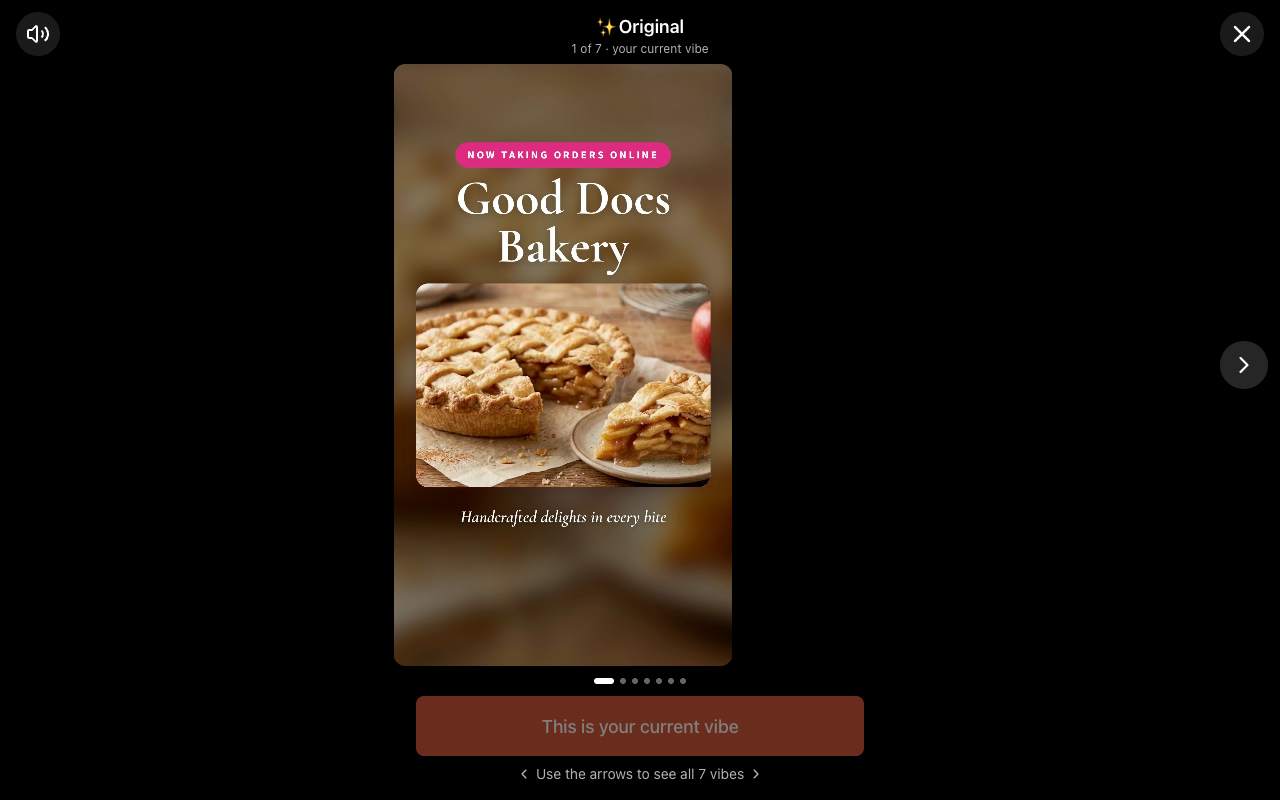
Use the arrows on either side (or swipe on your phone) to flip through all seven: ✨ Original, 🧁 Sprinkles, 🥐 Patisserie, 📷 Lo-fi, ☕ Slow Morning, 🧺 Market Day and 🌾 Farmhouse. Each one plays as it comes into view. Nothing changes while you browse.
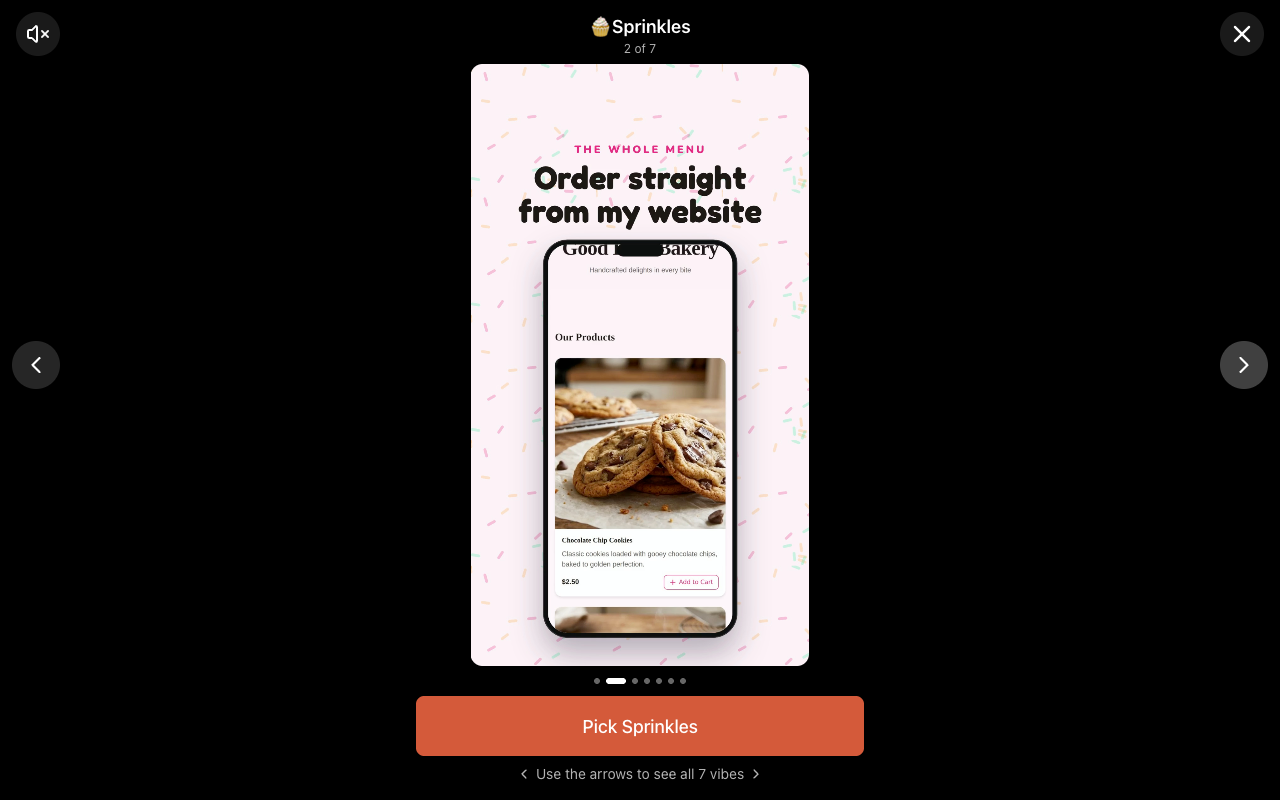
When you find one you like, click Pick and the vibe's name (for example Pick Sprinkles). The viewer closes, the kit switches to the new look, and you'll see a confirmation like "🧁 Sprinkles it is. Your next kits will use it too." The floating button now shows your new vibe.
Changed your mind? Open the viewer again, go back to the vibe you had, and pick it.
Tips
- Check your link in bio first. The video tells people to find your link in your bio, so make sure your shop link is on your Instagram and TikTok profiles before you post. Link-in-Bio gives you a page that's made for this.
- Tweak the caption if you want. The captions are a starting point. Paste one, then add a line in your own words, like what's in the oven this week or when pickup is.
- Use all three pieces. Post the video as a Reel, the photo set on Facebook or in a local group, and the Story the same day. It's the same news three ways, so more of your followers actually see it.
- Pick a vibe that matches your shop. Your pick carries over to future kits, so choose the look that feels most like your baking, and you won't have to think about it again.
- Better photos make better kits. Kits use your own product photos, so bright, close-up shots of your bakes give you the best-looking posts.