Create and Manage Announcements
Let your customers know about pre-orders, events, and menu updates with announcements that show up as banners on your website and (on Pro) as emails and texts to your customers.
Included in all plans
Direct link: /site/admin/announcements
Let your customers know about pre-orders, events, and menu updates with announcements that show up as banners on your website and (on Pro) as emails and texts to your customers.
Email and SMS for announcements are Pro plan features — upgrade to Pro to send announcements by email or text.
Overview
Announcements are a great way to get the word out when you have something exciting to share — whether you're opening pre-orders for this weekend's bake, sharing a new seasonal menu, or promoting an upcoming market appearance. You can display a banner right on your website, and if you're on the Pro plan, send an email blast to your subscribers too.
Steps
1. Go to the Announcements page
From your admin sidebar, click Marketing, then Announcements.
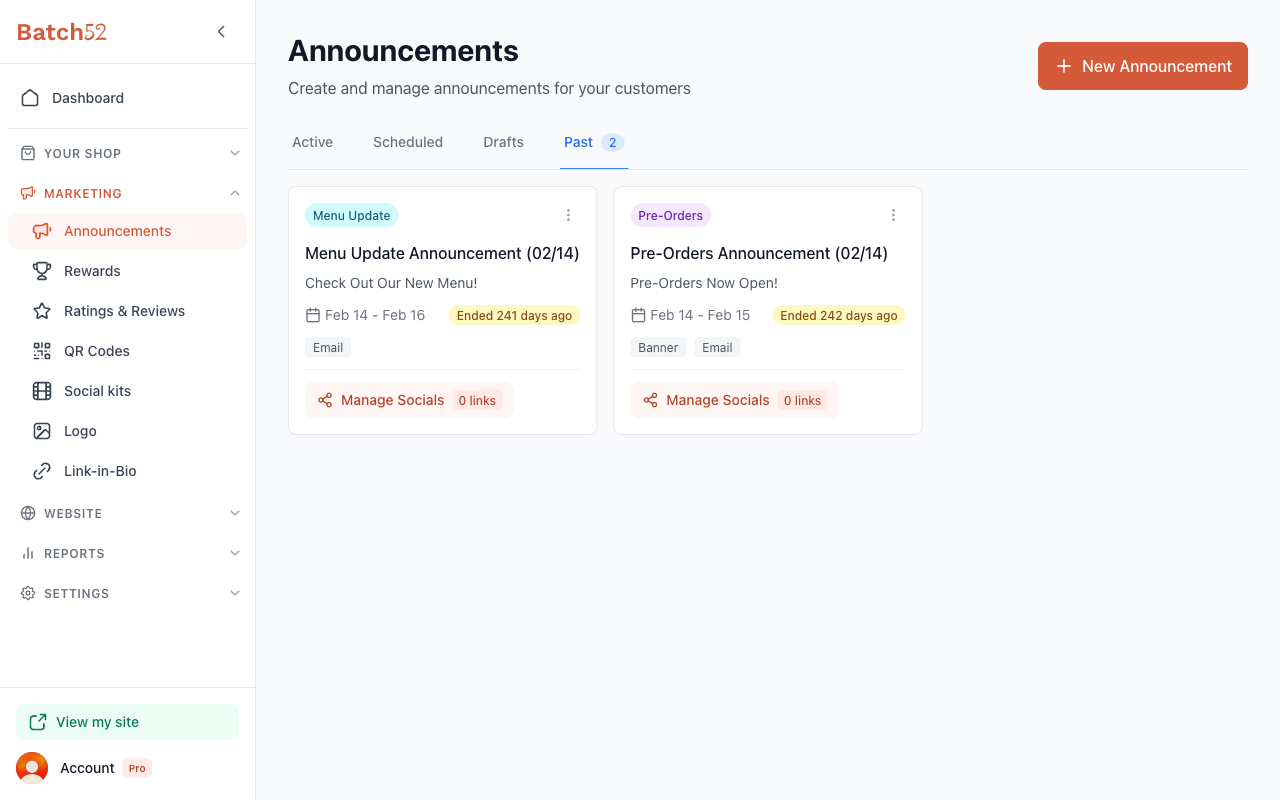
You'll see four tabs to organize your announcements:
- Active — announcements currently live on your site
- Scheduled — announcements set to go live at a future date
- Drafts — announcements you've started but haven't published yet
- Past — announcements that have ended
2. Start a new announcement
Click the + New Announcement button in the top right corner. A New Announcement form opens with everything on one scrolling page: type, timing, details and channels.
3. Choose your announcement type
Under Type, pick the one that best fits what you're announcing:
- Pre-Orders — Let customers pre-order items before a bake day
- Event — Promote an upcoming market, fair, or event appearance
- Menu Update — Announce menu changes, new items, or seasonal offerings
- Custom — Write a fully custom announcement with your own content
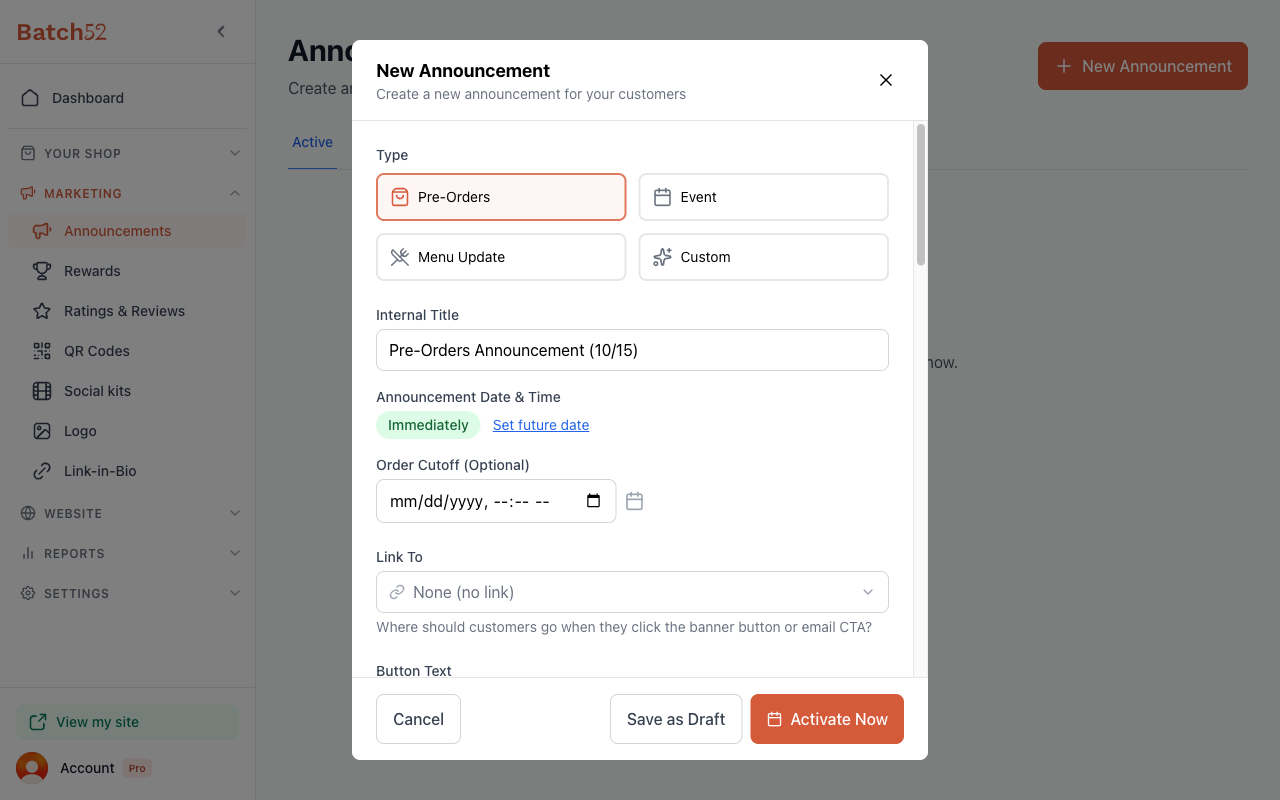
The type you choose fills in a starting title, headline, message and button text for you (you can always customize them). If you switch types after editing those fields, Batch52 asks before replacing your changes.
4. Set the timing
Right below the type, set when your announcement goes live:
- Internal Title — Auto-generated for your reference (customers won't see this)
- Announcement Date & Time — Starts as Immediately. Click Set future date to pick a later date and time instead, or Set to Now to switch back.
- Order Cutoff (Optional) — When you want to stop accepting orders
5. Add your details
Customize what your announcement says:
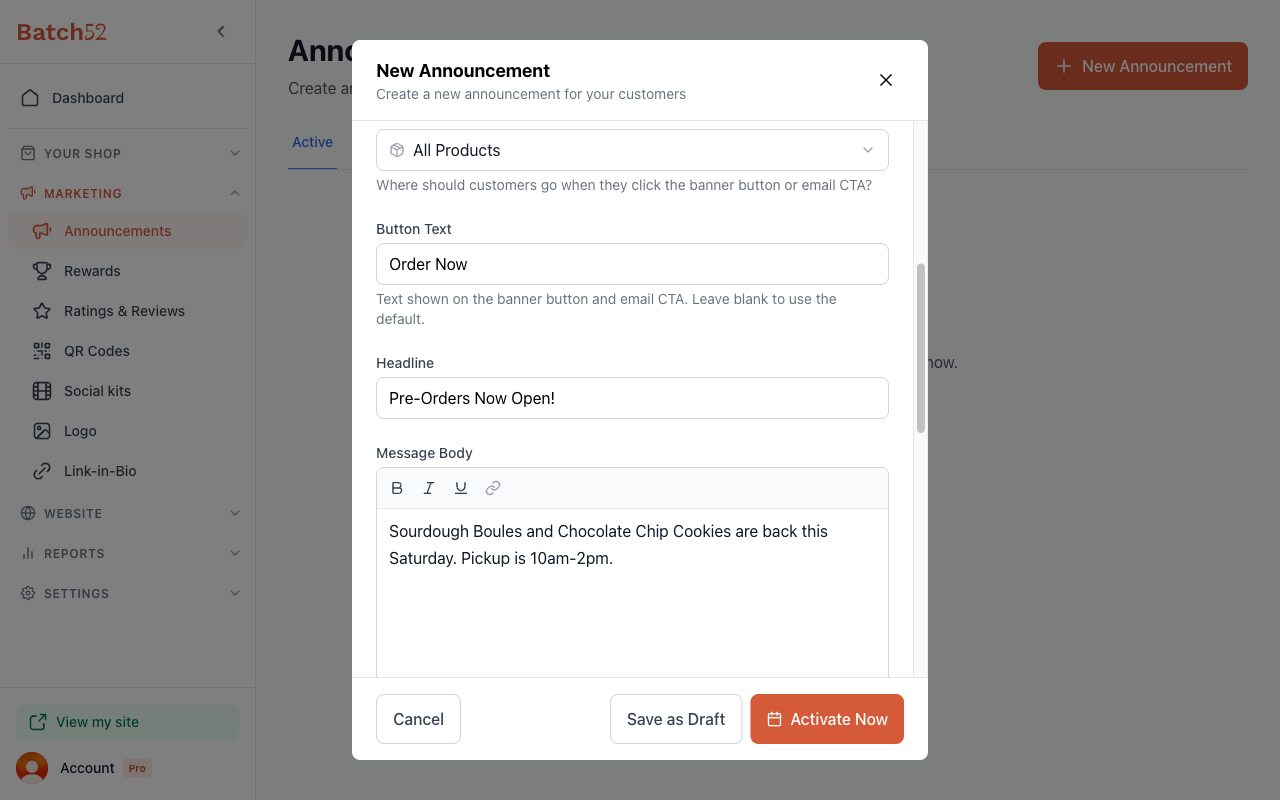
- Link To — Where the button on your banner and email should go. Choose a quick link (Homepage or All Products), enter a custom URL, or leave it as None (no link).
- Button Text — The text on your call-to-action button (for Pre-Orders the default is "Order Now")
- Headline — A short, attention-grabbing headline. Batch52 fills this in based on your type (e.g., "Pre-Orders Now Open!"), but you can change it.
- Message Body — The main text of your announcement. You can format it with bold, italic, underline, and links. If you leave it empty, Batch52 uses a starter message for your type.
6. Choose your channels
Scroll down to Channels and decide how you want to reach your customers:
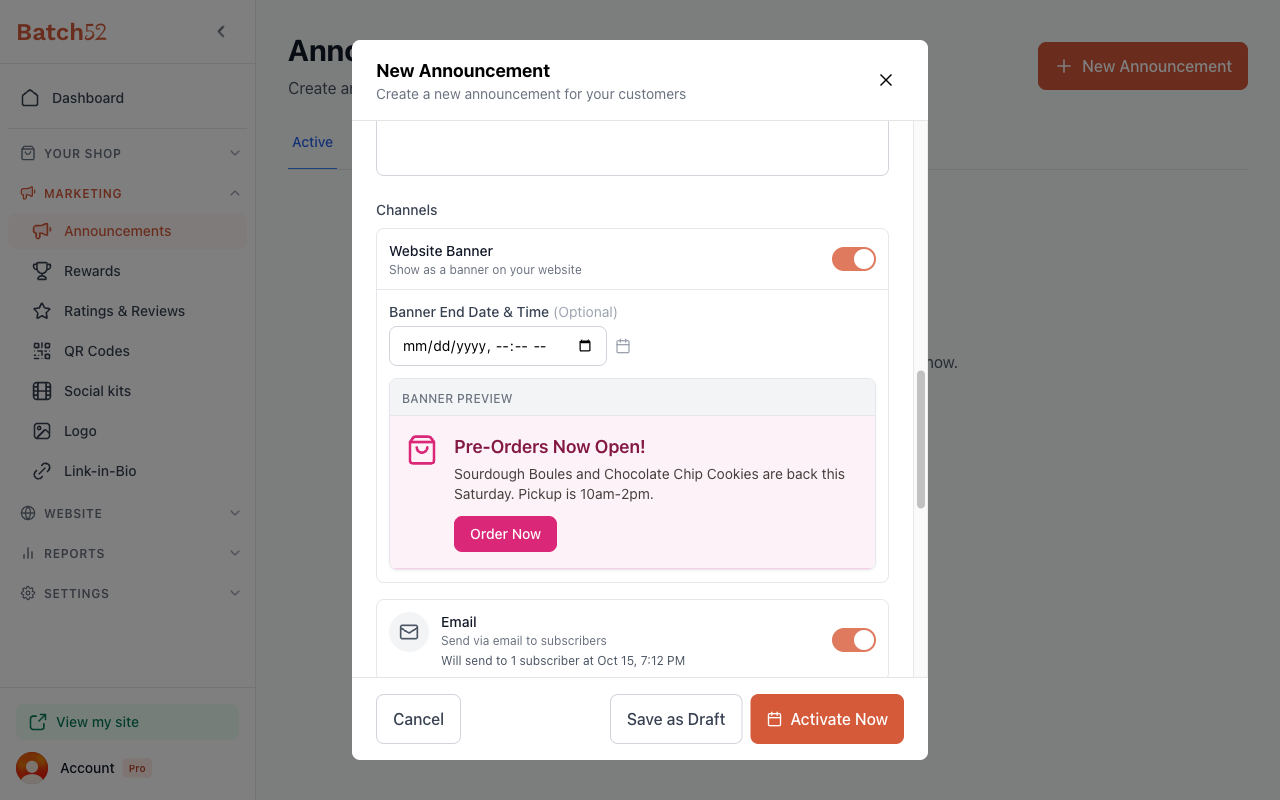
- Website Banner — Toggle this on to display a banner at the top of your public site. You can set an optional Banner End Date & Time, and you'll see a Banner Preview of how it looks.
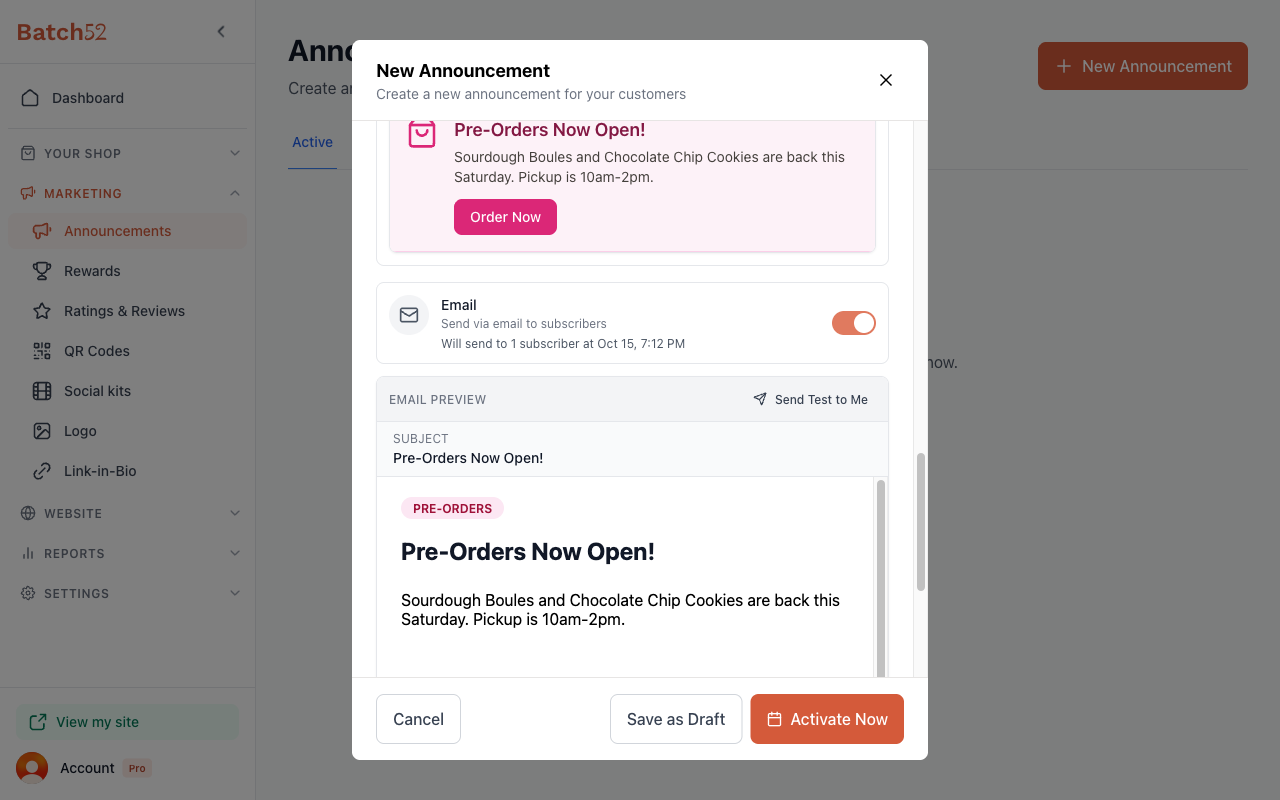
- Email (Pro) — Toggle this on to send an email to your subscribers. You'll see how many subscribers will receive it, plus an Email Preview.
- SMS (Pro) — Toggle this on to send a text message to customers who opted in.
If you have Email turned on, click Send Test to Me at the top of the email preview to send a test email to yourself before going live — a great way to double-check everything looks right.
7. Save, schedule or publish
The buttons at the bottom of the form let you choose what happens next:
- Save as Draft — Save it for later without publishing
- Schedule — Shows when you've set a future date; your announcement goes live automatically at that time
- Activate Now — Shows when the announcement starts immediately; it publishes right away
If you choose Activate Now, a confirmation dialog lets you know the banner will go live and emails will be sent right away. Click Activate Now again to confirm, or Cancel to go back.
8. Your announcement is live!
After activating, you'll see an "Announcement is now live" message and your new announcement appears under the Active tab. Scheduled announcements move to the Scheduled tab, and drafts to Drafts.
What your customers see
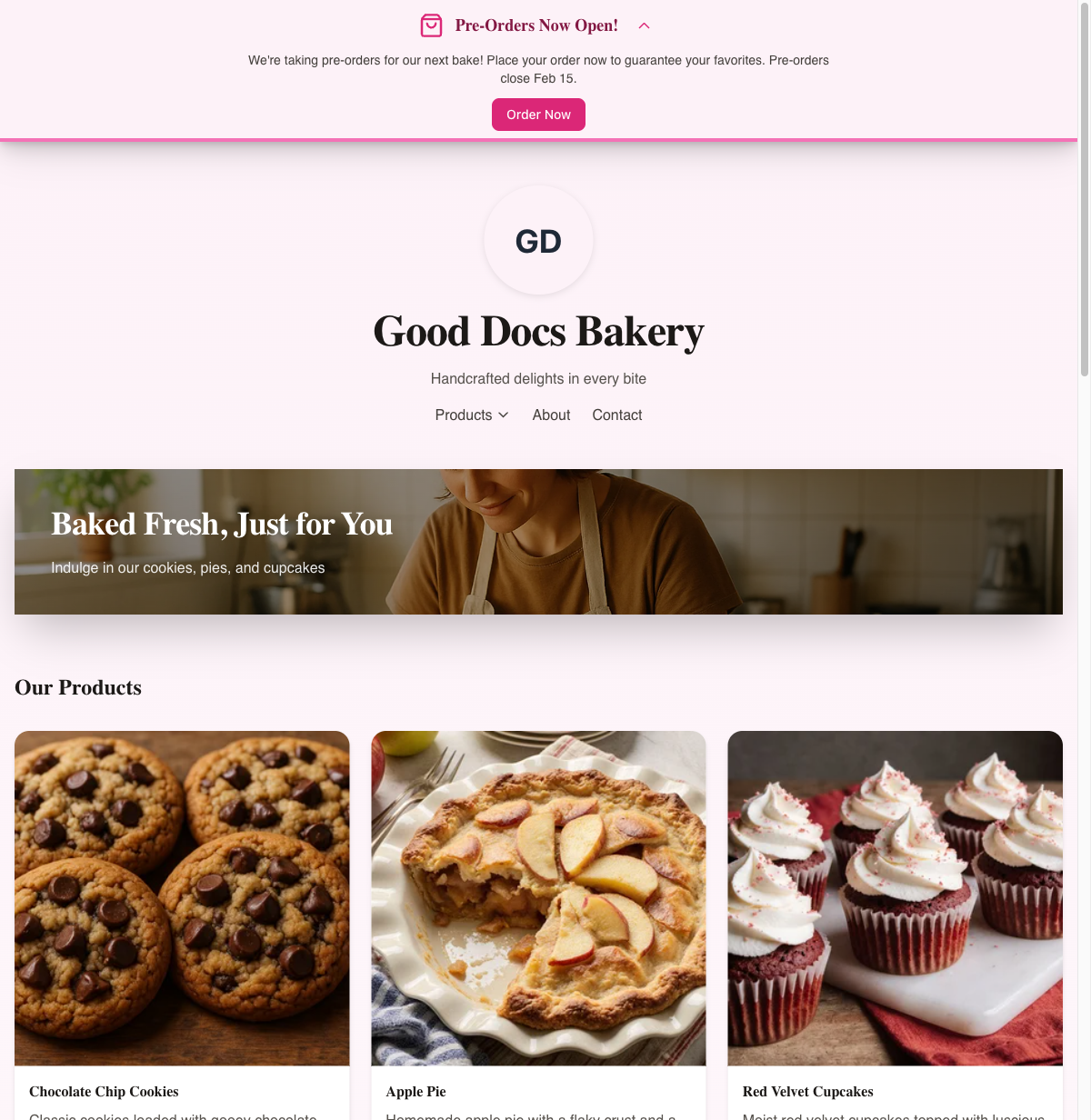
Website banner
A banner appears at the very top of your public site with your headline and a button linking to your products (or wherever you pointed it). Customers can expand or collapse the banner.
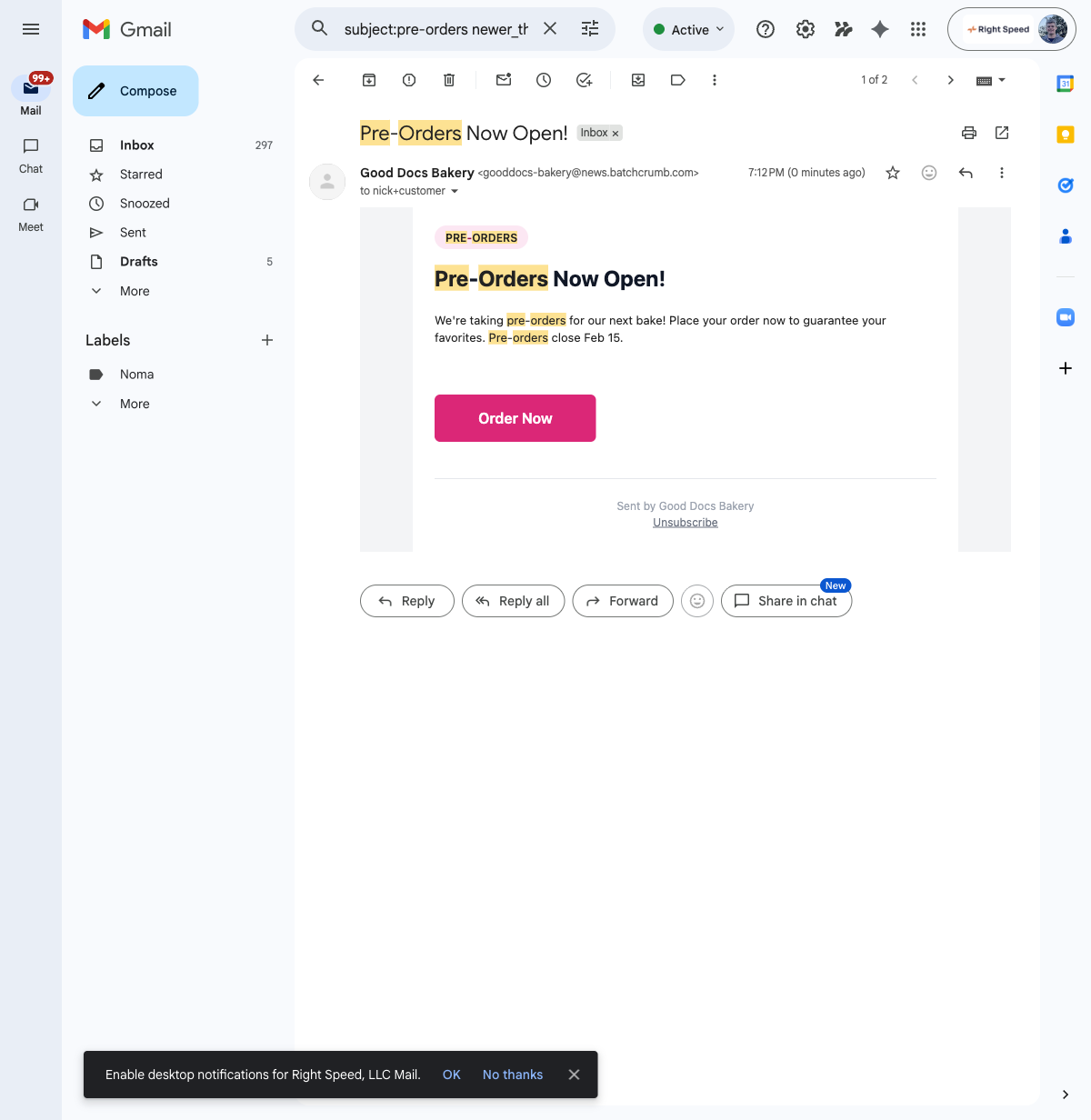
Announcement email
Subscribers receive a styled email with your announcement type badge, headline, message, and a call-to-action button. The email includes your business name and an unsubscribe link at the bottom.
Managing active announcements
Back on the Announcements page, your active announcement card shows:
- Type badge and status (e.g., "Showing on site")
- Date range with a countdown (e.g., "13 hours left")
- Reach section — shows which channels are active, when emails were sent, and delivery stats
- Manage Socials (Pro) — create shareable links for Facebook, Instagram, Nextdoor, and more with click tracking
Use the three-dot menu on the announcement card to Edit, Clone or Archive your announcement. Archiving takes it down early.
Tips
- Start with the auto-generated content and tweak it — Batch52 writes a solid first draft based on your announcement type
- Always send yourself a test email before going live to make sure everything looks right
- Schedule announcements in advance so you don't have to remember to publish on bake day morning
- Set a Banner End Date & Time and your banner disappears on its own, so you don't need to take it down manually
- On Pro, use the Manage Socials button to create shareable links you can post on your social media for extra reach