
Upload Your Logo
Add your logo so customers recognize your brand across your website and link-in-bio page.
Included in all plans
Direct link: /site/admin/logo
Add your logo so customers recognize your brand across your website and link-in-bio page.
Overview
Your logo is one of the first things people notice when they land on your site or tap your link-in-bio. If you don't upload one, Batch52 shows your business initials in a colored circle as a placeholder — which works fine at first, but a real logo makes everything feel more polished and professional. You can upload any PNG or JPG image up to 5 MB.
Steps
1. Go to the Logo page
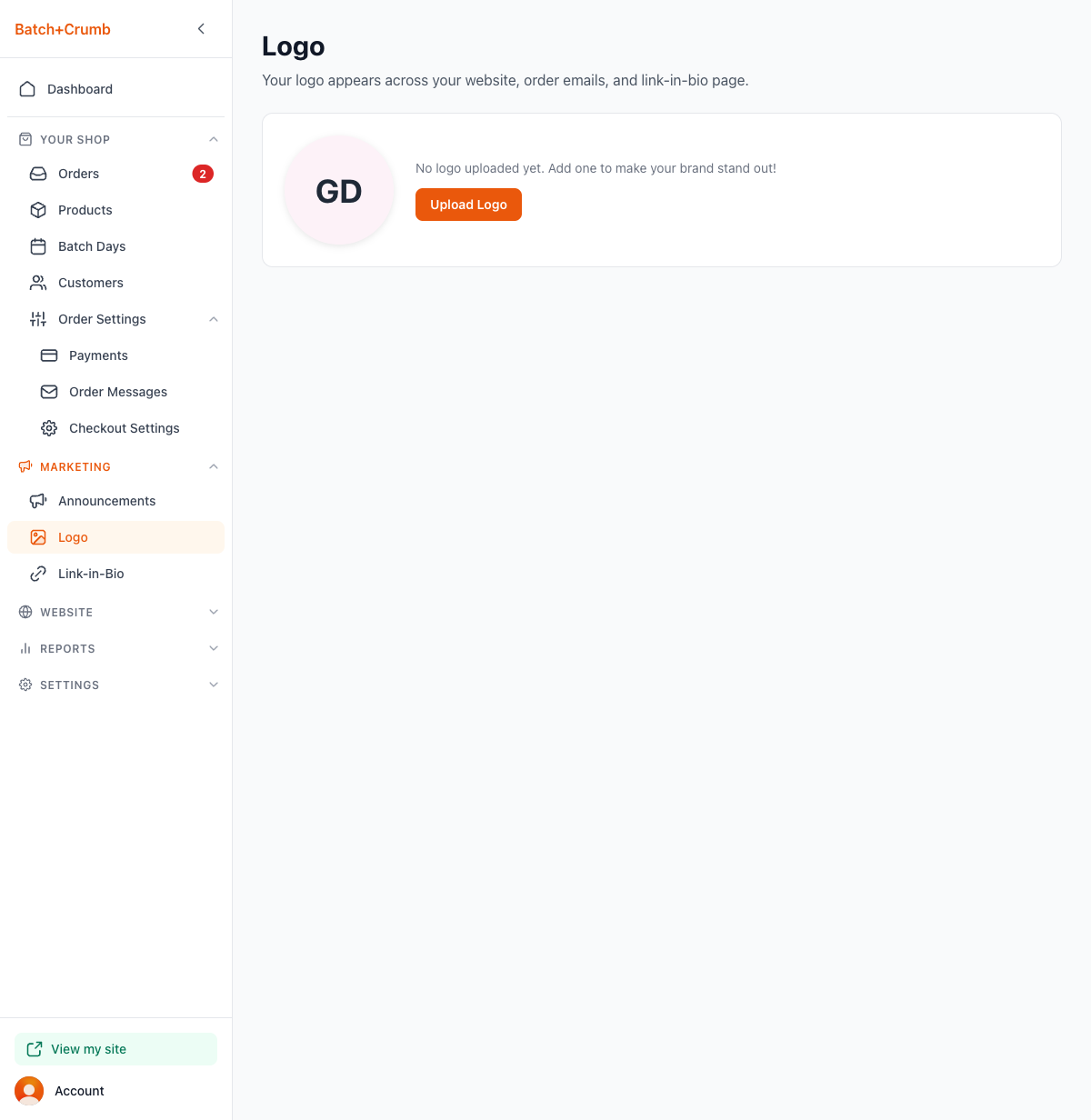
In the sidebar, click Marketing to expand the section, then click Logo. If you haven't uploaded a logo yet, you'll see your initials in a circle with a message: "No logo uploaded yet. Add one to make your brand stand out!"
2. Click Upload Logo
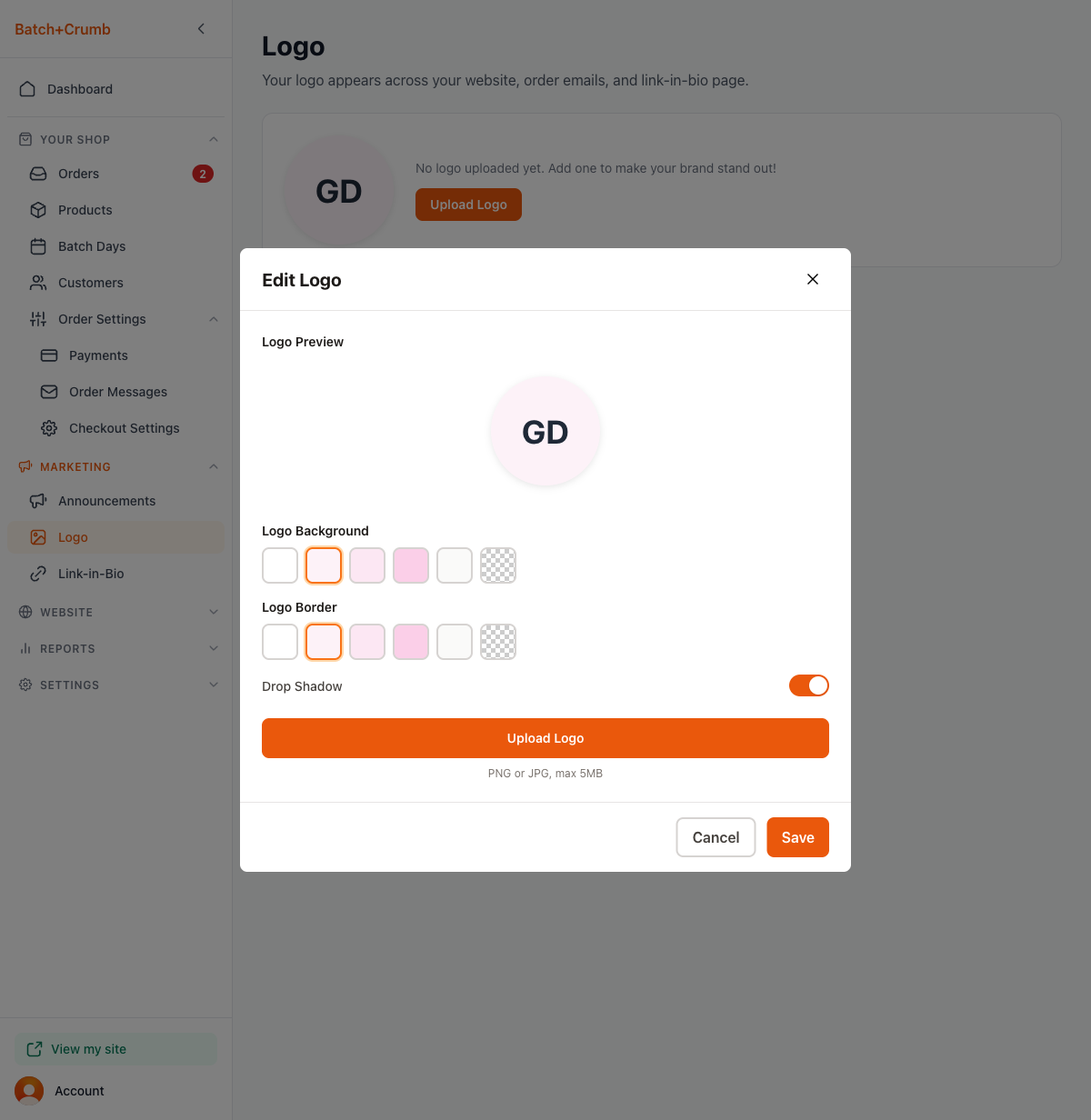
Click the orange Upload Logo button. This opens the Edit Logo dialog, which shows a preview of your logo (or the initials placeholder) along with styling options:
- Logo Background — Choose from White, Theme Light, Theme Medium, Theme Dark, Gray Light, or Transparent. This sets the circle background color behind your logo.
- Logo Border — Same color options as background. This controls the ring around your logo circle.
- Drop Shadow — A toggle (on by default) that adds a subtle shadow behind the logo for depth.
3. Upload your image
Click the orange Upload Logo button inside the dialog. A file picker opens — select your logo image (PNG or JPG, up to 5 MB).
After you pick your file, a Crop Your Logo screen appears. Your image is shown inside a circular crop area with a Zoom slider underneath. Drag the slider to zoom in or out until your logo looks right inside the circle. If your image is much wider than it is tall, the crop area is a rounded pill shape instead of a circle.
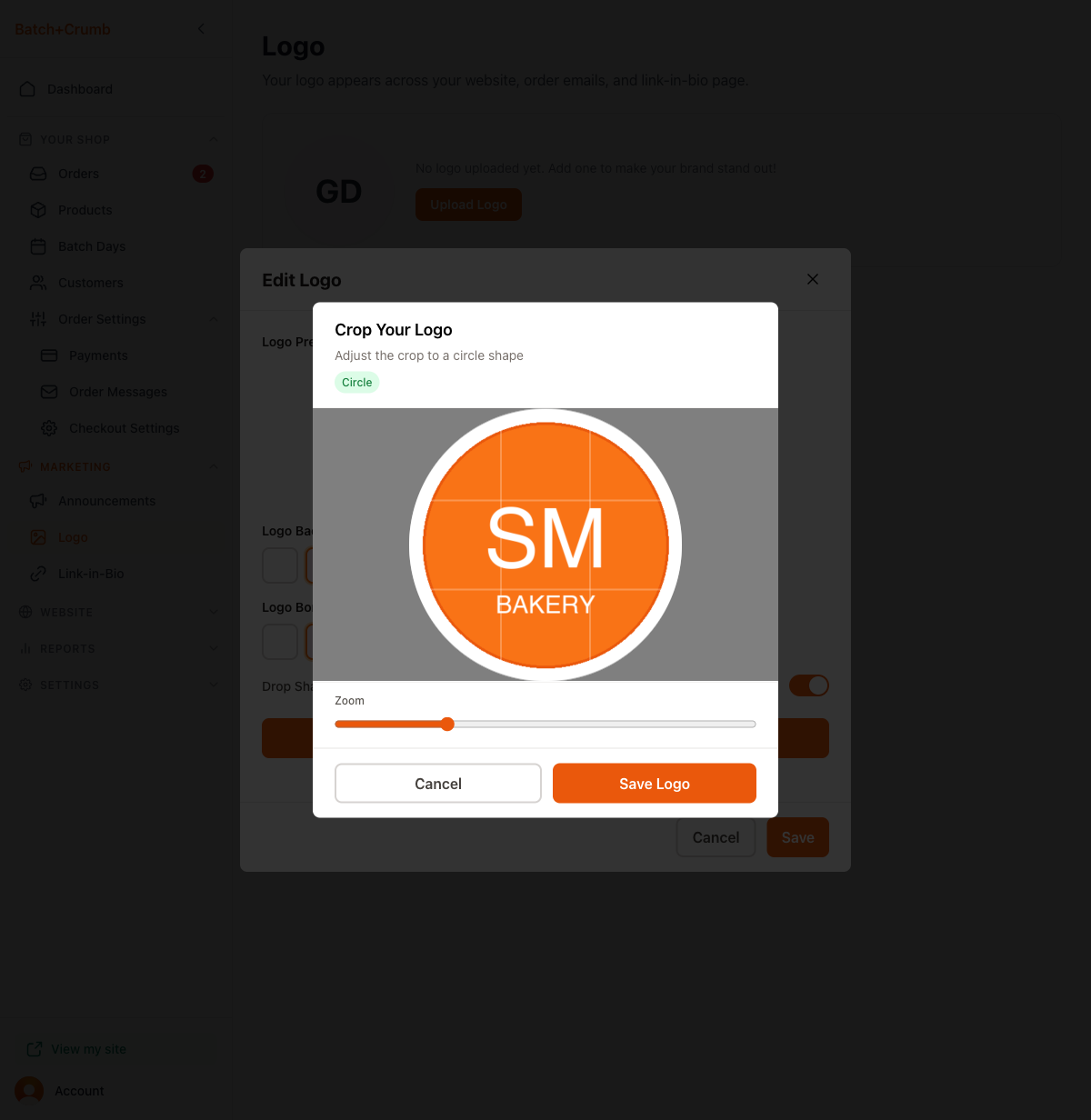
When you're happy with the crop, click Save Logo.
4. Customize the styling (optional)
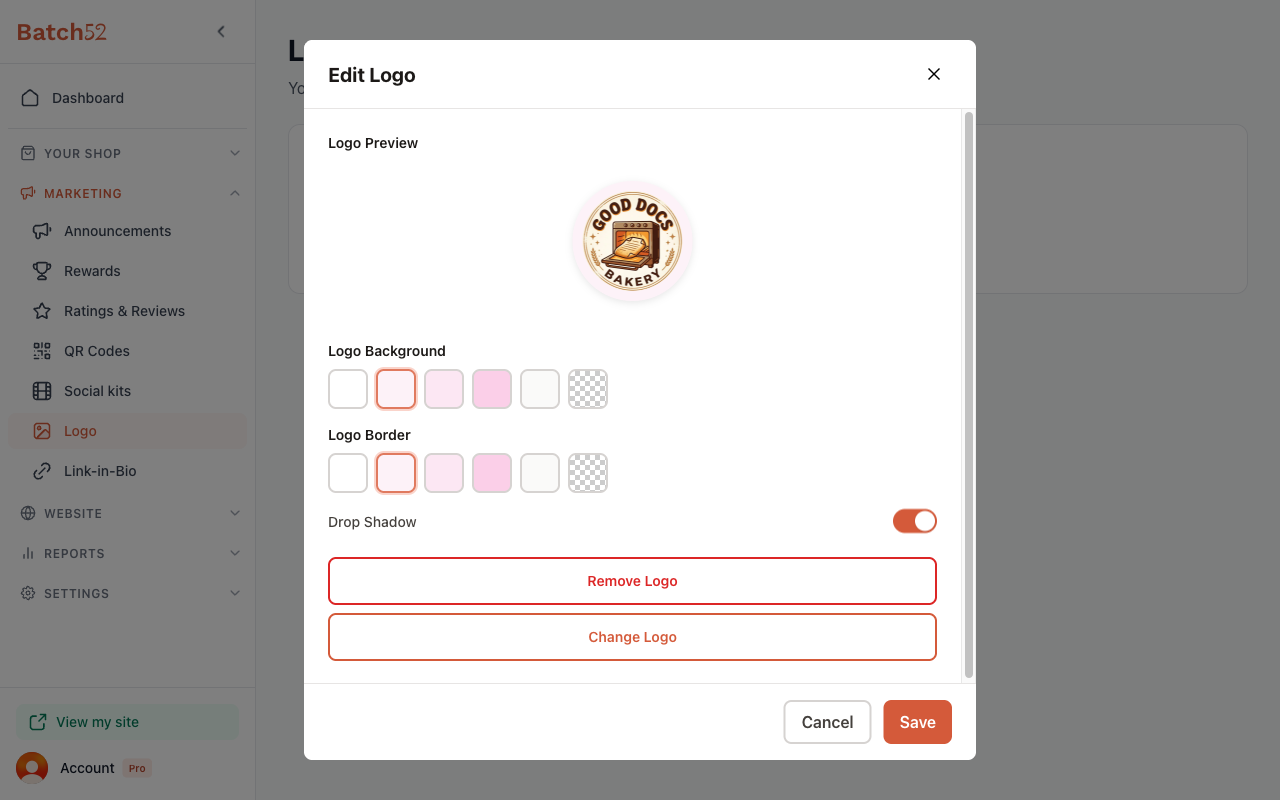
Back in the Edit Logo dialog, you'll see your uploaded logo in the preview. You can now adjust the background color, border color, and drop shadow if you'd like. The preview updates in real time so you can see how each option looks.
You'll also see two new buttons at the bottom:
- Remove Logo — Deletes your logo and goes back to the initials placeholder.
- Change Logo — Opens the file picker again so you can upload a different image.
5. Save your changes
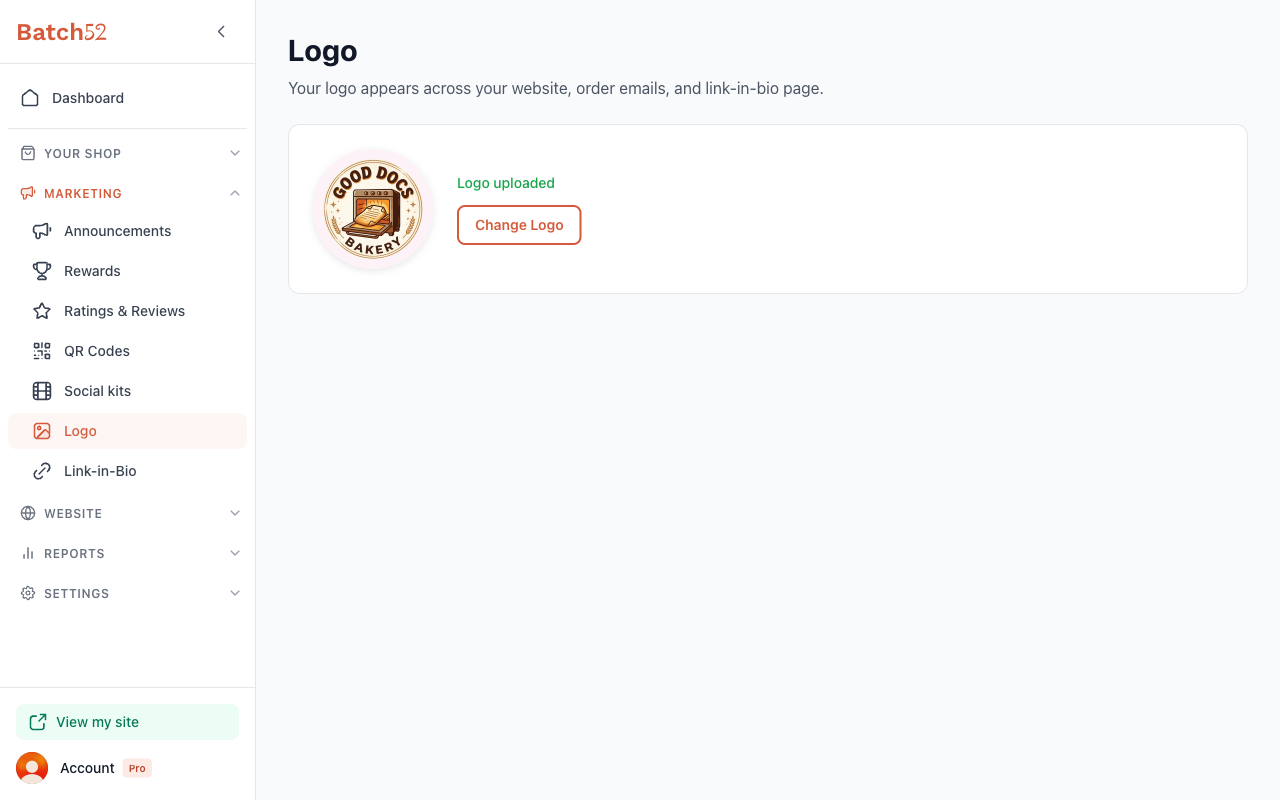
Click Save to apply your logo. You'll be taken back to the Logo page where you can see your new logo displayed. The page now shows "Logo uploaded" with a Change Logo button if you want to update it later.
Tips
- For best results, use a square image with your logo centered — the circular crop works best with logos that have some breathing room around the edges.
- PNG files with transparent backgrounds work great if you want the background color you choose to show through.
- Your logo appears on your public website header and on your link-in-bio page — so pick something that looks good at a small size.
- You can change or remove your logo at any time by clicking Change Logo on the Logo page.