Customize Your Brand
Make your Batch52 site look and feel like *your* bakery with themes, colors, and fonts — no design skills required.
Included in all plans
Direct link: /site/admin/web-settings
Make your Batch52 site look and feel like your bakery with themes, colors, and fonts — no design skills required.
Overview
Your website is the first thing customers see, so you want it to feel like you. Batch52's Website Editor lets you pick a layout theme, a color scheme, and a font style — and you can see every change instantly in a live preview. Think of it like decorating your booth at the farmers market: choose the tablecloth, the signage, and the vibe.
Steps
1. Open the Website Editor
From your dashboard, click Edit Website under Quick Actions — or go to Website > Website Editor in the sidebar. This opens a live preview of your site with a panel of style options on the left side.
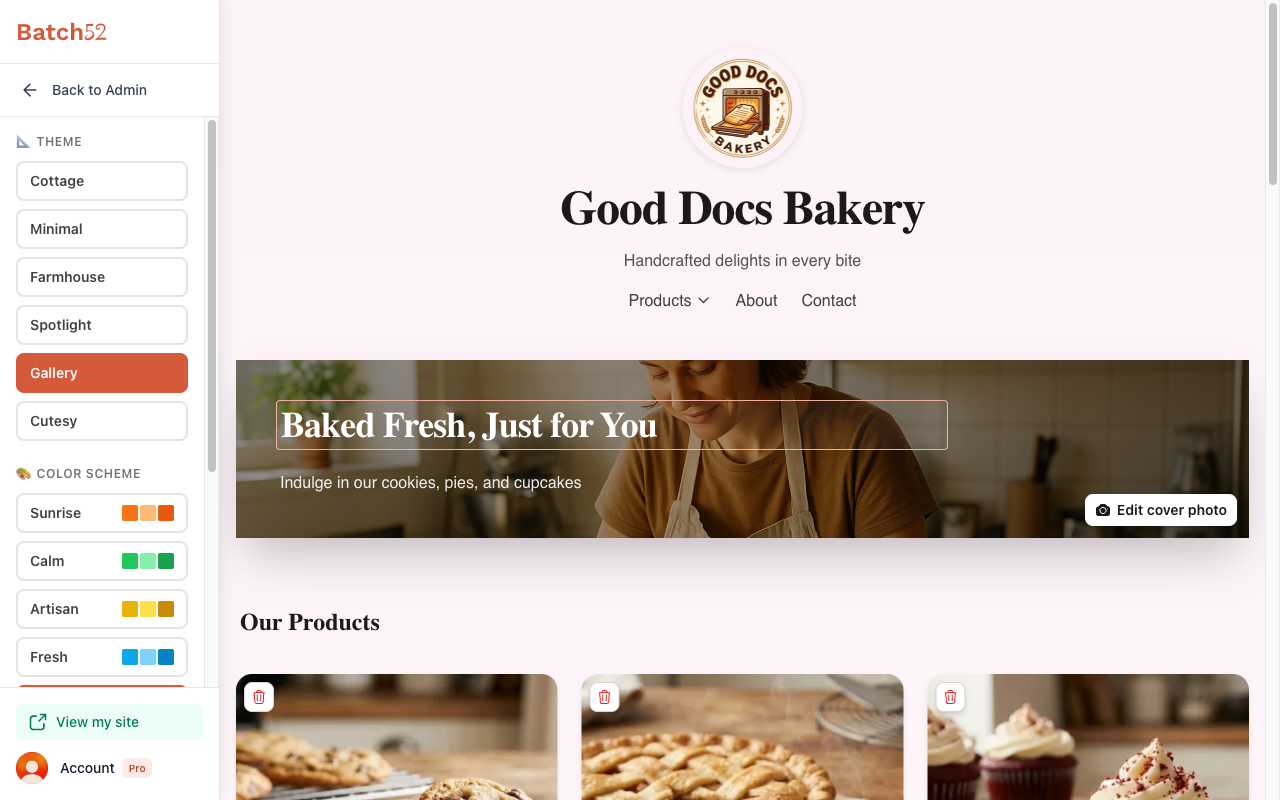
The panel has three sections: Theme, Color Scheme, and Fonts. If you can't see them all at once, scroll down inside the panel.
2. Choose a theme
Themes control the overall layout of your site — how your header, hero image, product grid, and other sections are arranged. Click any theme name to switch instantly:
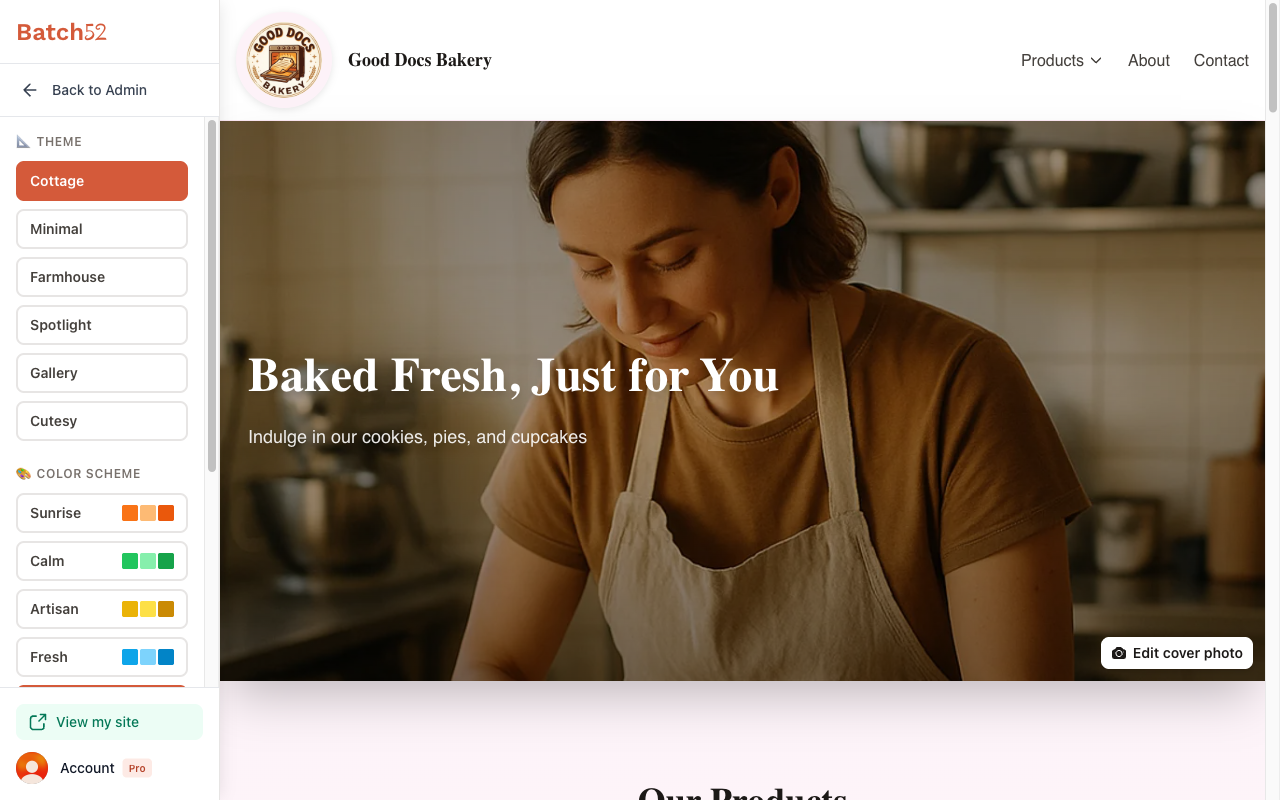
- Cottage — A warm, full-width hero image with products displayed side by side in a cozy layout.
- Minimal — Clean and simple, with lots of white space.
- Farmhouse — A rustic, down-to-earth feel with a classic structure.
- Spotlight — Puts your hero section front and center with bold emphasis.
- Gallery — A card-style product grid with image-forward design.
- Cutesy — Playful and fun, with rounded edges and a lighthearted vibe.
The preview on the right updates immediately so you can compare options. Here's how the same site looks when you switch from Gallery to Cottage:
3. Pick a color scheme
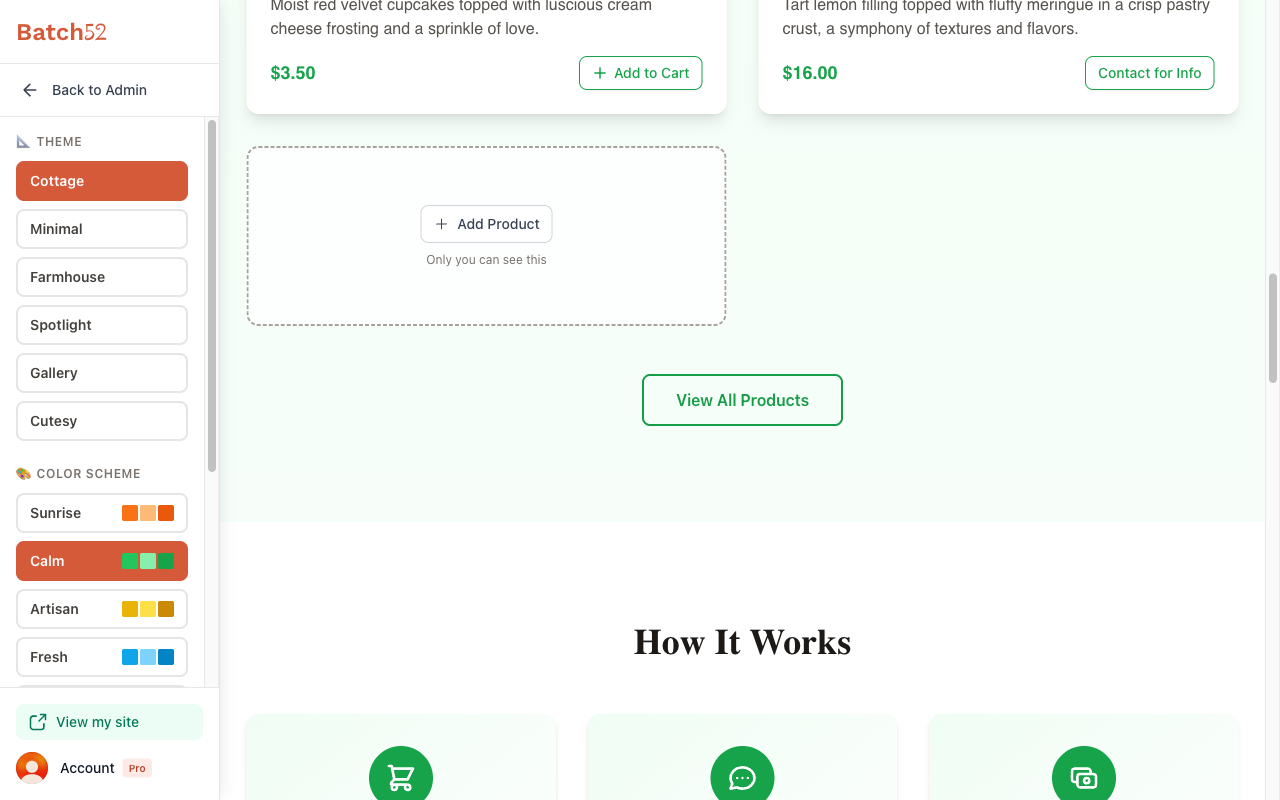
Color schemes set the background tints, accent colors, and overall color palette across your site. Each option comes with a small color swatch preview so you can see the palette at a glance. Your choices are:
- Sunrise — Warm oranges and reds
- Calm — Soft greens and teals
- Artisan — Earthy golds and browns
- Fresh — Cool blues
- Petal — Soft pinks and purples
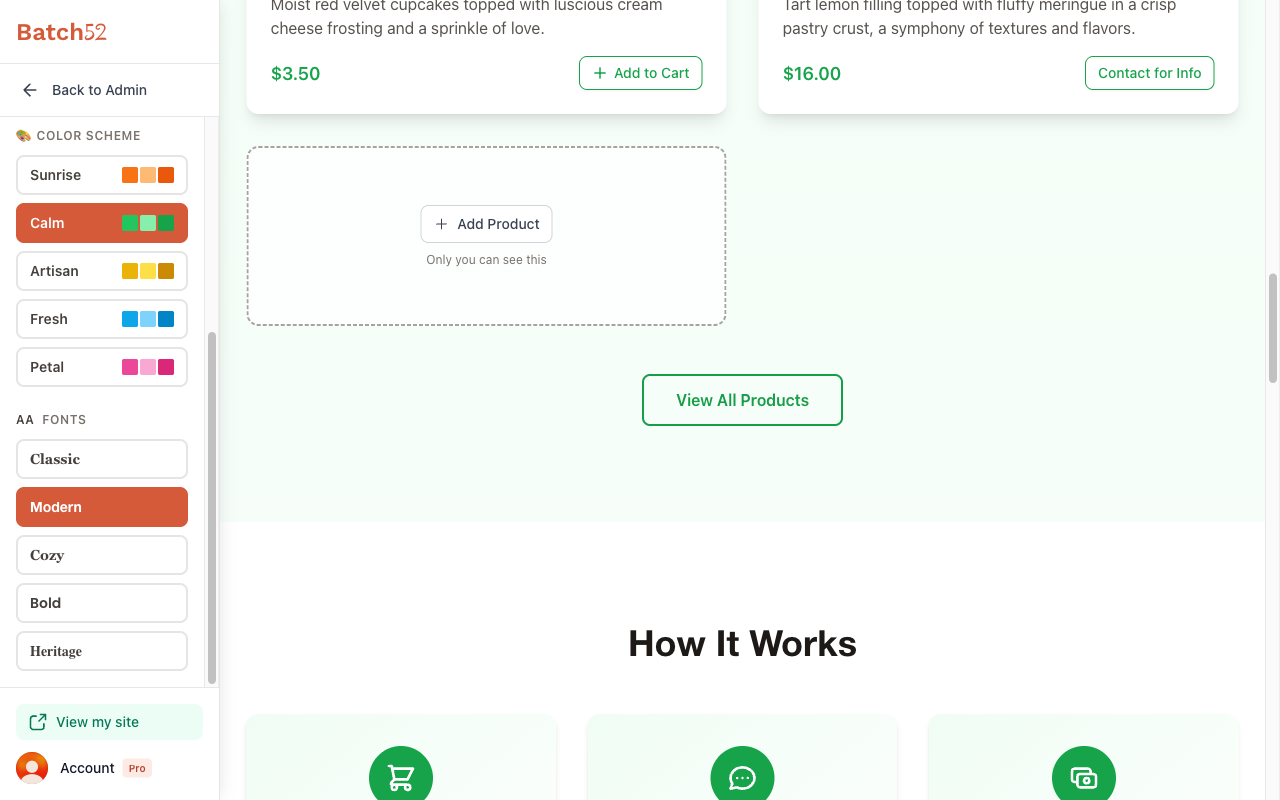
Click any color scheme to apply it instantly. Here's the same site with the Calm color scheme — notice the green buttons, prices, and tinted background:
4. Select a font style
Fonts change the typography across your entire site — headings, body text, buttons, and more. Pick the one that matches your bakery's personality:
- Classic — Traditional and timeless serif fonts
- Modern — Clean, contemporary sans-serif fonts
- Cozy — Warm and approachable, slightly rounded
- Bold — Strong and confident, with heavier weights
- Heritage — Elegant and distinctive, with character
Here's the site with the Modern font applied — notice how the headings and body text feel different:
5. Preview and you're done
Every change you make saves automatically — there's no "Save" button to worry about. The live preview on the right shows exactly what your customers will see. When you're happy with your choices, click Back to Admin at the top of the panel to return to your dashboard.
Tips
- You can change your theme, colors, and fonts as often as you like. Experiment freely — nothing is permanent.
- Try a few different combinations. Sometimes a theme you didn't expect ends up being the perfect fit.
- Your logo, product photos, and hero image stay the same no matter which theme you pick — only the layout and styling change.
- If you're not sure where to start, Cottage with Sunrise and Cozy is a crowd-pleasing combo for bakeries.