Collect Ratings & Reviews
Turn happy customers into public proof: ask for a star rating after every completed order, show them on your homepage, and point people to your Google Business Profile so new customers can find you.
Pro plan feature — Upgrade to Pro to access this feature.
Turn happy customers into public proof: ask for a star rating after every completed order, show them on your homepage, and point people to your Google Business Profile so new customers can find you.
Overview
Word of mouth is how most home bakeries grow, and reviews are word of mouth that never sleeps. With Ratings & Reviews turned on, every customer with a completed order is invited to leave a star rating and a short note right on their order page (and in your Thank You email or text). Reviews from real orders show up on your homepage, tagged ✓ Verified order, so a first-time visitor can see that people love what you make.
If you have a Google Business Profile, you can connect it here too. Customers are sent to leave a Google review first, which is what shows stars next to your name when someone searches "bakery near me." And you get an email the moment a review comes in, including private feedback and edits, so nothing slips past you.
Steps
1. Open the Ratings & Reviews page
Direct link: /site/admin/reviews
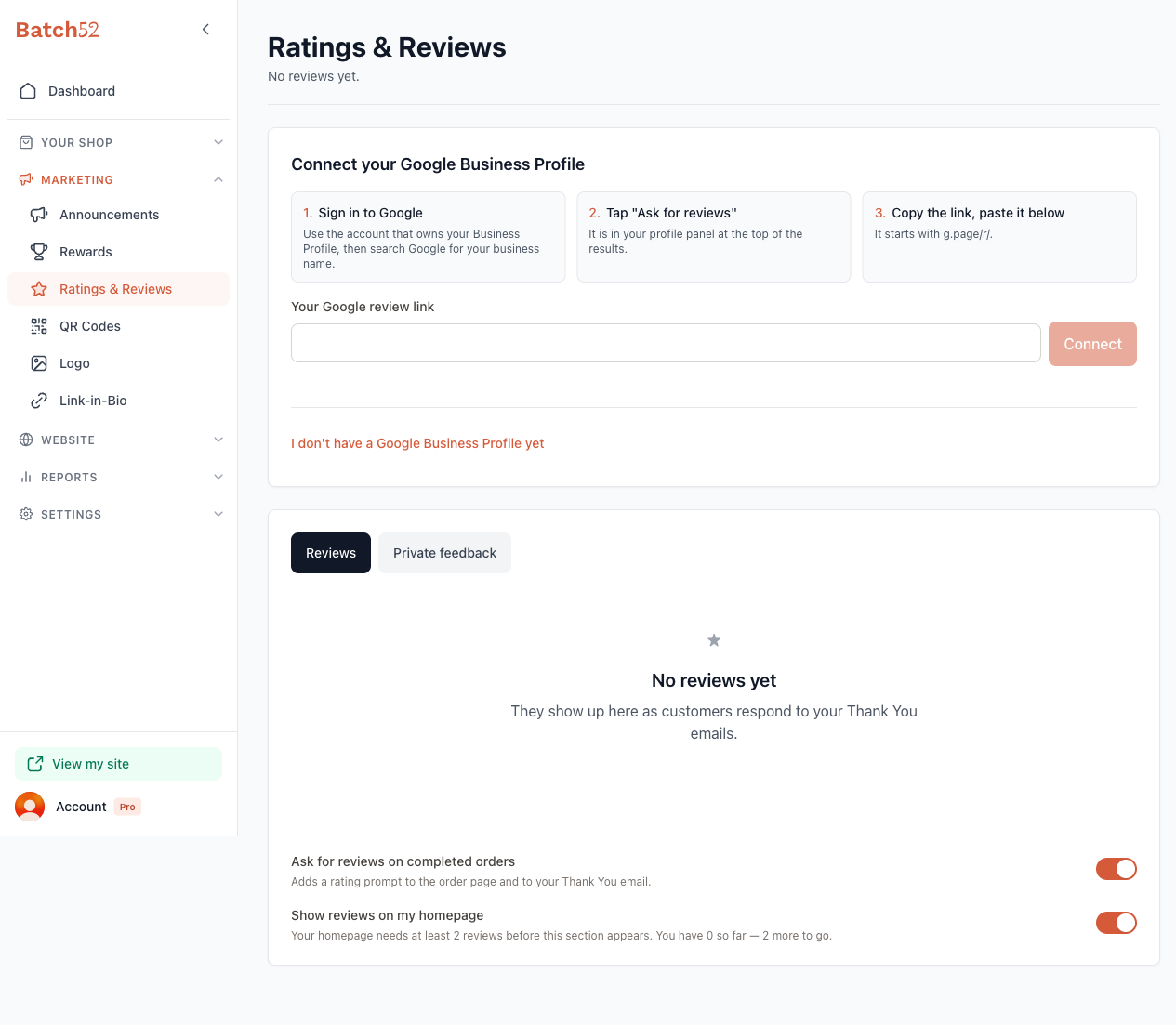
In your admin sidebar, go to Marketing → Ratings & Reviews. Before anyone has reviewed you, the page shows No reviews yet with a note that reviews "show up here as customers respond to your Thank You emails."
2. Check your two settings
At the bottom of the page are two toggles. Both are on by default, so you don't need to touch anything to start collecting reviews.
- Ask for reviews on completed orders — "Adds a rating prompt to the order page and to your Thank You email." Leave this on unless you want to pause asking for a while.
- Show reviews on my homepage — Puts a "What people are saying" section on your homepage, right after your products. The help text under the toggle tells you where you stand: "Your homepage needs at least 2 reviews before this section appears. You have 0 so far — 2 more to go." Once you cross that line, the text changes to "Showing your 2 reviews on the homepage."
Because the section only appears with two or more published reviews, a single review never sits alone on your homepage.
3. Connect your Google Business Profile
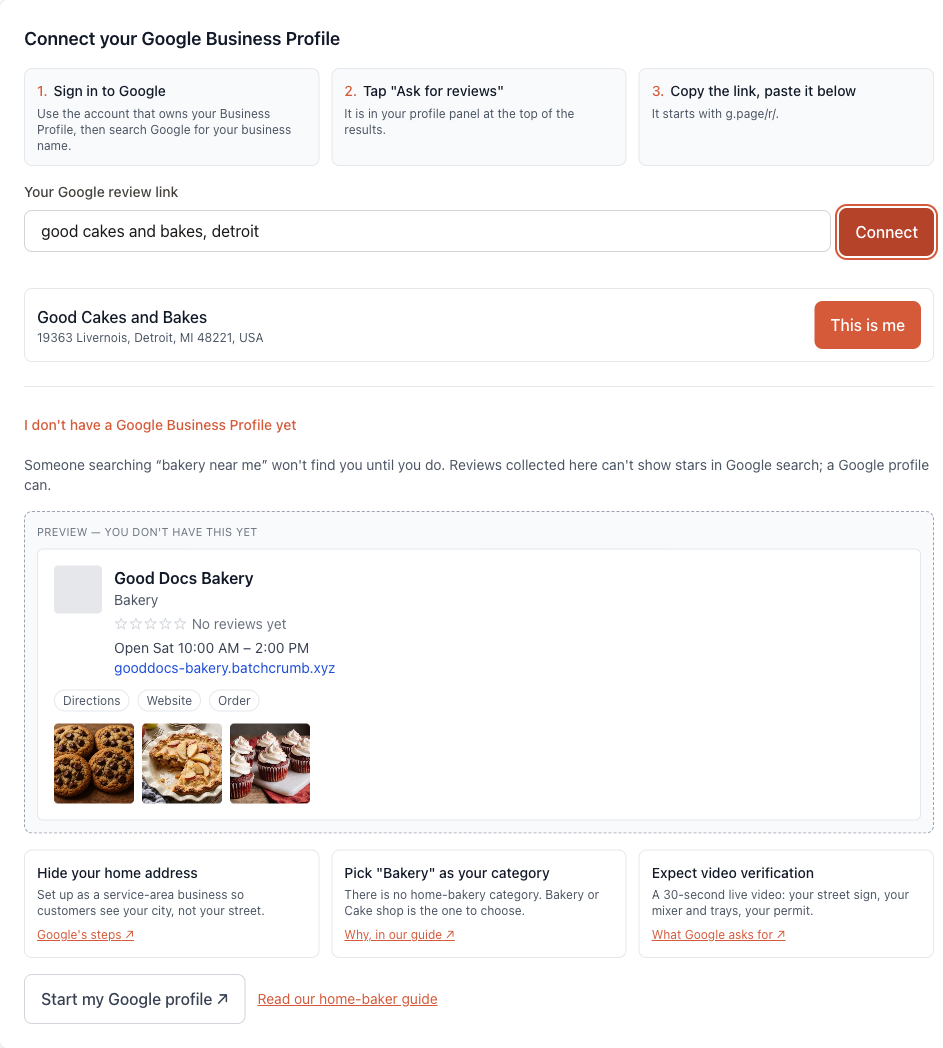
The top card walks you through it in three steps: sign in to Google with the account that owns your Business Profile, tap "Ask for reviews" in your profile panel, and copy the link that starts with g.page/r/.
You can also just type your business name and city into Your Google review link and click Connect. Batch52 looks up your listing and shows the match with its address. Click This is me to confirm.
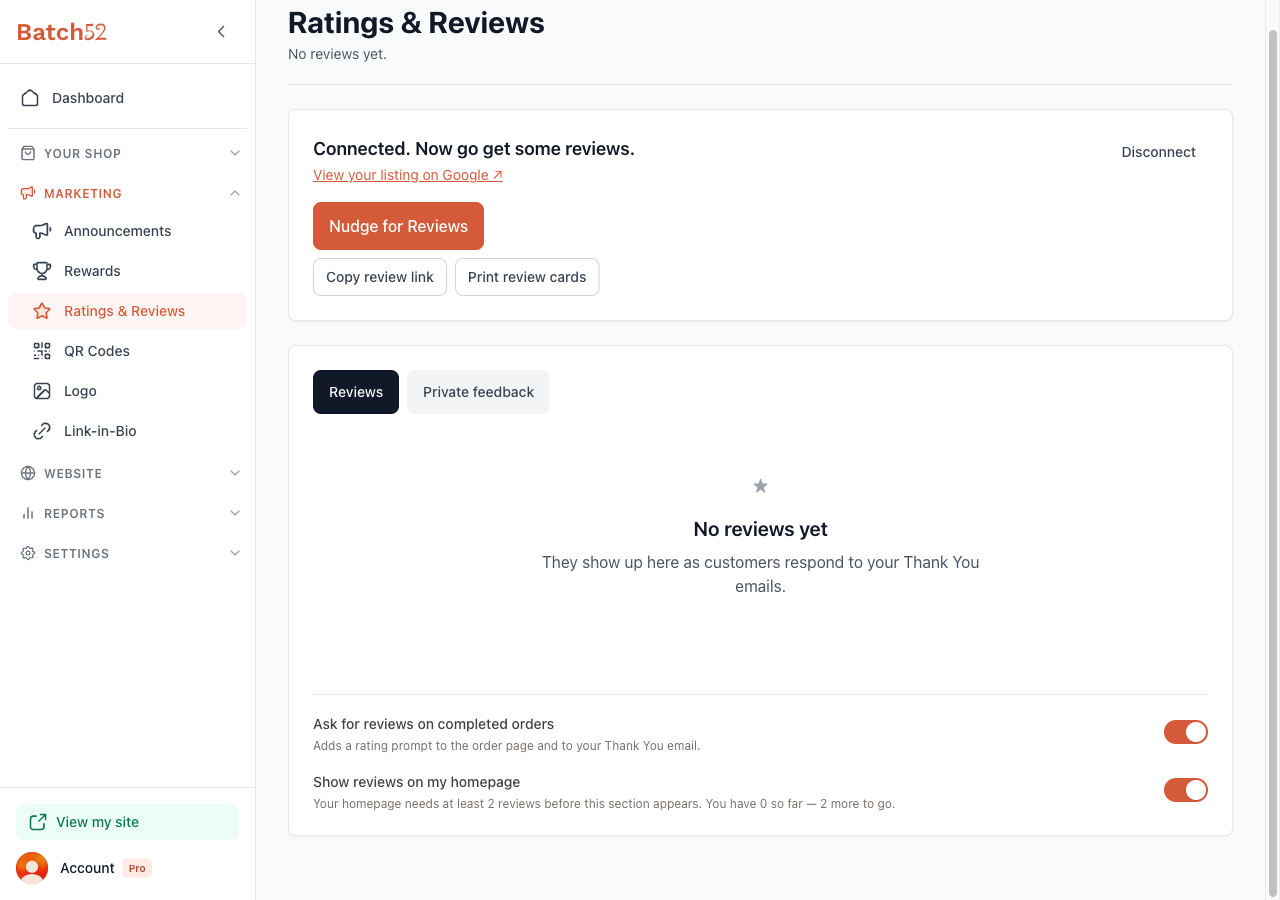
Once connected, the card changes to Connected. Now go get some reviews. and gives you a few ways to do exactly that:
- View your listing on Google ↗ opens your public Google listing.
- Nudge for Reviews emails past customers (see the next step).
- Copy review link copies your Google review link so you can paste it into a text, a social post, or your Link-in-Bio page. You'll see a "Review link copied" confirmation.
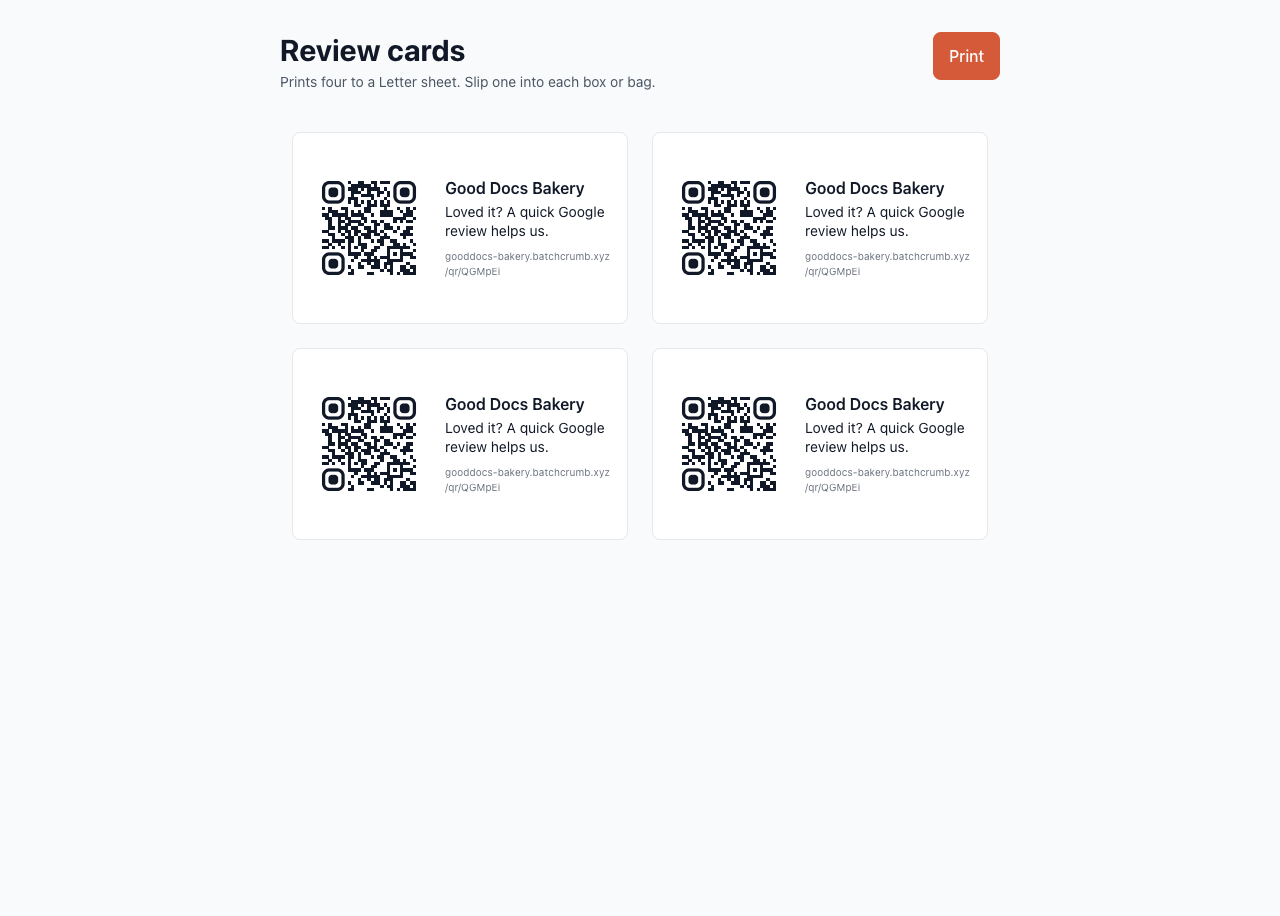
- Print review cards opens a printable sheet of four QR-code cards.
- Disconnect removes the connection if you ever need to switch profiles.
The review cards print four to a Letter-size sheet. Each one has your business name, a QR code, and the line "Loved it? A quick Google review helps us." Slip one into each box or bag.
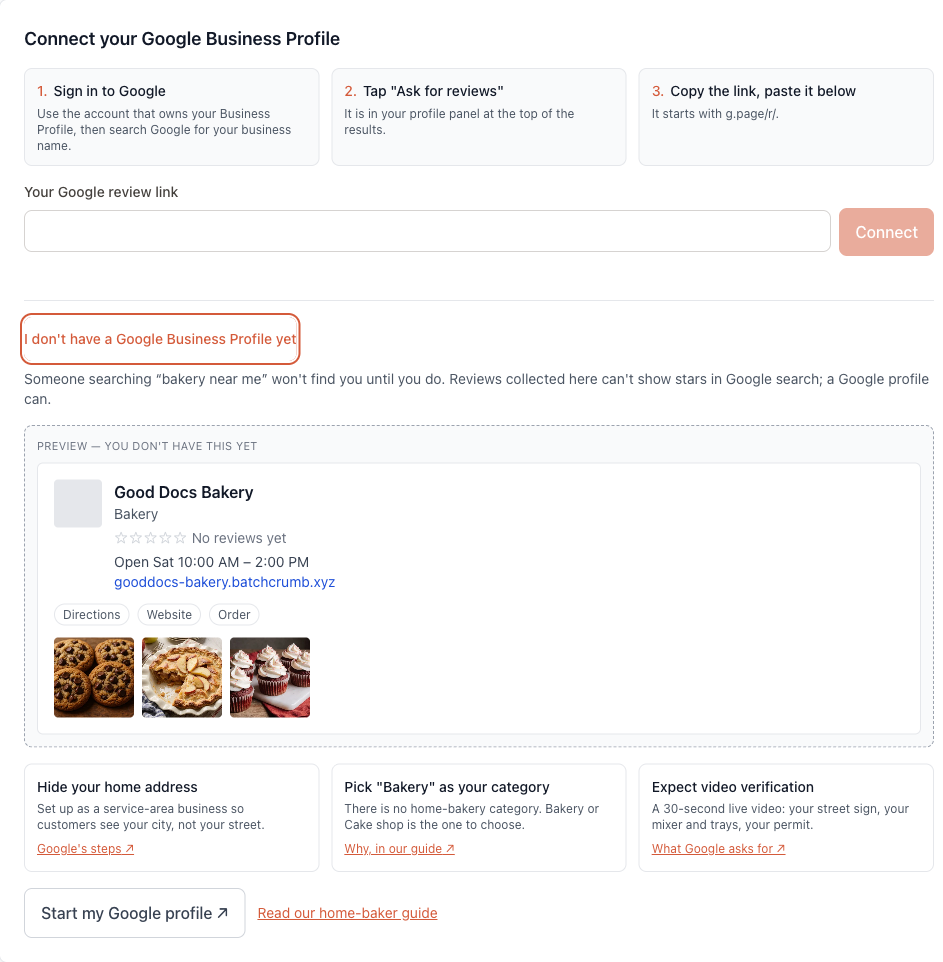
Don't have a Google Business Profile yet? Click I don't have a Google Business Profile yet under the field. It explains why it matters ("Someone searching 'bakery near me' won't find you until you do"), previews what your listing would look like, and gives home-baker-specific tips: hide your home address by setting up as a service-area business, pick "Bakery" as your category, and expect a short video verification. The Start my Google profile ↗ button takes you to Google to begin.
4. Ask past customers with "Nudge for Reviews"
Click Nudge for Reviews to email customers who have ordered from you but haven't reviewed you yet. The dialog tells you how many people will get it and how many are skipped. Expand Who is skipped to see why: already reviewed here, asked not to be contacted, asked in the last 60 days, no order in the last 6 months, or unsubscribed.
The Subject and Message are pre-written with your real business name and your Google review link, and you can edit both. Write {customer_name} anywhere in the message and it becomes each customer's first name. Your edits are saved for next time.
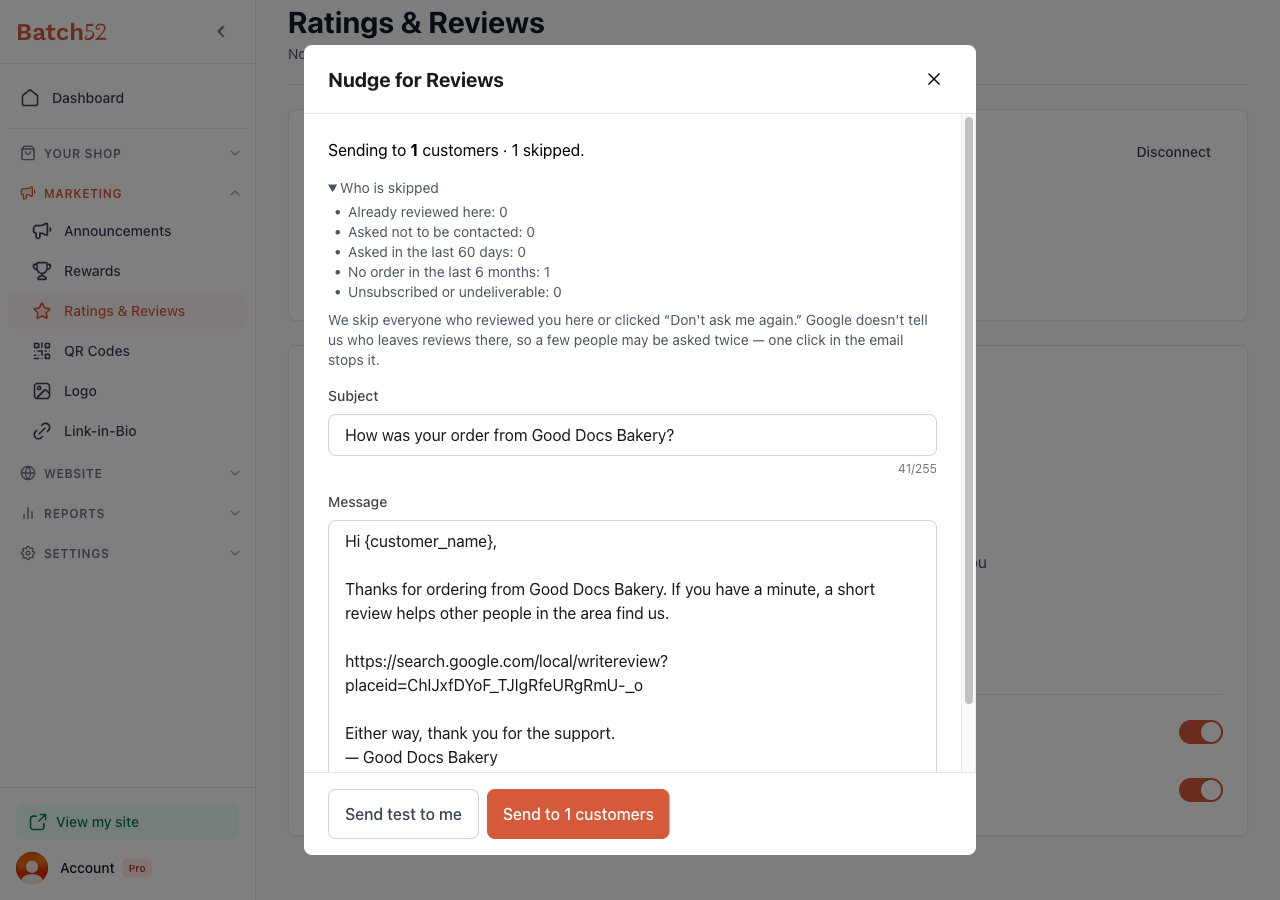
Use Send test to me to see the email in your own inbox before you commit. When it reads the way you want, click Send to N customers to send the real thing. Batch52 won't ask the same person again for 60 days, and one click in the email lets a customer opt out for good.
5. What your customer sees
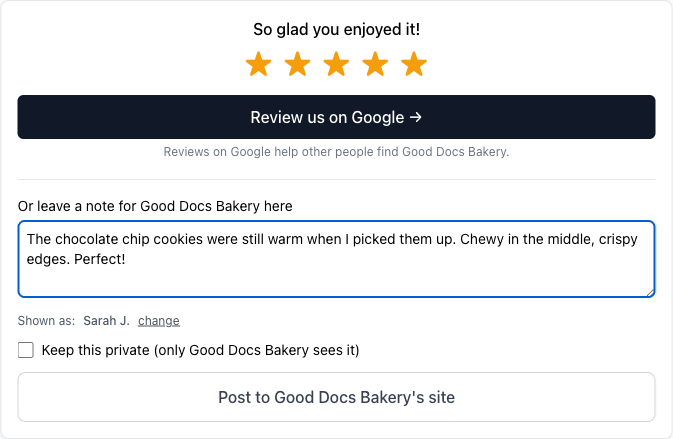
After an order is completed, the customer's order page gets a How was your order? card with five stars. As soon as they pick a rating, two things appear:
- A Review us on Google → button, sent first because Google reviews help new people find you.
- A note box, Or leave a note for Good Docs Bakery here, for a review that lives on your site.
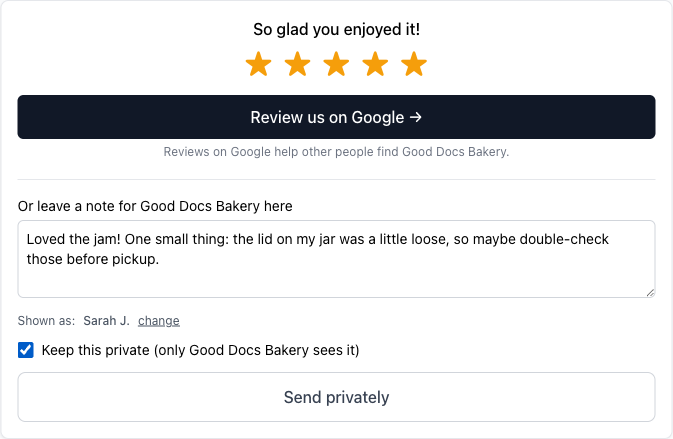
The note shows the customer's first name and last initial (for example "Sarah J."), with a change link if they'd rather use something else. There's also a Keep this private (only Good Docs Bakery sees it) checkbox. Leave it unchecked and the button reads Post to Good Docs Bakery's site. Tick it and the button changes to Send privately, so the note goes to you alone.
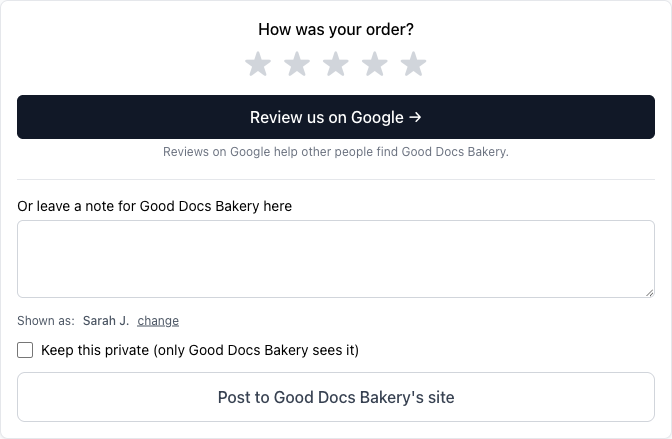
Here's a 5-star public review filled in. Notice the heading changes to "So glad you enjoyed it!" once a rating is picked.
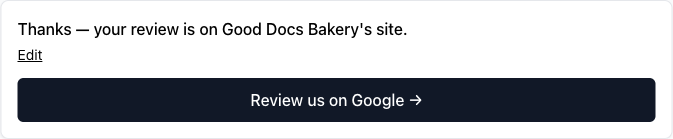
After posting, the card confirms Thanks — your review is on Good Docs Bakery's site. with an Edit button, so the customer can fix a typo later. The Google button stays put.
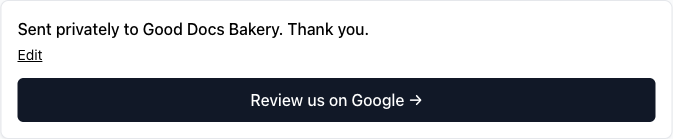
When the customer ticks Keep this private, the confirmation reads Sent privately to Good Docs Bakery. Thank you. instead. Private notes are a nice pressure valve: a customer with a small gripe can tell you directly instead of posting it for everyone.
6. You get an email for every review
Each time a customer leaves a rating, Batch52 emails your business contact address. That includes private feedback and any edits a customer makes afterward, so you always know what's been said. Check your inbox after a busy pickup day.
7. See reviews on your homepage
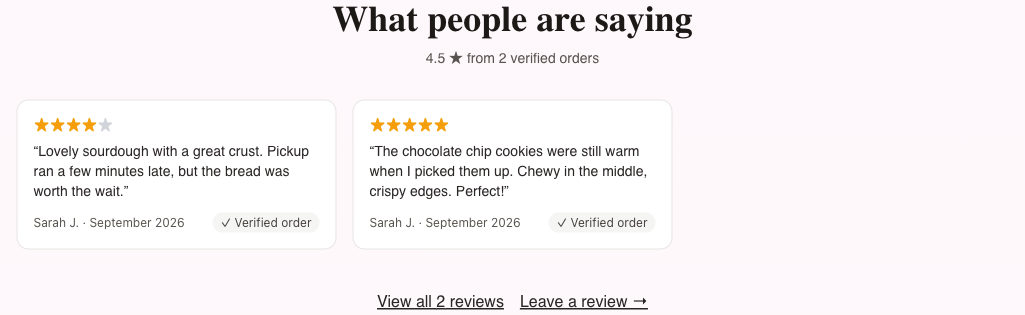
Once you have two or more public reviews, a What people are saying section appears on your homepage right after your products. It shows your average, for example "4.5 ★ from 2 verified orders," followed by each review with its stars, the customer's name and month, and the ✓ Verified order badge. If your Google profile is connected, Google reviews are pulled into the same feed as they load.
Below the reviews are two links: View all N reviews, which opens a full reviews page on your site, and Leave a review →, which goes to Google.
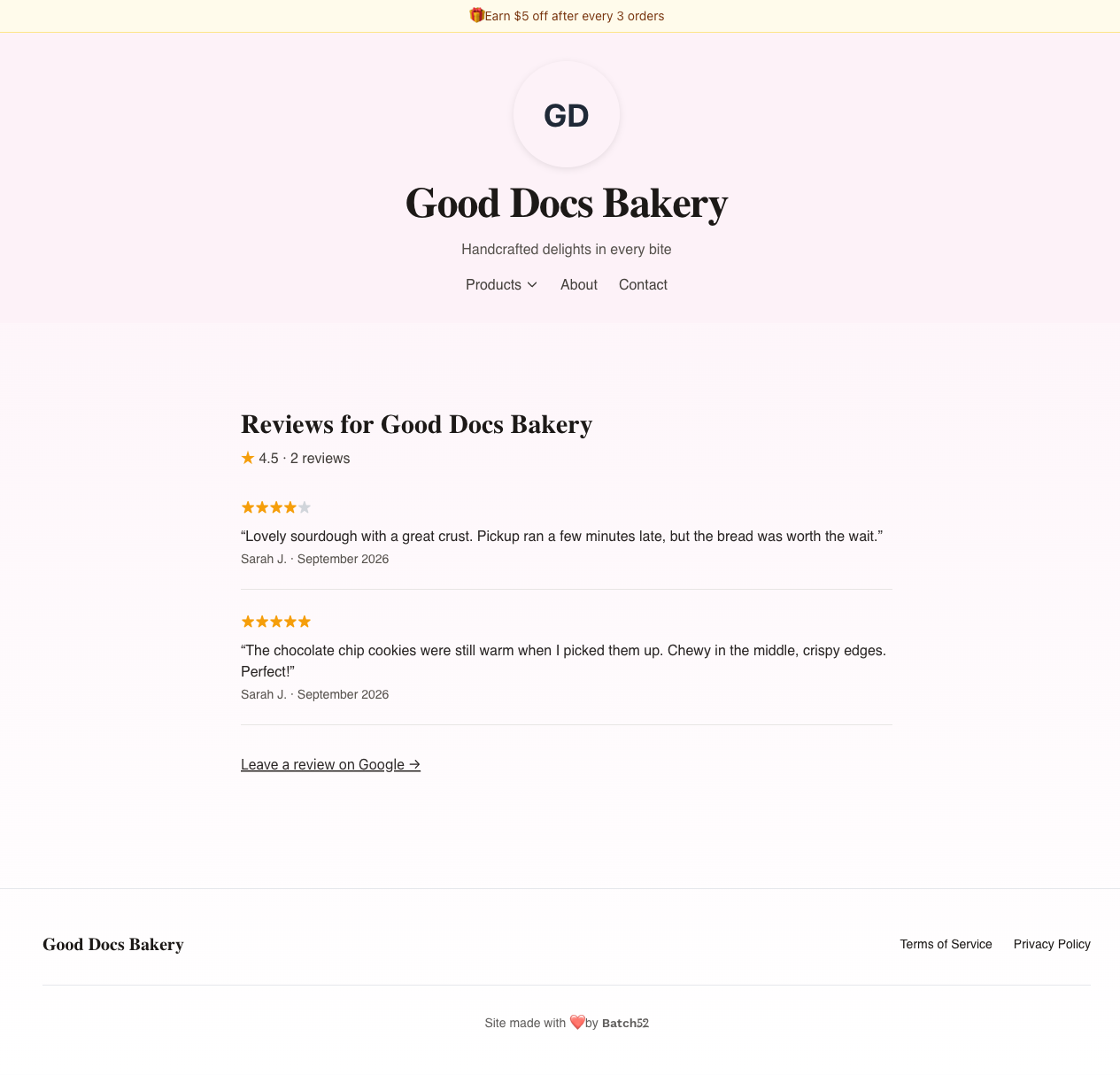
The full page is titled Reviews for Good Docs Bakery and lists every public review with a Leave a review on Google → link at the bottom.
8. Manage reviews in your admin
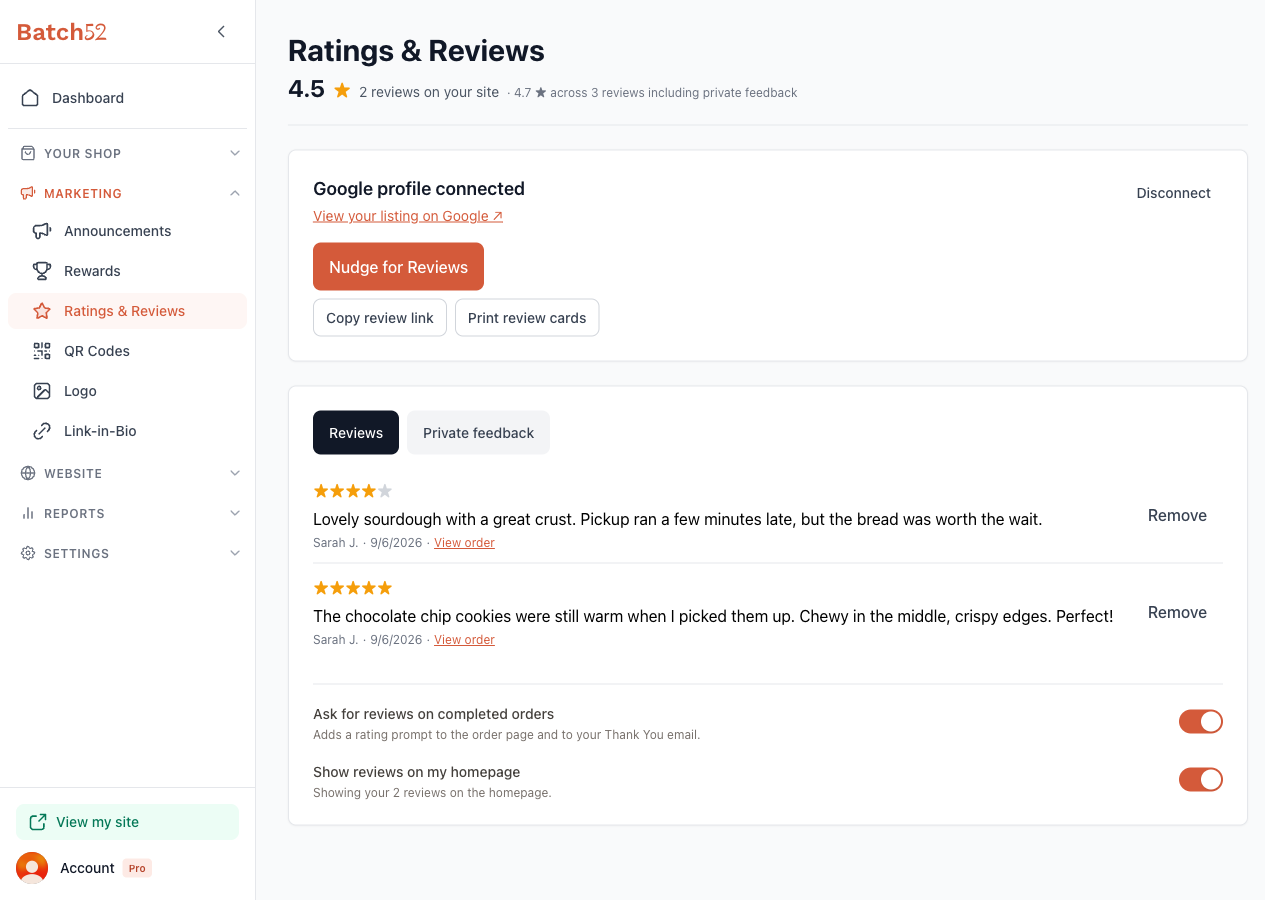
Back on Ratings & Reviews, the header now shows your average on the site and a second number that includes private feedback (for example "4.7 ★ across 3 reviews including private feedback"). Two tabs sort what's come in:
- Reviews — everything public. Each one shows stars, the comment, the customer, the date, and a View order link to the order it came from.
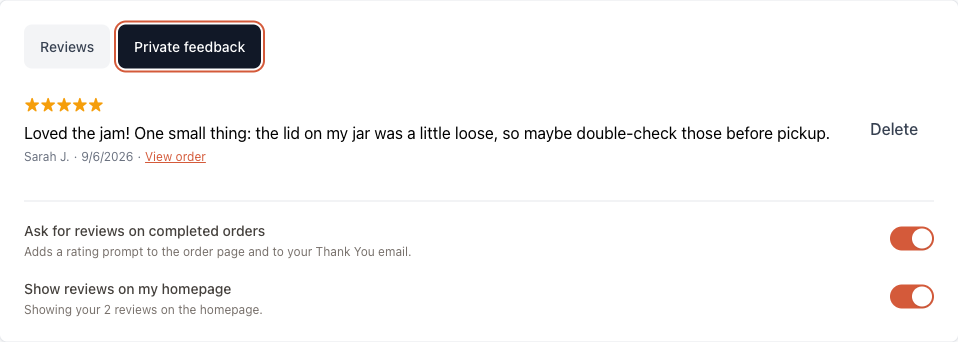
- Private feedback — notes customers sent only to you.
Removing a public review. Click Remove next to it. The dialog explains that the review "disappears from your website immediately" and "is kept in a Removed list and can be restored." You must pick a reason before Remove review turns on:
- This looks fake
- Abusive, harassing, or obscene
- Contains someone's private information
- Clearly false or misleading
- Not about my business
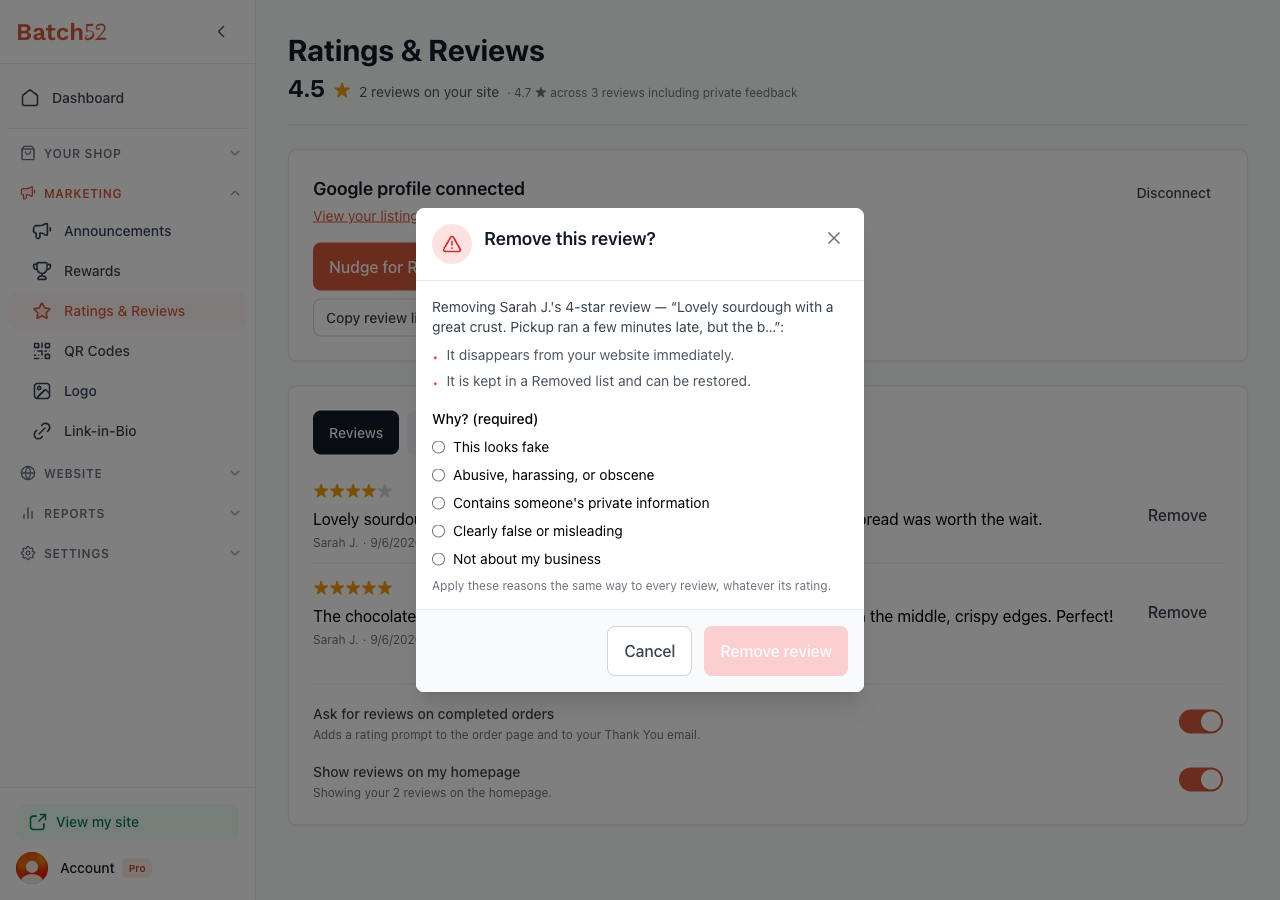
Here's the honest part: you can remove a review that's fake, abusive, shares someone's private information, is clearly false, or isn't about your business. You can't remove one just because it's critical. The dialog says it plainly: "Apply these reasons the same way to every review, whatever its rating." That's not Batch52 being strict for fun. The FTC's consumer review rule says businesses can't hide honest negative reviews while showing the good ones, and following it keeps you on the right side of that rule. A fair 4-star review with a small complaint is often more convincing to a new customer than a wall of perfect scores anyway.
Private feedback is different. It was never public, so you can simply click Delete when you've read it and acted on it.
Tips
- Complete your orders. The review prompt only appears on completed orders, so mark orders complete as customers pick up. That's also what triggers the Thank You email with the rating link.
- Tuck a review card in every box. The printable QR cards are the easiest way to get Google reviews from people who pay in cash at the market and never see your order page.
- Reply to private feedback personally. A loose jar lid or a late pickup is a chance to win a customer for life. A quick "thank you, fixed it" email goes a long way.
- Don't panic over a 4-star review. Real shops have real reviews. Leave it up, fix what you can, and let the next five-star do the talking.
- Send the nudge after a busy season. Holiday and wedding customers are your happiest. Wait a few days after pickup, then send the nudge while it's still fresh.