
Set Up a Rewards Program
Turn one-time buyers into regulars with a loyalty program that runs itself — a digital punch card or points program that tracks everything for you.
Pro plan feature — Upgrade to Pro to access this feature.
Direct link: /site/admin/rewards
Turn one-time buyers into regulars with a loyalty program that runs itself — a digital punch card or points program that tracks everything for you.
Overview
You know how the coffee shop punch card keeps people coming back? Rewards brings that same magic to your shop, without you having to stamp anything. Customers earn progress automatically on every paid order, see how close they are to a reward, and get prompted to use their reward the next time they order. All you do is pick the program and the numbers.
Steps
1. Open the Rewards page
In your admin sidebar, go to Marketing → Rewards. When you first arrive, the program is off and the settings are grayed out.
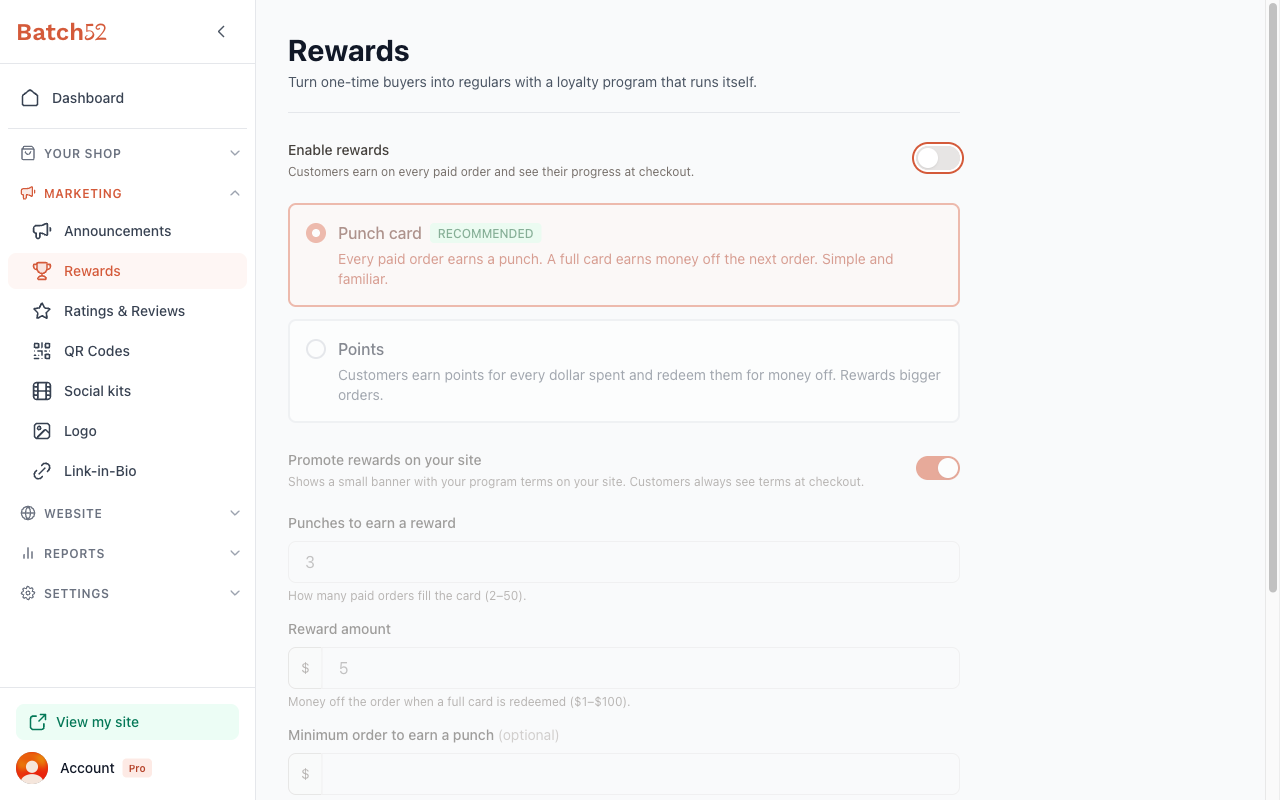
2. Turn on "Enable rewards"
Flip the Enable rewards toggle at the top. As the page says, customers earn on every paid order and see their progress at checkout — so an order counts toward a reward once you've recorded its payment, not the moment it's placed.
3. Choose your program type
You have two options:
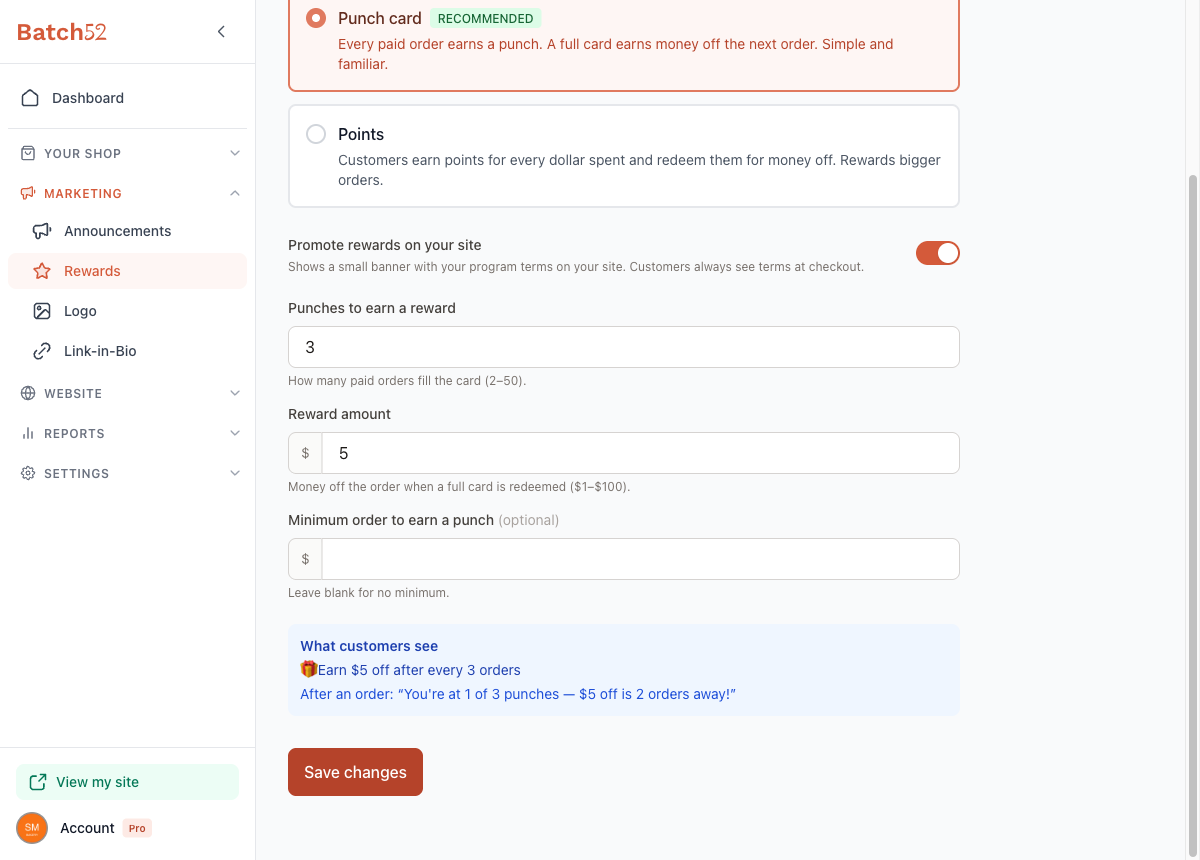
- Punch card (recommended) — Every paid order earns a punch. A full card earns money off the next order. Simple and familiar.
- Points — Customers earn points for every dollar spent and redeem them for money off. Rewards bigger orders.
If you're not sure, start with the punch card — it's the easiest for customers to understand at a glance.
4. Set your numbers
For a punch card, you'll configure:
- Punches to earn a reward — how many paid orders fill the card (2–50)
- Reward amount — money off the order when a full card is redeemed ($1–$100)
- Minimum order to earn a punch (optional) — leave blank for no minimum
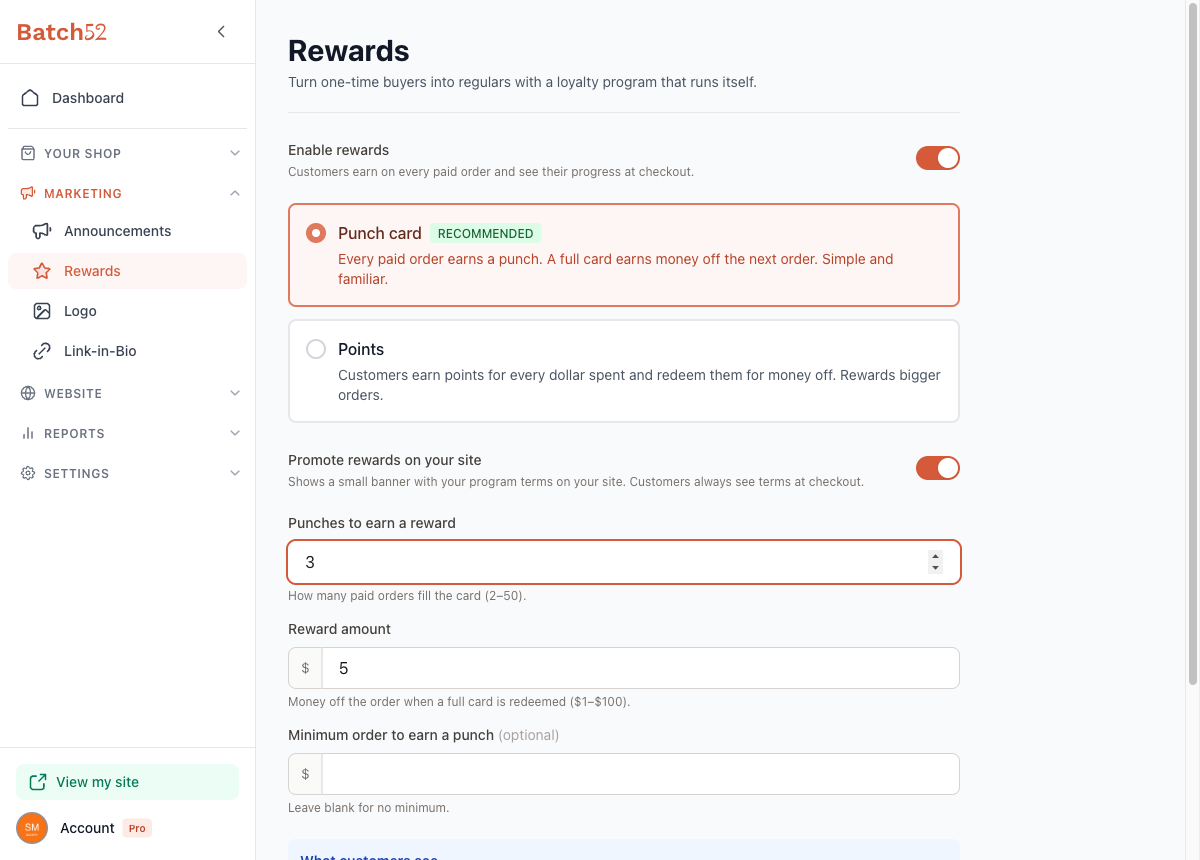
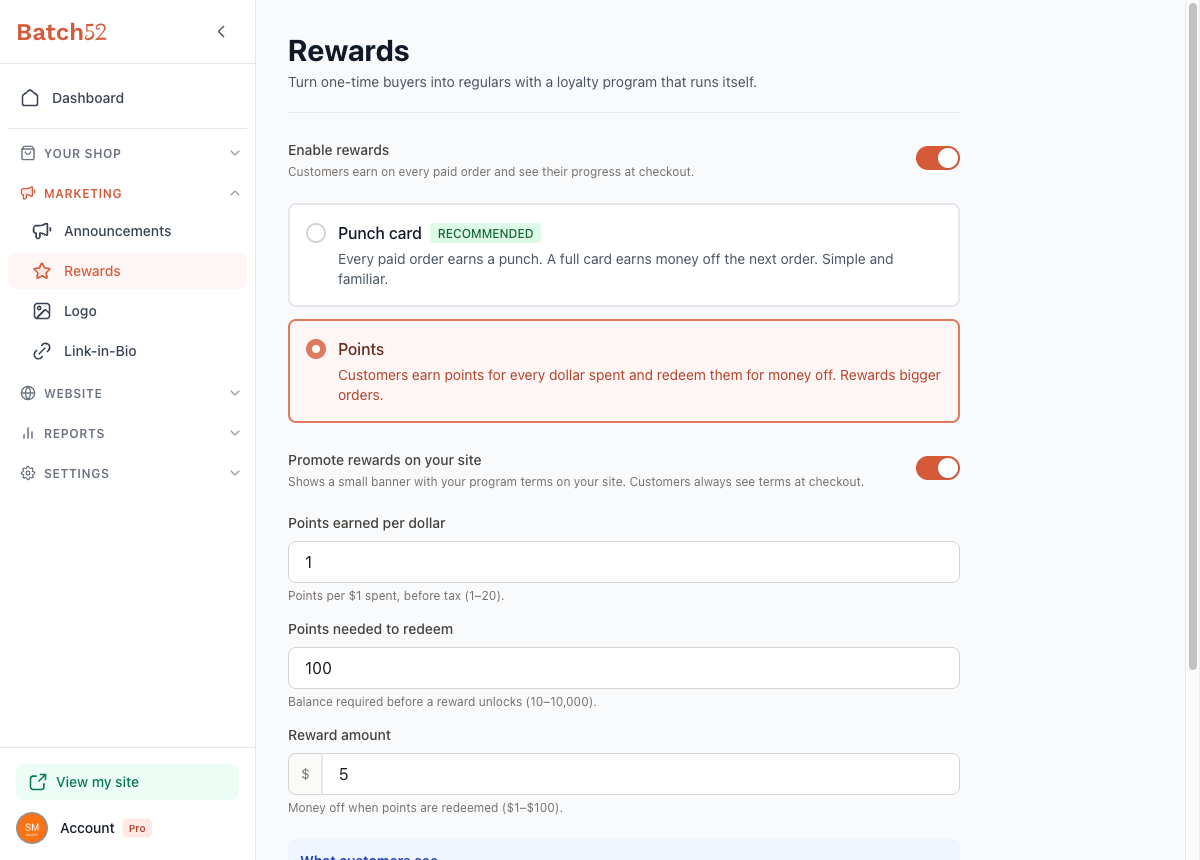
For a points program, you'll configure:
- Points earned per dollar — points per $1 spent, before tax (1–20)
- Points needed to redeem — the balance required before a reward unlocks (10–10,000)
- Reward amount — money off when points are redeemed ($1–$100)
The page does the math for you — with the defaults, it notes "A customer spends $100 to earn each $5 reward," so you can sanity-check your numbers before saving.
5. Check the "What customers see" preview
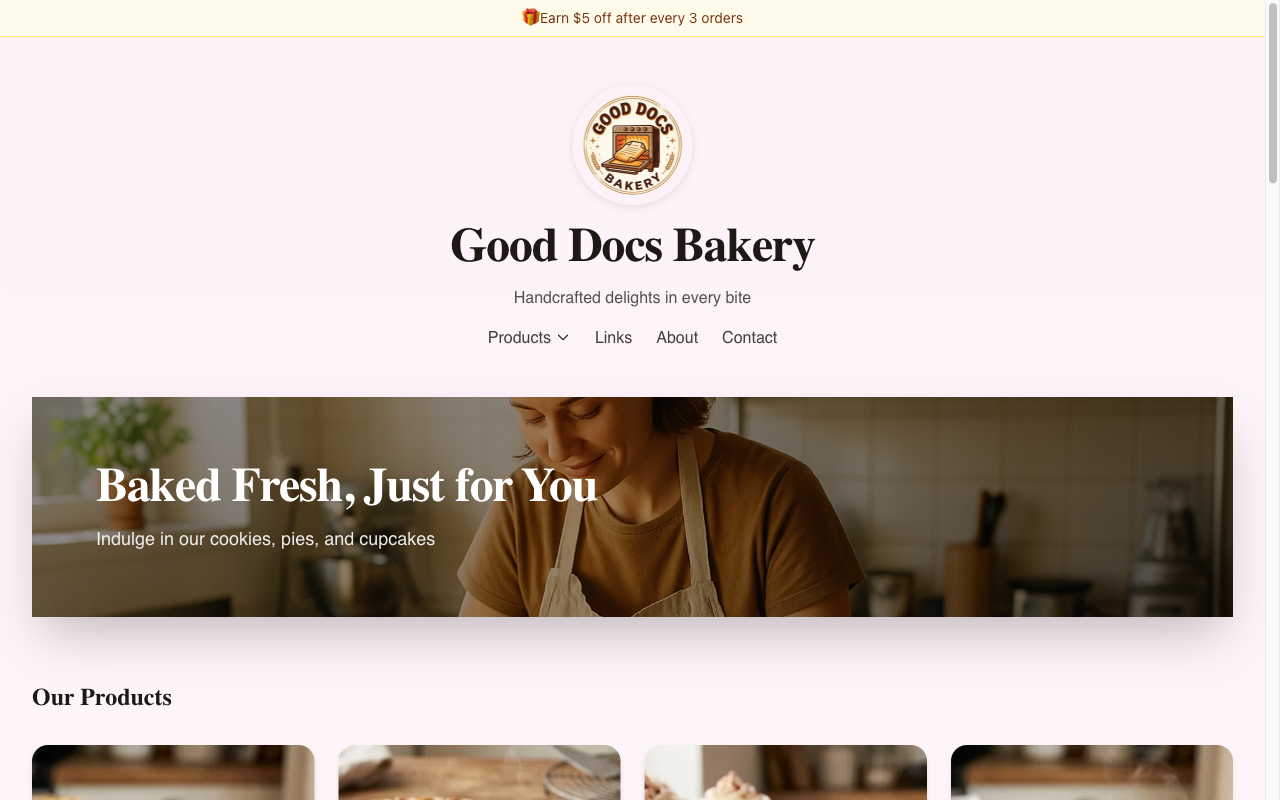
As you change the numbers, the What customers see box updates live. It shows the exact banner text (like "🎁 Earn $5 off after every 3 orders") and a sample progress message ("After an order: 'You're at 1 of 3 punches — $5 off is 2 orders away!'"). If the preview reads well, your settings are good.
6. Decide whether to promote rewards on your site
The Promote rewards on your site toggle shows a small banner with your program terms across the top of your shop. Customers always see your terms at checkout either way — this toggle just adds the storefront banner so browsers know about the deal before they buy.
7. Save your changes
Click Save changes. You'll see a "Rewards settings saved" confirmation, and your program is live immediately.
8. Changing your program later
You can adjust the numbers anytime — changes take effect as soon as you save. Batch52 watches out for your customers when you do: if a change would take something away from someone, you'll be asked to confirm before it saves.
You'll see a confirmation like this in three situations:
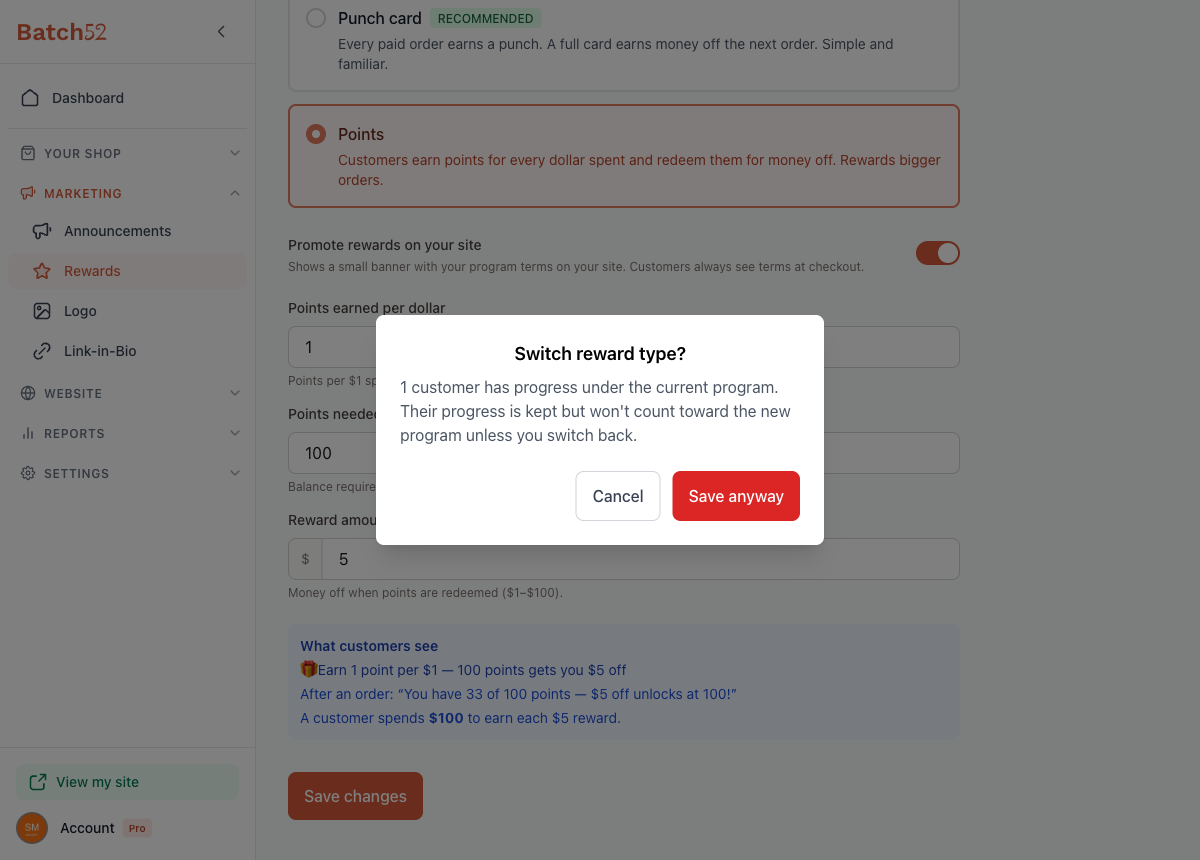
- Switching between punch card and points after customers have started earning — progress under one program doesn't count toward the other:
- Raising the requirement past a reward someone has already earned — for example, going from 3 punches to 5 while a customer is sitting at a full card would lock their reward again, so Batch52 asks first. (If nobody has an unlocked reward yet, the change saves silently — customers partway there simply keep earning toward the new goal.)
- Turning the program off while customers have progress — their balances are kept and come right back if you re-enable later.
In every case their progress is kept (not deleted). Click Cancel to keep things as they are, or Save anyway to apply the change.
What Your Customers Experience
Terms at checkout
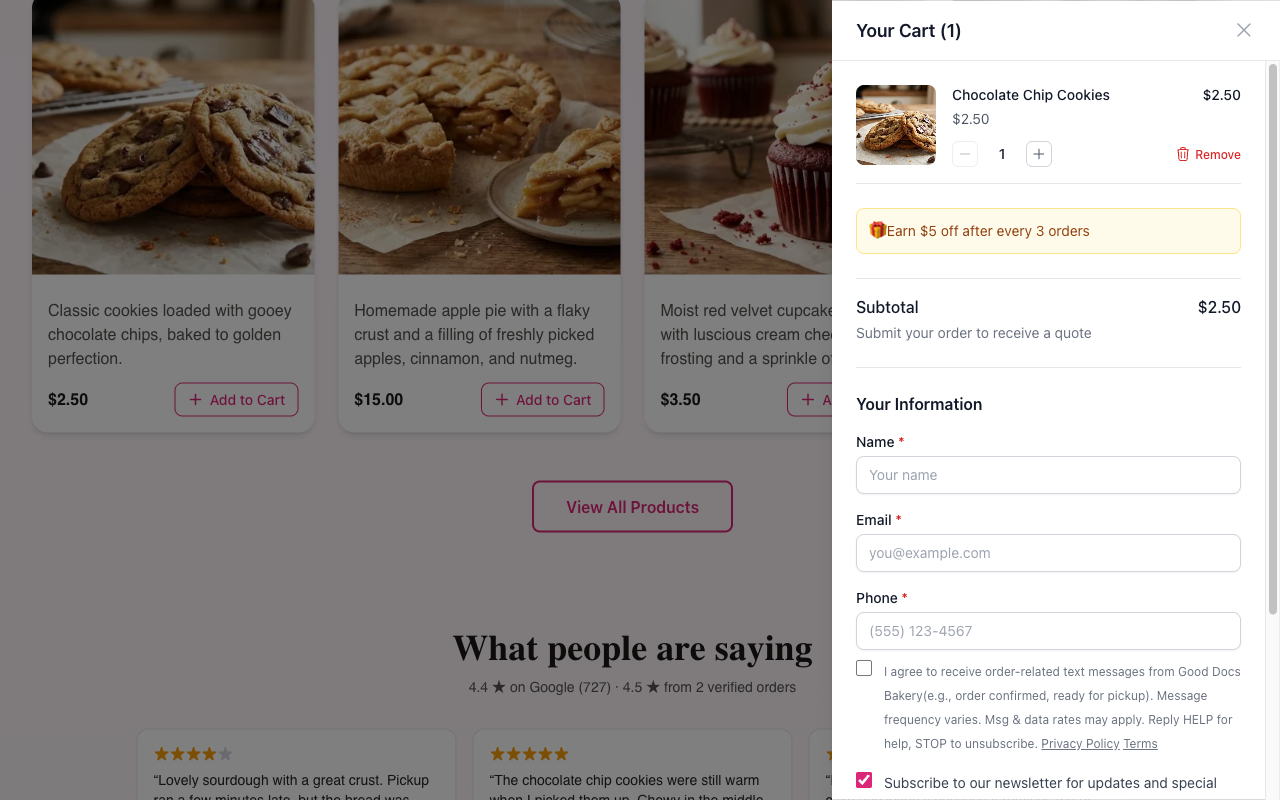
When a customer opens their cart, your program terms appear right above the subtotal — no digging required.
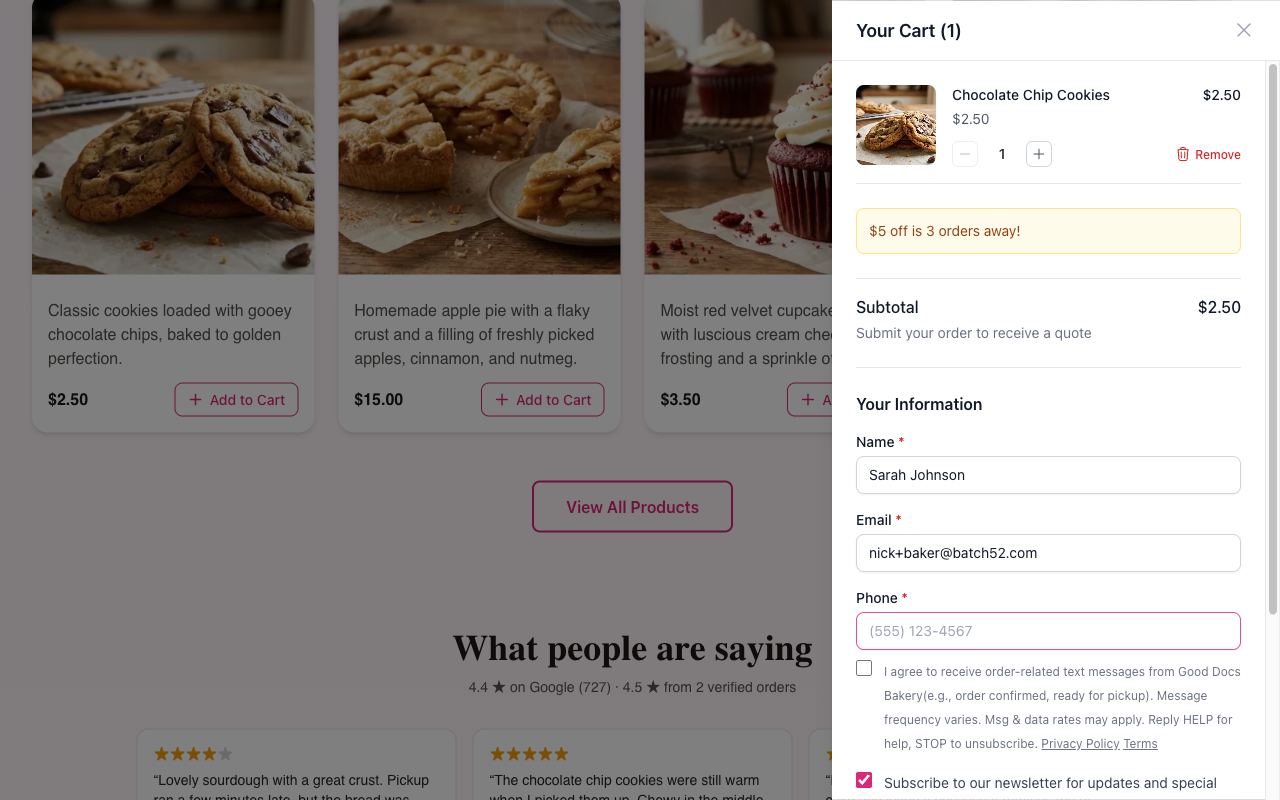
Once they enter their email, the message gets personal — it shows how far they are from their next reward, like "$5 off is 3 orders away!"
Progress after every order
After submitting an order, the confirmation screen shows exactly where they stand:
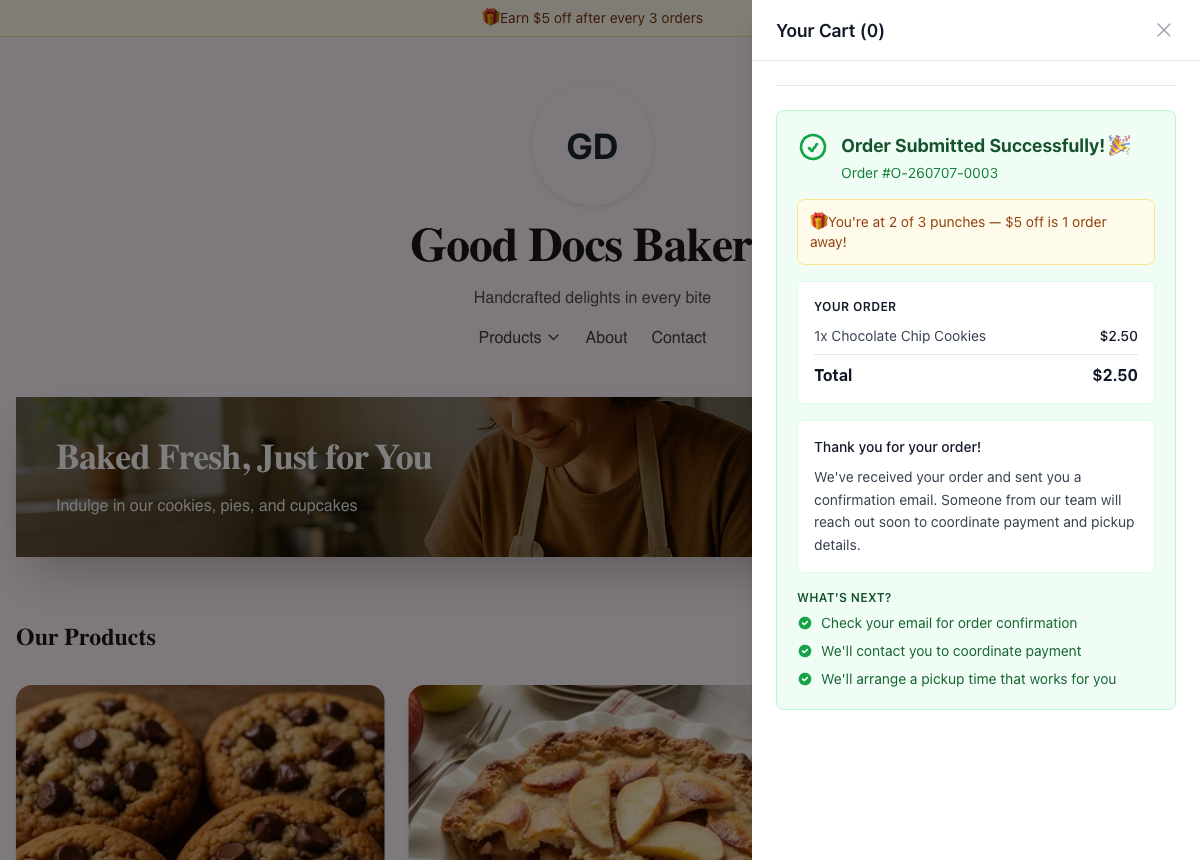
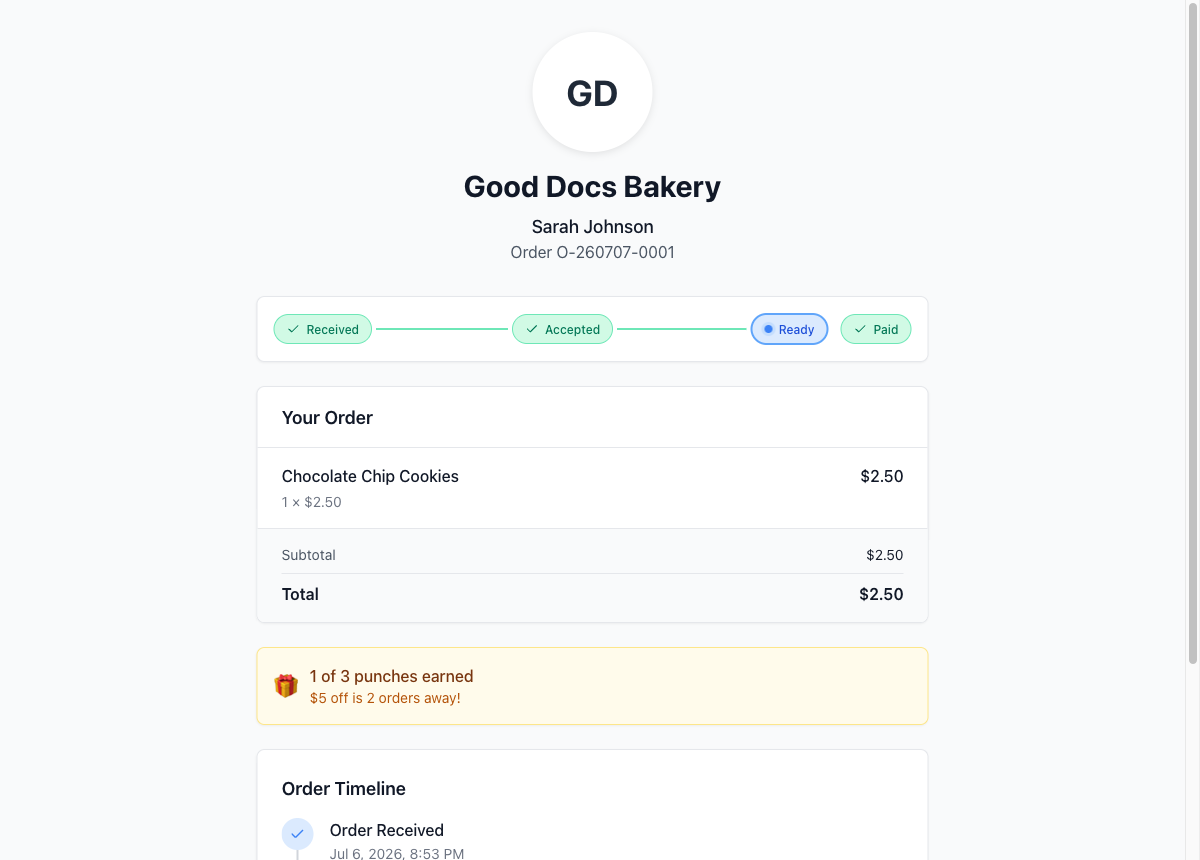
The same progress appears on their order status page (the link from their confirmation email), and it updates as soon as you mark their order paid:
Earning the reward
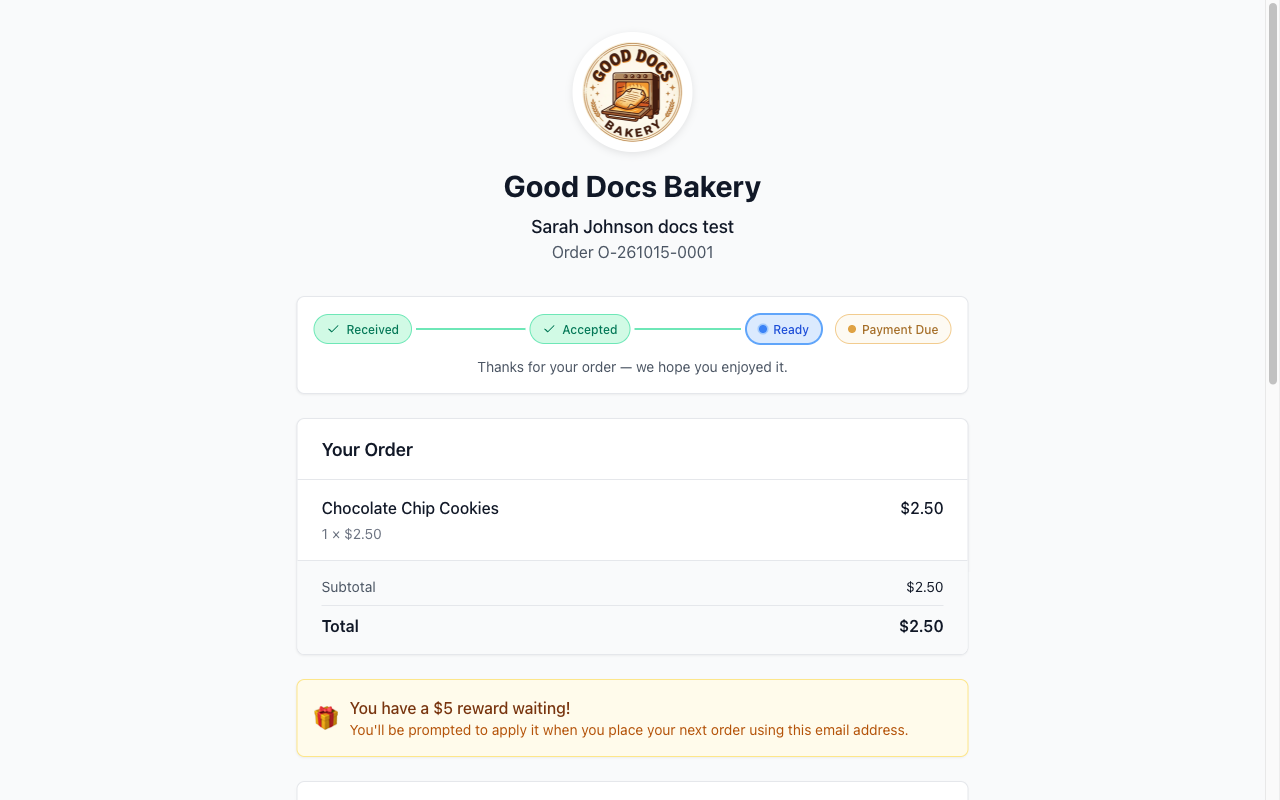
When their card fills up, the order status page celebrates with them and tells them what happens next:
Using the reward
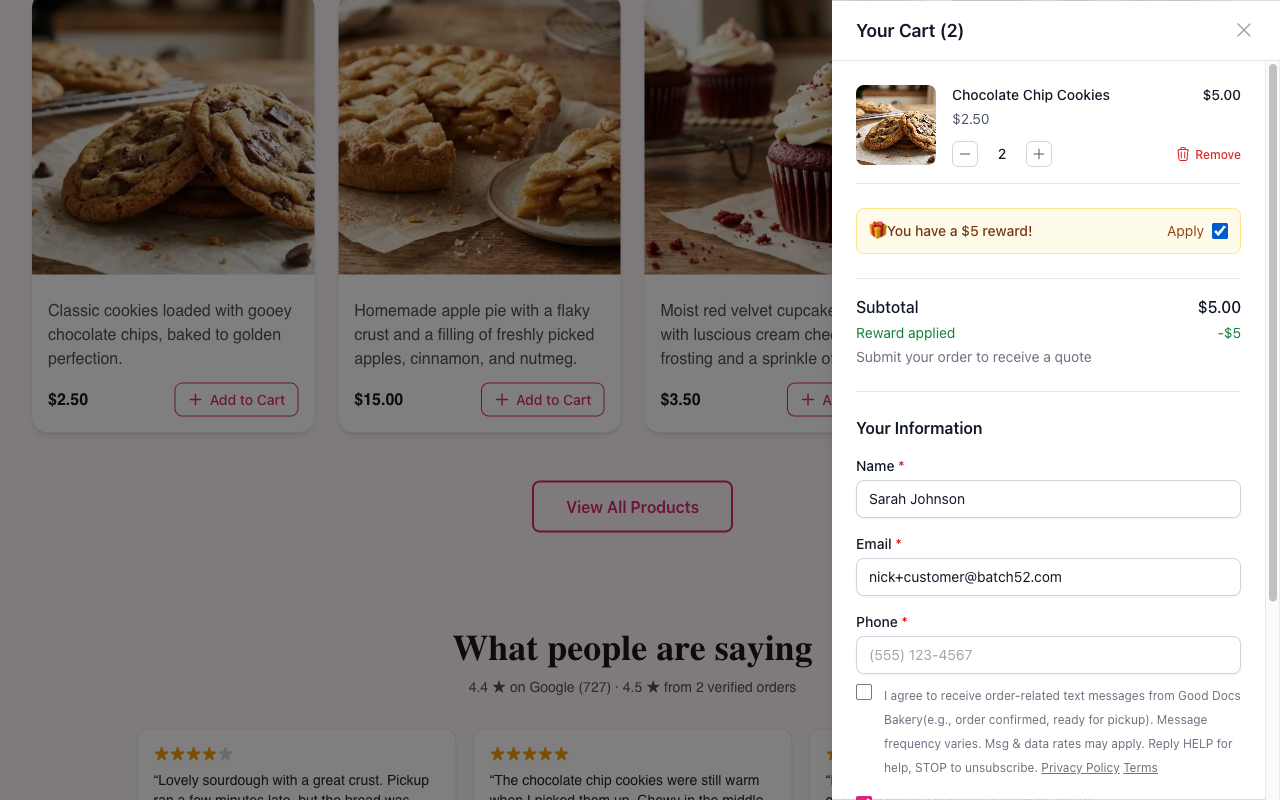
The next time they check out with the same email address, the reward is offered automatically — one checkbox, no codes to remember:
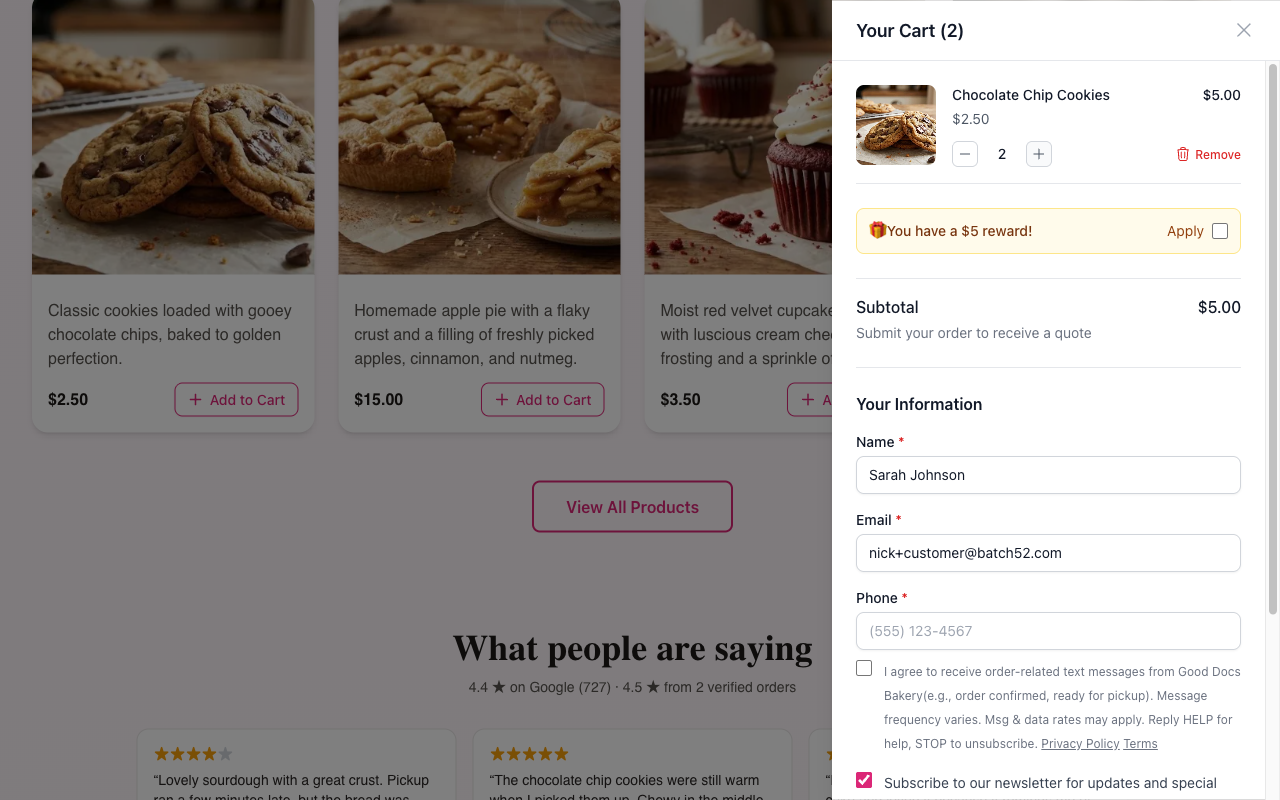
Checking Apply takes the reward right off their total:
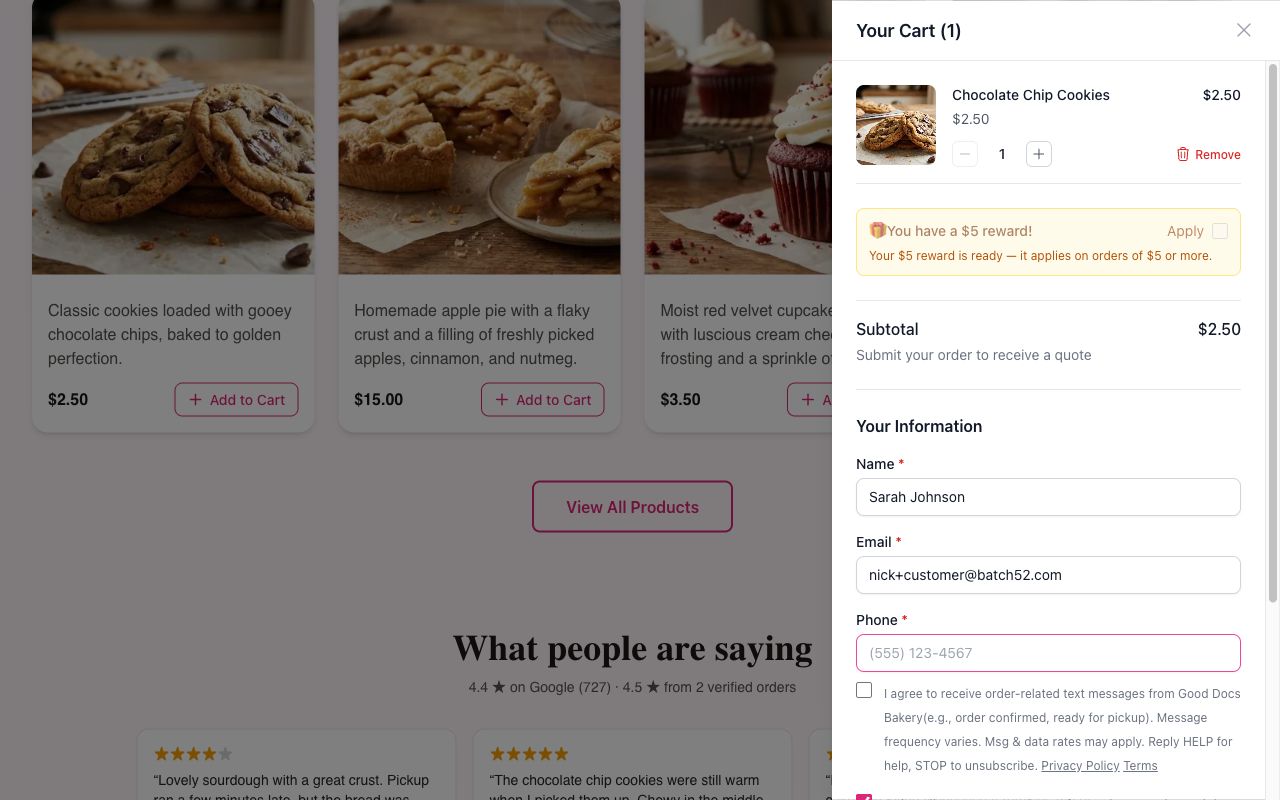
A reward can only be used on an order worth at least the reward amount. If the cart comes to less, the Apply box is grayed out and the cart explains, for example, "Your $5 reward is ready — it applies on orders of $5 or more." The reward stays saved for a bigger order.
Tracking Rewards in Admin
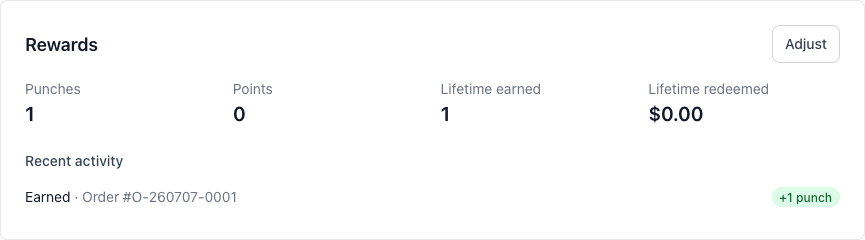
Every customer's rewards balance lives on their profile. Go to Customers, click a customer, and you'll see a Rewards card with their punches, points, lifetime earned and redeemed, and a recent activity log showing which orders earned what. There's also an Adjust button if you ever need to add or remove progress by hand — say, to honor an order from before you turned rewards on.
Tips
- Punches only count on paid orders. If you take cash at pickup, remember to mark the order paid in admin — that's the moment the punch lands and the customer's progress updates.
- Keep the goal reachable. A 3–5 punch card gets customers their first reward fast, which is what builds the habit. A 10-punch card can feel like a marathon for a monthly cookie order.
- Rewards follow the email address. Customers earn and redeem based on the email they use at checkout, so regulars should use the same email every time.
- Use the minimum order setting thoughtfully. It's handy if you sell $2 single cookies and don't want each one earning a punch — but leaving it blank keeps things simple and generous.
- Think twice before switching program types. Existing progress is kept but won't count under the new program, which can frustrate a customer who was one punch away.