Understand Customer Email Status
Know which customers are subscribed to your emails and how to manage their subscription status.
Included in all plans
Direct link: /site/admin/customers
Know which customers are subscribed to your emails and how to manage their subscription status.
Overview
When a customer places an order, signs up on your website or you add them manually, Batch52 tracks whether they're subscribed to receive your emails. Subscribed customers get your announcements and marketing emails. If someone unsubscribes (or you turn off their subscription), they'll still receive transactional emails like order confirmations, but they won't get your announcements.
Steps
1. Check subscription status from the customer list
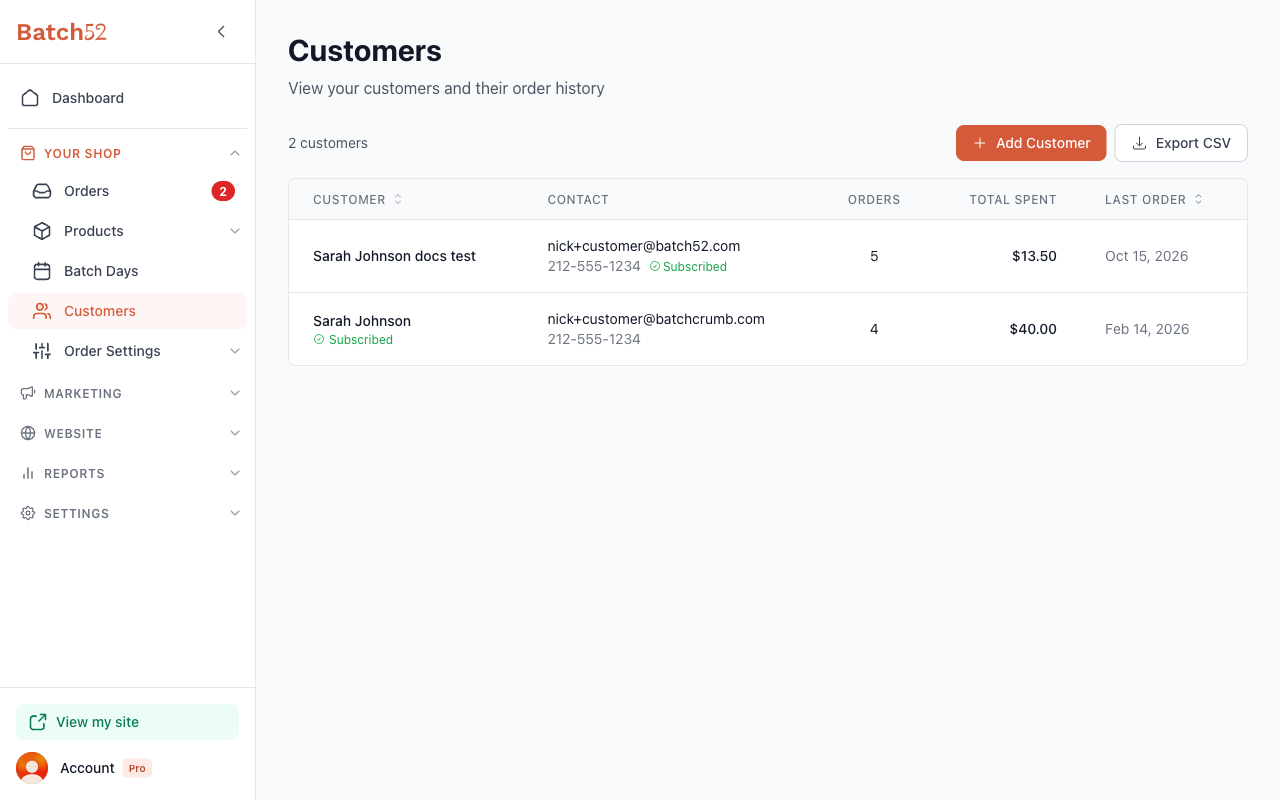
From the left sidebar, click Customers under Your Shop. In the customer list, look under each customer's name — you'll see a green Subscribed badge if they're opted in to receive your emails. If there's no badge, that customer is unsubscribed.
A green Subscribed next to a phone number is different: it means the customer agreed to text messages, not emails.
2. Check subscription status from a customer profile
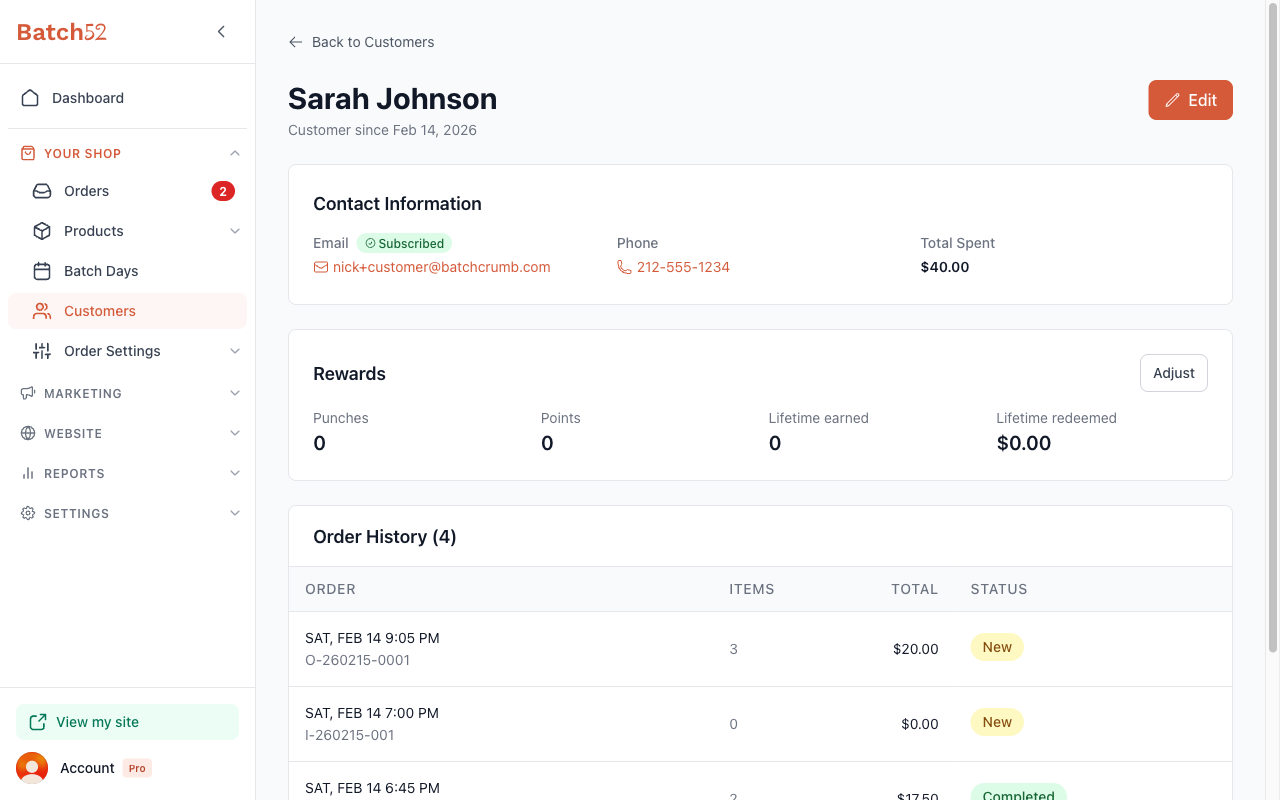
Click on any customer to open their profile. Next to the Email label in the Contact Information section, you'll see a green Subscribed badge if they're opted in. This is the same status shown in the list view, just in a different spot.
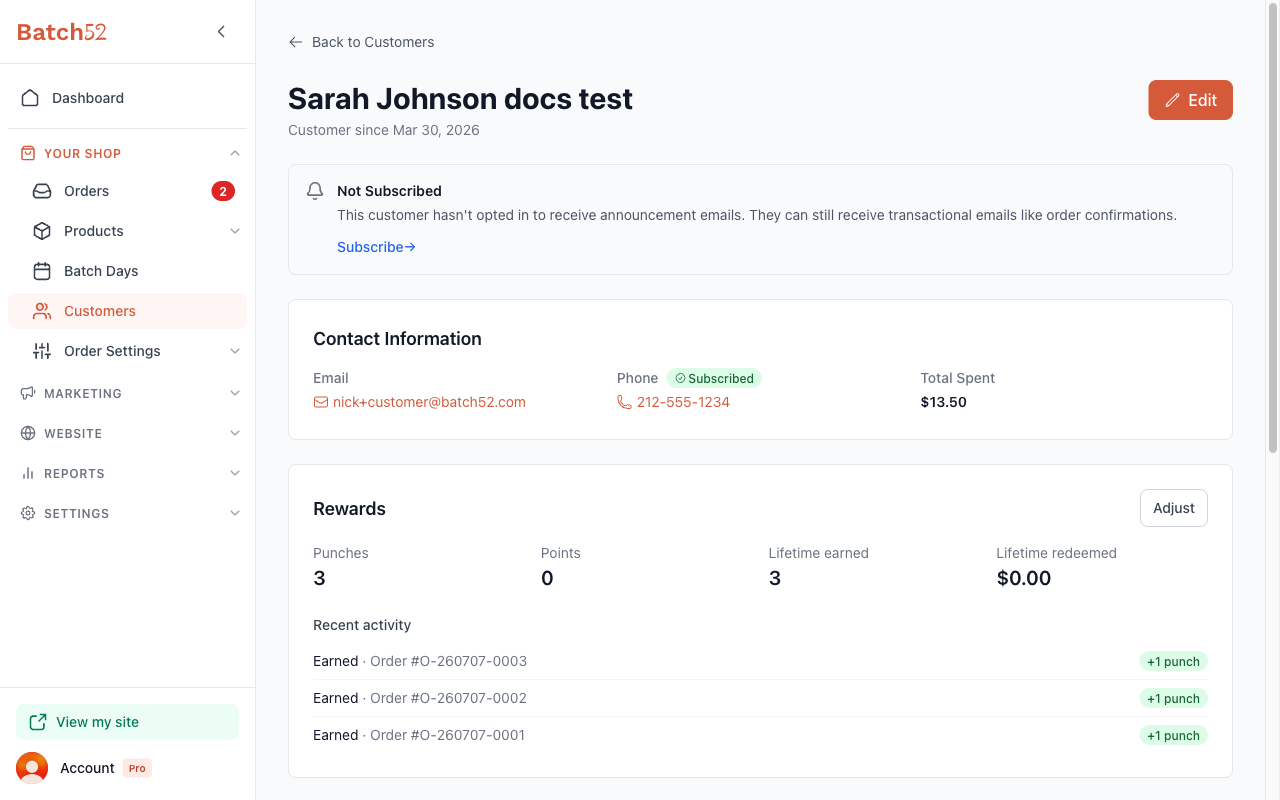
If a customer isn't getting your announcements, a box at the top of their profile explains why: Not Subscribed, Unsubscribed from Announcements, Announcements Blocked (they marked an email as spam) or Email Disabled (emails to that address couldn't be delivered).
3. Change a customer's subscription status
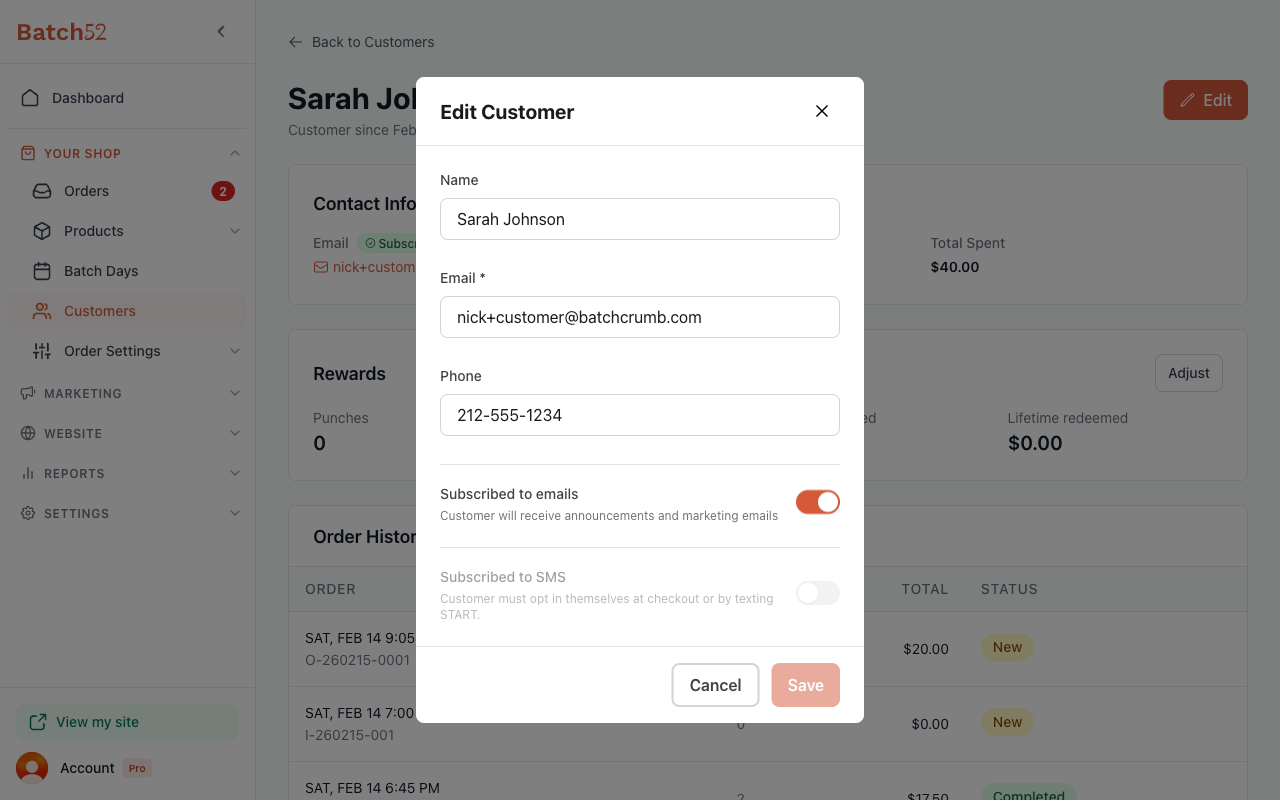
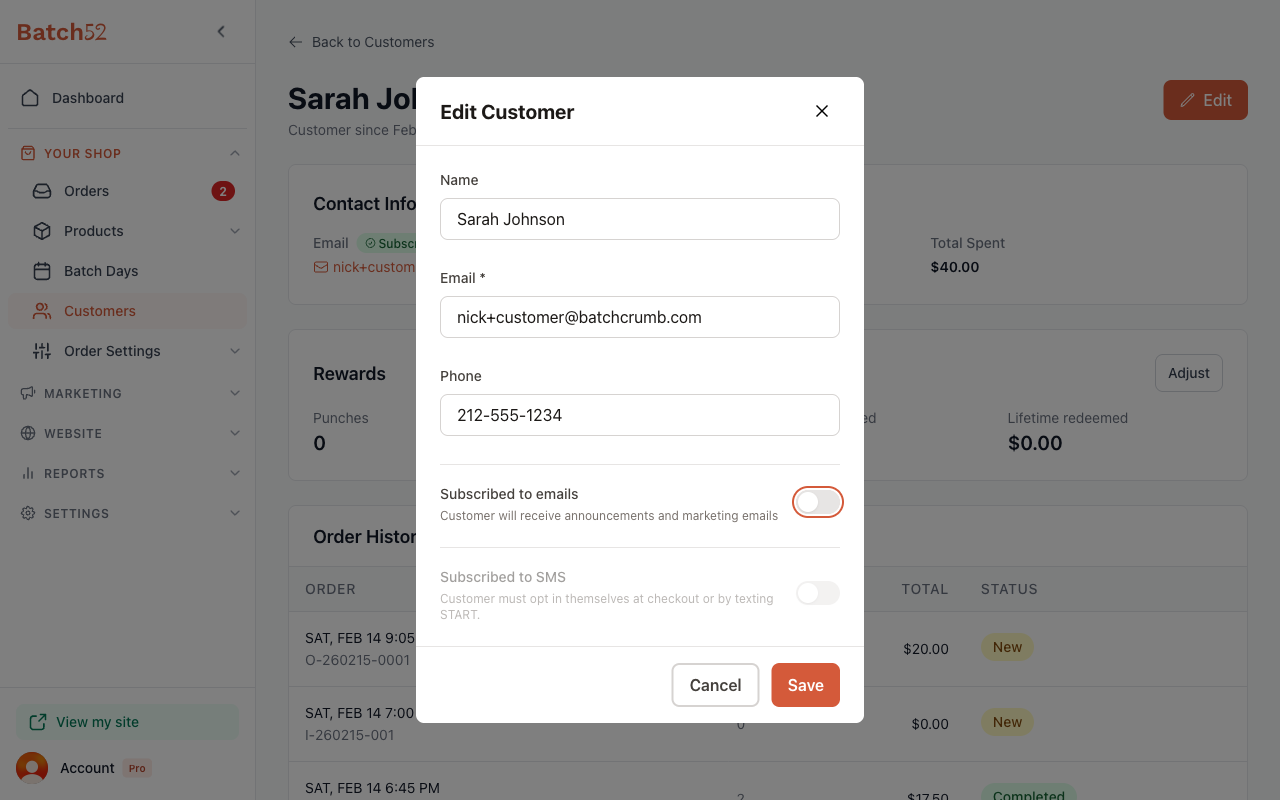
From the customer profile, click the Edit button in the top right corner. Near the bottom of the Edit Customer modal, you'll see the Subscribed to emails toggle. The helper text reads: "Customer will receive announcements and marketing emails."
- Toggle on (orange) — The customer will receive your announcement and marketing emails.
- Toggle off (gray) — The customer will no longer receive announcements or marketing emails.
Click Save to apply the change.
If the customer unsubscribed themselves, marked an email as spam, or their address couldn't be delivered, the toggle is greyed out. Use the button in the box at the top of their profile instead (Re-subscribe, Reset Status or Re-enable Email), and only do it once the customer has asked to hear from you again or has fixed their address.
What each status means
| Status | Badge | What it means |
|---|---|---|
| Subscribed | Green "Subscribed" badge | Customer receives announcements and marketing emails |
| Not subscribed | No badge; "Not Subscribed" box on the profile | Customer does not receive announcements or marketing emails |
| Unsubscribed | No badge; "Unsubscribed from Announcements" box on the profile | Customer clicked the unsubscribe link and does not receive announcements |
| Spam complaint | No badge; "Announcements Blocked" box on the profile | Customer marked an email as spam and does not receive announcements |
| Bounced | "Email Disabled" box on the profile | Emails to this address couldn't be delivered, so all emails to this customer are paused |
Regardless of subscription status, customers still receive transactional emails — things like order confirmations and status updates. Those aren't affected by the subscription toggle. The one exception is a bounced address: nothing is sent to it until the email is fixed and re-enabled.
How customers get subscribed
- Placing an order — At checkout, customers see a "Subscribe to our newsletter for updates and special offers" checkbox. It's ticked by default; if they leave it ticked, they're subscribed.
- Signing up on your website — If you've turned on email signup for your site, customers who enter their email there are subscribed.
- Added manually — When you add a customer using the Add Customer button, the subscription toggle is on by default.
- You can change it — Use the Edit Customer modal to toggle subscription on or off. For customers who unsubscribed or marked an email as spam, use the Re-subscribe or Reset Status button on their profile instead.
How customers unsubscribe
Customers can unsubscribe on their own by clicking the unsubscribe link at the bottom of any announcement or marketing email they receive from you. When they do, their status automatically updates in Batch52 and their profile shows an Unsubscribed from Announcements box — you don't need to do anything.
You can also manually unsubscribe a customer by toggling off Subscribed to emails in their Edit Customer modal.
Tips
- The subscription status only affects announcements and marketing emails. Order-related emails (confirmations, status updates) still go through, unless the address has bounced.
- If a customer tells you they're not getting your announcements, check their profile — they might have accidentally unsubscribed, or their address might have bounced. The box at the top of their profile tells you which.
- When you're about to send an announcement, only subscribed customers will receive it. You can scan the customer list for the green "Subscribed" badge to get a quick sense of your reach.