
View Your Customers
See who's ordering from you, check their contact info, and browse their order history — all in one place.
Included in all plans
Direct link: /site/admin/customers
See who's ordering from you, check their contact info, and browse their order history — all in one place.
Overview
Every time someone places an order or submits an inquiry through your site, Batch52 automatically creates a customer record for them. The Customers page gives you a quick overview of everyone who's bought from you, and you can click into any customer to see their full history. You can also add customers manually if you need to.
Steps
1. Go to your Customers page
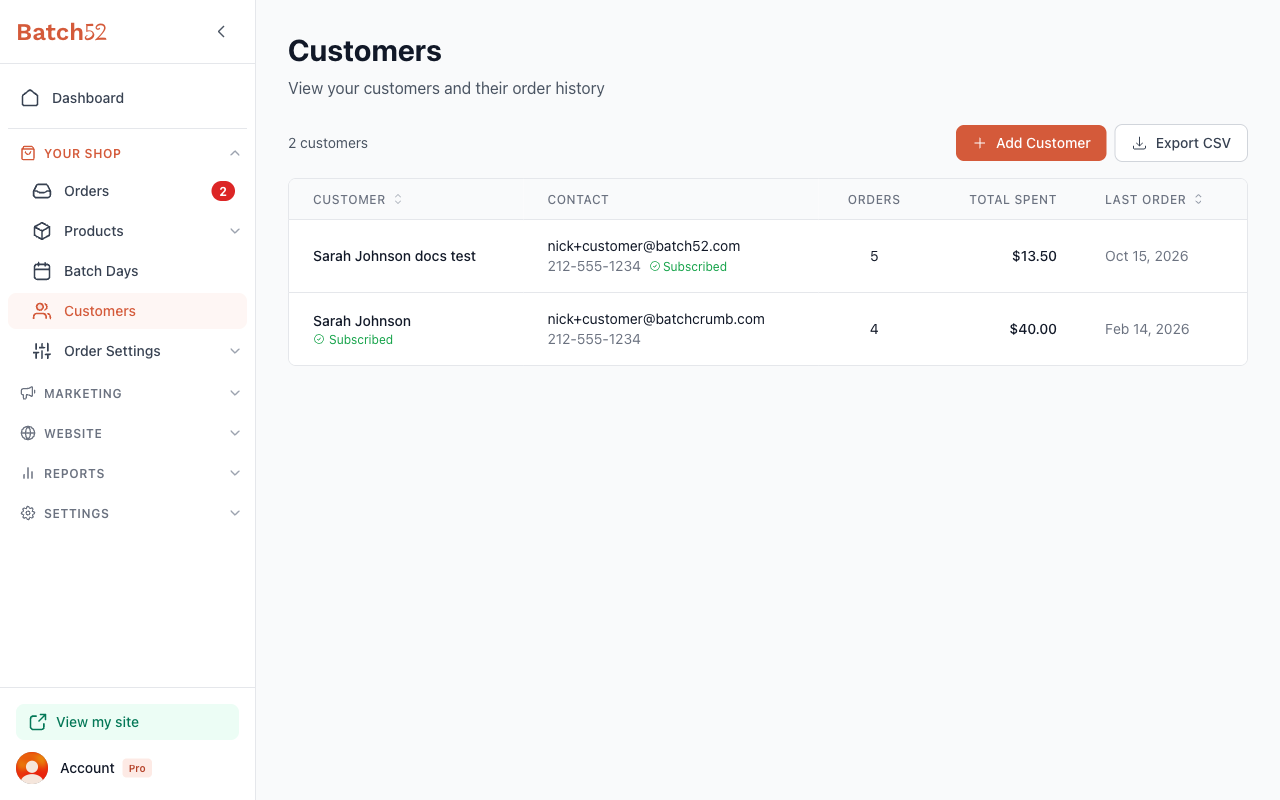
From the left sidebar, click Customers under Your Shop. You'll see a list of all your customers with some key info at a glance.
2. Read the customer list
Each row in the table shows you:
- Customer — Their name and email subscription status. A green "Subscribed" badge means they'll receive your announcements and marketing emails.
- Contact — Their email address and phone number. A green "Subscribed" next to the phone number means they've agreed to receive text messages from you.
- Orders — How many orders (and inquiries) they've placed.
- Total Spent — The total dollar amount across all their orders.
- Last Order — When they last placed an order.
The customer count at the top left tells you how many customers you have total. Click the Customer or Last Order column heading to sort the list by name or by most recent order.
3. View a customer's profile
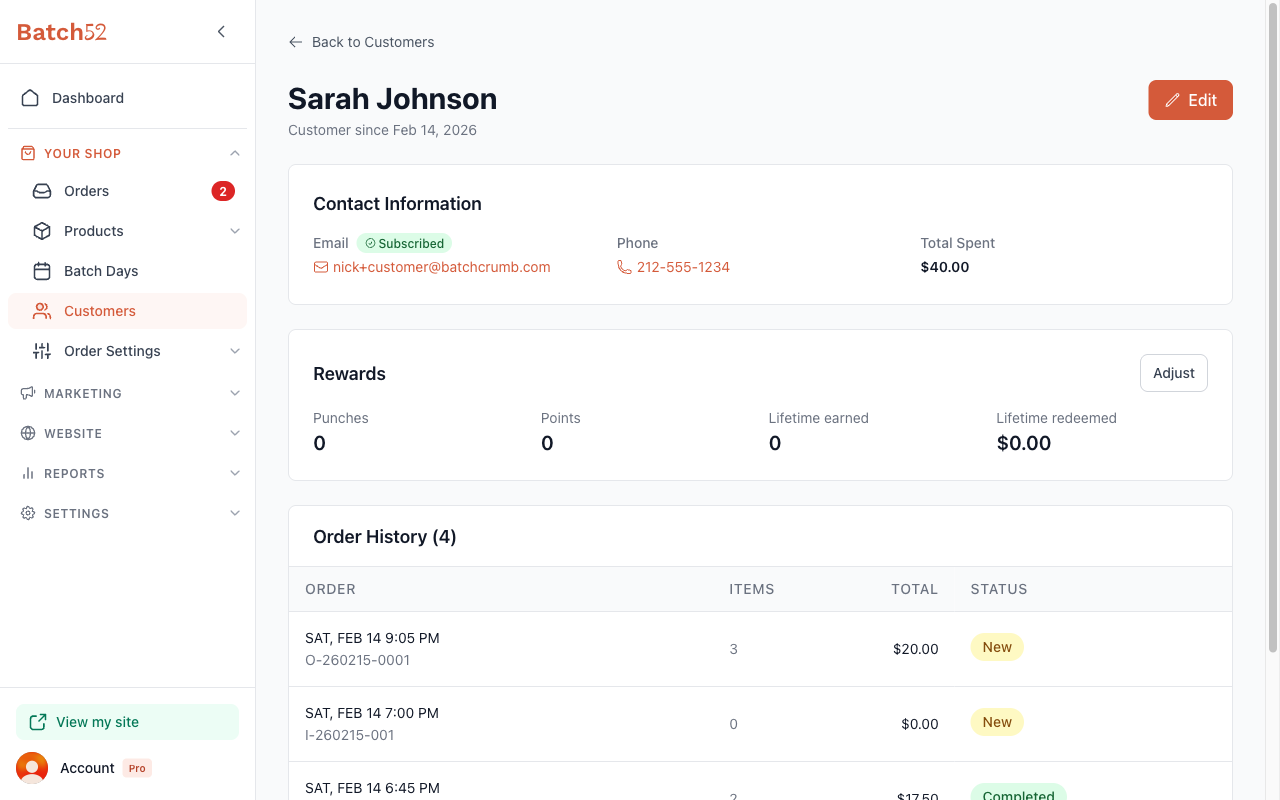
Click on any customer row to open their full profile. You'll see:
- Contact Information — Their email (with subscription status), phone number (with text message subscription status), and total amount spent. Click the email or phone number to contact them directly.
- Rewards — If you run a rewards program, you'll see their punches or points here, along with an Adjust button.
- Order History — A table of every order and inquiry they've submitted, showing the date, order ID, number of items, total, and current status. Click any order to open its details right on this page.
4. Edit a customer's info
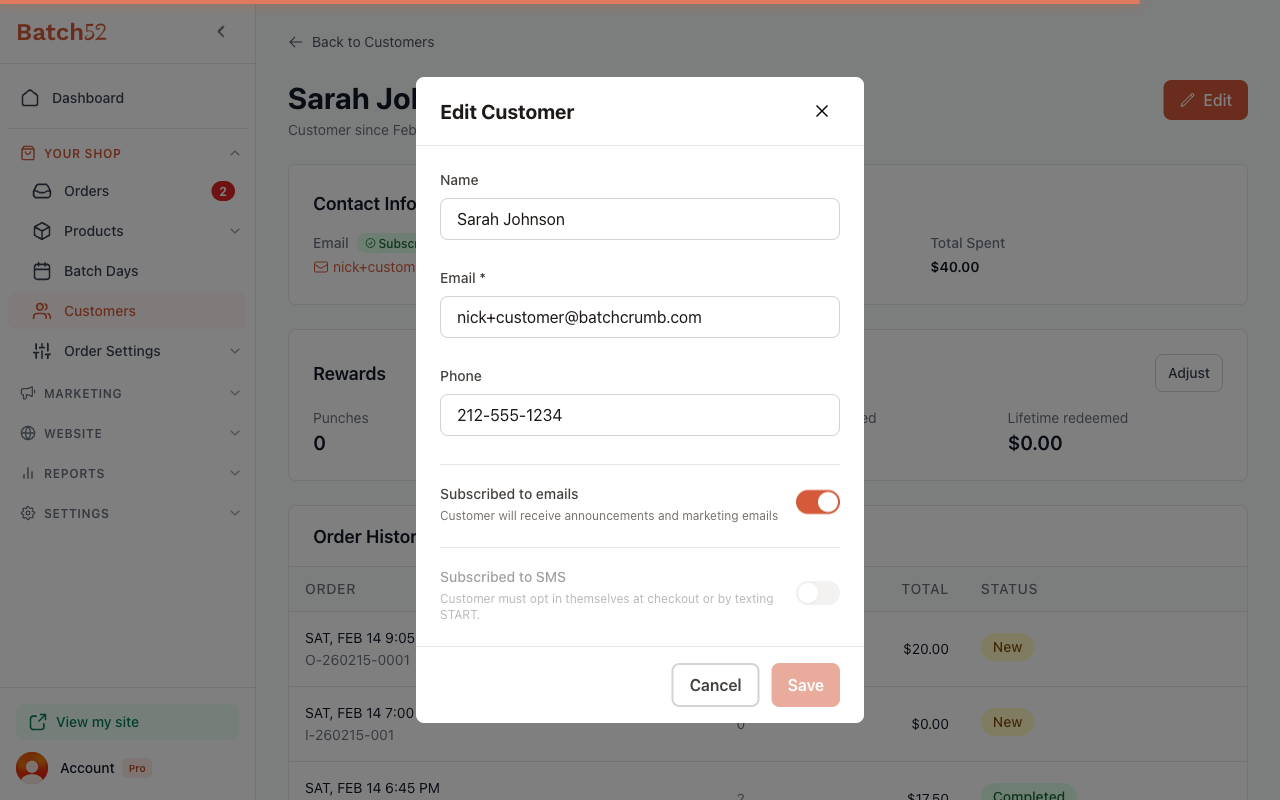
From the customer profile, click the Edit button in the top right corner. The Edit Customer modal lets you update:
- Name — The customer's display name.
- Email — Their email address (required).
- Phone — Their phone number.
- Subscribed to emails — Toggle this on or off to control whether they receive your announcements and marketing emails.
- Subscribed to SMS — Shown when the customer has a phone number. You can turn this off if they've opted in to texts, but you can't turn it on for them: customers opt in themselves at checkout or by texting START.
Click Save when you're done, or Cancel to discard your changes.
5. Add a customer manually
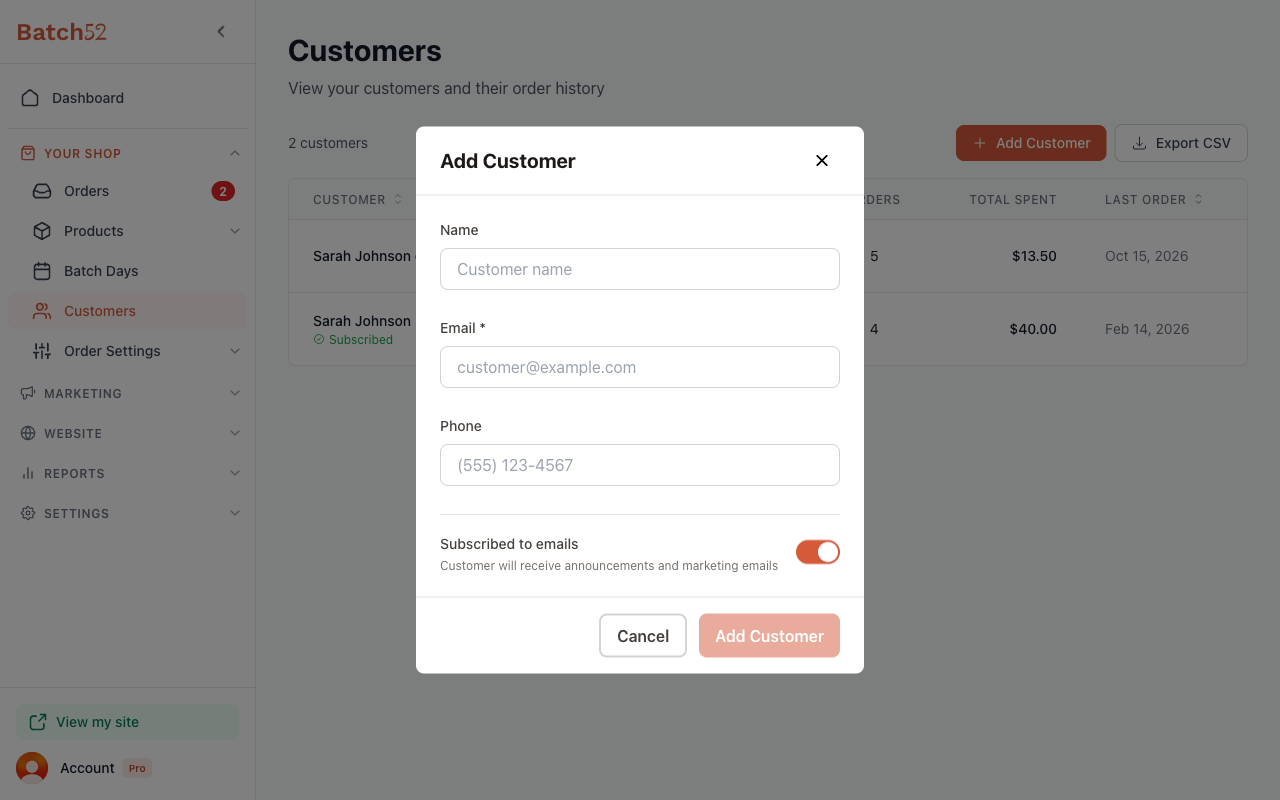
If you need to add a customer who hasn't ordered through your site yet (maybe someone from the farmer's market), click the + Add Customer button in the top right corner of the Customers page.
Fill in their details — at minimum you'll need their email address — and click Add Customer to save.
6. Export your customer list
Click the Export CSV button next to + Add Customer to download your full customer list as a spreadsheet. This is handy if you want to keep a backup or use your customer info in another tool.
Tips
- Customers are created automatically when someone places an order or submits an inquiry — you don't need to add them manually unless you want to.
- The "Subscribed" badge is important — only subscribed customers will receive your announcement emails. If a customer unsubscribes, the badge will disappear.
- Order IDs starting with "O-" are regular orders, while IDs starting with "I-" are product inquiries.
- You can click an email address or phone number on the customer profile to contact them directly from your phone or email app.