Manage Email Subscriptions
Control which customers receive your announcement and marketing emails.
Included in all plans
Direct link: /site/admin/customers
Control which customers receive your announcement and marketing emails.
Overview
When you send out an announcement — like a new menu drop or a holiday pre-order — it only goes to customers who are subscribed to your emails. Batch52 gives you a simple way to manage who's on that list so you can keep your audience engaged without sending emails to people who don't want them.
Steps
1. See who's subscribed at a glance
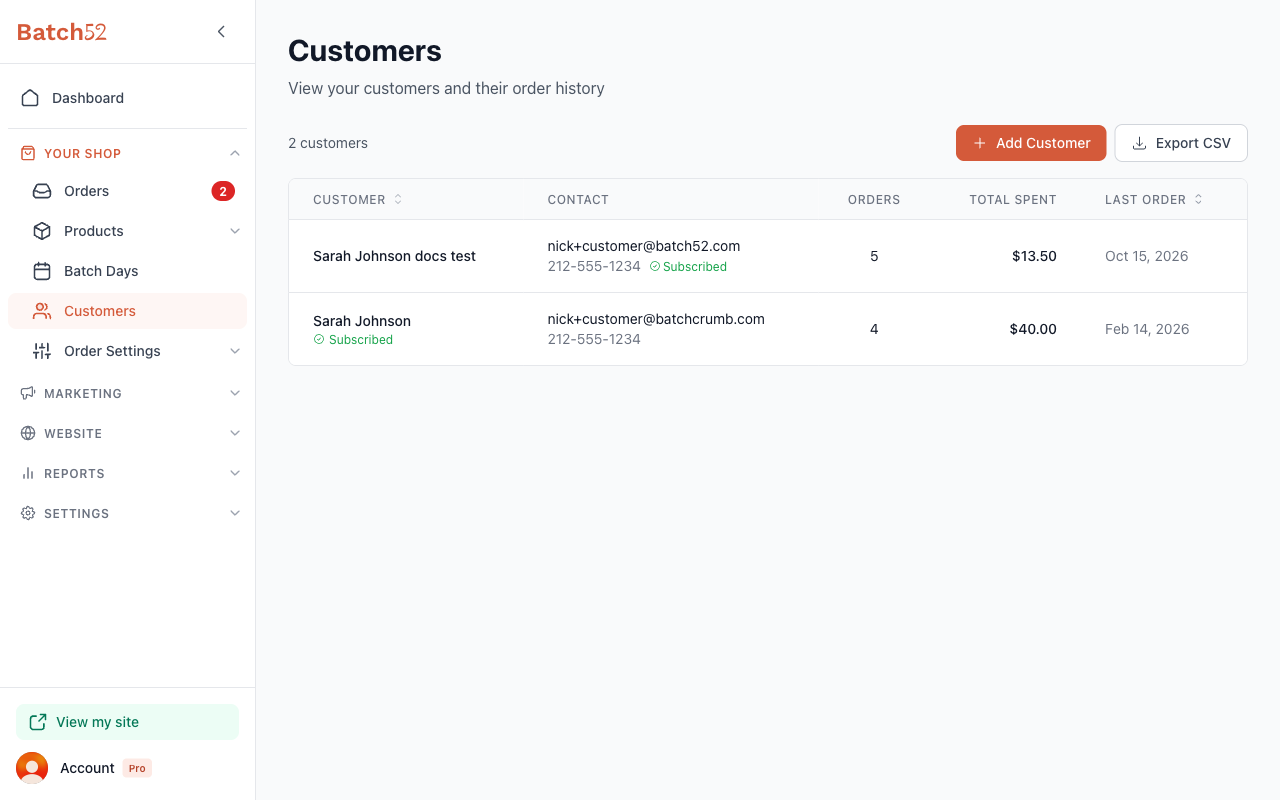
From the left sidebar, click Customers under Your Shop. In the customer list, look for the green Subscribed badge underneath each customer's name. If you see the badge, that customer is on your email list. No badge under the name means they're not subscribed.
You may also see a Subscribed label next to a customer's phone number in the Contact column. That one is for text messages, not emails.
2. Check a specific customer's subscription
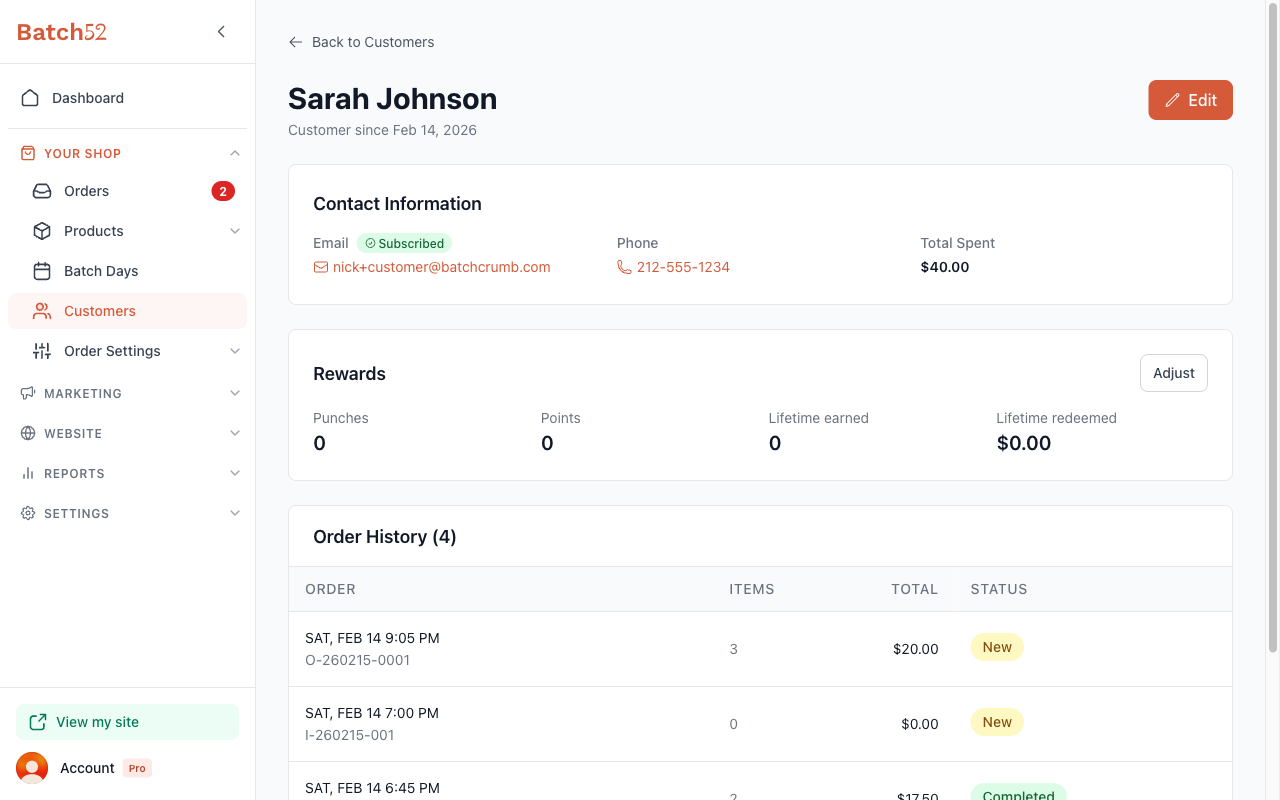
Click on any customer to open their profile. Next to the Email label in the Contact Information section, you'll see the green Subscribed badge if they're opted in.
3. Subscribe or unsubscribe a customer
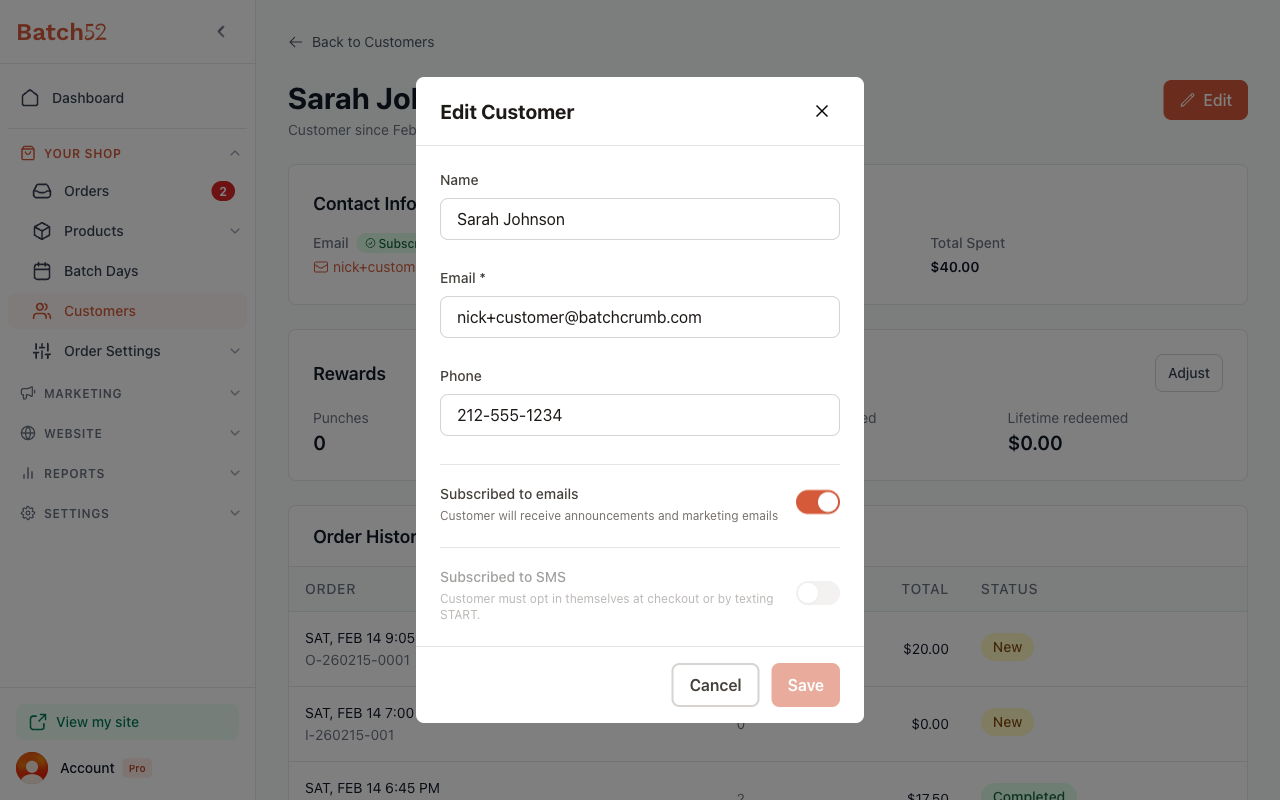
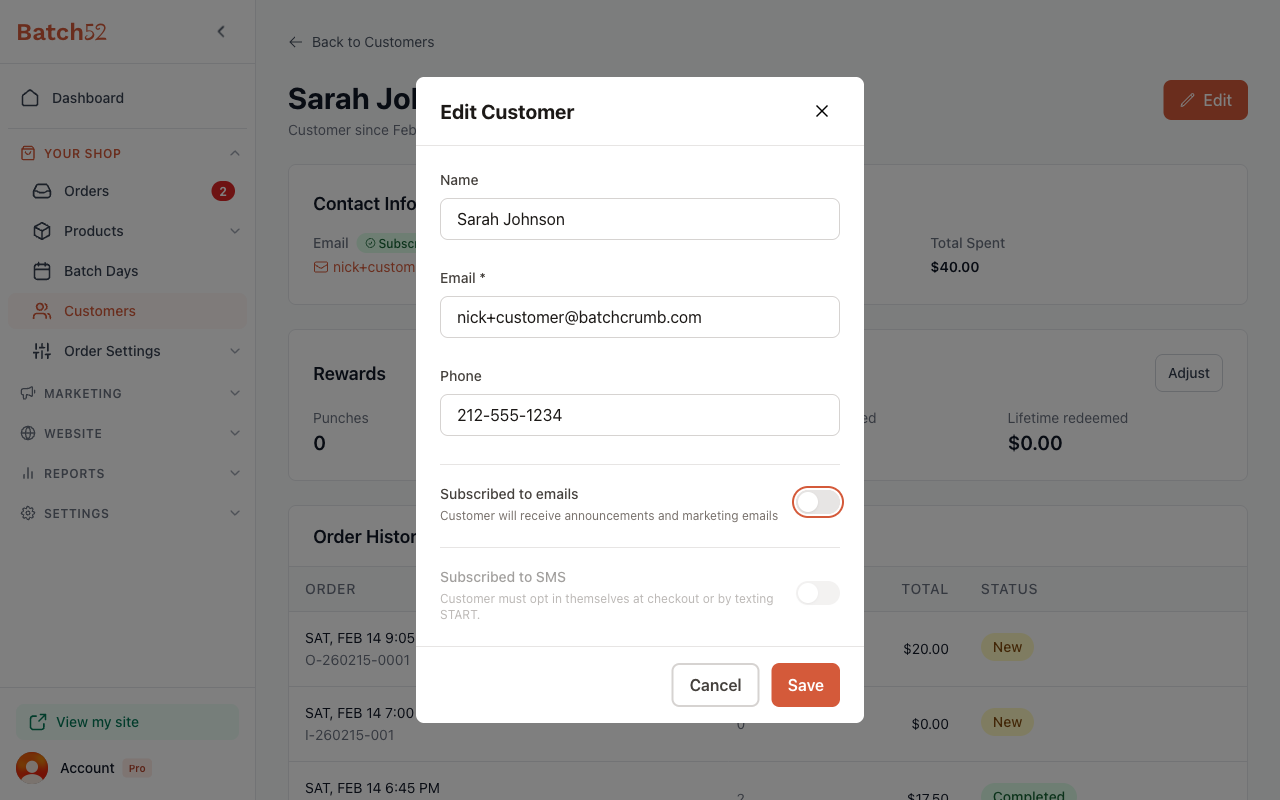
From the customer profile, click the Edit button in the top right corner. In the Edit Customer modal, below the Phone field, you'll find the Subscribed to emails toggle.
- Toggle on (orange) — The customer will receive your announcements and marketing emails.
- Toggle off (gray) — The customer won't receive announcements or marketing emails.
The helper text underneath confirms: "Customer will receive announcements and marketing emails."
Click Save to apply the change.
4. Add a new customer as subscribed
When you add a customer manually using the Add Customer button, the Subscribed to emails toggle is on by default. If you don't want them receiving your announcements right away, toggle it off before clicking Add Customer.
How customers get subscribed automatically
You don't have to manage every subscription by hand. Here's how customers end up on your email list:
- Placing an order or sending an inquiry — Your order and inquiry forms include a "Subscribe to our newsletter for updates and special offers" checkbox, which is ticked by default. If the customer leaves it ticked, they're subscribed. If they untick it on a later order, they're taken off your list.
- Added by you — When you add a customer manually, the subscription toggle is on by default.
How customers unsubscribe themselves
Every announcement and marketing email from Batch52 includes an unsubscribe link at the bottom. When a customer clicks it and confirms, their subscription status updates automatically in your customer list — you don't need to do anything on your end.
What subscriptions affect (and don't)
| Email type | Affected by subscription? |
|---|---|
| Announcements and marketing emails | Yes — only subscribed customers receive these |
| Order confirmations | No — always sent regardless of subscription status |
| Order status updates | No — always sent regardless of subscription status |
| Contact form auto-replies | No — always sent regardless of subscription status |
The subscription toggle only controls announcements and marketing emails. Your customers will always get the transactional emails they need about their orders.
Tips
- Before sending an announcement, scan your customer list for the green "Subscribed" badges to get a quick sense of how many people will receive it.
- If a regular customer mentions they stopped getting your emails, check their profile — they may have accidentally clicked the unsubscribe link.
- If a customer turned emails off themselves with the unsubscribe link, the Subscribed to emails toggle is greyed out. Use the Re-subscribe button on their profile instead, and only after they've told you they want your emails again. See Understand Customer Email Status.
- The newsletter checkbox on your order form is ticked by default, so your email list grows naturally as you get more orders.