
Order Status Lifecycle
Understand the six order statuses in Batch52 and how orders move through them from start to finish.
Included in all plans
Understand the six order statuses in Batch52 and how orders move through them from start to finish.
Overview
Every order in Batch52 follows a lifecycle — from the moment a customer places it to the moment it's picked up (or canceled). Understanding the statuses helps you stay organized, communicate clearly with your customers, and keep your baking schedule on track.
The Six Statuses
Here's every status an order can have, shown as colored filter buttons on your Orders page. (You'll only see Awaiting Payment if your payment timing is set to collect payment before you accept an order.)
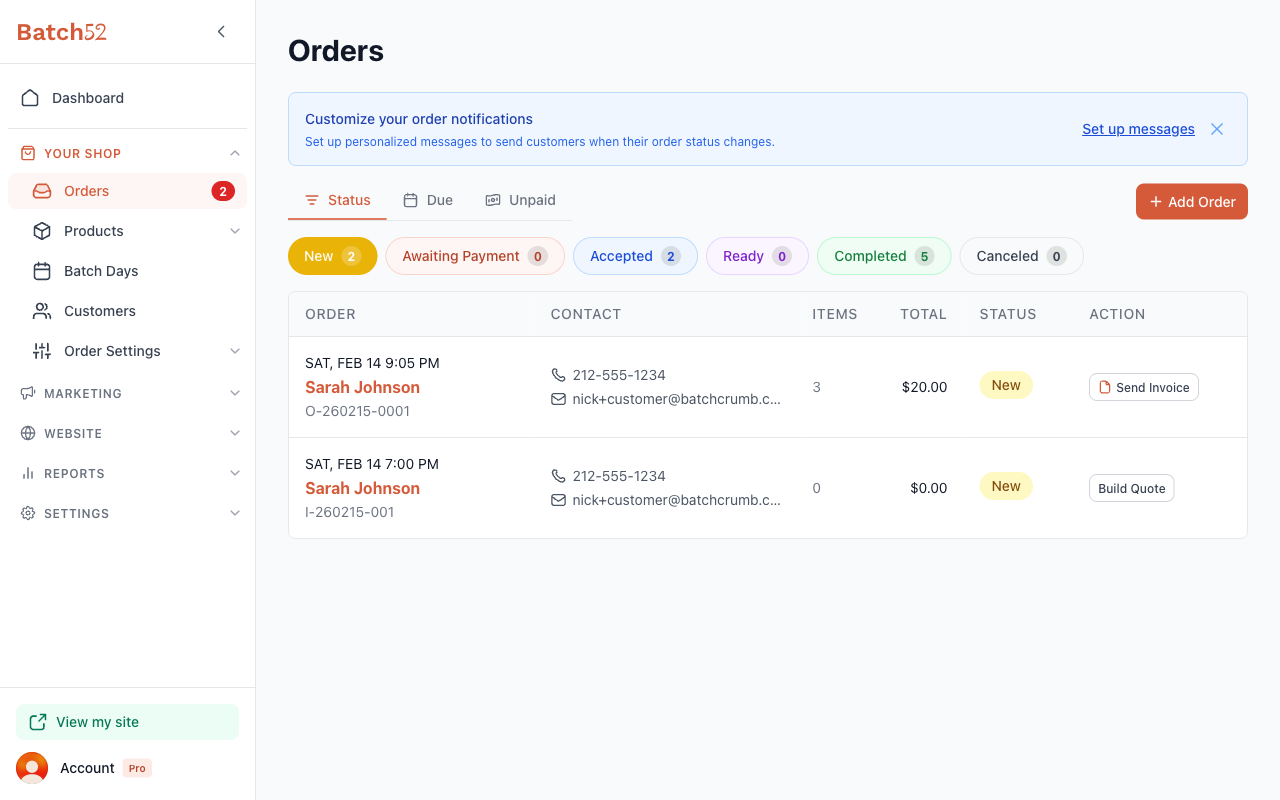
New (yellow)
The order just came in and is sitting in your inbox waiting for you to take action. Most orders start here. Orders placed for a Batch Day, and orders a customer pays for by card at checkout, skip New and arrive as Accepted.
What to do: Review the order and click Send Invoice. Depending on your payment timing, sending the invoice moves the order to Awaiting Payment or straight to Accepted.
Awaiting Payment (orange)
You've sent the customer an invoice and you're waiting for them to pay. This status is used when you collect payment before accepting the order.
What to do: Wait for the customer to pay. When they pay online, or when you record the payment with Mark as Paid, the order moves to Accepted on its own. If you want to start without payment, choose Accept without Payment from the actions menu.
Accepted (blue)
You've confirmed the order and it's on your to-do list. This tells the customer you've got it and you're working on it.
What to do: Bake the order! When it's done and ready for pickup, mark it as Ready.
Ready (purple)
The order is baked and ready for the customer to pick up. You can notify them by email or text when you mark an order as Ready.
What to do: Wait for the customer to pick it up. Once they do, mark it as Completed.
Completed (green)
The order is done — picked up and finished. If payment hasn't been collected yet, you can still mark it as paid from the order detail view.
What to do: Nothing! This order is wrapped up. Check if it's been paid using the Unpaid tab.
Canceled (gray)
The order was canceled, either by you or at the customer's request. Canceled orders stay in your records but won't show up in your active workflow.
What to do: Nothing needed. You can always review canceled orders by clicking the Canceled filter.
The Typical Order Flow
Most orders follow this path:
New → Accepted → Ready → Completed
Here's what that looks like in practice:
- Customer places an order through your shop — it arrives as New
- You review it and send an invoice — status moves to Accepted
- You bake it and mark it ready — status moves to Ready (customer gets notified)
- Customer picks it up — you mark it Completed
If you collect payment before you accept orders, the flow includes an extra step:
New → Awaiting Payment → Accepted → Ready → Completed
Orders placed for a Batch Day or paid by card at checkout start at Accepted and pick up the flow from there.
And if something comes up and the order needs to be canceled, it can move to Canceled from any status.
How Orders Move Between Statuses
There are two ways to change an order's status:
Quick-action buttons (recommended)
The quick-action buttons at the bottom of the order detail view guide you through the natural flow. They show the next logical step — like Mark Ready when an order is Accepted, or Mark Completed when it's Ready. These buttons also give you the option to notify your customer by email or text.
Manual status change
If you need to jump to a specific status — say, to correct a mistake or skip a step — open the order, click the Actions menu (three dots), and choose Change Status. You'll see each status laid out as a button (Awaiting Payment appears only when your payment timing is set to collect payment before you accept the order). Pick the one you want and the order moves there immediately.
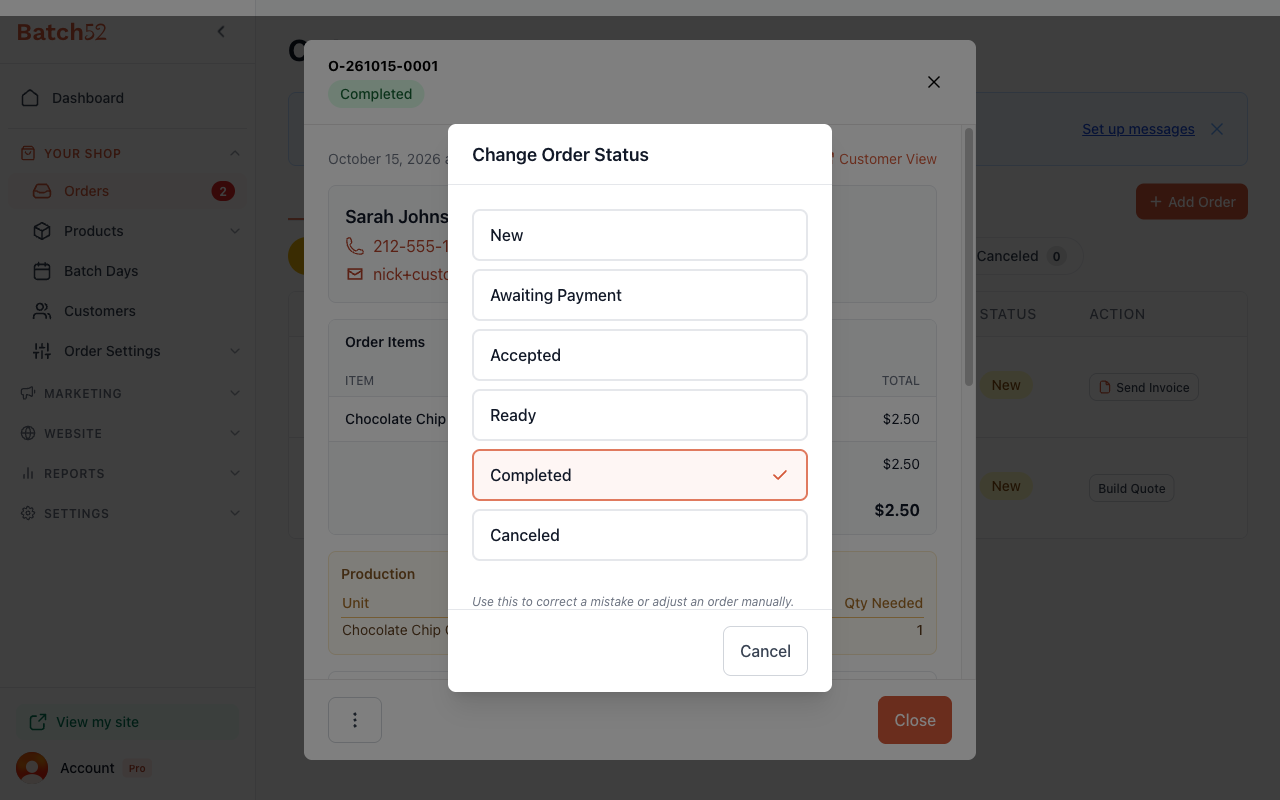
Manual status changes won't prompt you to notify the customer, so use the quick-action buttons for your normal day-to-day workflow.
Customer Notifications
Batch52 can automatically notify your customers when their order status changes. Here's when notifications are available:
| Status Change | Notification Available? |
|---|---|
| New → Awaiting Payment or Accepted | Yes — the invoice goes to your customer by email or text when you click Send Invoice |
| Awaiting Payment → Accepted | Yes — Mark as Paid and Accept without Payment both offer an email or text |
| Accepted → Ready | Yes — email or text prompt appears |
| Ready → Completed | Yes — email or text prompt appears |
| Any → Canceled | No automatic prompt (use Send Email or Send SMS in the actions menu before you cancel) |
When you use the quick-action buttons (like Mark Ready or Mark Completed), a dialog pops up asking if you'd like to notify your customer by email, SMS, or skip the notification entirely.
You can customize what these notification emails say in Order Settings → Order Messages.
Tracking Payment
Order status and payment status are tracked separately. An order can be Completed but still unpaid, or paid but still in the Ready status. Use the Unpaid tab on your Orders page to quickly see which orders still need payment.
Tips
- The New filter is the one to check most often — it shows orders that need your attention right away.
- Use Mark Ready instead of manually changing the status so you get the option to notify your customer automatically.
- The Activity log at the bottom of each order shows a full history of every status change and notification sent — handy if you need to look back at what happened.
- Don't worry about getting a status wrong. You can always use Change Status from the actions menu to move an order to any status at any time.
- The Unpaid tab is your best friend for tracking payments separately from order progress.