
View Your Site Analytics
See how your site is performing with built-in stats — track sales, discover your best-selling products, learn about your customers, and monitor your marketing efforts.
See how your site is performing with built-in stats — track sales, discover your best-selling products, learn about your customers, and monitor your marketing efforts.
Overview
Your Stats page gives you a clear picture of how your business is doing online. You can see revenue trends, which products are bringing in the most money, who your top customers are, and how well your announcements are performing — all without needing any extra tools.
Steps
1. Open the Stats page
Direct link: Open this page
From your admin sidebar, click Reports to expand the section, then click Stats.
2. Choose a time period
At the top right of the page, you'll see four time period options:
- 7 days — the past week
- 28 days — the past four weeks (selected by default)
- 12 months — the past year
- YTD — year to date
Click any option to update all the charts and numbers on the page.
3. Explore the Sales tab
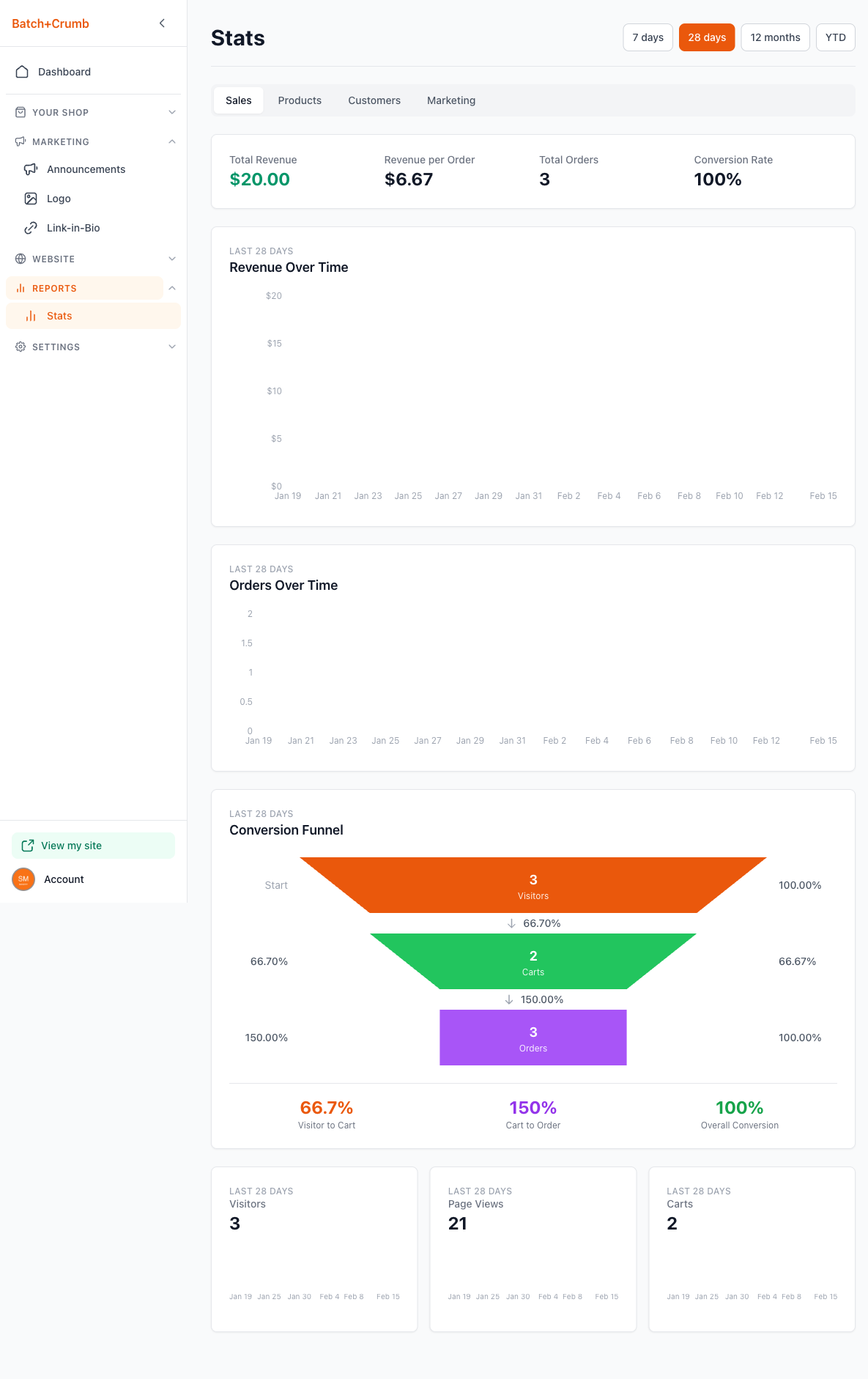
The Sales tab is the default view and shows your overall sales performance.
Summary cards at the top display:
- Total Revenue — your total sales for the selected period
- Revenue per Order — average order value
- Total Orders — number of orders placed
- Conversion Rate — percentage of visitors who placed an order
Below the summary, you'll find:
- Revenue Over Time — a line chart showing your daily revenue
- Orders Over Time — a line chart showing how many orders came in each day
- Conversion Funnel — a visual funnel that shows how visitors move from browsing to adding items to their bag to placing an order, with conversion percentages at each stage
- Visitors, Page Views, and Carts — three mini charts at the bottom showing traffic trends with sparklines
4. Check the Products tab
Click the Products tab to see your best-selling items.
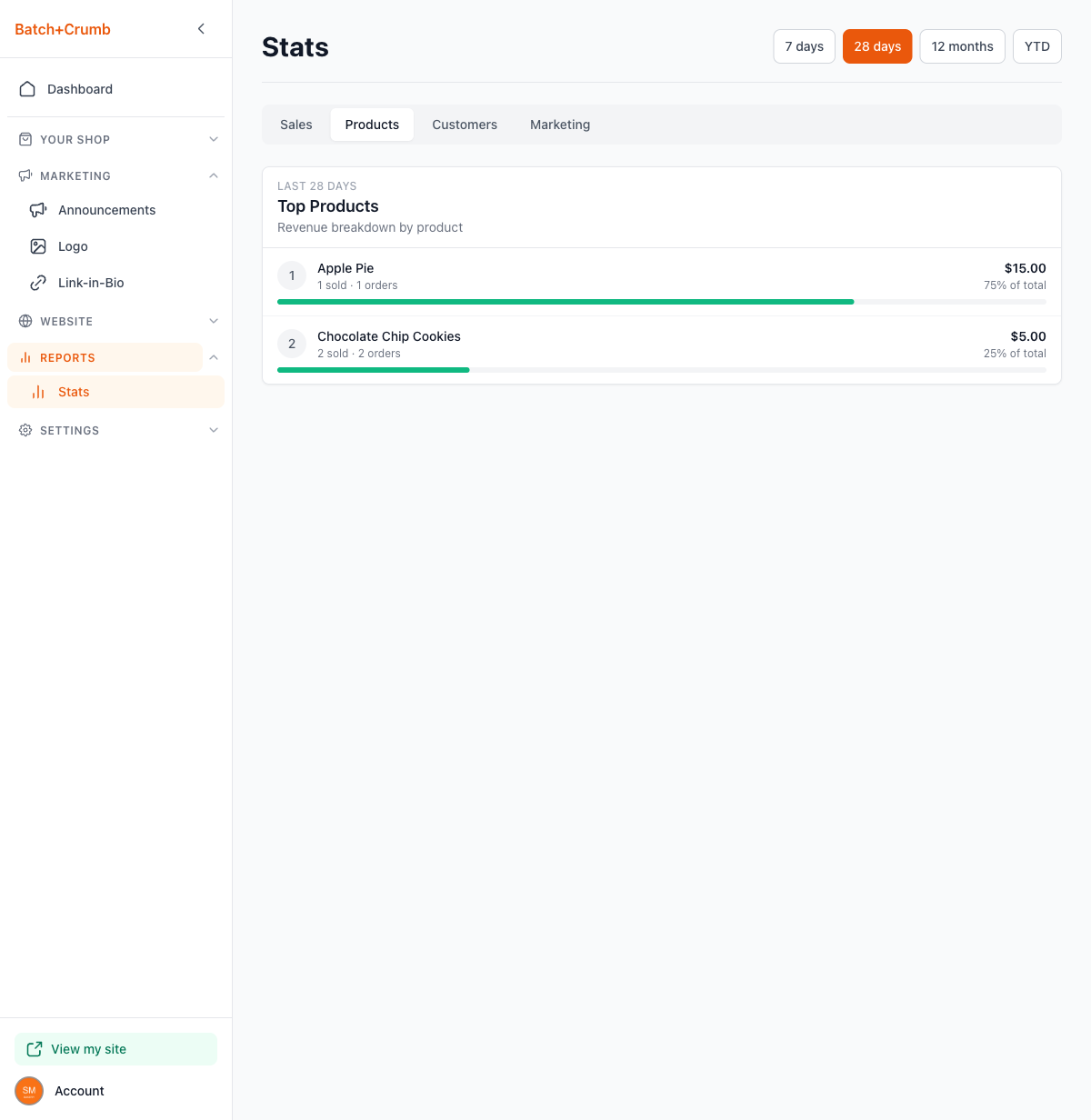
The Top Products section ranks your products by revenue. Each product shows:
- Number of units sold and total orders
- Revenue amount and percentage of your total sales
- A progress bar showing its share of revenue compared to your top seller
5. Check the Customers tab
Click the Customers tab to learn about the people ordering from you.
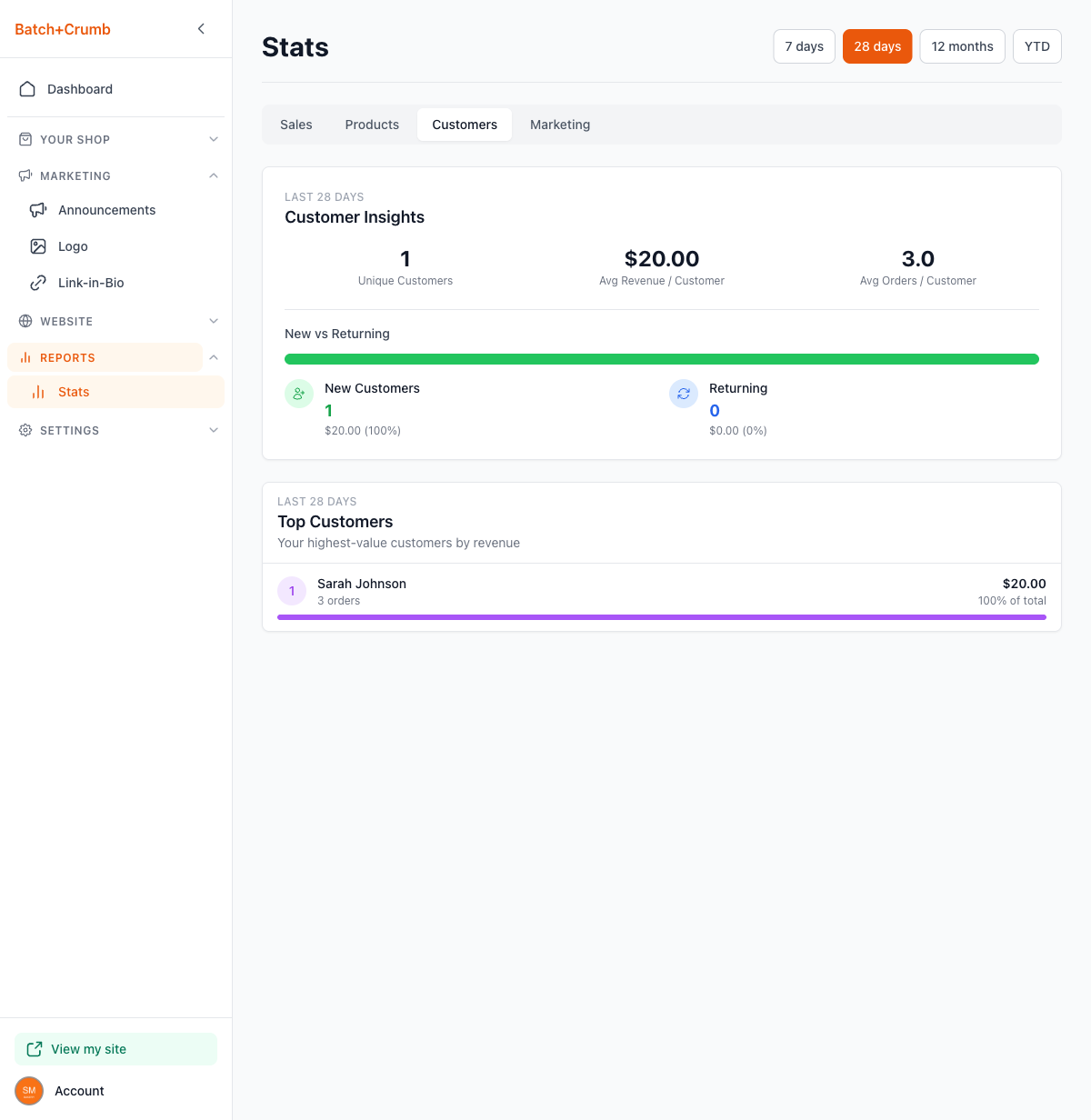
Customer Insights at the top shows:
- Unique Customers — how many different people ordered
- Avg Revenue / Customer — how much each customer spends on average
- Avg Orders / Customer — how many orders each customer places on average
The New vs Returning section breaks down whether your orders are coming from first-time buyers or repeat customers, including revenue from each group.
The Top Customers section ranks your highest-value customers by total revenue, showing their order count and percentage of your total sales.
6. Check the Marketing tab
Click the Marketing tab to see how your announcements are performing.
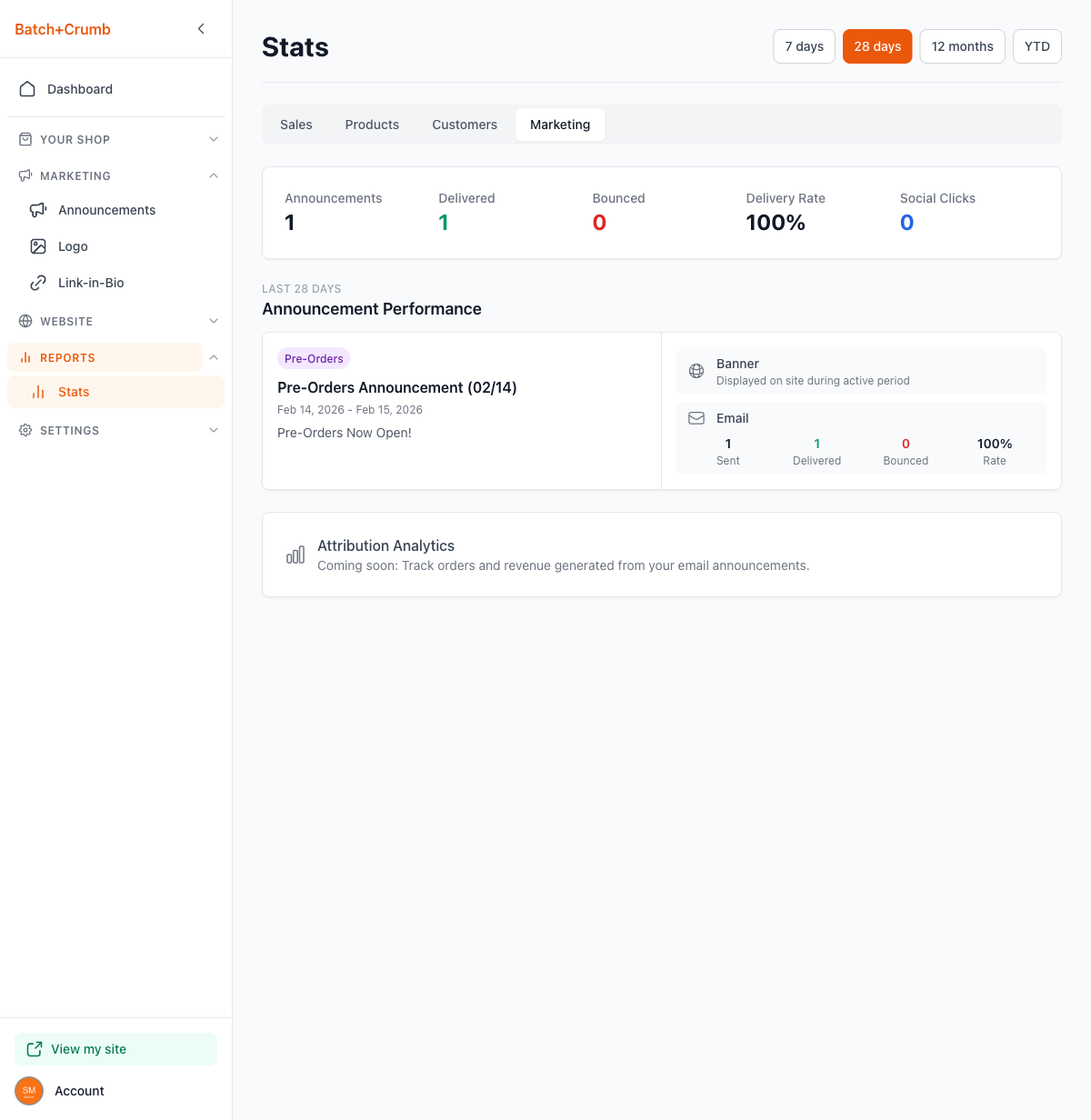
Summary cards at the top show:
- Announcements — number of announcements sent
- Delivered — emails successfully delivered
- Bounced — emails that couldn't be delivered
- Delivery Rate — percentage of emails that reached your customers
- Social Clicks — clicks from social sharing links
The Announcement Performance section shows each individual announcement with:
- The announcement type, title, and date range
- Whether a banner was displayed on your site
- Email delivery breakdown (Sent, Delivered, Bounced, Rate)
Tips
- Check your stats regularly — even a quick weekly glance helps you spot trends and make better decisions about what to bake next.
- The Products tab is especially useful before a big baking weekend. See what's been selling well and plan your batches accordingly.
- If your Conversion Rate seems low, it might mean customers are browsing but not ordering. Consider updating your product photos or descriptions.
- The Customers tab helps you understand how loyal your customer base is. A high percentage of returning customers means people love what you're making!
- The Marketing tab only shows data when you've sent email announcements. If it looks empty, try creating your first announcement.