
Configure Due Dates
Control whether customers pick a "date needed" or a pickup date when placing an order, and set lead time rules so you never get a last-minute request you can't fill.
Included in all plans
Direct link: /site/admin/order-settings/checkout-settings
Control whether customers pick a "date needed" or a pickup date when placing an order, and set lead time rules so you never get a last-minute request you can't fill.
Overview
Some orders need to be ready by a specific date — a birthday cake for Saturday, cookies for a school bake sale next Friday. For custom orders, the due date setting adds a date picker to your inquiry form so customers can tell you exactly when they need their order. For cart orders, customers pick a pickup date at checkout, which you set up on the Pickup Windows page. Both let you set lead time rules so nobody books something for tomorrow when you need at least three days.
Steps
1. Go to Checkout Settings
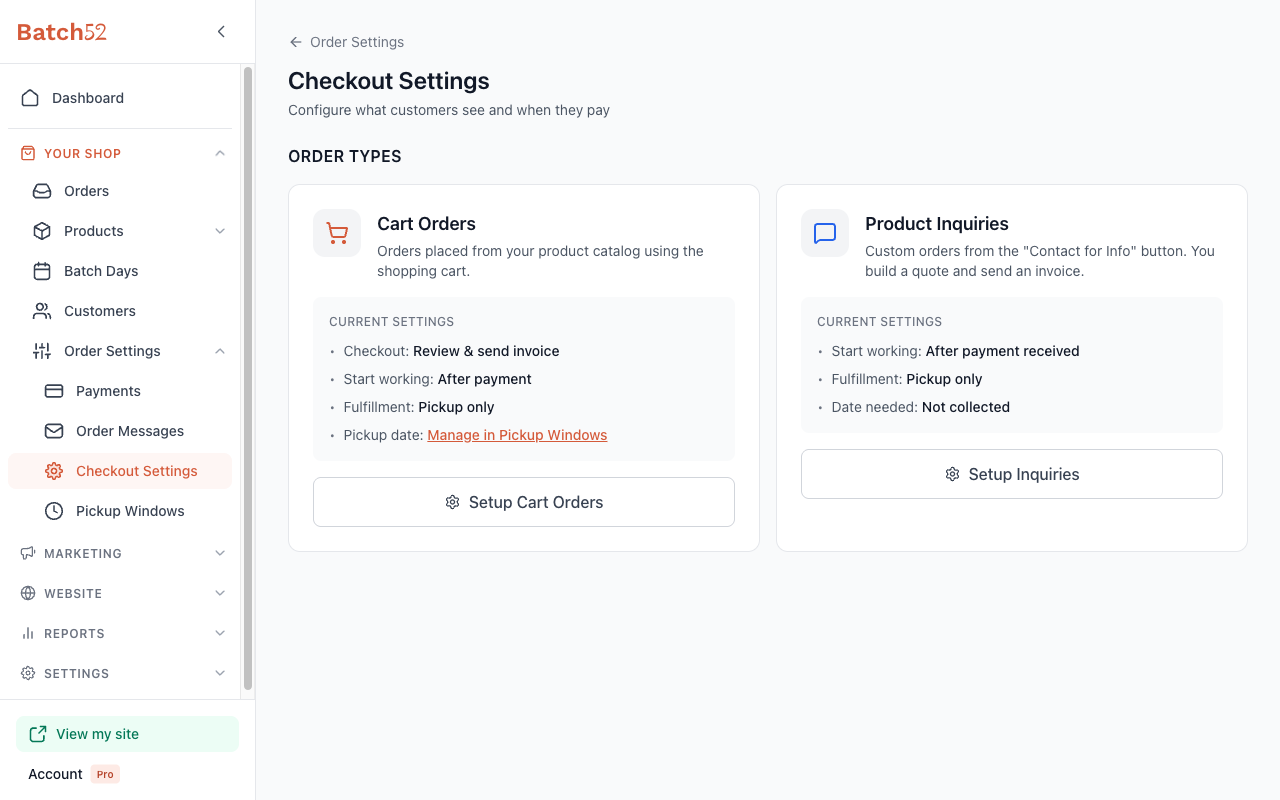
From the left sidebar, click Order Settings under Your Shop, then click Checkout Settings. You'll see two cards — one for Cart Orders and one for Product Inquiries. The Product Inquiries card shows its current "Date needed" setting at a glance. The Cart Orders card shows Pickup date: Manage in Pickup Windows, because cart pickup dates live on their own page (see step 6).
2. Open the inquiry setup wizard
Click Setup Inquiries. This opens a step-by-step wizard. The due date setting is Step 3 of 4 — click Continue to move past Steps 1 and 2.
3. Choose your due date setting
On Step 3, you'll see the question: "Ask customers when they need their order?" You have three options:
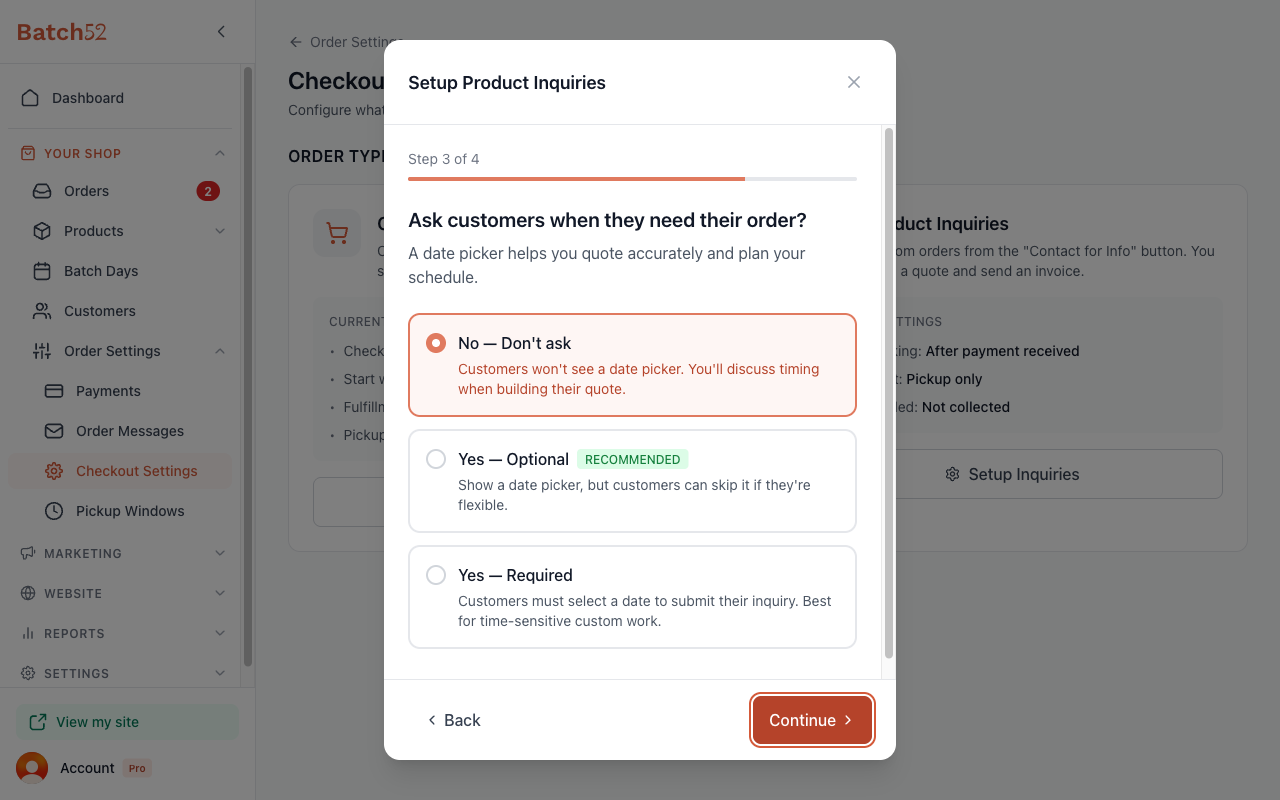
- No — Don't ask — Customers won't see a date picker. You'll talk about timing when you build their quote.
- Yes — Optional (Recommended) — A date picker appears on the inquiry form, but customers can skip it if they're flexible. This is the best choice for most bakers — you'll get a date when it matters, without forcing easy-going customers to pick one.
- Yes — Required — Customers must select a date to send their inquiry. Best for time-sensitive custom work like decorated cakes or event catering where you absolutely need to know the date upfront.
4. Set your lead time
When you choose either Yes — Optional or Yes — Required, a Lead Time section appears below with two fields:
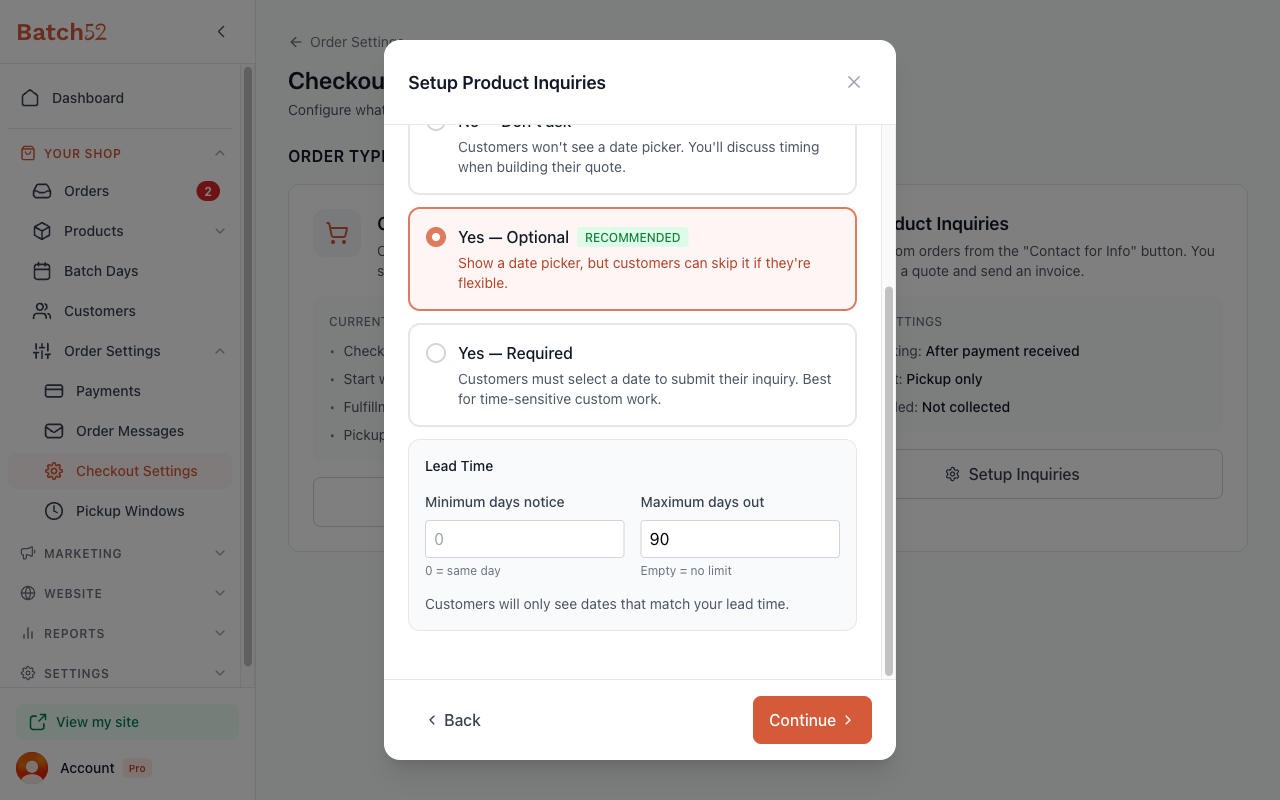
- Minimum days notice — How many days ahead customers need to order. Set this to
0for same-day orders,1for next-day,3if you need a few days to prep, etc. Customers won't be able to pick any date sooner than this. - Maximum days out — How far into the future customers can book. The default is
90days. Leave it empty for no limit. This keeps people from booking orders six months out if that doesn't work for your business.
The date picker customers see will only show dates that fall within your lead time window.
5. Finish the wizard
Click Continue to move to the last step (Fulfillment), then click Save Settings to apply your changes.
6. Set a pickup date for cart orders
Cart orders don't use the wizard for dates. From the left sidebar, click Pickup Windows under Order Settings (or click Manage in Pickup Windows on the Cart Orders card). Turn on Ask customers for a pickup date at checkout, then choose how customers pick their date:
- Any date — optional (Recommended) — Customers can pick any date from a calendar, or skip it if they're flexible.
- Any date — required — Customers must pick a date from a calendar to complete their order.
- Weekly pickup windows — Customers must choose one of your weekly pickup windows at checkout.
Below the options, set Minimum days notice under Lead Time so nobody can choose a date sooner than you can bake.
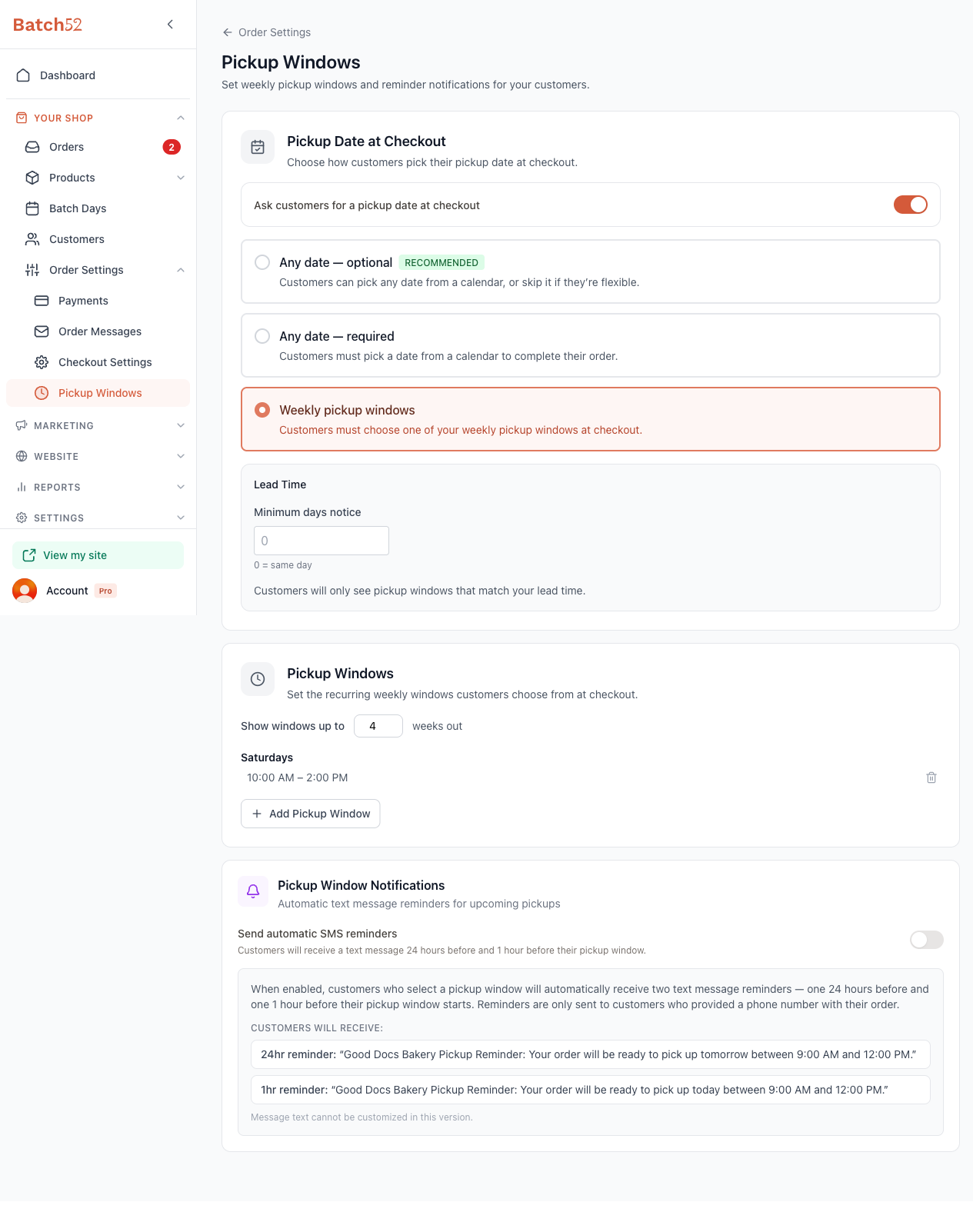
If you choose Weekly pickup windows, a Pickup Windows card lets you set the recurring time slots customers choose from — like "Saturdays 10am–2pm." Click Add Pickup Window. A window opens where you can:
- Select one or more days — toggle the day buttons (Sun through Sat) for when you're available for pickups.
- Set a Start Time and End Time — choose from the dropdowns, which offer 30-minute increments from 5:00 AM to 10:00 PM.
Click Add Window to save. Your windows appear grouped by day, each with a delete icon (trash can) if you need to remove one. You can add as many windows as you need — for example, Saturdays 10am–2pm and Wednesdays 4pm–6pm.
You'll also see a "Show windows up to [N] weeks out" setting (default is 4 weeks). This controls how far into the future customers can see available pickup slots at checkout.
7. View orders by due date
Once customers start selecting dates, you can view orders grouped by when they're needed. On the Orders page, click the Due tab to see all orders sorted by their due date. This makes it easy to plan your baking schedule for the week.
Tips
- "Yes — Optional" is the sweet spot for most bakers. Customers who need their order by a certain date will tell you, and flexible customers won't feel forced to guess.
- Set your minimum days notice to match your actual prep time. If a custom cake takes 3 days, set it to
3so nobody can order one for tomorrow. - You can set different date rules for cart orders and product inquiries. For example, you might not need a pickup date for simple cookie orders (cart) but always want a date for custom cake requests (inquiries).
- Your current inquiry "Date needed" setting is always visible on the Checkout Settings page — no need to open the wizard just to check.
- If you change the setting from "Required" to "Don't ask," existing orders that already have due dates won't be affected.
- Pickup windows are a great way to keep your schedule predictable. Instead of customers picking any random date, they'll only see the days and times you've set up — perfect if you only do pickups on weekends.