Configure Payment Methods
Set up the ways your customers can pay you — like Venmo, Cash App, cash, or check.
Included in all plans
Direct link: /site/admin/order-settings/payment-methods
Set up the ways your customers can pay you — like Venmo, Cash App, cash, or check.
Overview
Before your customers can place orders, they'll need to know how to pay you. The Payments page is where you tell Batch52 which payment methods you accept. These show up on your invoices so customers know exactly how to send you money. You can add as many methods as you'd like.
Steps
1. Go to the Payments page
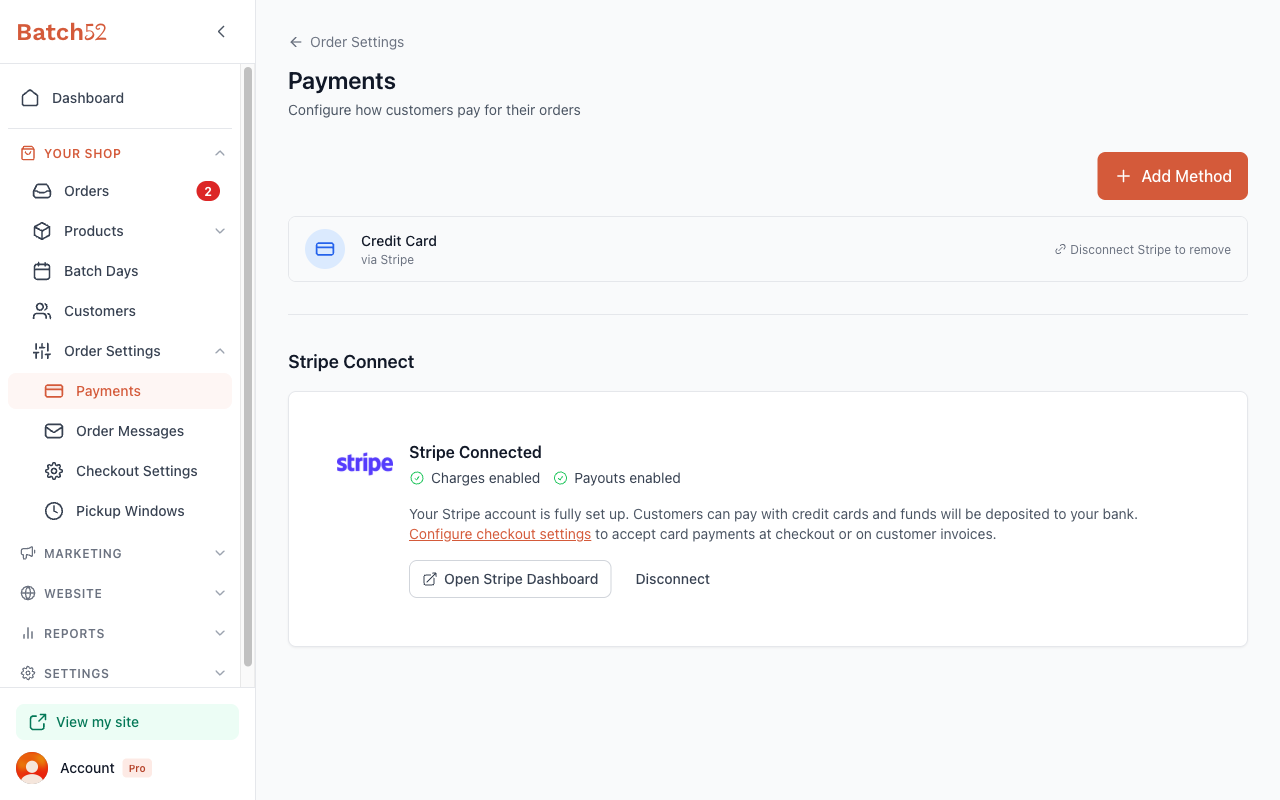
From the left sidebar, click Order Settings under Your Shop, then click Payments. You can also get here from the Order Settings landing page by clicking the Payments card.
2. Add a payment method
Click the + Add Method button in the top right corner. A modal will appear with seven payment method options to choose from:
- Cash — For customers paying with cash
- Venmo — Enter your Venmo username so customers can find you
- Cash App — Enter your Cashtag
- Zelle — Enter the email or phone number your Zelle account uses
- PayPal — Enter your PayPal.me username
- Check — For customers paying by check
- Other — For any payment method not listed (like Apple Pay)
Card payments aren't in this list. You take cards by connecting Stripe or Square (step 5).
3. Fill in the details (if needed)
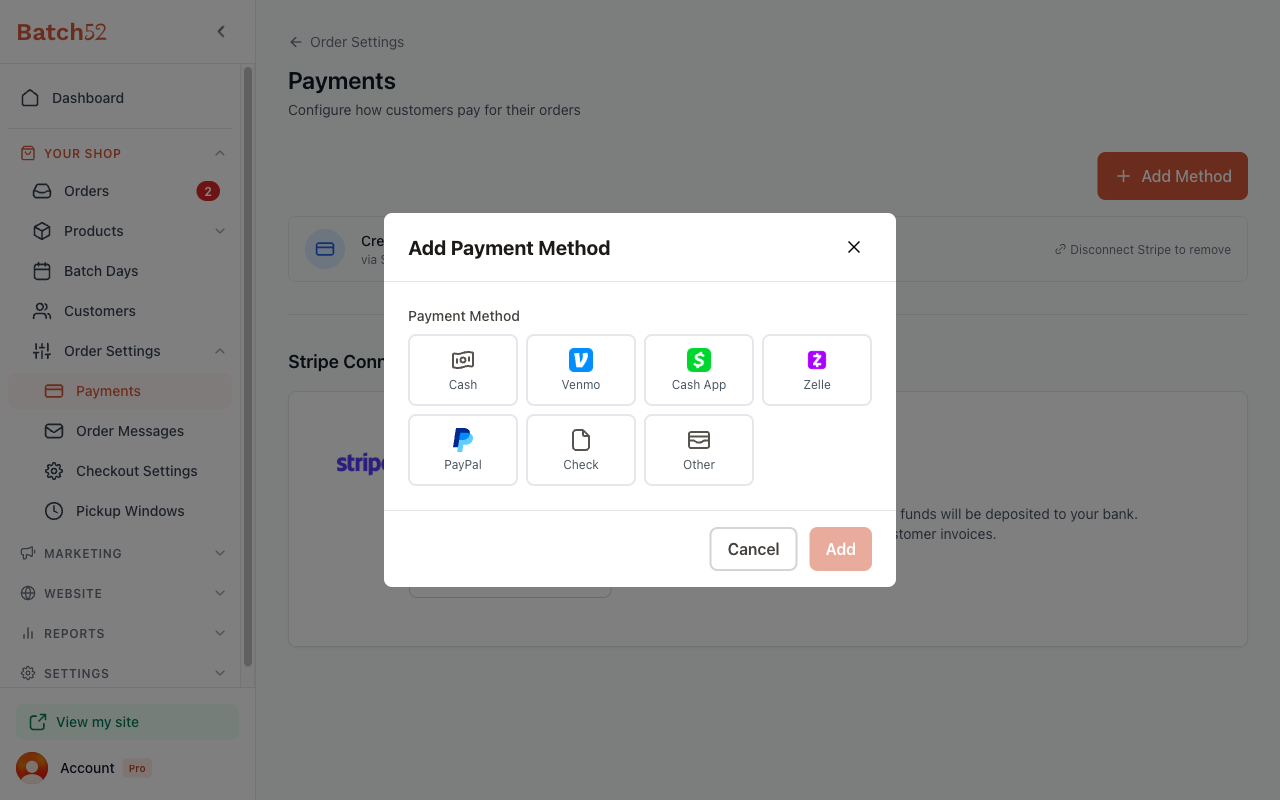
What you see next depends on which method you pick:
- Cash and Check don't need any extra info — just select one and click Add.
- Venmo, Cash App, Zelle, and PayPal ask for your username, Cashtag, or Zelle email or phone. This gets shown to customers on your invoices so they know where to send payment. For Venmo and PayPal you'll also see a preview link (like
https://venmo.com/YourName) so you can check it goes to the right account.
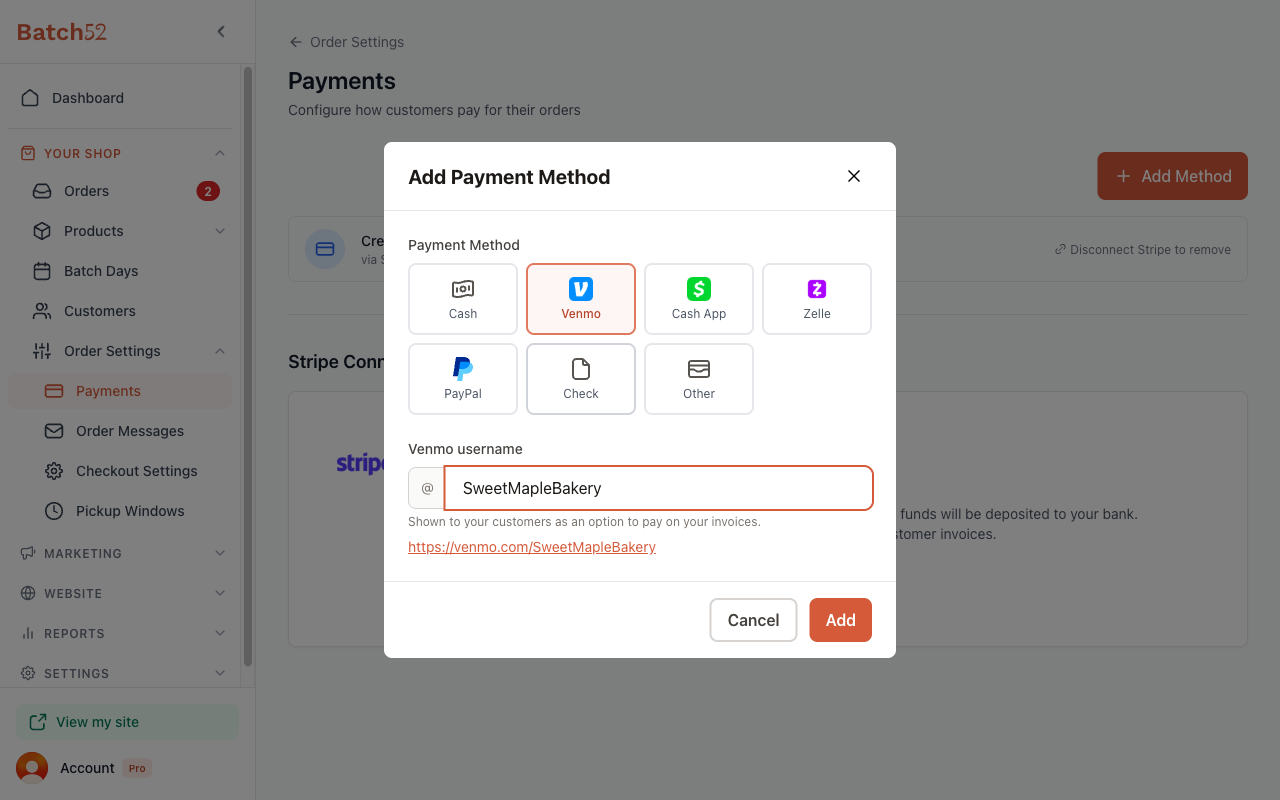
- Other lets you enter a custom name (up to 50 characters) and optional details. Use this for payment apps like Apple Pay, or anything else not in the standard list. To take card payments through Square at checkout, see Connect Square for Card Payments.
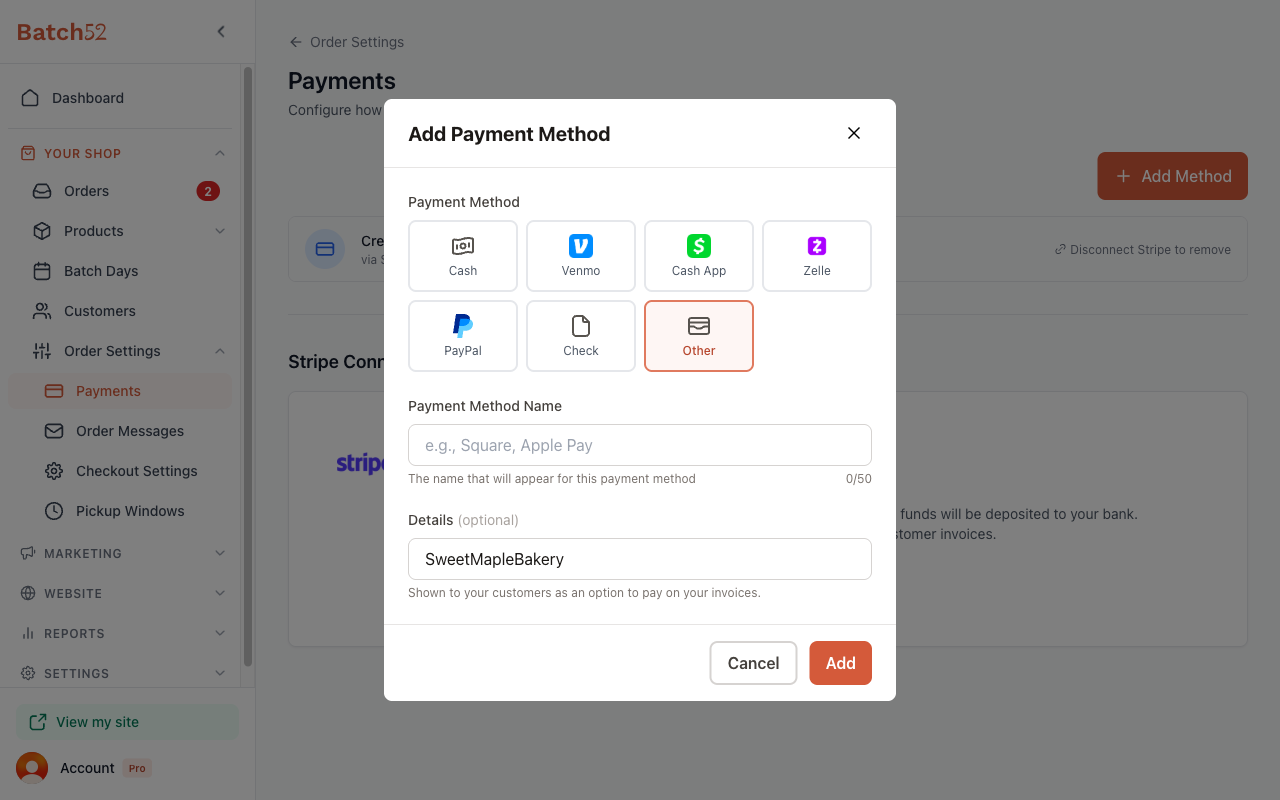
Click Add when you're done. You'll see a confirmation message and the method will appear in your list.
4. Manage your payment methods
Once you've added methods, they show up as a list on the Payments page. Each one shows the method name and your username (if applicable).
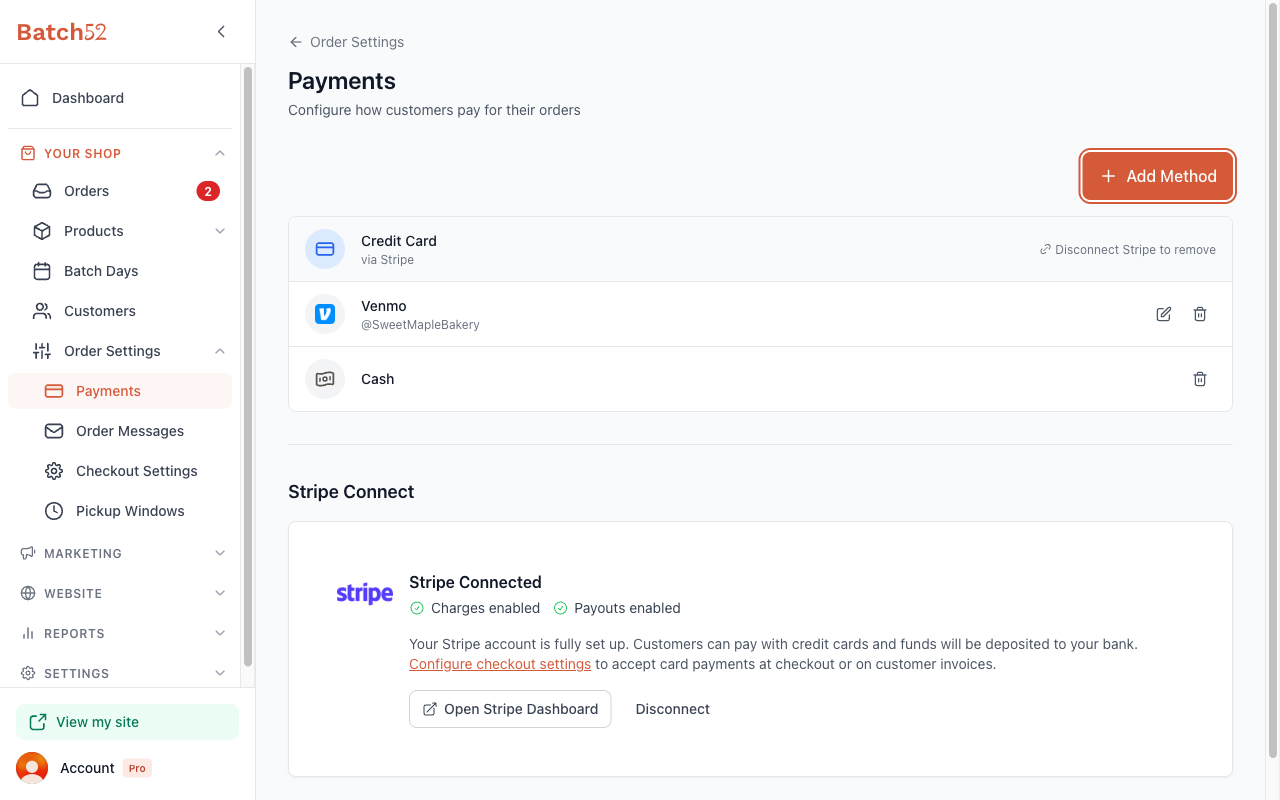
From here you can:
- Edit a method by clicking the pencil icon (for methods with a username or details, like Venmo, Cash App, or Other)
- Delete a method by clicking the trash icon — you'll be asked to confirm before it's removed
5. Connect Stripe or Square for online payments
You can take card payments through either Stripe or Square, one at a time. Connecting either one lets you accept credit card payments directly through your site at checkout — customers pay online and the money goes to your own Stripe or Square account.
Until you connect one, you'll see a Stripe Connect section and a Square section below your payment methods list. Click Connect Stripe to set up Stripe, or Connect Square to use Square (see Connect Square for Card Payments for the full walkthrough).
Once you've connected a provider, only that provider's section is shown, and a Credit Card entry appears at the top of your payment methods list. To switch providers, click Disconnect in that section first, then connect the other one.
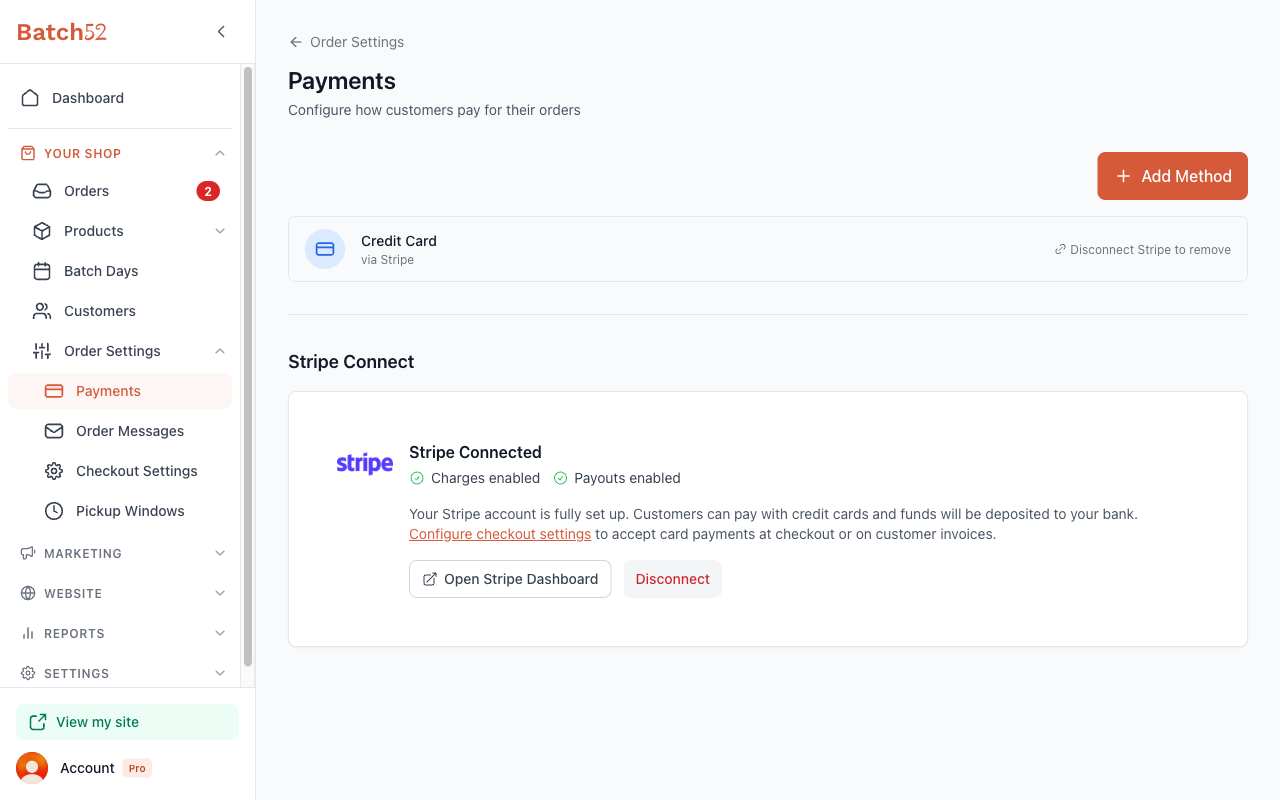
If you connect Square, card payments stay off until Square confirms your account can take cards. Until then you'll see an amber notice instead of a green Connected badge, and customers are asked to pay another way. With Square, each card sale also shows up in your Square account as an itemized order with a matching customer, and you'll find a View in Square link on your orders and customer details. Connect Square for Card Payments covers all of this.
Once connected, you can enable online card payments in your Checkout Settings.
Tips
- Most cottage food bakers start with just Cash and Venmo — you can always add more later.
- Your payment method usernames are shown on invoices, so double-check that they're correct.
- You can only add each built-in method once (for example, you can't add two Venmo entries), but you can add multiple Other methods.
- Stripe Connect and Square are available on every plan, including Standard, and let customers pay with a credit card right at checkout instead of paying you separately.