Connect Square for Card Payments
Take credit and debit card payments at checkout with your own Square account.
Included in all plans
Take credit and debit card payments at checkout with your own Square account.
Overview
If you already use Square to take payments, you can connect it to Batch52 and let customers pay by card when they order. The money goes into your Square account, and Batch52 never takes a cut of your sales. You can use Square or Stripe for card payments, but not both at the same time.
What you need
- A Square account that Square has activated for card payments (business details, identity verification and a bank account all finished in Square)
- At least one active location in Square
Steps
1. Open the Payments page
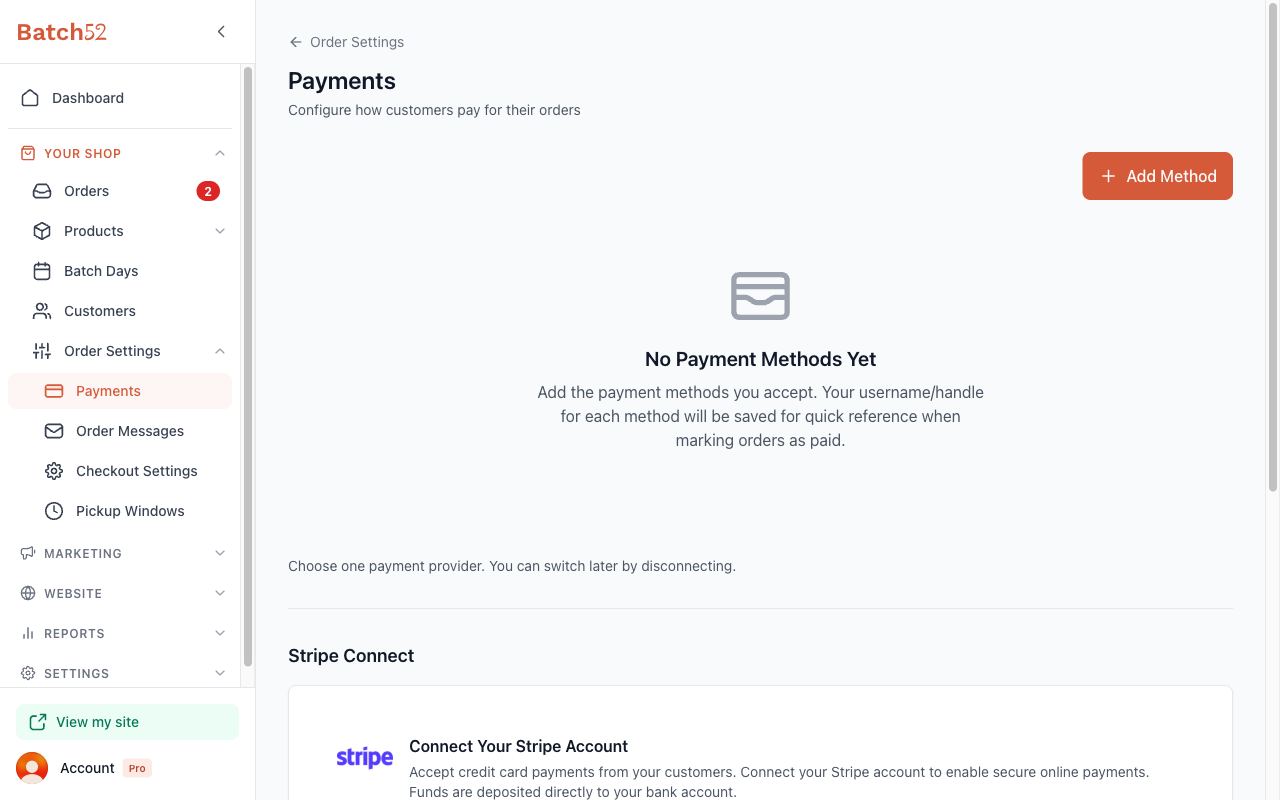
From the left sidebar, click Order Settings under Your Shop, then click Payments. Scroll below your payment methods list to the card payments section.
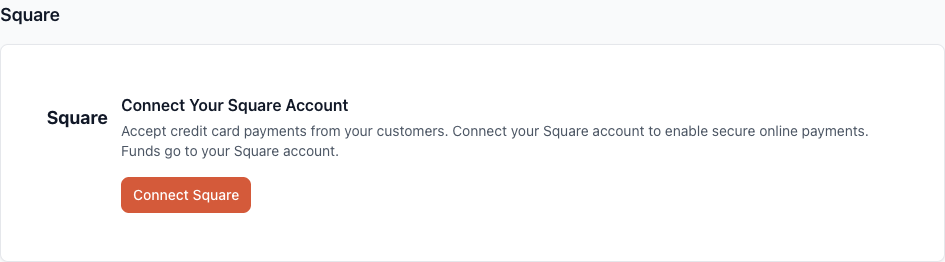
2. Click Connect Square
Click Connect Square. You'll be taken to Square's website to sign in.
3. Approve the connection
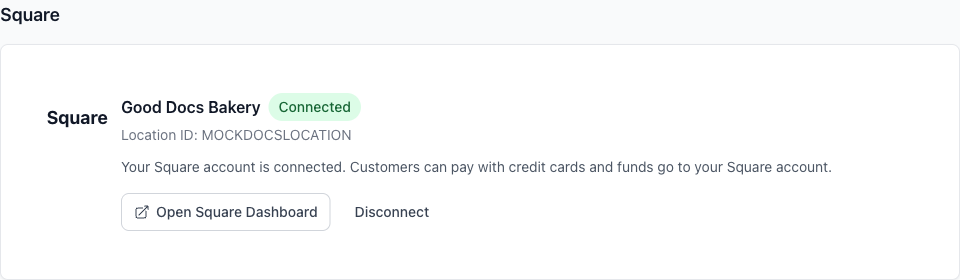
Review what Square shows you and click Allow. Square sends you straight back to Batch52. If Square has already activated your account for card payments, you'll see a green Connected badge on the Payments page.
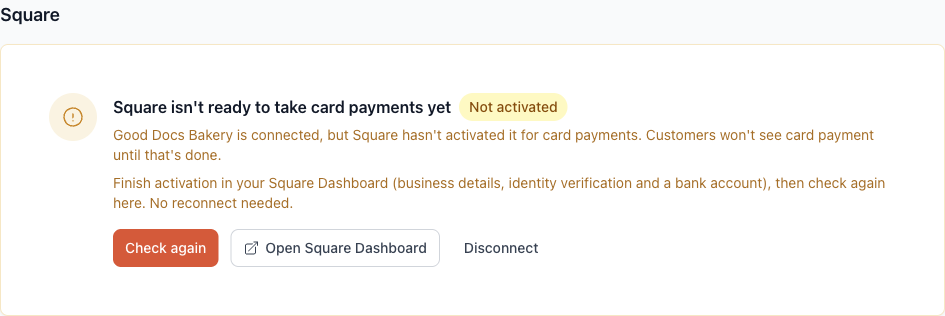
If Square hasn't finished activating your account yet, you'll see an amber notice instead: Square isn't ready to take card payments yet, with a Not activated badge. Your account is connected, but card payments stay off and customers won't see a card option until Square activates it. Finish activation in your Square Dashboard (click Open Square Dashboard), then come back and click Check again. You don't need to reconnect.
If you cancel, or Square can't finish, you'll come back to the Payments page with a short message. Just click Connect Square to try again.
4. Turn on card payments at checkout
Open Checkout Settings, click Setup Cart Orders, and choose Yes — Accept card payments at checkout. This works the same way as it does with Stripe.
What your customers see
Customers see a normal card form at checkout and on their order page when they pay an invoice. They enter their card details, tap Pay, and get an order confirmation. Nothing on the page asks them to create a Square account.
If Square can't take card payments for your account, customers aren't shown a card form, and anyone mid-payment is asked to choose another payment method. That's a good reason to keep at least one other method, like cash or Venmo, turned on.
Fees and payouts
Square's processing fees and payout schedule apply, because the payment goes through your Square account. You can see your sales, fees, and deposits in your Square Dashboard.
Your orders and customers in Square
Each card sale also shows up in Square as an itemized order, listing what the customer bought, and is linked to a matching customer in your Square customer list. Batch52 reuses an existing Square customer when it finds a match, so regulars don't pile up as duplicates.
To jump from Batch52 to Square, open a paid order and click View in Square under the payment status. On a customer's details page, click View in Square next to Square.
Refunds
Issue refunds from your Square Dashboard. Batch52 notices the refund and updates the order automatically, so you don't need to change anything by hand.
Switching providers
To move to Stripe, click Disconnect in the Square section of the Payments page, type DISCONNECT, click Disconnect Square to confirm, then connect Stripe. To move from Stripe to Square, open Payments, click Disconnect under your Stripe card (available whether Stripe is fully set up or not), confirm, then Connect Square. Only one card provider can be connected at a time.
While no provider is connected, customers can't pay by card. Unpaid invoices will take payment through your new provider the next time a customer opens them, and carts in progress restart their payment step.
Tips
- Connect during a quiet time so you aren't switching in the middle of a batch day.
- If Square says your account has no active location, add one in Square and try again.
- You can keep offering cash, Venmo, and other methods alongside card payments.