
Reorder Products
Learn how to rearrange the order of your products so the items you want to highlight appear first on your shop.
Learn how to rearrange the order of your products so the items you want to highlight appear first on your shop.
Overview
The order of products on your Products page is exactly the order your customers see when they visit your shop. If you just added a new seasonal item or want to put your best sellers front and center, a quick drag-and-drop is all it takes.
Steps
1. Go to your Products page
Direct link: Open this page
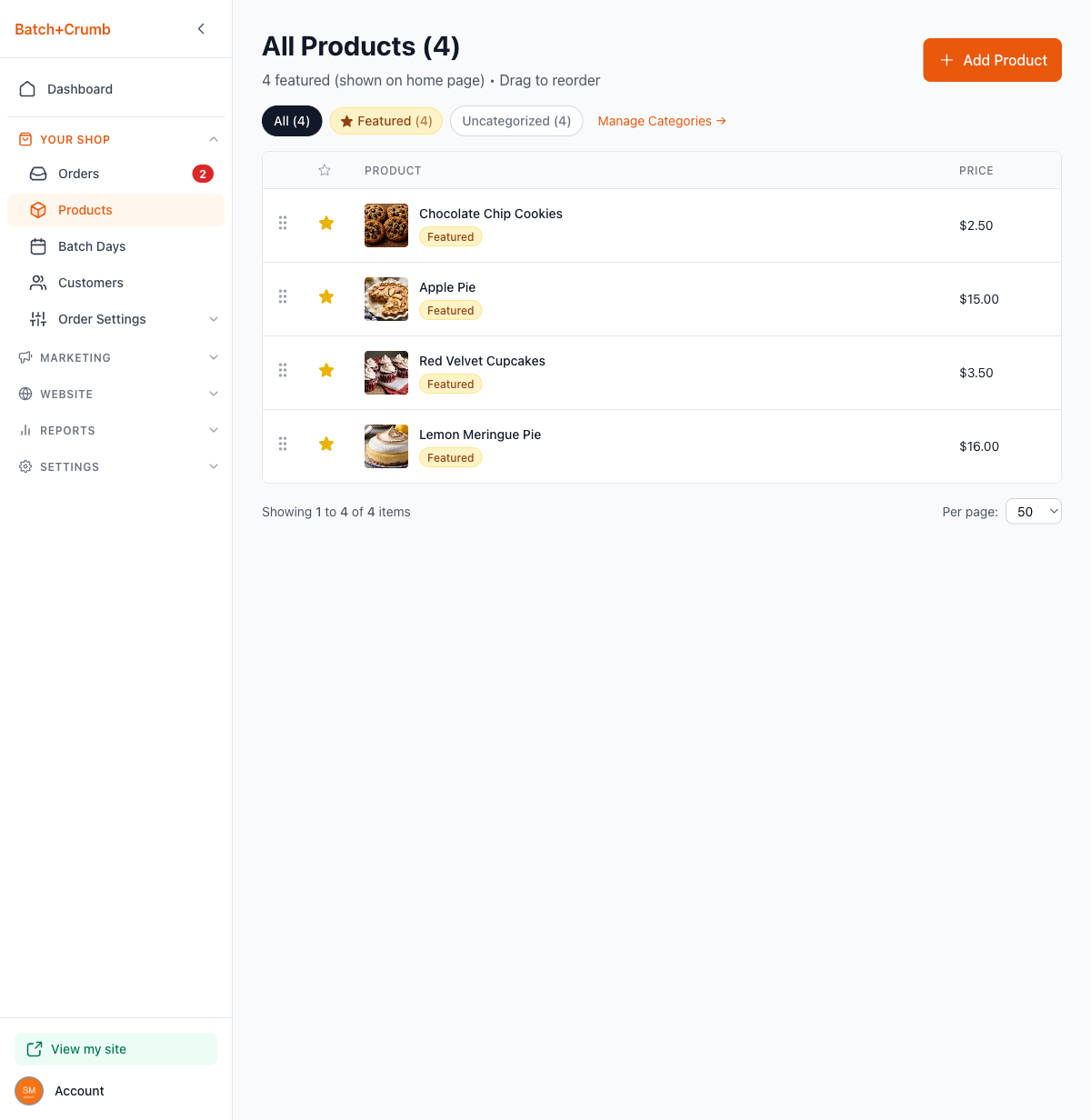
From the left sidebar, click Products under Your Shop. You'll see a list of all your products with a helpful note at the top: "Drag to reorder."
2. Grab the drag handle
Each product row has a small six-dot grip icon on the far left. This is the drag handle. Hover over it and your cursor will change to indicate you can drag.
3. Drag the product to its new position
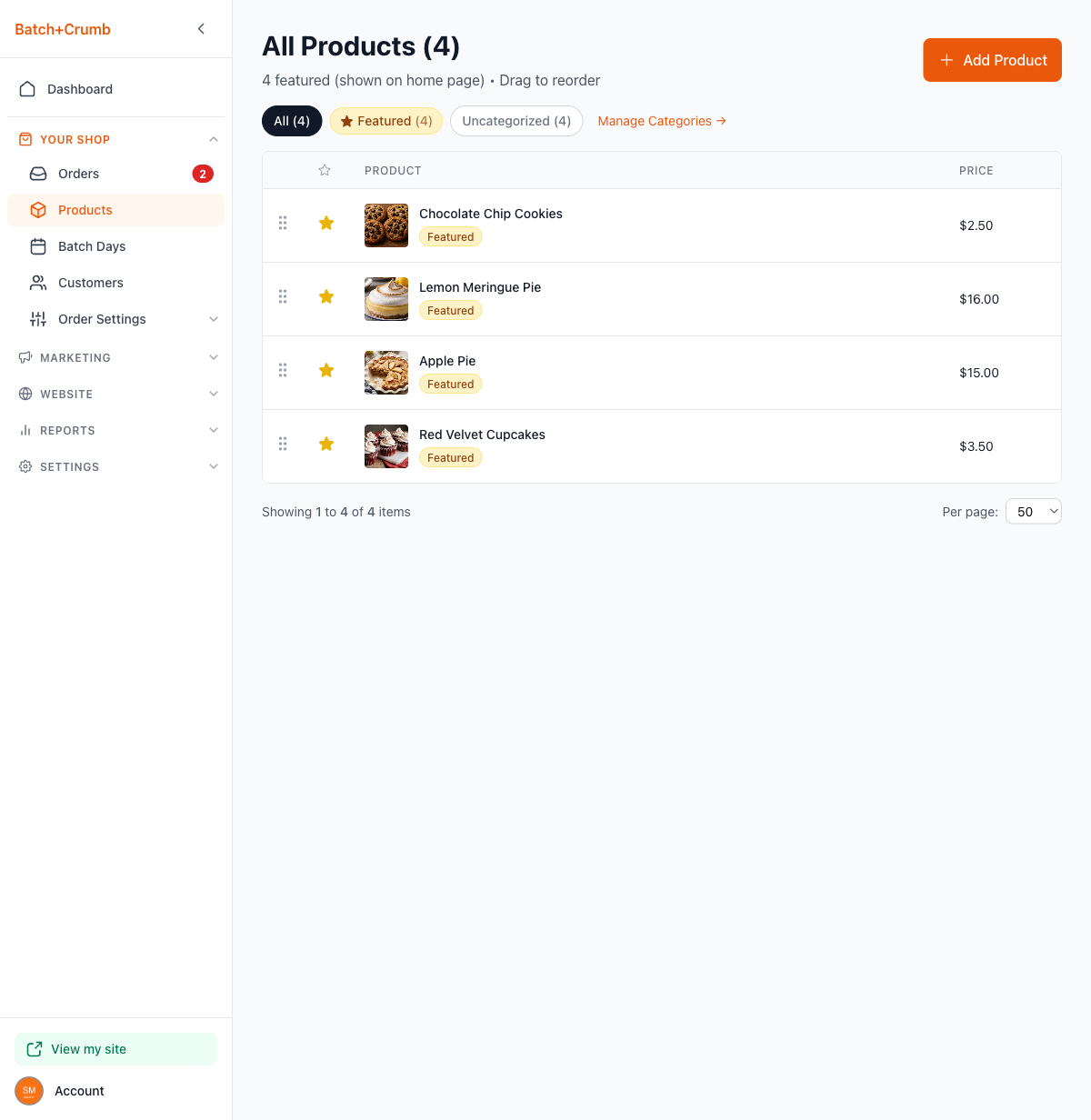
Click and hold the drag handle, then drag the product up or down to where you want it. Release to drop it into place. The new order saves automatically — no need to click a Save button.
4. Check your public site
The product order on your admin page is the same order customers see on your shop. Visit your site to confirm your products appear in the order you want.

Tips
- Put your most popular or seasonal items at the top so customers see them first.
- New products are added to the bottom of the list by default, so you may want to drag them up after adding them.
- The order applies to both your homepage product section and your full products page.
- Changes save automatically as soon as you drop a product into its new spot.