Set Up Auto-Replies
Customize the automatic messages customers receive when they submit your contact form or inquire about a product.
Included in all plans
Direct link: /site/admin/web-settings/auto-replies
Customize the automatic messages customers receive when they submit your contact form or inquire about a product.
Overview
When someone reaches out through your contact form or asks about a product, Batch52 automatically sends them a confirmation email so they know you received their message. Auto-reply templates let you personalize these messages with your own wording and your business name, so every response feels like it's coming directly from you.
Steps
1. Go to Auto-Reply Templates
From your admin dashboard, click Website in the left sidebar, then expand Website Settings and click Auto-Reply Templates.
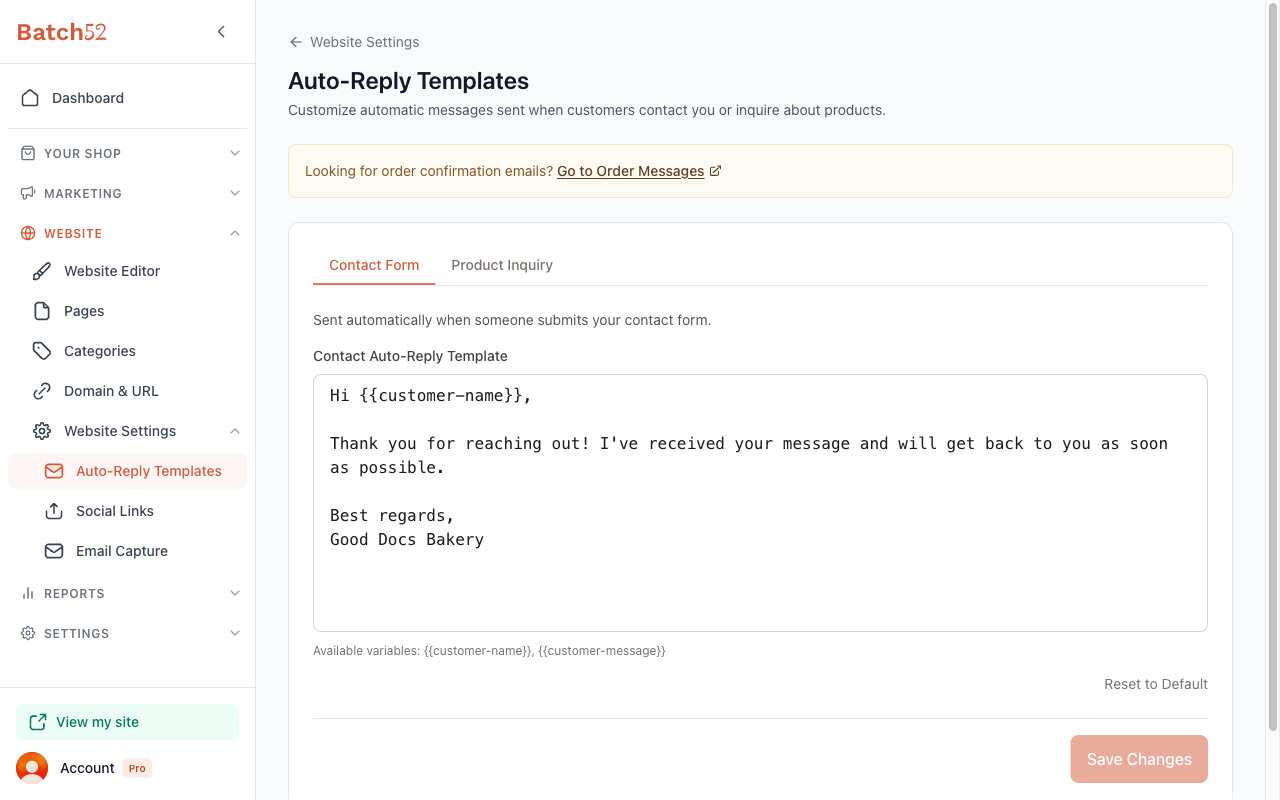
You'll see two tabs at the top: Contact Form and Product Inquiry. Each one controls a different auto-reply.
2. Edit your contact form auto-reply
The Contact Form tab is selected by default. This message is sent automatically whenever someone submits the contact form on your website.
The template text area shows your current auto-reply. Edit it however you like — keep it friendly and let customers know you'll get back to them soon.
You can use these variables, and Batch52 will replace them with the real values when the email is sent:
- {{customer-name}} — the customer's name from the form
- {{customer-message}} — the message the customer typed
3. Edit your product inquiry auto-reply
Click the Product Inquiry tab to switch to the inquiry template. This message is sent automatically when a customer inquires about a product that's set to "Contact for Info."
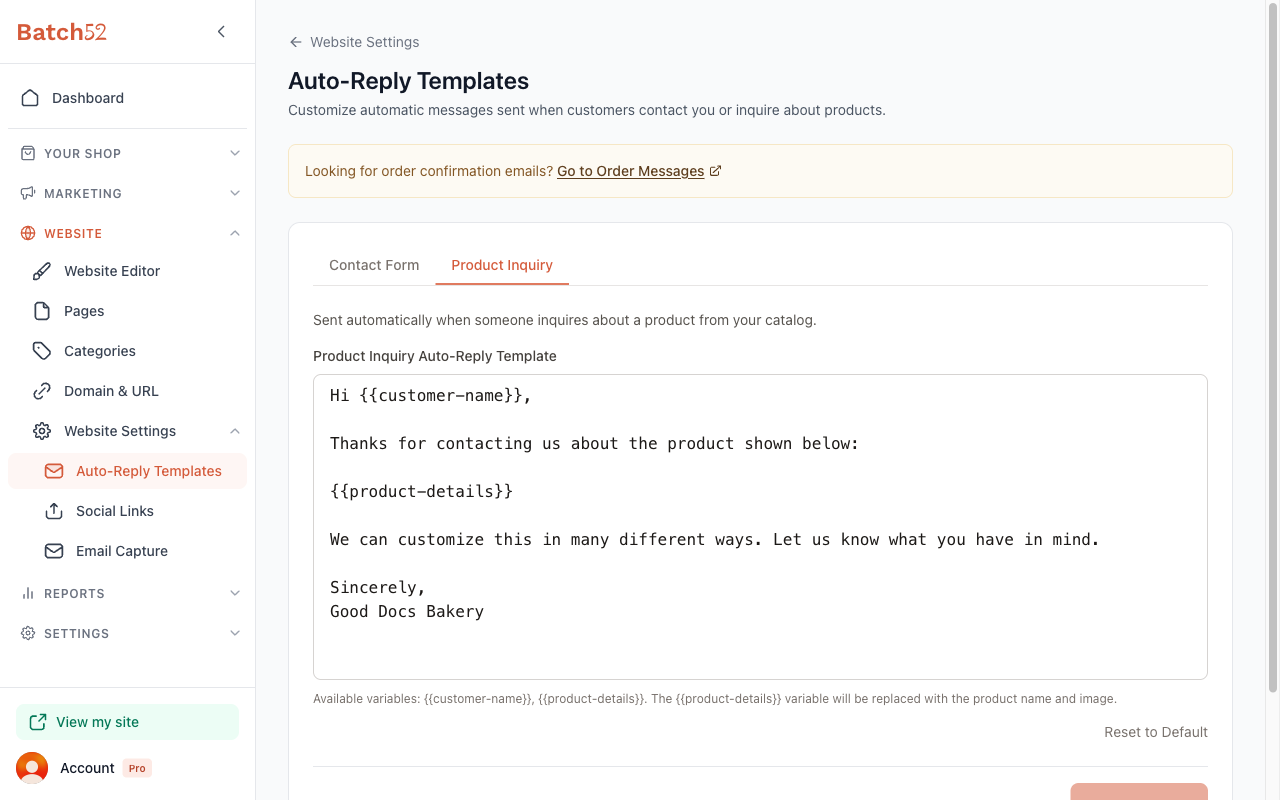
This template has its own set of variables:
- {{customer-name}} — the customer's name
- {{product-details}} — replaced with a box showing the product name, its price (if it has one) and what the customer asked, so they know exactly which item you're talking about
4. Save your changes
After editing either template, click Save Changes at the bottom. The button stays grayed out until you've made a change, so you'll know when there's something new to save.
5. Reset to the default (optional)
If you want to start over, click Reset to Default below the template text area. This replaces your custom text with Batch52's original template. Don't forget to click Save Changes afterward.
Tips
- Keep auto-replies short and warm — a simple "Thanks for reaching out, I'll get back to you soon!" goes a long way.
- The product inquiry auto-reply is a great place to mention that you offer customizations or to let customers know your typical response time.
- These templates only control the automatic confirmation email. You'll still want to follow up with a personal reply when you're ready.
- Looking for order confirmation emails? Those are managed separately under Order Settings > Order Messages.