Connect a Custom Domain
Use your own domain name (like www.sweetmaplebakery.com) so customers can find your shop at a professional web address.
Pro plan feature — Upgrade to Pro to access this feature.
Direct link: /site/admin/custom-domain
Use your own domain name (like www.sweetmaplebakery.com) so customers can find your shop at a professional web address.
Overview
Every Batch52 site comes with a free address like yourname.batch52.com. With a Pro plan, you can connect your own domain so customers visit your shop at a custom address instead. Batch52 handles the SSL certificate automatically — no technical setup on your end beyond updating your DNS records.
Steps
1. Go to Domain & URL
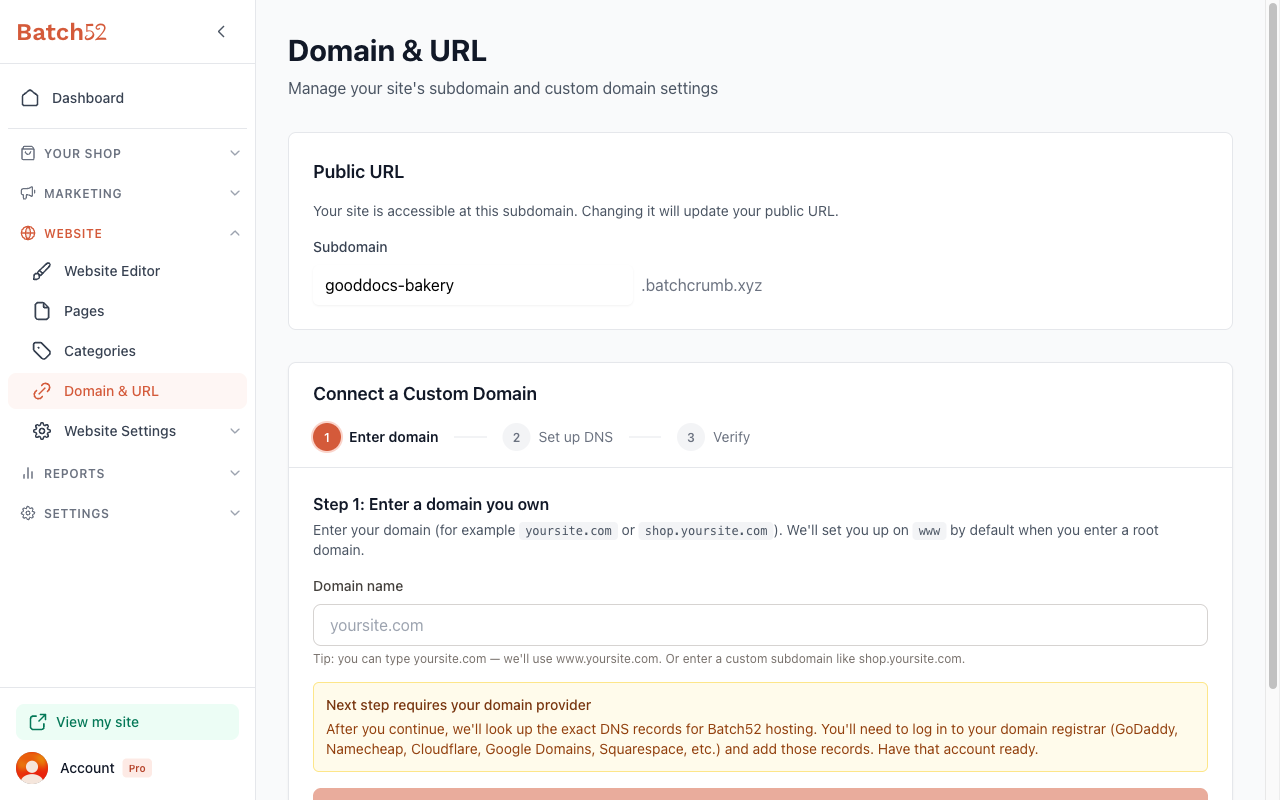
From the sidebar, click Website to expand the menu, then click Domain & URL.
2. Choose your subdomain (optional)
At the top of the page, you'll see the Public URL section with your current Batch52 subdomain (for example, gooddocs-bakery.batch52.com).
If you'd like to change your free Batch52 address:
- Edit the Subdomain field to your preferred name. Batch52 checks right away whether the name is available.
- Click Save Changes (or Cancel to keep your current address)
Your site will immediately be available at the new address. Keep in mind this also changes any links you've already shared.
3. Enter your domain
The Connect a Custom Domain section walks you through three steps: Enter domain, Set up DNS and Verify.
- Type your domain into the Domain name field — for example,
sweetmaplebakery.comorshop.sweetmaplebakery.com. If you type a root domain likesweetmaplebakery.com, Batch52 sets you up onwww.sweetmaplebakery.comby default. - Click Continue to DNS setup
Batch52 looks up the exact DNS record you'll need to add at your domain registrar (wherever you bought your domain, like GoDaddy, Namecheap, Cloudflare or Squarespace), so have that login handy.
4. Update your DNS records
Step 2: Update DNS at your domain provider shows the record to add, with its Name / Host and Value / Points to. For a www or shop address this is a CNAME record. If extra verification records appear, add those too.
- Log in to your domain registrar
- Find the DNS settings or DNS records section
- Add the record(s) that Batch52 displays
- Save your changes
- Back in Batch52, click I've set up my DNS — check connection
Entered the wrong domain? Click Start over to remove it and try again.
5. Wait for it to connect
Step 3: Check your connection tells you whether your DNS points at Batch52 yet:
- Not connected yet — the page lists troubleshooting tips and the records to double-check. Fix anything that looks off, then click Retry check, or click Back to DNS records to see the records again.
- DNS looks good — Batch52 is waiting for the change to spread and for your SSL certificate (the secure padlock icon in the browser), which it sets up automatically. It re-checks every 30 seconds, so you can leave the page and come back.
- Success — your custom domain is connected — your shop is live at your own address. Your site remains accessible at your original yourname.batch52.com address too.
DNS changes can take 24–48 hours to fully propagate across the internet.
Tips
- Stick with
wwworshopinstead of a bare domain. Batch52 useswwwby default. Under Advanced on the DNS step there's a Use apex domain switch for connectingsweetmaplebakery.comwithoutwww, but it isn't recommended if you use email on that domain. And never change your MX (email) records while setting this up. - Don't worry about losing your old link. Your Batch52 subdomain (
yourname.batch52.com) keeps working even after you connect a custom domain. - Be patient with DNS. If your domain isn't working right away, give it up to 48 hours before troubleshooting. Most connections happen much faster, but it varies.
- You don't need to buy an SSL certificate. Batch52 provides one automatically for your custom domain at no extra cost.