
Manage Pages
Create custom pages for your site — like an About Us, FAQ, or product showcase — and edit the built-in legal pages that come with every Batch52 site.
Pro plan feature — Upgrade to Pro to access this feature.
Direct link: /site/admin/pages
Create custom pages for your site — like an About Us, FAQ, or product showcase — and edit the built-in legal pages that come with every Batch52 site.
Overview
Your Batch52 site comes with two default legal pages (Terms of Service and Privacy Policy) that are always published. With a Pro plan, you can also create your own custom pages with a rich text editor, control whether they appear in your site navigation, and publish or unpublish them at any time.
Steps
1. Go to Pages
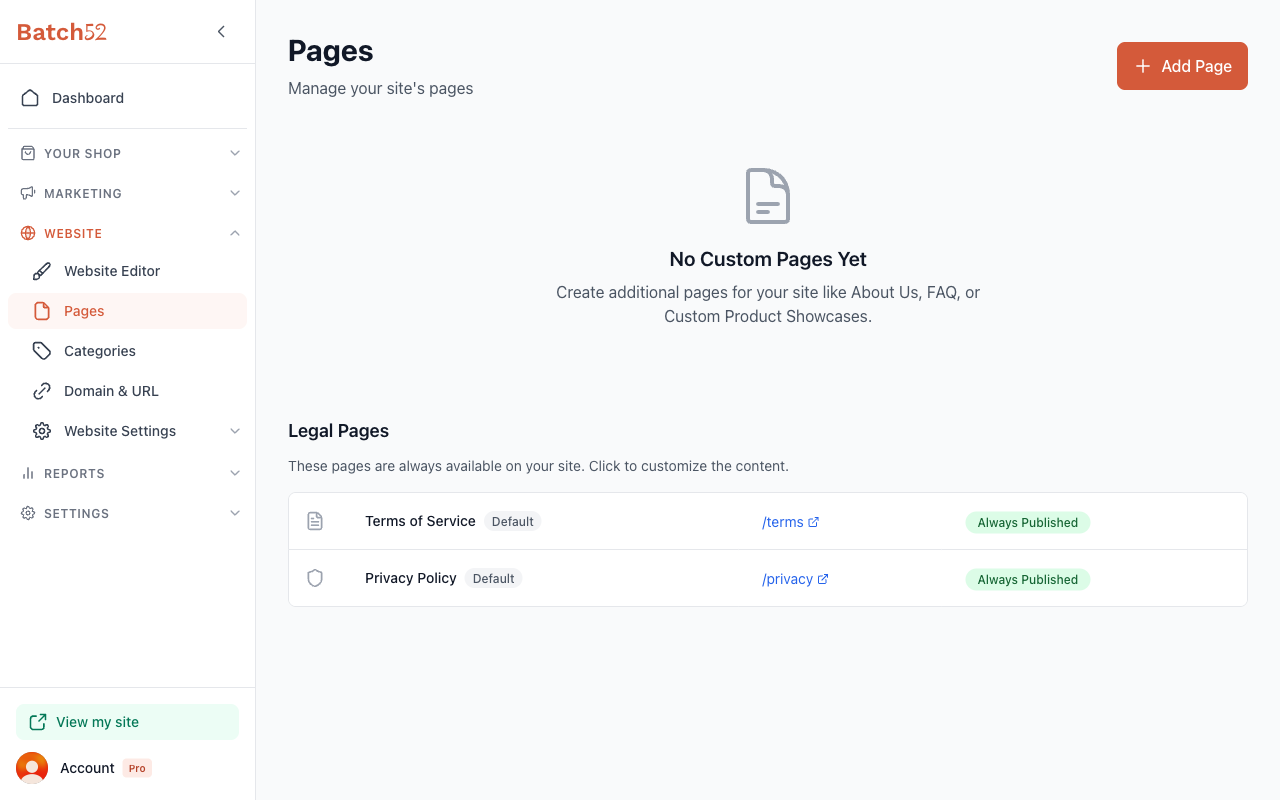
From the sidebar, click Website to expand the menu, then click Pages.
You'll see your custom pages listed at the top (if you have any) and the Legal Pages section at the bottom.
2. Create a custom page
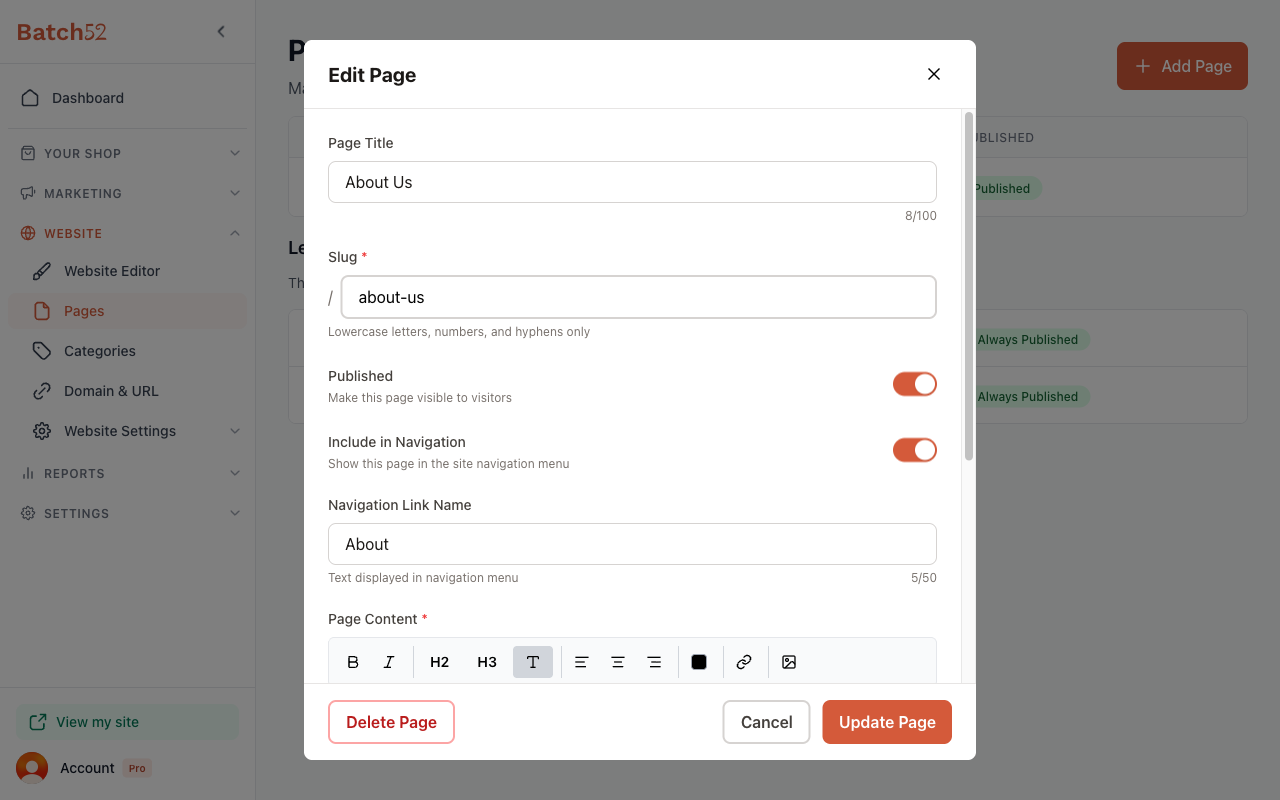
Click the Add Page button in the top-right corner. A dialog will open with these fields:
- Page Title — The name of your page (up to 100 characters)
- Slug — The URL path for your page. Uses lowercase letters, numbers, and hyphens only. It starts filling in as you type the title but may only pick up the first letter, so check it and type the slug you want (for example,
about-us) - Published toggle — Controls whether visitors can see this page (on by default)
- Include in Navigation toggle — Adds a link to this page in your site's navigation menu (on by default)
- Navigation Link Name — The text that appears in the menu (up to 50 characters). Like the slug, it starts from the title, so check it before you save
- Page Content — A rich text editor where you write your page content
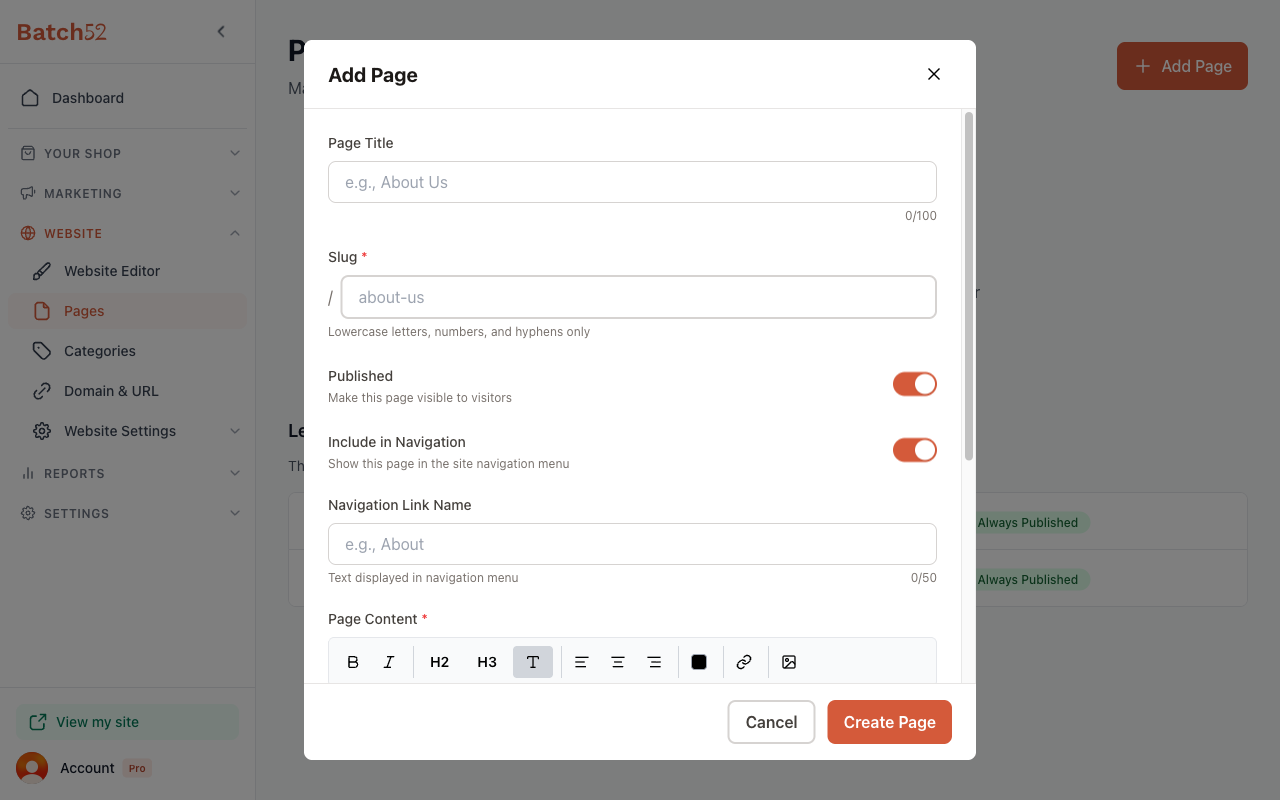
Fill in your page details and use the editor toolbar to format your content. You can make text bold or italic, add headings (H2 and H3), align text, change text color, add links, and insert images.
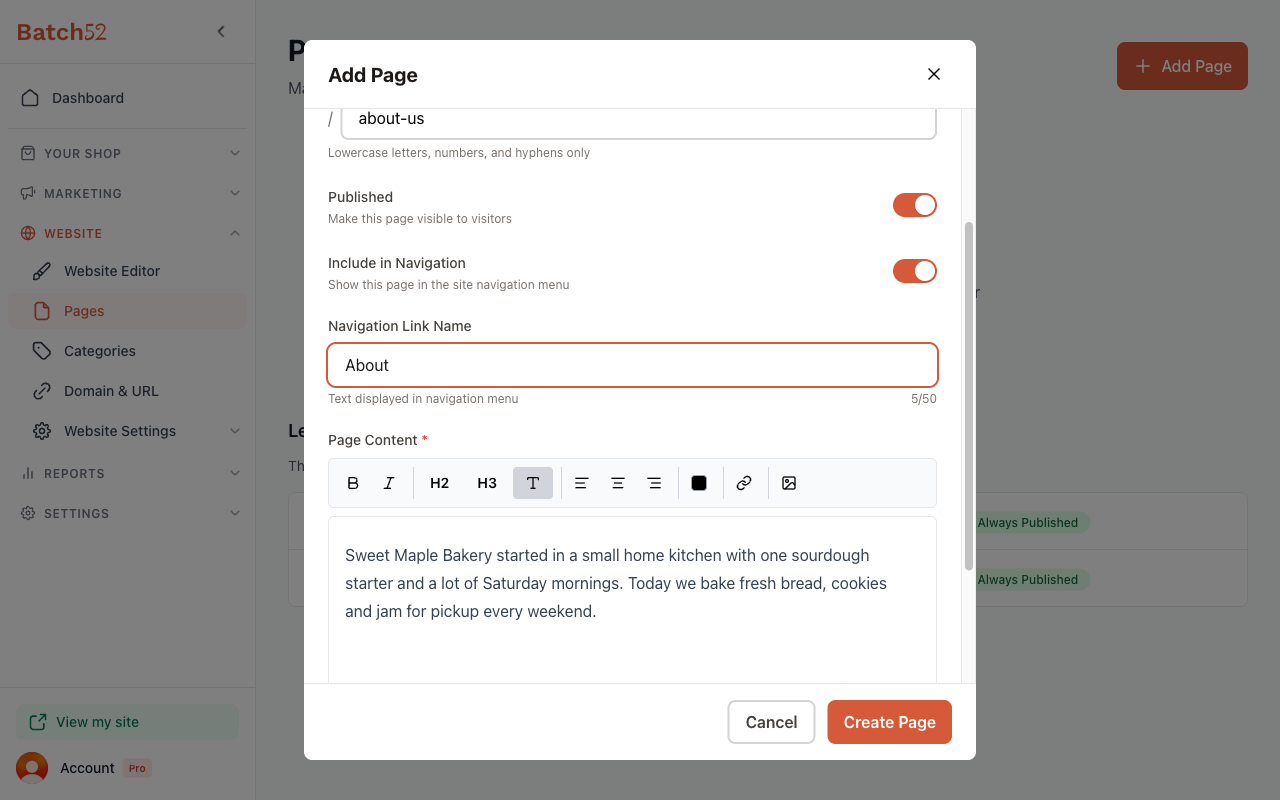
When you're happy with it, click Create Page.
3. View and manage your pages
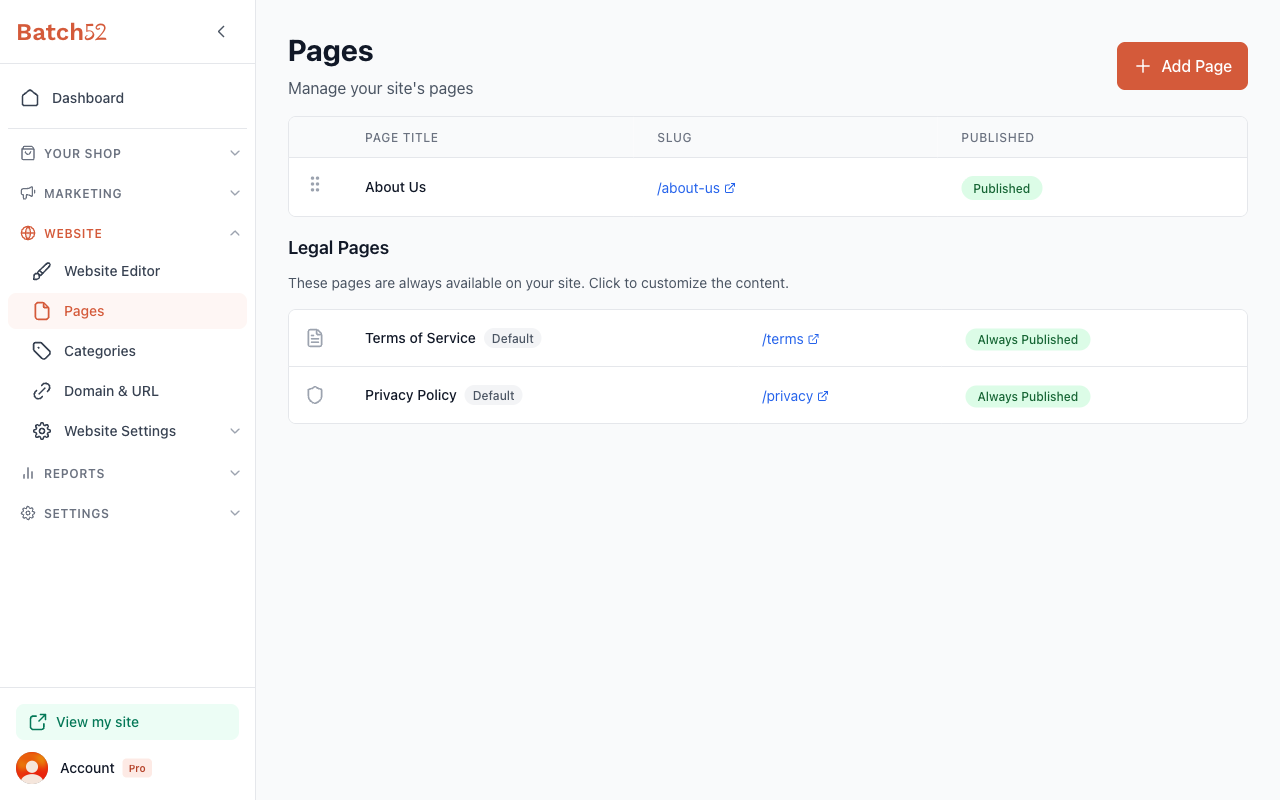
After creating a page, it appears in the list at the top of the Pages screen. Each row shows the page title, its URL slug (which links to the live page), and its publish status.
4. Edit a custom page
Click on a page's title to open the Edit Page dialog. You can update the title, slug, content, and toggle the Published and Include in Navigation settings. When you're done, click Update Page to save your changes.
5. Delete a custom page
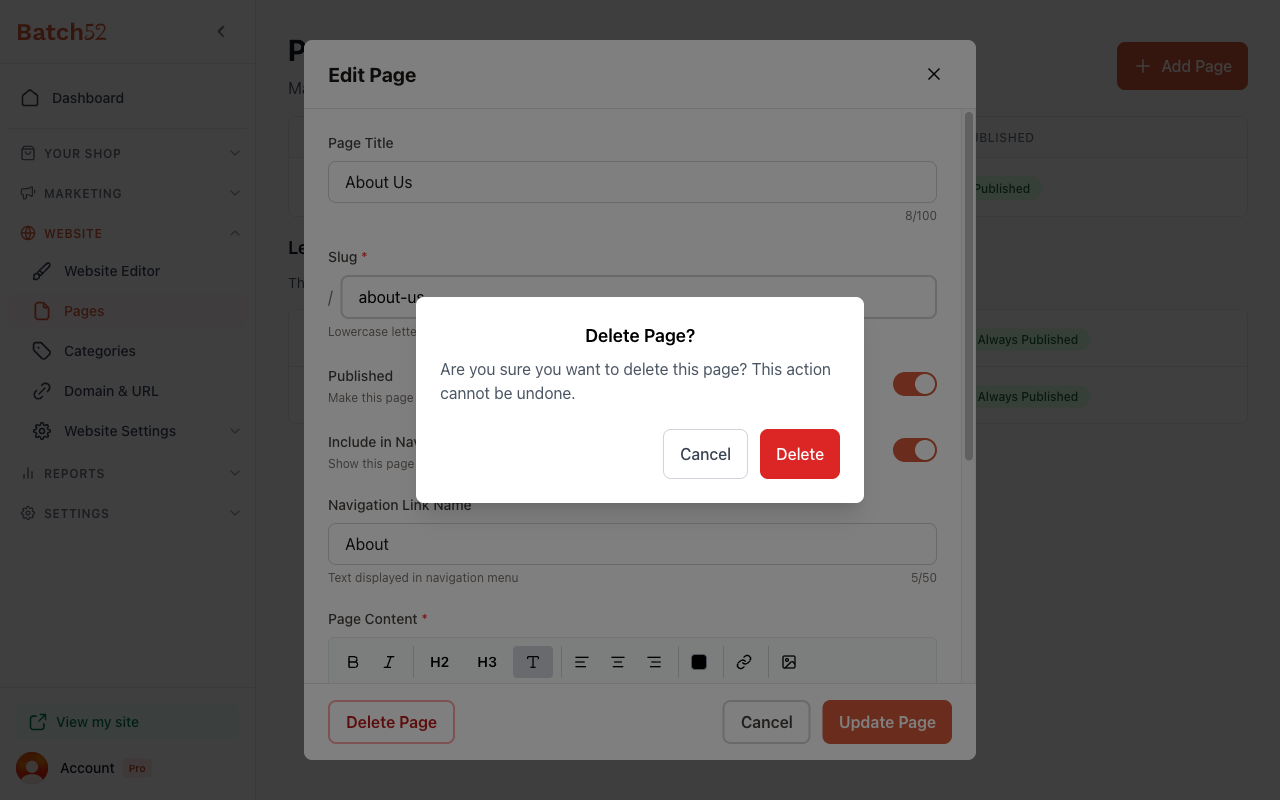
To remove a page, open it for editing and click the red Delete Page button at the bottom-left of the dialog. You'll be asked to confirm — this action cannot be undone.
6. Edit legal pages
Your site includes two built-in legal pages — Terms of Service and Privacy Policy — listed under the Legal Pages section. These are always published and can't be deleted, but you can customize their content.
Click on a legal page to open its editor. The slug is locked (you can't change /terms or /privacy), but you can update the title, content, and choose whether to include it in your navigation menu.
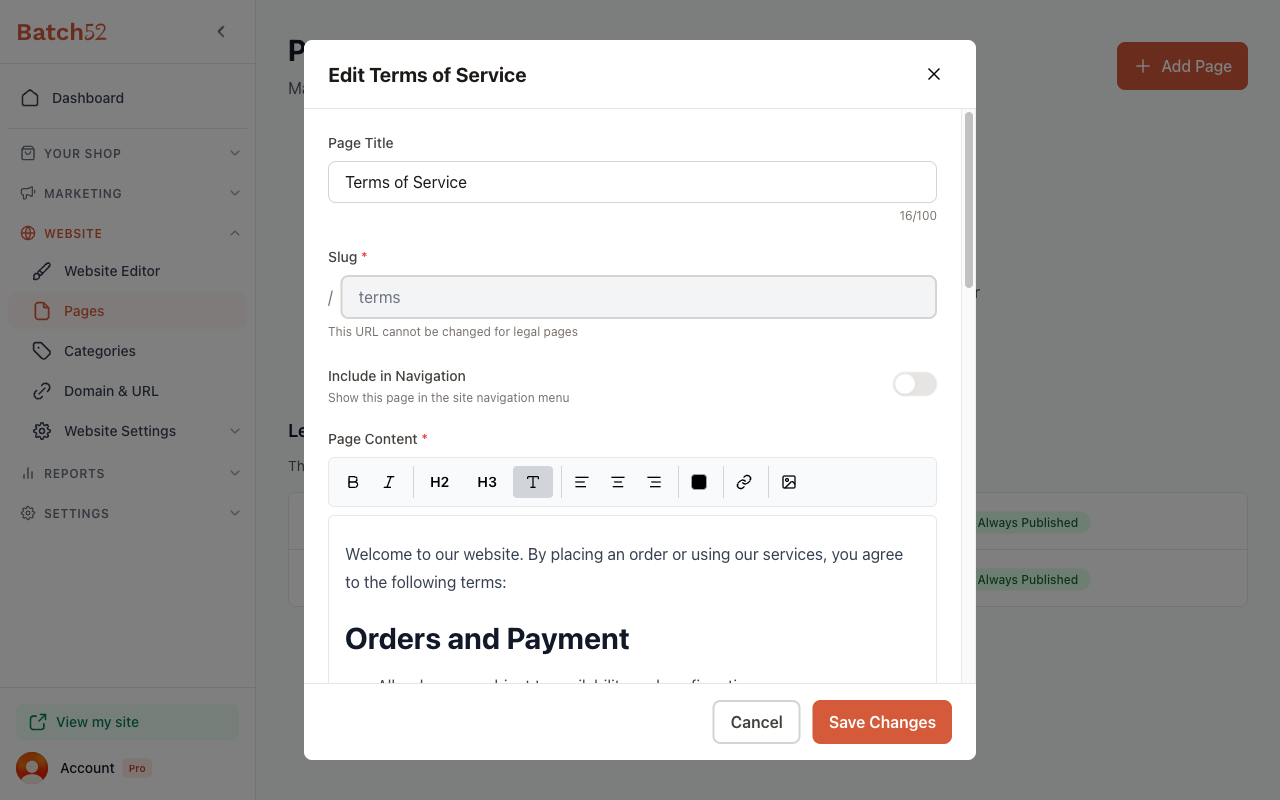
Batch52 provides default legal content to get you started, but you should review and update it to match your specific business practices. Click Save Changes when you're done.
Tips
- Use custom pages for things like an About Us story, a FAQ, seasonal menu, or catering information — anything that doesn't fit on your main homepage
- The slug is the part of the URL after your domain (for example,
yourbakery.batch52.com/about-us), so keep it short and descriptive - You can unpublish a page without deleting it by toggling Published off — handy for seasonal content you want to reuse later
- Review the default Terms of Service and Privacy Policy to make sure they accurately reflect how your business handles orders, allergens, and customer data