
Edit Your Site Appearance
Customize how your online shop looks — pick a theme, choose colors, swap fonts, and edit every section of your homepage right from the Website Editor.
Included in all plans
Direct link: /site/admin/web-settings
Customize how your online shop looks — pick a theme, choose colors, swap fonts, and edit every section of your homepage right from the Website Editor.
Overview
Your Batch52 site comes with a built-in Website Editor that gives you a live preview of your shop while you make changes. You can switch between themes, color schemes, and fonts with one click, and edit all the text on your homepage by clicking directly on it. No coding required — just point, click, and type.
Steps
1. Open the Website Editor
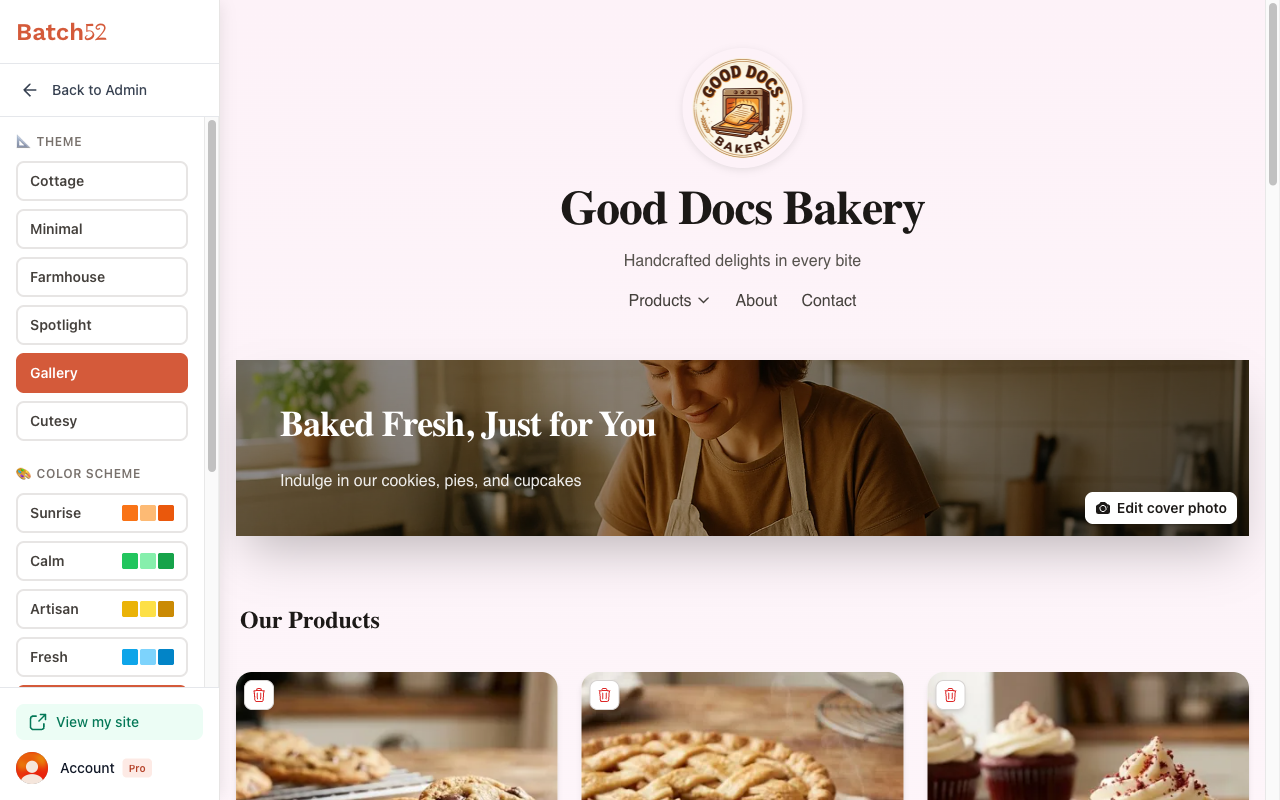
From your admin dashboard, click Website in the left sidebar, then click Website Editor. You'll see a live preview of your site on the right, with your Theme, Color Scheme, and Fonts options in a sidebar on the left.
2. Choose a theme
Under Theme in the sidebar, you'll see six layout options:
- Cottage — A warm, full-width hero image layout
- Minimal — Clean and simple
- Farmhouse — Rustic and inviting
- Spotlight — Puts your products front and center
- Gallery — Card-style product grid with centered header
- Cutesy — Fun and playful
Click any theme to instantly preview how your site will look. The change saves automatically — no need to hit a save button.
3. Pick a color scheme
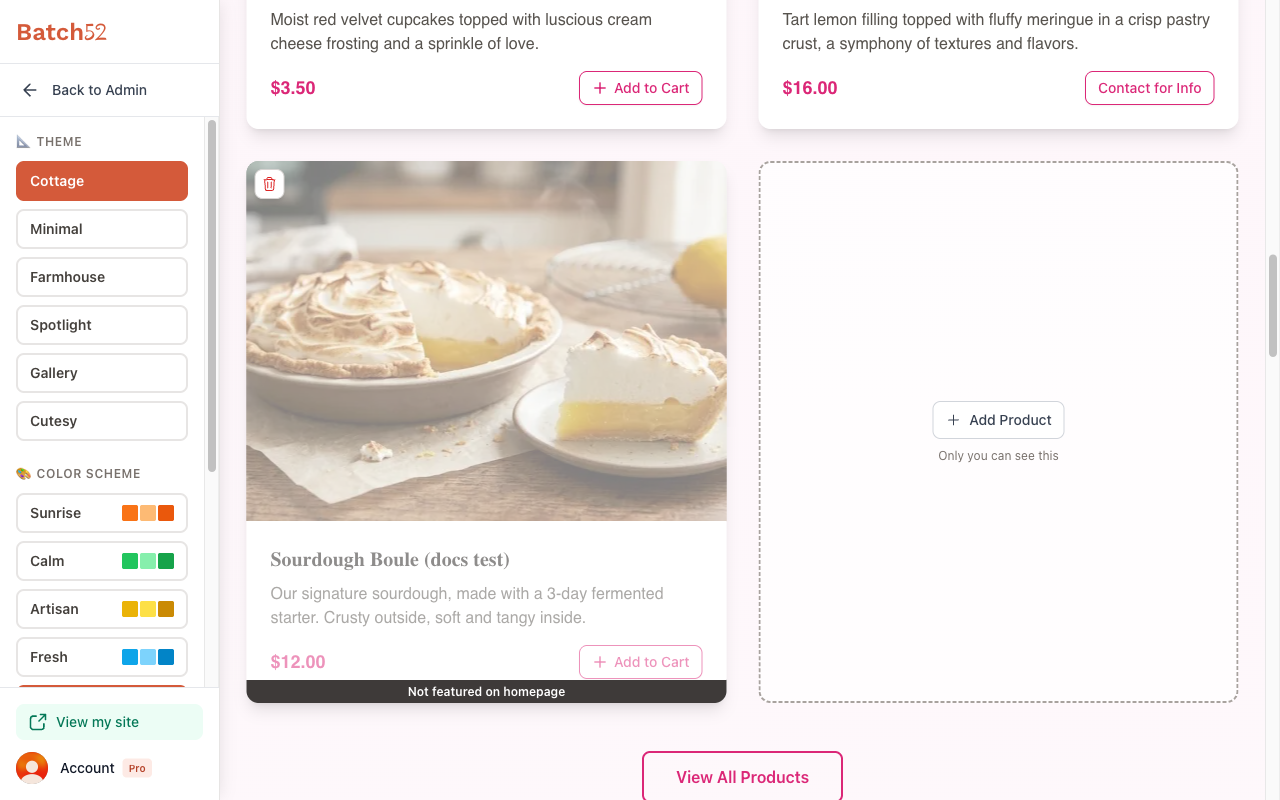
Under Color Scheme, choose from five palettes:
- Sunrise — Warm oranges and reds
- Calm — Soft greens
- Artisan — Earthy golds and browns
- Fresh — Cool blues
- Petal — Pink and purple tones
Each option shows a swatch preview so you can see the colors before you pick. Click one and your site preview updates immediately.
4. Select your fonts
Under Fonts, pick from five font pairings:
- Classic — Traditional and timeless
- Modern — Clean and contemporary
- Cozy — Warm and friendly
- Bold — Strong and eye-catching
- Heritage — Elegant and refined
Like themes and colors, fonts update in the preview right away.
5. Edit your hero section
Your hero is the first thing visitors see — the big banner at the top of your site. You can edit it two ways:
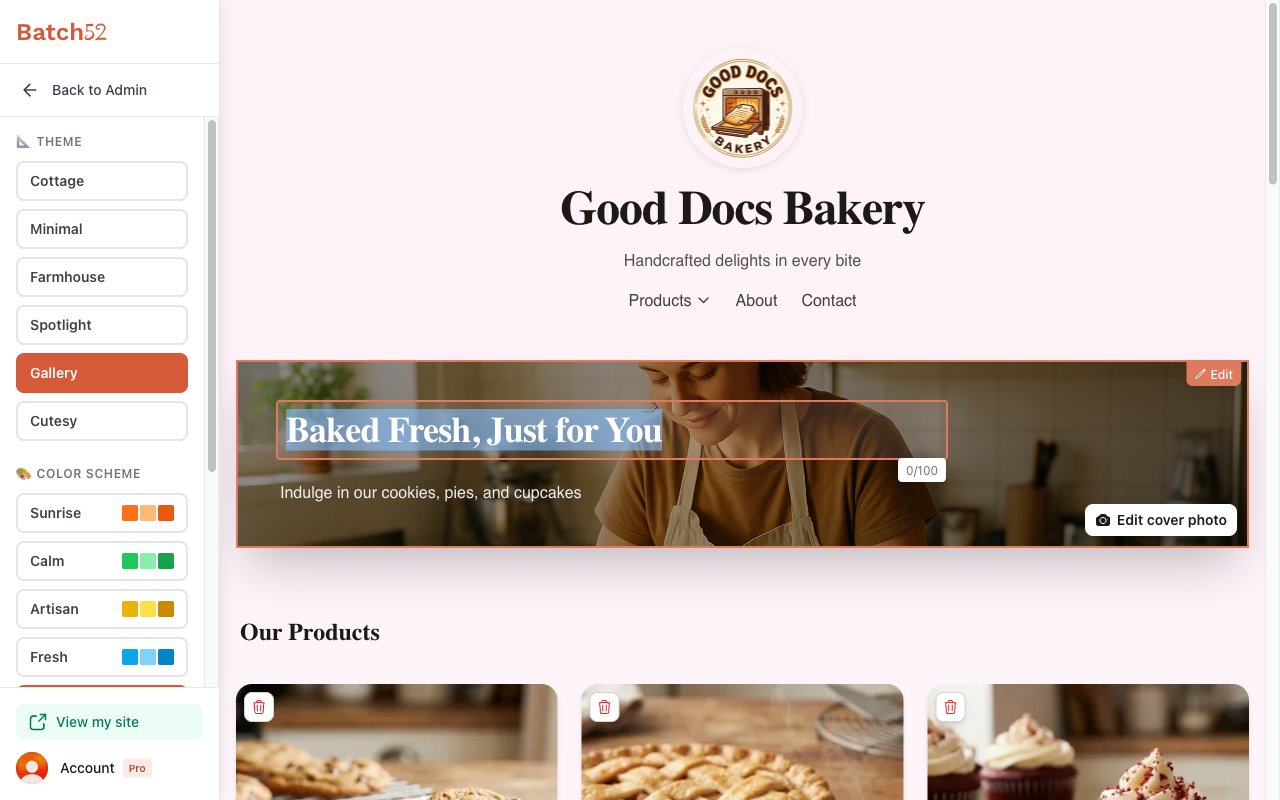
Quick edit: Click directly on the headline or subheadline text in the preview. An orange outline appears around the text, and you can type right there. A character counter shows how much space you have.
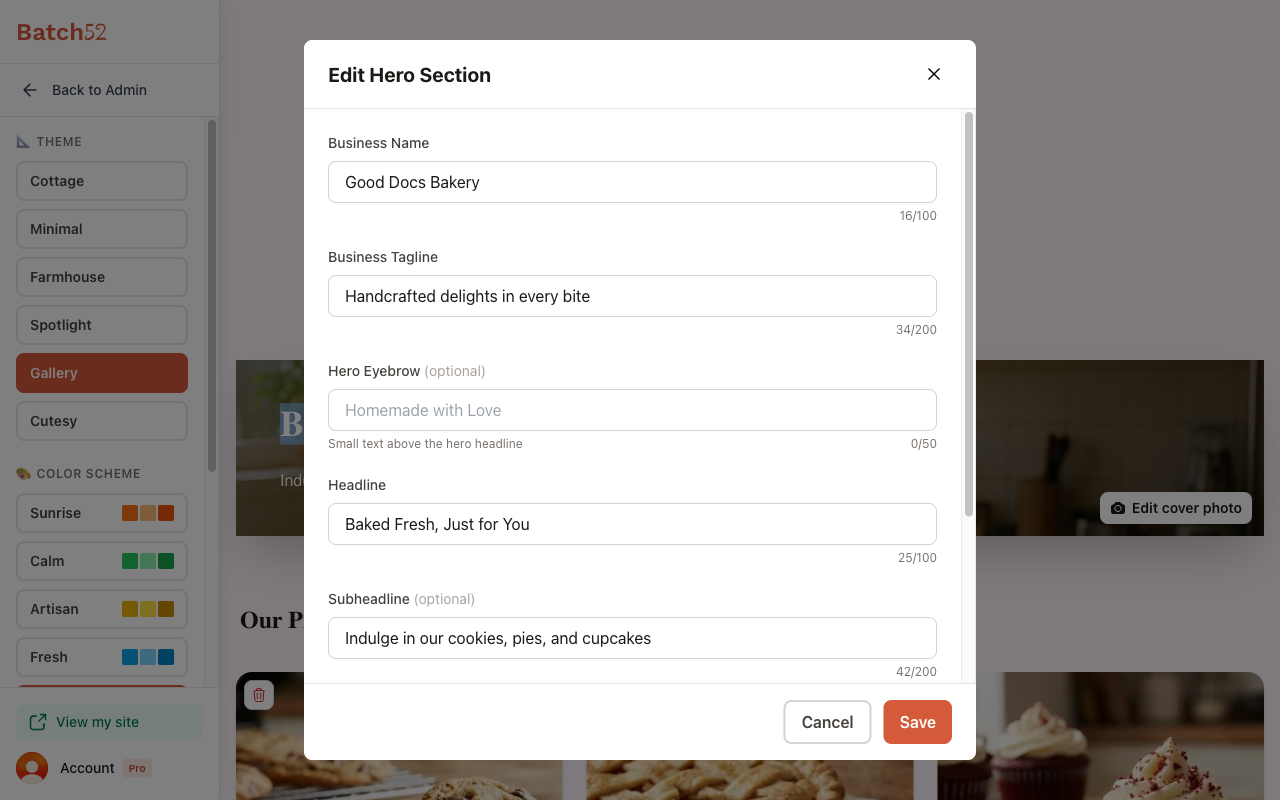
Full edit: Hover over the hero and click the Edit button that appears in its top-right corner. This opens the Edit Hero Section dialog where you can change:
- Business Name — Your bakery's name (up to 100 characters)
- Business Tagline — A short description that appears under your name (up to 200 characters)
- Hero Eyebrow — Optional small text above the headline (up to 50 characters)
- Headline — The big text on your hero image (up to 100 characters)
- Subheadline — Supporting text below the headline (up to 200 characters)
- Hero Image — Click Change Image for a new photo, or Adjust Position to reframe your current one
Click Save when you're happy with your changes, or Cancel to discard them.
Just want a new photo? Click Edit cover photo on the hero image to open the same dialog at the image controls.
6. Edit your homepage sections
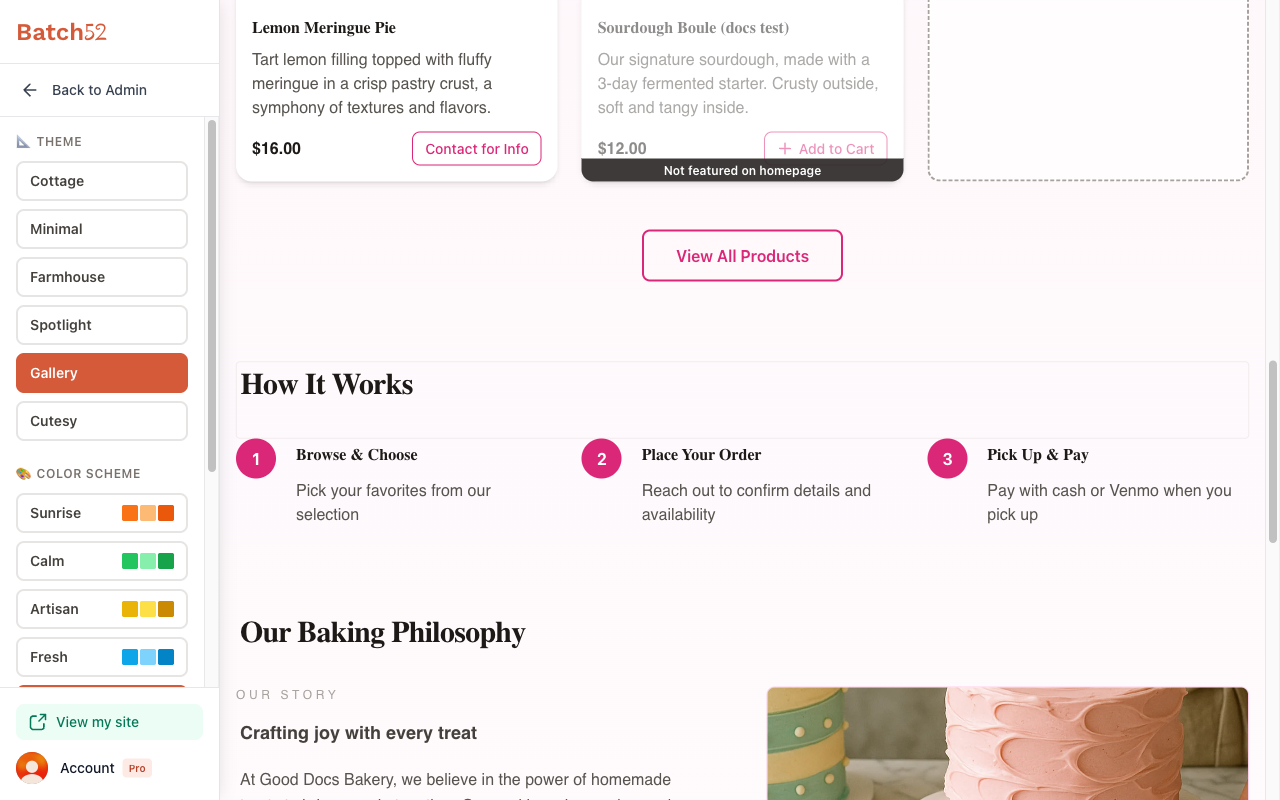
Scroll down through the preview to see all the sections you can customize. Click on any text to edit it directly:
- Products Section Heading — Change "Our Products" to something that fits your style
- How It Works — Edit the three steps that explain your ordering process (each step has a heading and description)
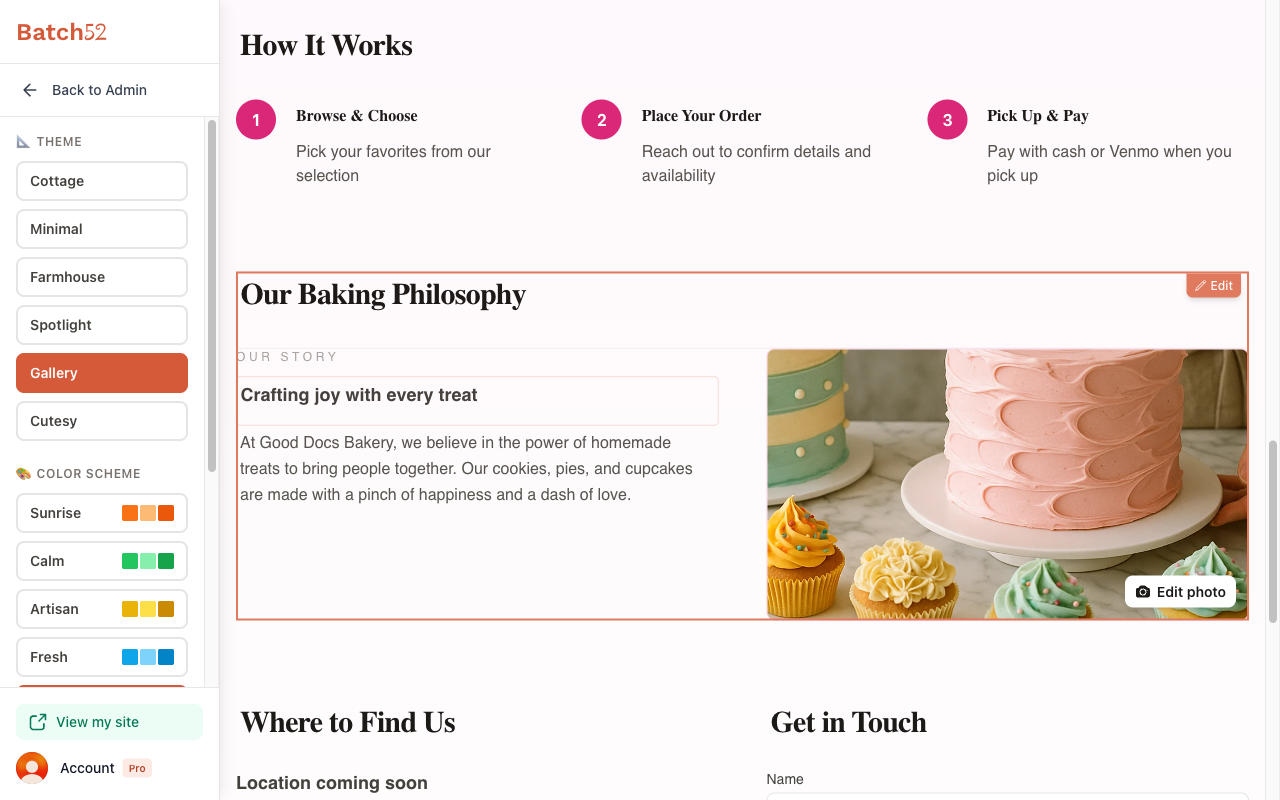
- About Us — Update your story heading, subheading, and body text
- Where to Find Us — Edit your location heading and pickup details
- Get in Touch — Customize the contact section heading
The About Us section also has an Edit button (top-right corner, when you hover over it) for updating your photo and story details, just like the hero section. The Edit photo button on the About Us picture opens it at the image controls.
7. Return to your dashboard
When you're done editing, click Back to Admin at the top of the sidebar.
Tips
- All theme, color, and font changes save automatically — you'll see the preview update instantly.
- Text you type directly on the page saves as soon as you click away (or press Enter on a one-line field); press Escape to cancel. Changes in the hero and About Us edit dialogs only save when you click Save.
- Try a few different theme and color combinations to find what matches your brand's personality.
- Keep your headline short and punchy — it's the first thing customers read.
- Your hero image makes a big impression. Use a bright, well-lit photo of your baked goods or workspace.