Contact Form Emails
What happens behind the scenes when someone sends you a message through your contact form — the auto-reply they get and the notification you receive.
What happens behind the scenes when someone sends you a message through your contact form — the auto-reply they get and the notification you receive.
Overview
When a customer fills out the contact form on your site, Batch52 sends two emails automatically: a friendly auto-reply to the customer confirming their message was received, and a notification to you with everything they wrote. You don't need to be online or do anything — it all happens the moment they hit Send Message.
What the Customer Receives
The customer gets an email from your business name (for example, "Good Docs Bakery") with the subject line "Thanks for reaching out!".
The email includes:
- A personal greeting using the customer's name
- A message letting them know you received their note and will respond soon
- A sign-off from your business name
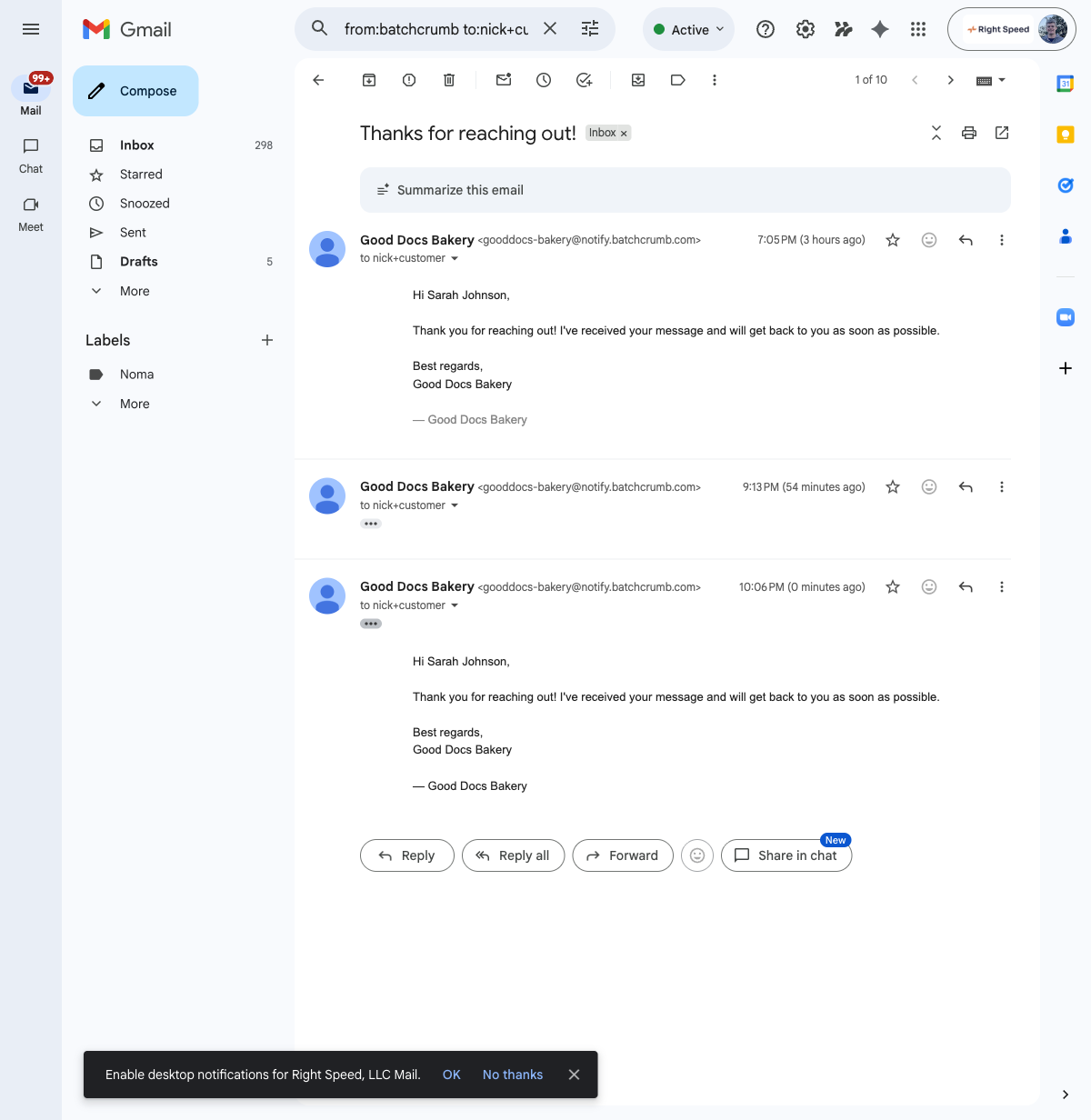
The email is sent from gooddocs-bakery@notify.batch52.com (with your site name), but the display name shows your business name — so the customer sees "Good Docs Bakery" in their inbox.
What You Receive
At the same time, you get a "Contact Form Submission from [Customer Name]" notification at your business email address. This email includes:
- A heading: "New Contact Form Submission"
- The customer's name and a link to your site
- The customer's email address (as a clickable link)
- Their full message
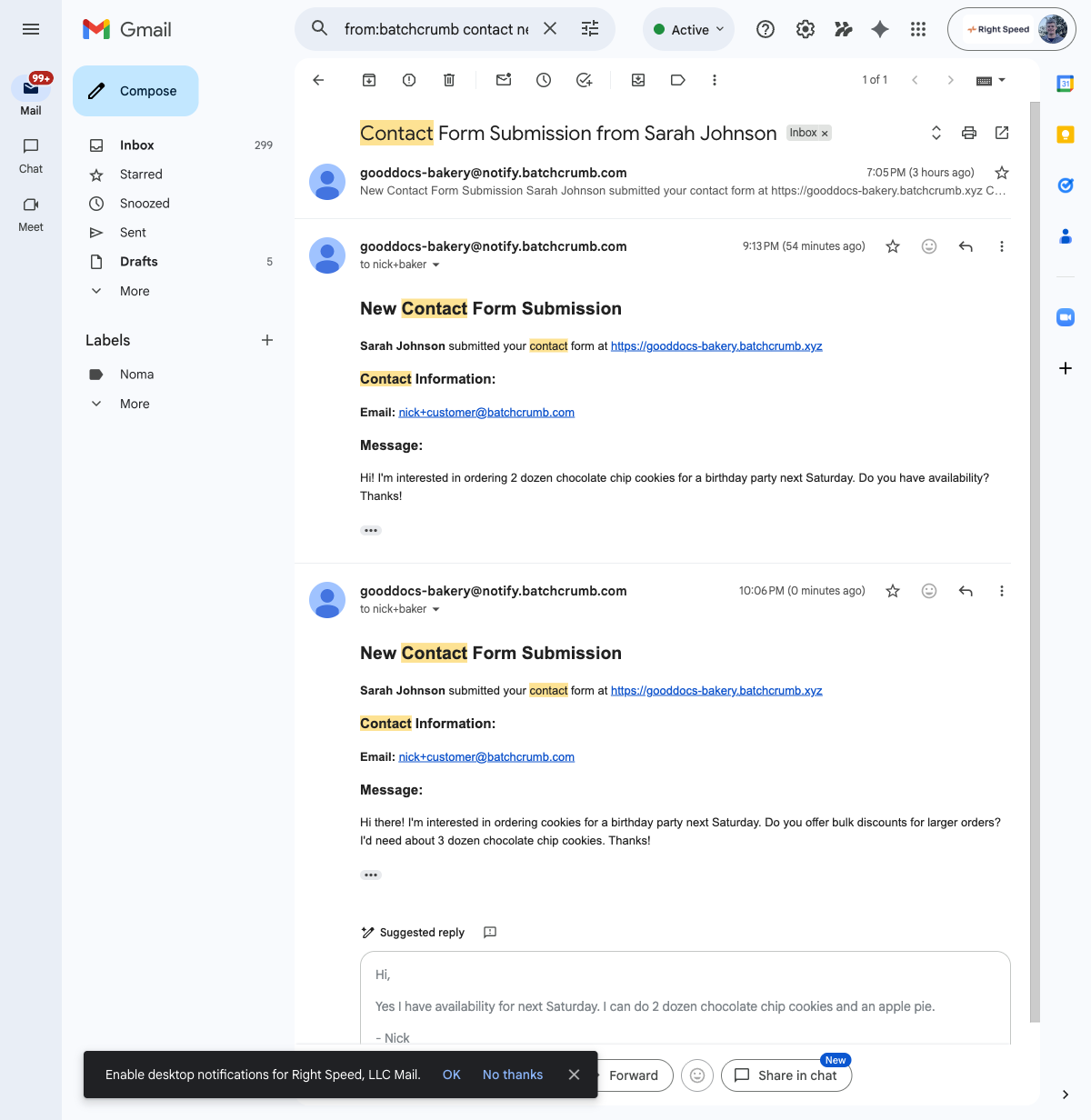
You can reply directly to this email to respond to the customer — just hit reply and start typing.
Customizing the Auto-Reply
The customer's auto-reply uses your Contact Form auto-reply template. You can customize the wording from Website Settings > Auto-Reply Templates.
The template supports these variables that get replaced with real data when the email is sent:
| Variable | What it becomes |
|---|---|
{{customer-name}} | The customer's name (e.g., "Sarah Johnson") |
{{customer-message}} | The message the customer typed in the form |
To edit the template:
- Go to Website in the sidebar
- Expand Website Settings and click Auto-Reply Templates
- Make sure the Contact Form tab is selected
- Edit the text to your liking
- Click Save Changes
If you ever want to go back to the original wording, click Reset to Default and then Save Changes.
Tips
- Both emails send instantly — the customer gets their confirmation right away, and you get the notification at the same time.
- The baker notification email includes the customer's email as a clickable link, so you can also start a new email to them if you prefer.
- Keep your auto-reply short and warm. Something like "Thanks for reaching out! I'll get back to you soon" is perfect.
- Contact form notifications go to whatever email you've set as your Contact Email in your business settings. You can change this under Settings > Business Info.
- The customer doesn't need an account on your site to contact you — the form is open to everyone.