Order Status Update Emails
Every email your customer can receive as their order moves through each stage — from accepted to completed, plus invoices and payment confirmations.
Every email your customer can receive as their order moves through each stage — from accepted to completed, plus invoices and payment confirmations.
Overview
As you work through an order, Batch52 can send your customer an email at each milestone. The order confirmation sends automatically when they place their order (covered in its own guide), but every email after that is triggered by you — when you accept, send an invoice, confirm payment, mark ready, or complete the order. You're always in control of what gets sent and when.
This guide covers four of those status emails: Order Accepted, Invoice Sent, Payment Received, and Thank You (completed). The Order Ready email has its own guide because of its unique pickup-instruction features.
How Status Emails Work
When you change an order's status using the dedicated action buttons (like Mark Ready or Mark Completed), Batch52 opens a dialog asking how you'd like to notify the customer. You get three options:
- Email Customer — opens a pre-filled email you can review and edit before sending
- SMS Customer — opens your phone's messaging app with a pre-filled text message
- Skip notification — changes the status without notifying the customer
The email content is pre-filled from the matching template in Order Messages, but you can edit the subject and body right before sending if you want to personalize it for that specific customer.
Important: If you use the Change Status option from the Actions menu (the three-dot menu) instead of the dedicated buttons, the status changes silently — no notification prompt appears. This is useful when you need to update a status without emailing the customer.
The Status Emails
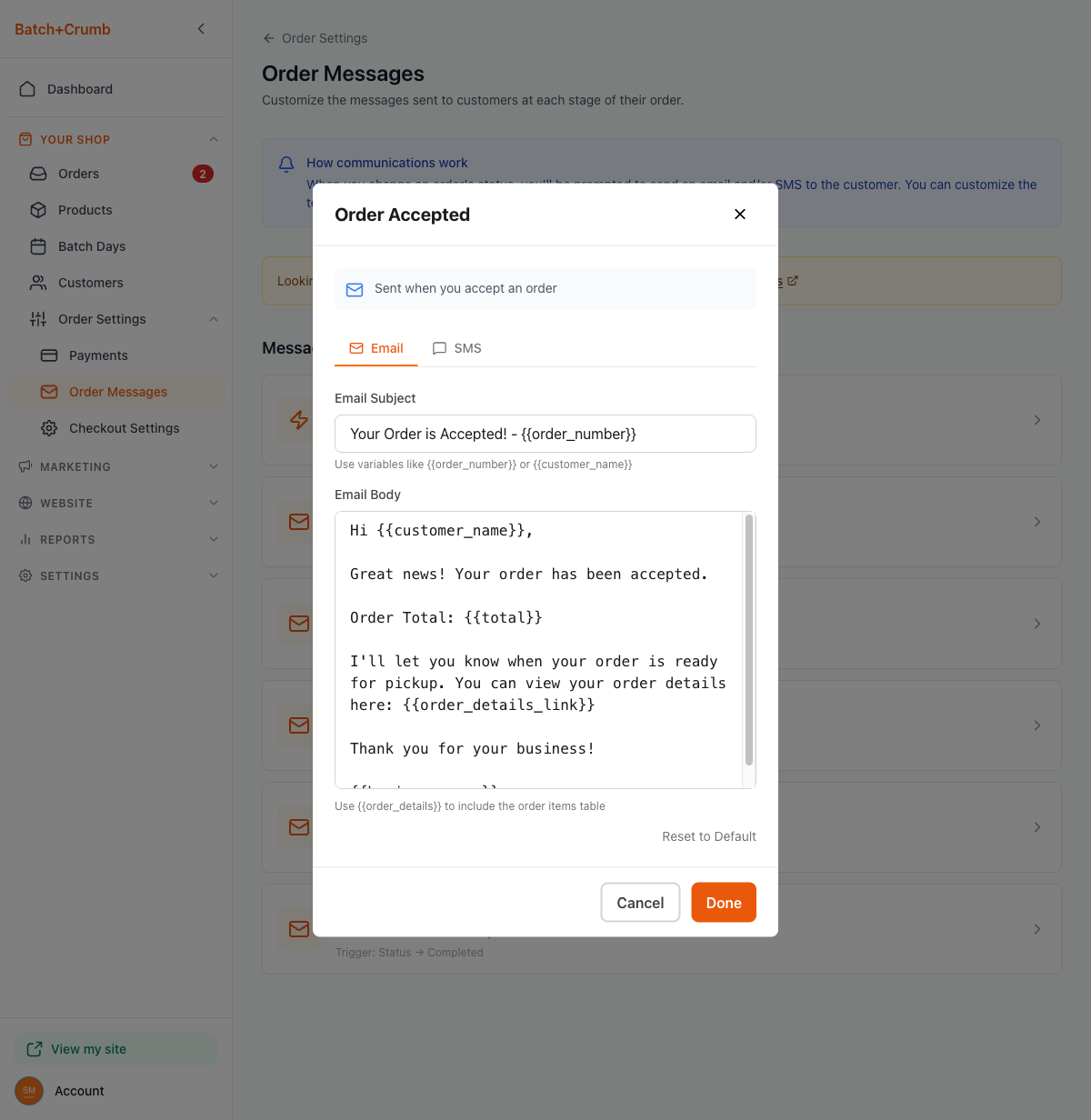
Order Accepted
When it's sent: You accept an order (moving it from New to Accepted)
Default subject: "Your Order is Accepted! - [order number]"
What the customer sees:
- A greeting with their name
- Confirmation that their order has been accepted
- The order total
- A note that you'll let them know when their order is ready
- A link to view their order details online
- Your business name as the sign-off
Invoice Sent
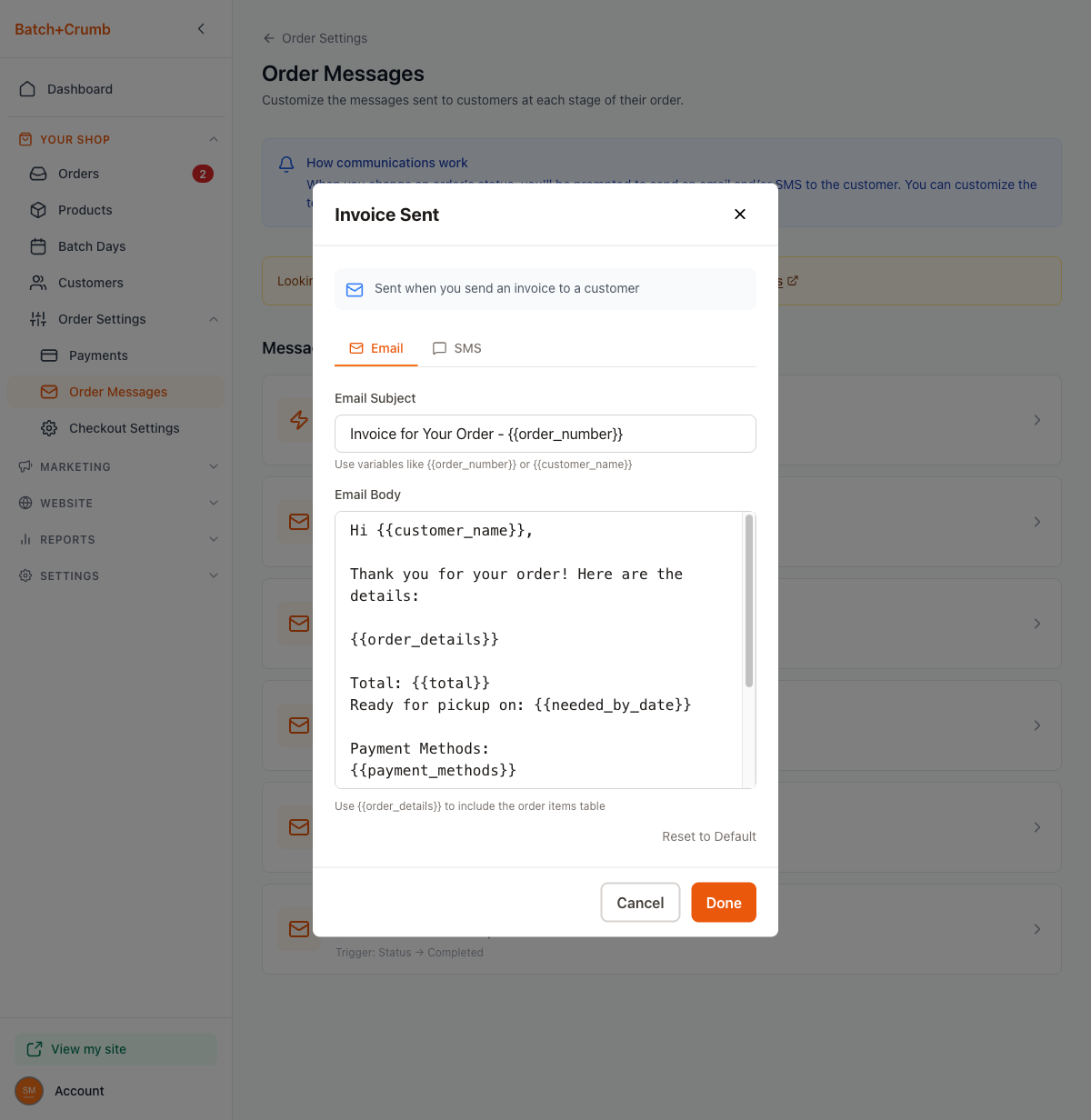
When it's sent: You send an invoice to the customer (using the Send Invoice action)
Default subject: "Invoice for Your Order - [order number]"
What the customer sees:
- A greeting with their name
- An itemized breakdown of their order
- The order total
- The pickup date (if one was set)
- Your accepted payment methods
- Any notes the customer included with their order
- A link to view and pay their invoice online
- Your business name as the sign-off
This is the most detailed email template — it includes everything the customer needs to review their order and make a payment.
Payment Received
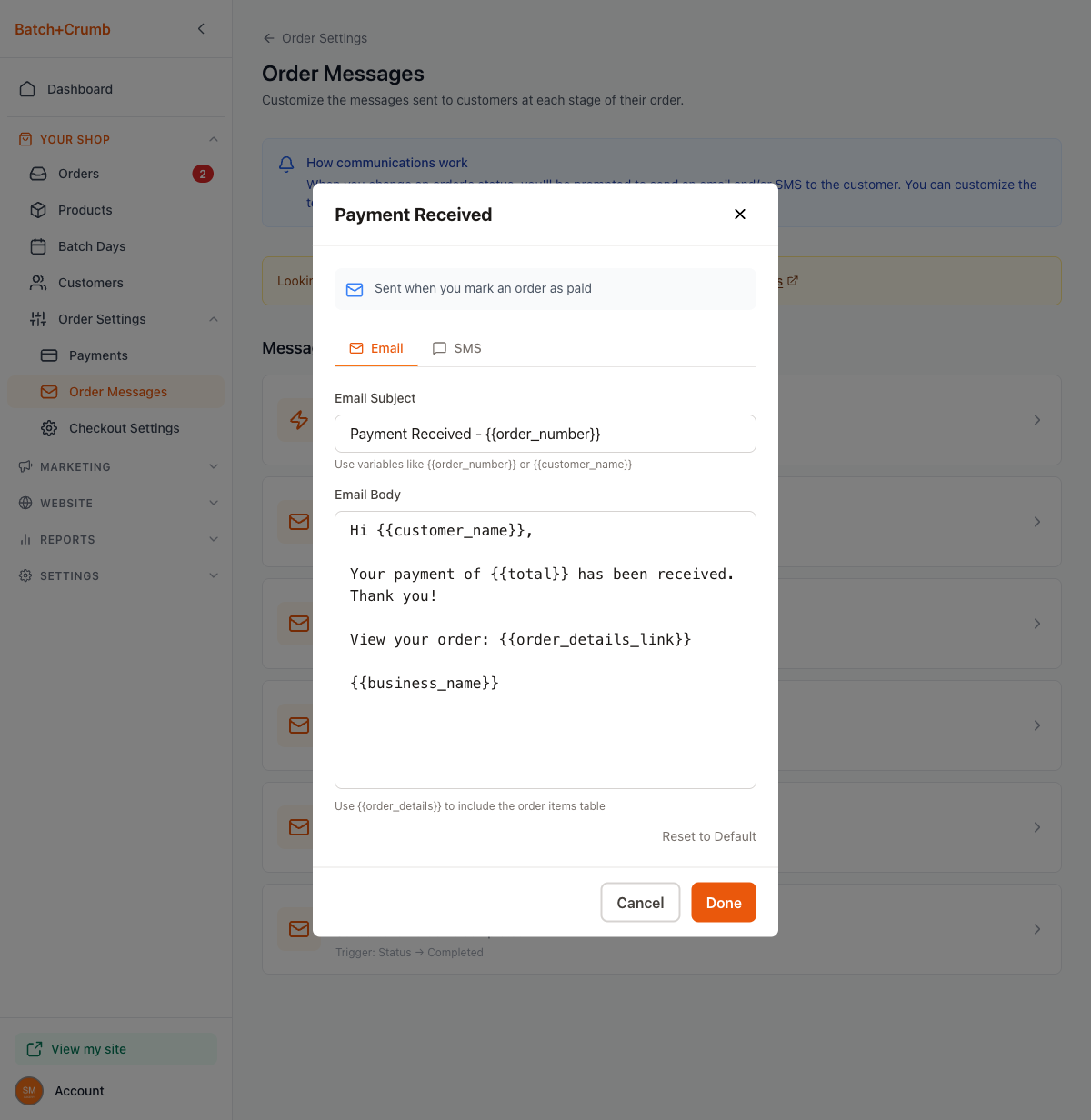
When it's sent: You mark an order as paid
Default subject: "Payment Received - [order number]"
What the customer sees:
- A greeting with their name
- Confirmation that their payment of the order total has been received
- A link to view their order
- Your business name as the sign-off
This is a short, simple confirmation — just enough to let the customer know their payment went through.
Thank You (Order Completed)
When it's sent: You complete an order (moving it to Completed status)
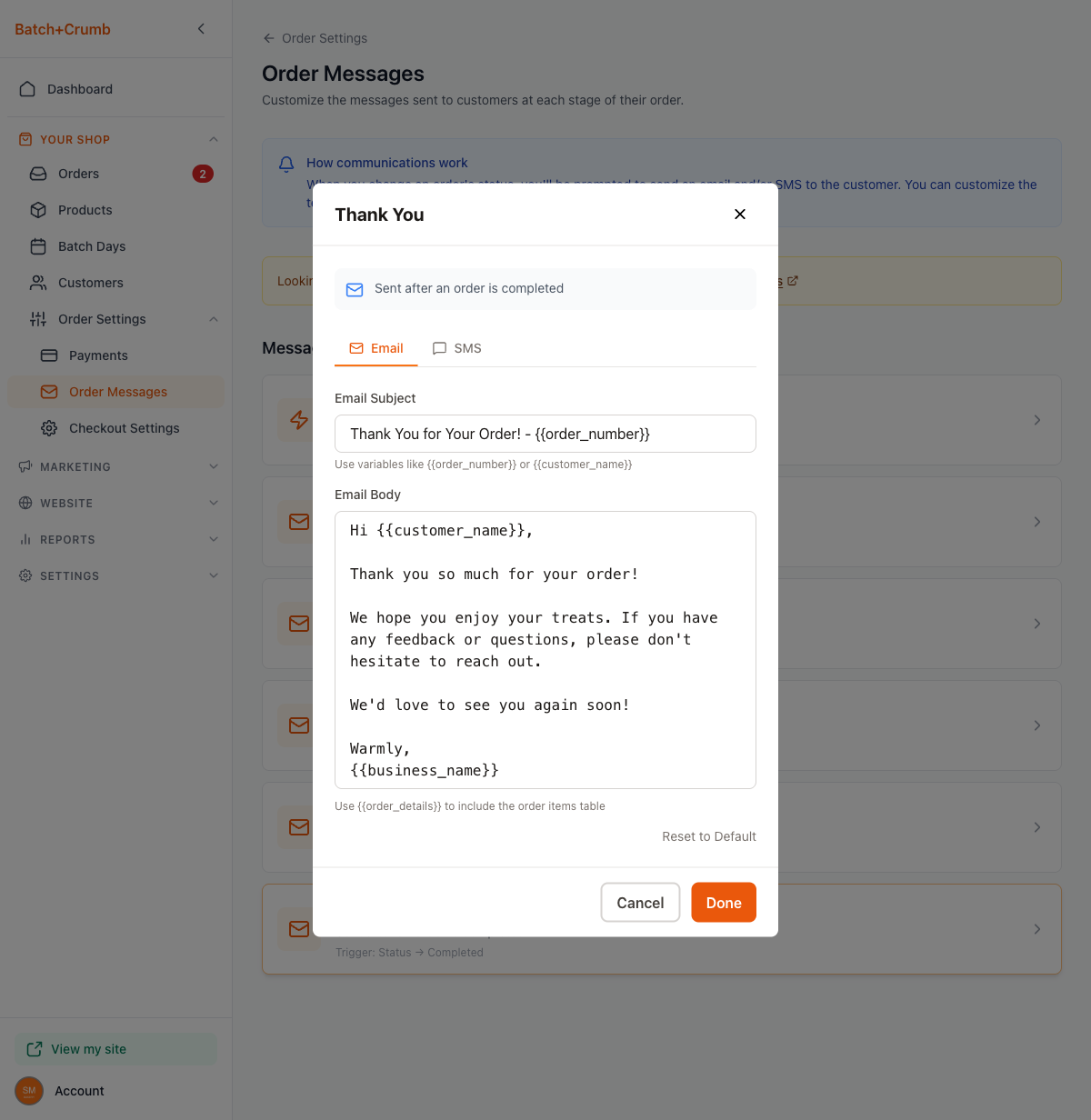
Default subject: "Thank You for Your Order! - [order number]"
What the customer sees:
- A warm greeting with their name
- A thank-you message
- An invitation to share feedback or reach out with questions
- A note that you'd love to see them again
- A "Warmly" sign-off from your business name
This is the last email in the order lifecycle — a nice personal touch to end the experience on a high note.
What the Customer Actually Receives
Here's an example of the Thank You email as it appears in a customer's inbox. The email comes from your business name (for example, "Good Docs Bakery") with the subject "Thank You for Your Order! - O-260214-0002".
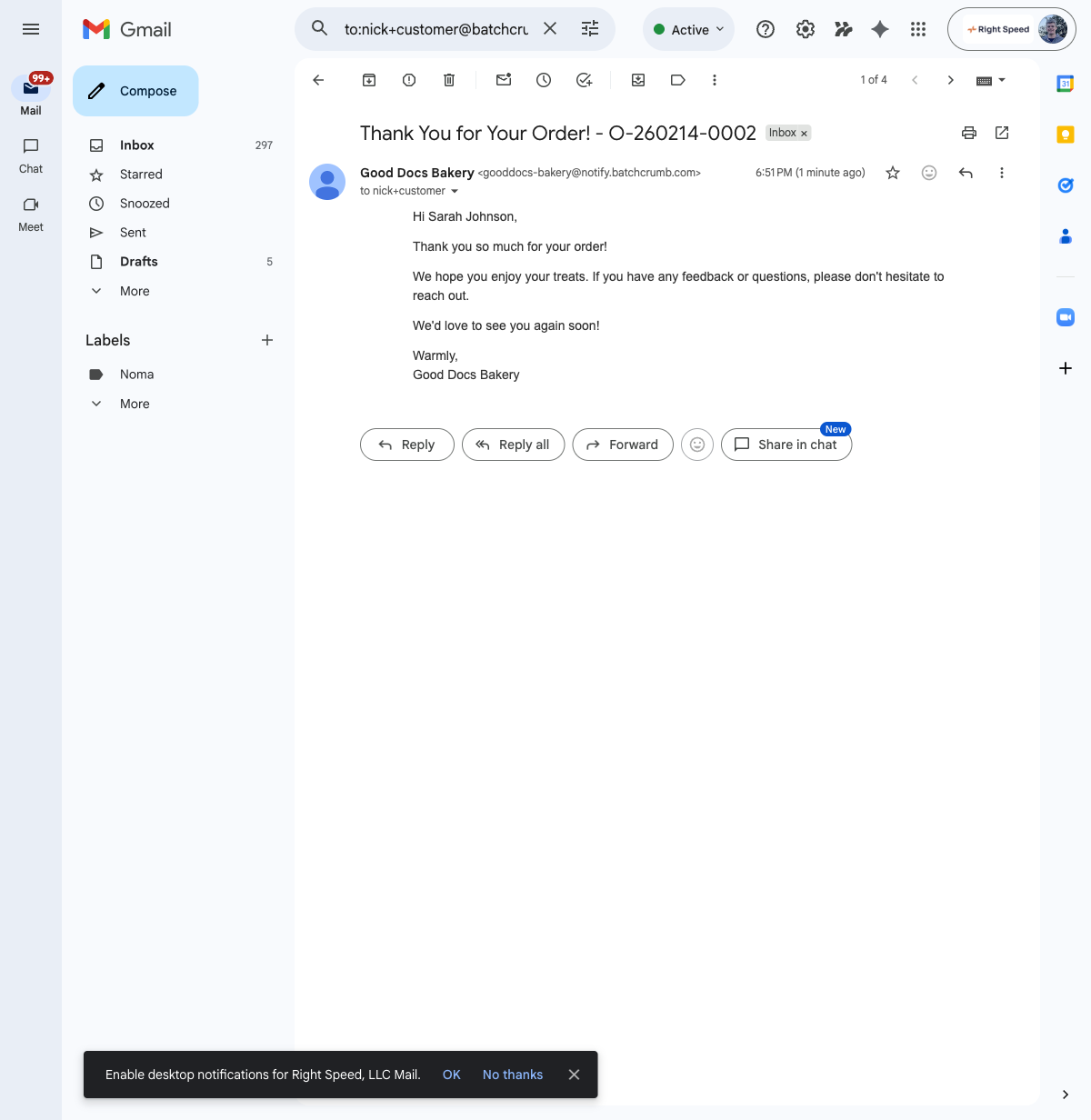
All status emails are sent from your-site@notify.batch52.com, but the display name shows your business name — so customers see "Good Docs Bakery" in their inbox, not a random address.
Customizing These Emails
All four templates live in Order Settings > Order Messages. Each one has an Email tab and an SMS tab.
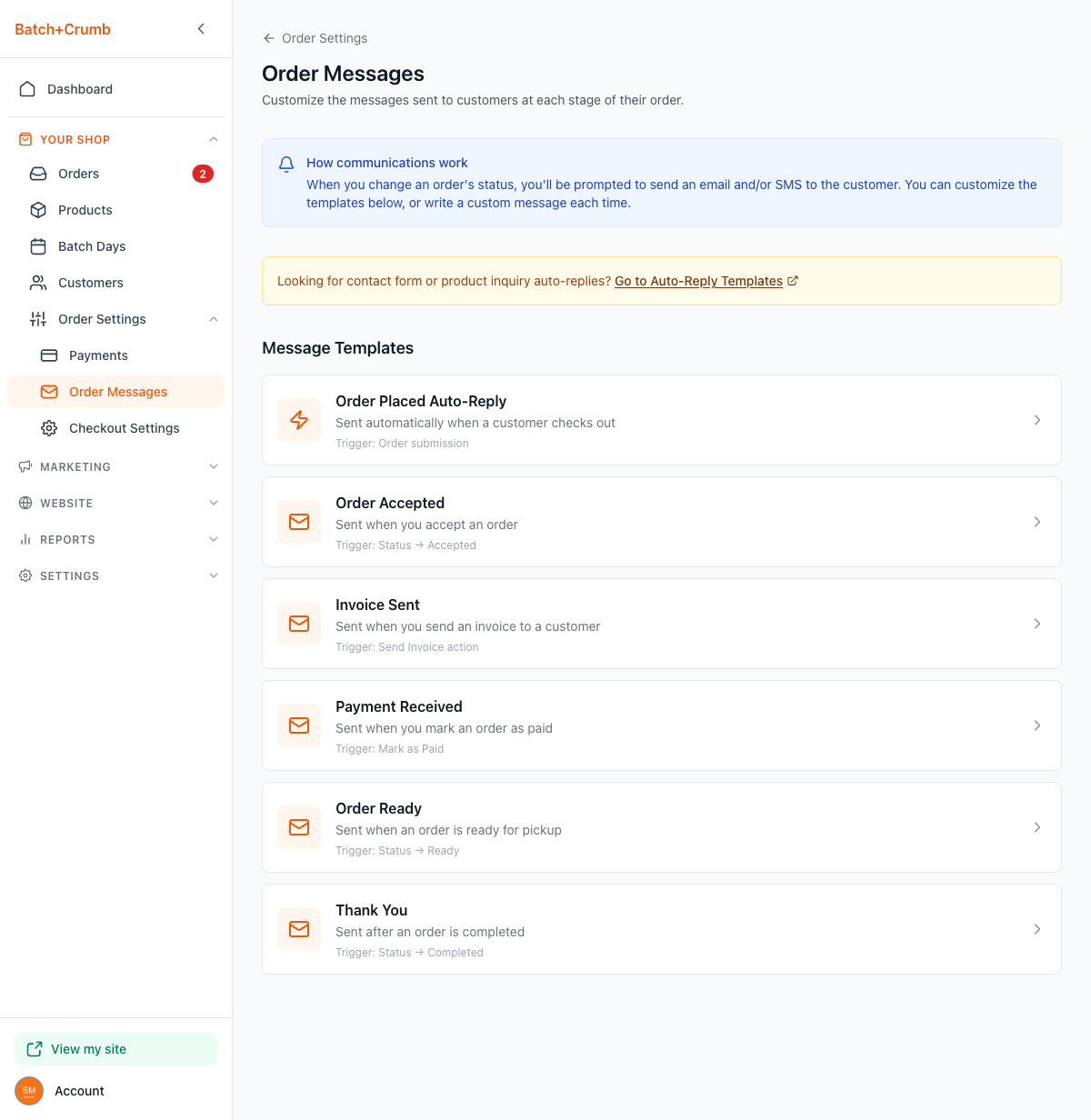
To edit a template:
- Go to Order Settings > Order Messages in the sidebar
- Click the template you want to customize
- Edit the Email Subject and Email Body (or switch to the SMS tab to edit the text message)
- Click Done to save
Each template supports these variables that get replaced with real data when the email is sent:
| Variable | What it becomes |
|---|---|
{{customer_name}} | The customer's name (e.g., "Sarah Johnson") |
{{order_number}} | The order number (e.g., "O-260214-0002") |
{{total}} | The order total (e.g., "$17.50") |
{{order_details}} | A formatted table of all items, quantities, and prices |
{{order_details_link}} | A clickable link to the customer's order page |
{{business_name}} | Your business name (e.g., "Good Docs Bakery") |
{{pickup_window}} | The pickup time window (if set) |
{{needed_by_date}} | The date the customer needs their order (if collected) |
{{payment_methods}} | Your accepted payment methods (used in invoices) |
{{customer_note}} | Any notes the customer included with their order |
Not every variable is used in every template — the defaults show you which ones make sense for each email. You can add or remove variables as needed.
Use Reset to Default if you ever want to go back to the original wording.
Tips
- None of these emails send automatically — you always get a chance to review the message and make edits before it goes out. The only automatic order email is the initial order confirmation.
- If you need to change a status without notifying the customer, use the Actions menu (three dots) > Change Status instead of the dedicated action buttons. This skips the notification prompt entirely.
- The Invoice Sent email is the best place to include your payment instructions, accepted methods, and pickup details — it's designed to be a complete "here's what you owe and how to pay" message.
- You can personalize any email right before sending — add a note like "Can't wait for you to try the sourdough!" without changing the template for everyone.
- The SMS tab in each template lets you customize what gets pre-filled when you choose "SMS Customer." The text message opens in your phone's messaging app — it's not sent from Batch52's servers.