Announcement Emails
What your subscribers receive when you send an announcement email — and how to preview, test, and track delivery.
Pro plan feature — Upgrade to Pro to access this feature.
What your subscribers receive when you send an announcement email — and how to preview, test, and track delivery.
Overview
When you create an announcement and enable the email channel, Batch52 sends a styled marketing email to everyone on your subscriber list. This is a great way to let your customers know about pre-orders, new stock, events, or menu updates without relying on them checking your website. The email includes your headline, message, and a call-to-action button that links wherever you choose.
Announcement emails are different from order and contact emails — they're marketing emails that only go to customers who have opted in to hear from you. Every announcement email includes an unsubscribe link so customers can opt out anytime.
What the Customer Receives
When you activate an announcement with the email channel enabled, each subscriber gets an email from your business name (for example, "Good Docs Bakery"). The subject line matches your announcement headline — like "Pre-Orders Now Open!" or "Check Out Our New Menu!"
The email includes:
- A type badge at the top (e.g., "PRE-ORDERS") so customers immediately know what the announcement is about
- Your headline in bold
- Your message body with all the details you wrote
- A colored call-to-action button (like "Order Now") that links to your products page, homepage, or any custom URL you chose
- A "Sent by [Your Business Name]" footer
- An Unsubscribe link at the very bottom
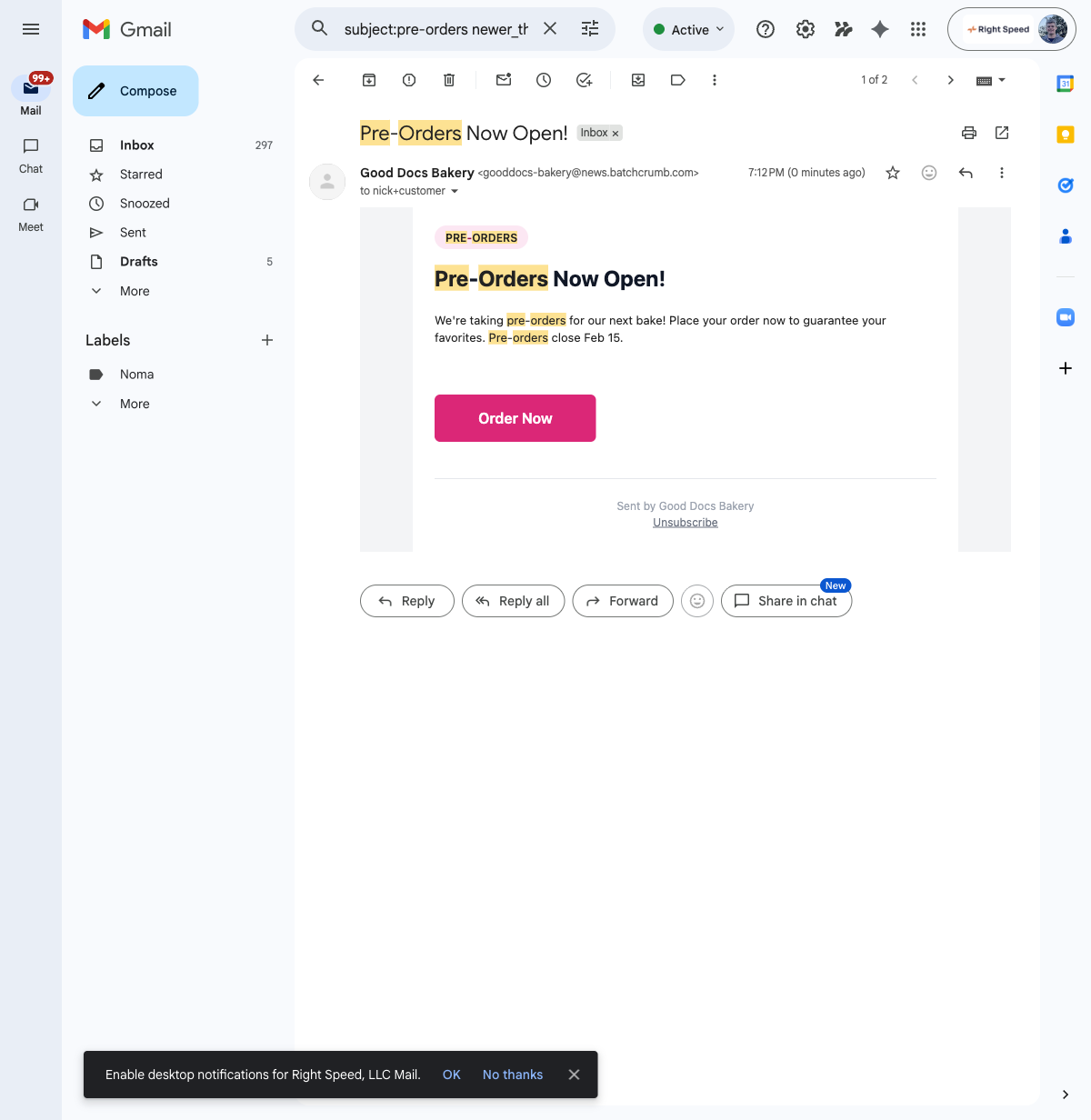
The email is sent from your-site@news.batch52.com (note: this is different from order emails, which come from @notify.batch52.com). The display name shows your business name, so customers see "Good Docs Bakery" in their inbox.
Enabling Email for an Announcement
Email is one of two channels you can turn on when creating an announcement (the other is the website banner). Here's how to enable it:
1. Create your announcement
Go to Marketing > Announcements and click + New Announcement. Walk through the wizard — choose your type, set the timing, and add your details.
2. Turn on the Email channel (Step 4)
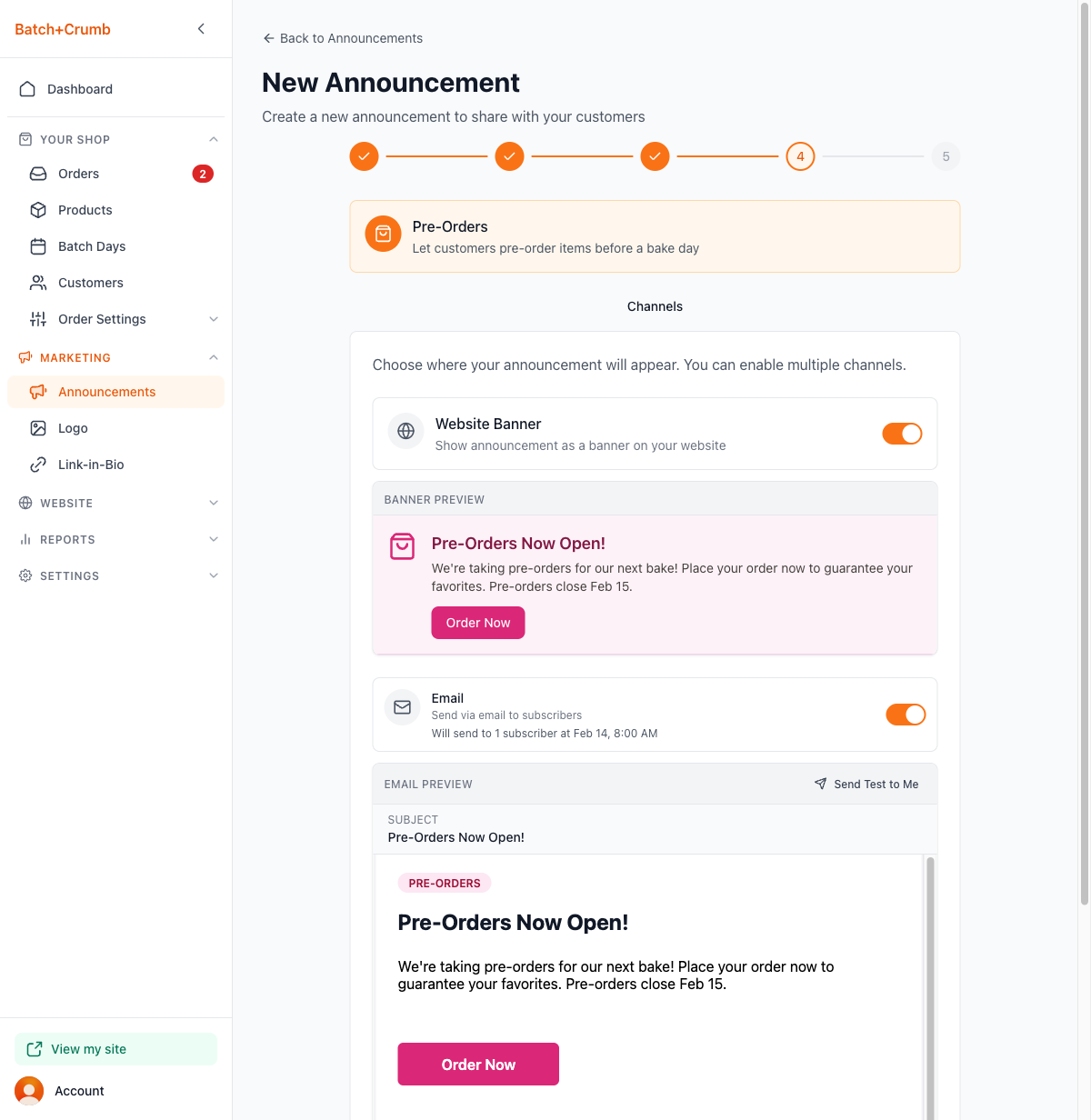
On the Channels step, toggle Email on. You'll see:
- How many subscribers will receive the email
- When the email will be sent (based on your announcement date)
- A live preview of exactly what the email will look like
3. Send a test email
Before going live, click Send Test to Me to send a test email to your own inbox. You'll see a confirmation message: "Test email sent to [your email address]." This is a great way to double-check everything looks right before your subscribers see it.
4. Activate your announcement
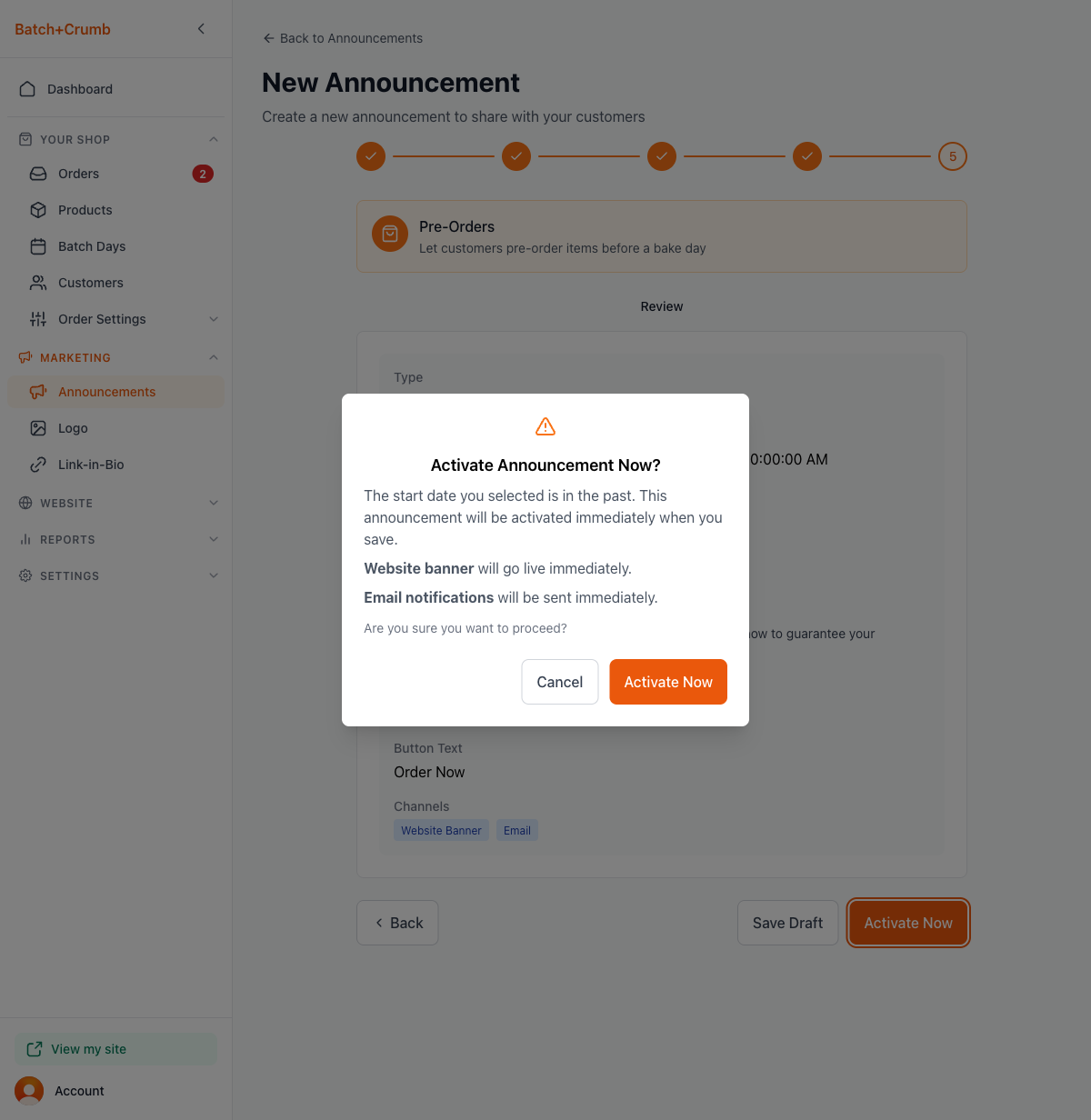
On the Review step, click Schedule It (for future dates) or Activate Now (for immediate delivery). If you're activating immediately, a confirmation dialog reminds you that emails will be sent right away.
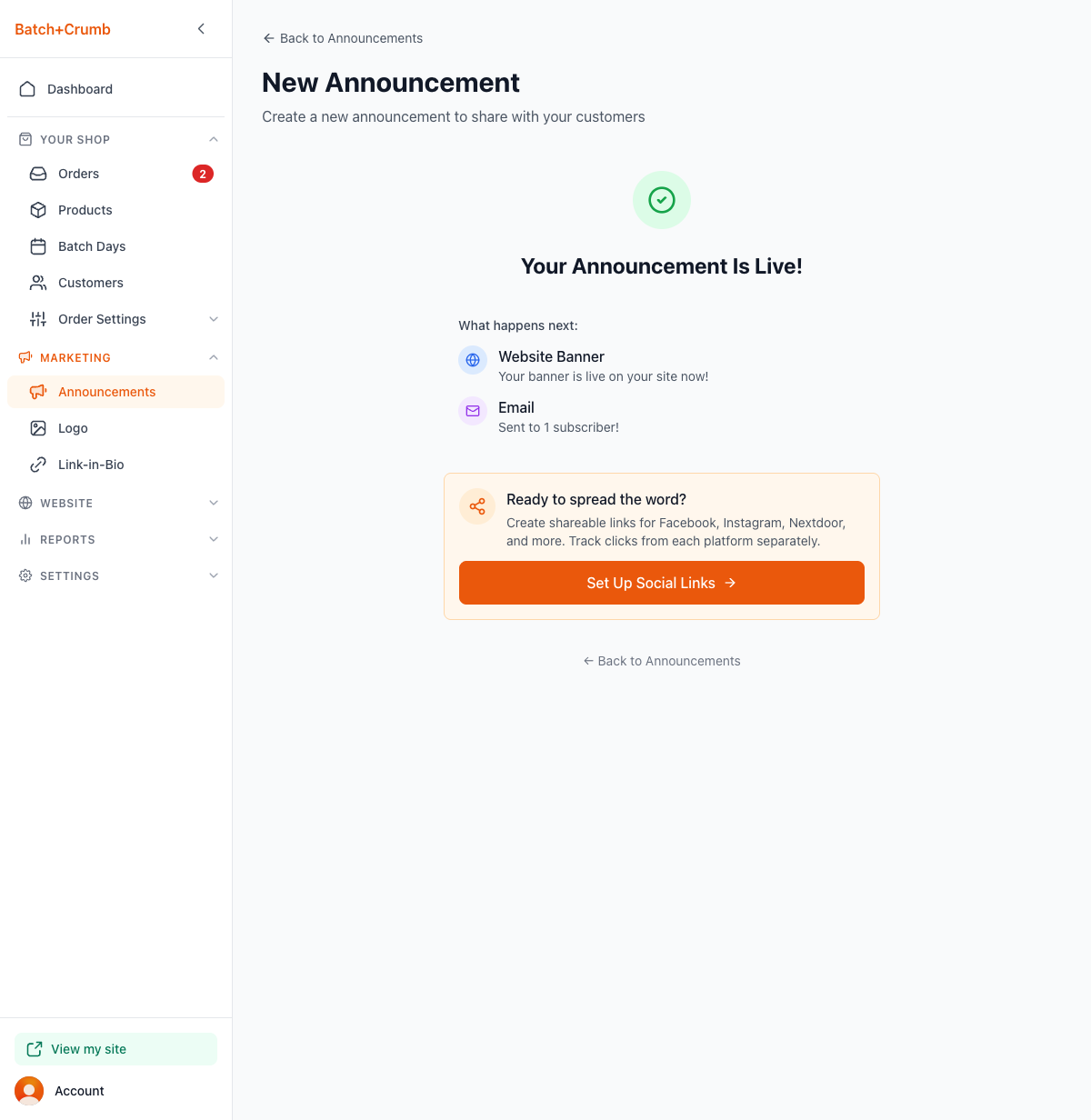
After activation, you'll see a success page confirming your email was sent, including how many subscribers received it.
Tracking Email Delivery
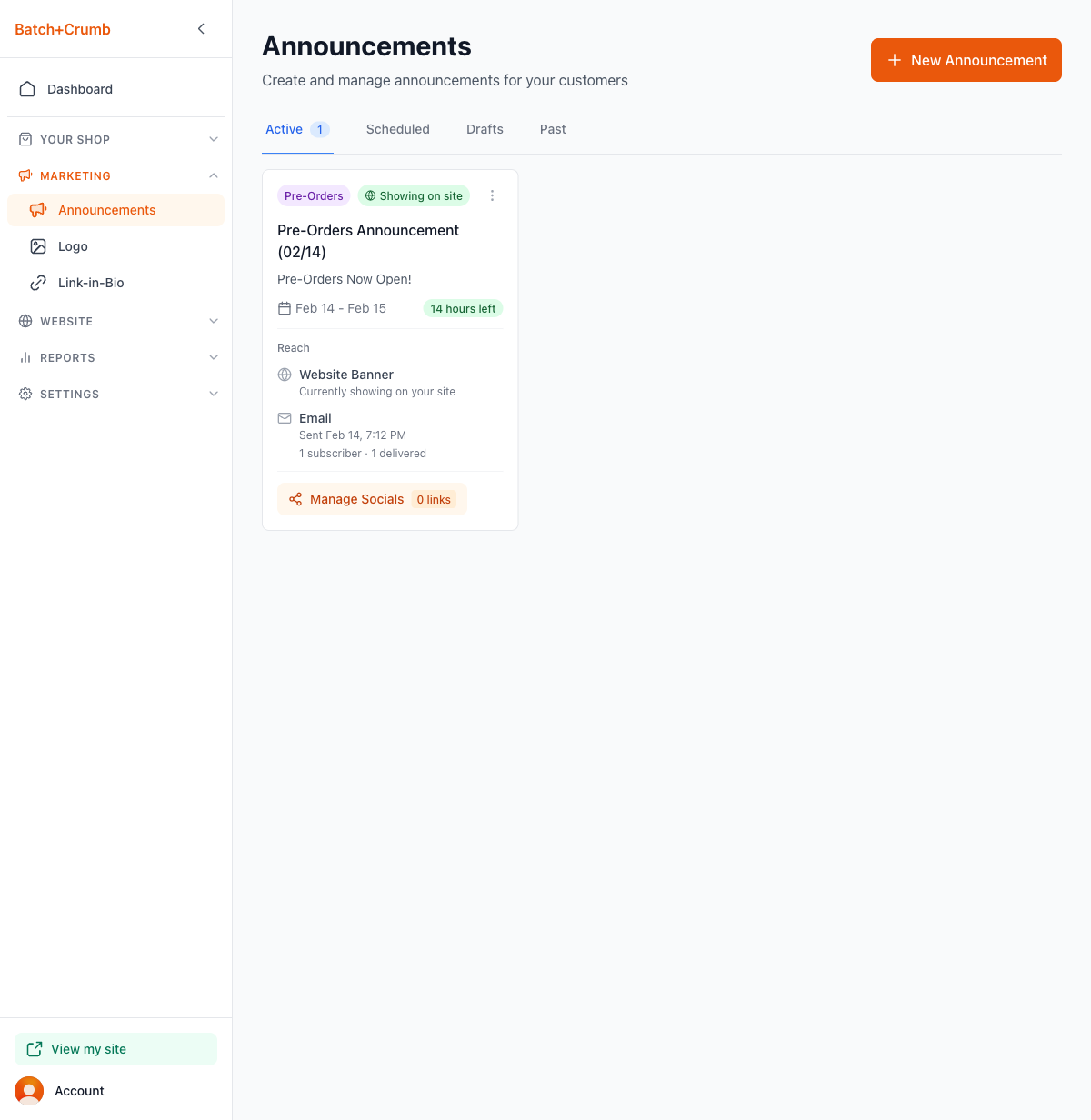
After your announcement is live, you can see email delivery stats right on the announcement card in the Active tab. The card shows:
- When the email was sent (e.g., "Sent Feb 14, 7:12 PM")
- How many subscribers received it (e.g., "1 subscriber · 1 delivered")
Unsubscribing
Every announcement email includes an Unsubscribe link at the bottom. When a customer clicks it, they're automatically removed from your subscriber list — no extra steps for you. Their subscription status updates in your Customers section automatically.
You cannot customize or remove the unsubscribe link. It's required to keep your emails compliant with email best practices, and it helps make sure you're only emailing people who actually want to hear from you.
Tips
- Use Send Test to Me before every announcement to catch typos or formatting issues. It only takes a few seconds and saves you from sending something you wish you could take back.
- The email content comes directly from what you enter in the announcement wizard (headline, message body, button text, link). There's no separate email template to edit — what you see in the preview is what your customers get.
- Announcement emails only go to subscribers. Customers become subscribers when they place an order or sign up through your site. You can see who's subscribed in Your Shop > Customers.
- If you're not on the Pro plan, you can still create announcements with website banners — you just won't be able to send them as emails.
- Scheduled announcements send emails at the announcement date and time you set. If you activate an announcement immediately, emails go out right away.