Order Confirmation Email
What your customer receives the moment they place an order — and what you get notified about at the same time.
What your customer receives the moment they place an order — and what you get notified about at the same time.
Overview
When a customer submits an order through your site, Batch52 instantly sends two emails: one to the customer confirming their order, and one to you letting you know a new order came in. This all happens automatically — you don't need to click anything or be online. Your customer gets reassurance that their order went through, and you get all the details you need to follow up.
What the Customer Receives
The customer gets an email from your business name (for example, "Good Docs Bakery") with the subject line "Order Confirmation - [order number]".
The email includes:
- A personal greeting using the customer's name
- A thank-you message and a note that you'll reach out to arrange payment and pickup
- An itemized table showing each product, quantity, unit price, and line total
- The order total
- A sign-off from your business name
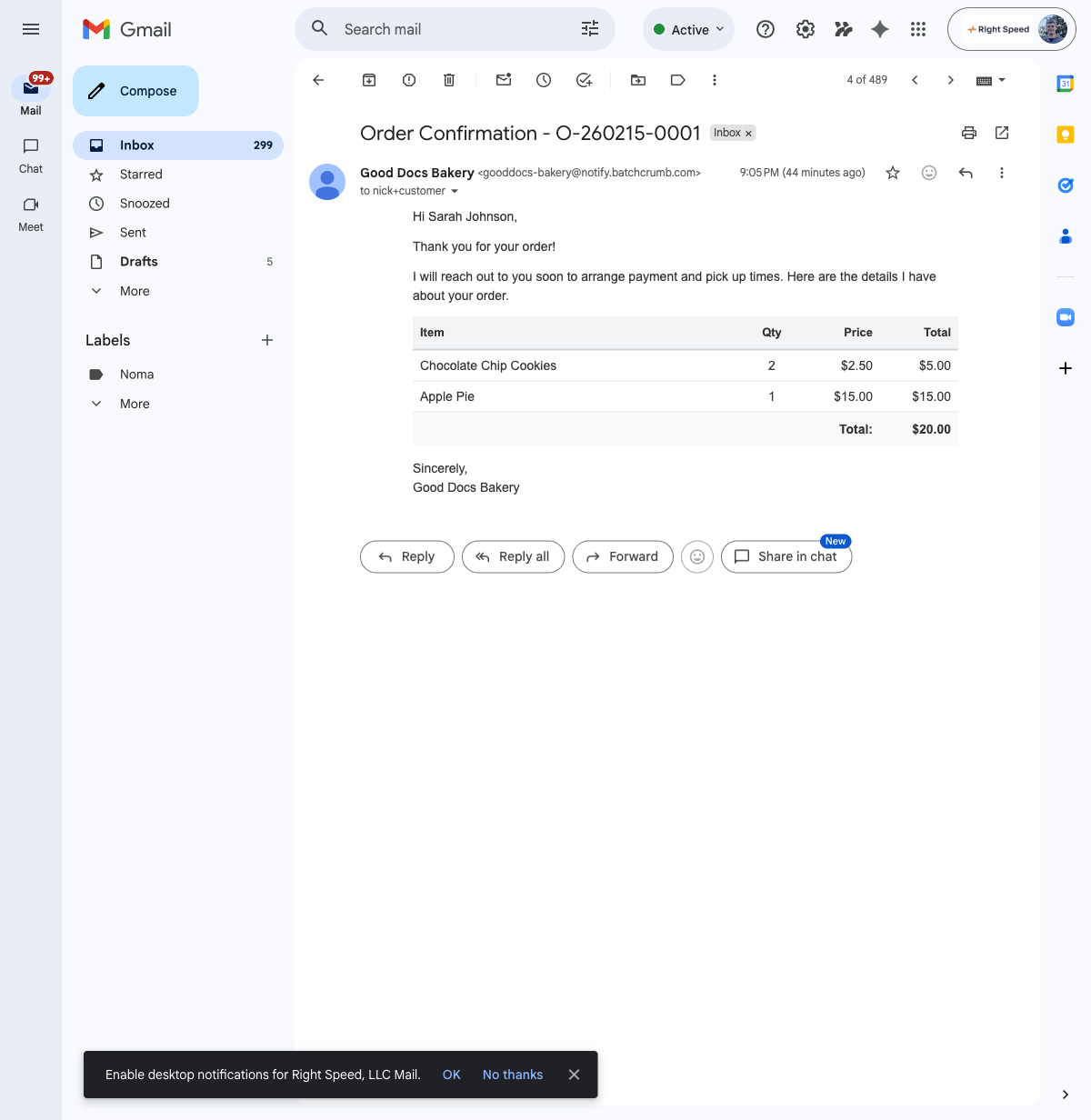
The email is sent from your-site@notify.batch52.com, but the display name shows your business name — so the customer sees "Good Docs Bakery" in their inbox, not a random address.
What You Receive
At the same time, you get a "New Order [order number] from [customer name]" notification at your business email address. This email includes:
- The customer's name, email, and phone number
- The order number and date
- An itemized list of everything they ordered with the total
- A note that you can reply directly to the email to contact the customer
- A link to view and manage the order in your admin panel
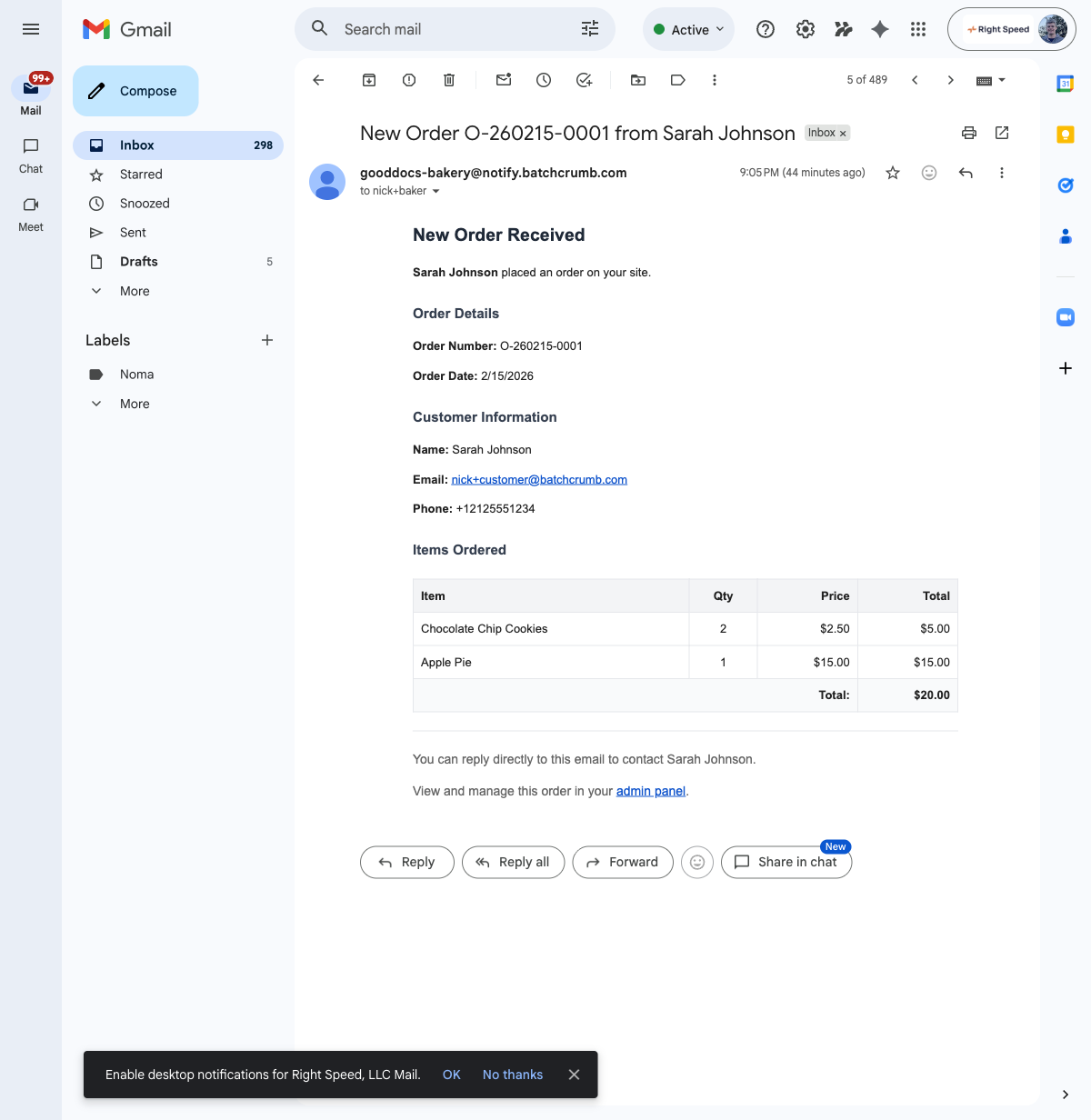
This makes it easy to follow up — just hit reply to reach the customer, or click the admin panel link to manage the order.
Customizing the Confirmation Email
The customer's confirmation email uses the Order Placed Auto-Reply template. You can customize both the subject line and body text from Order Settings > Order Messages.
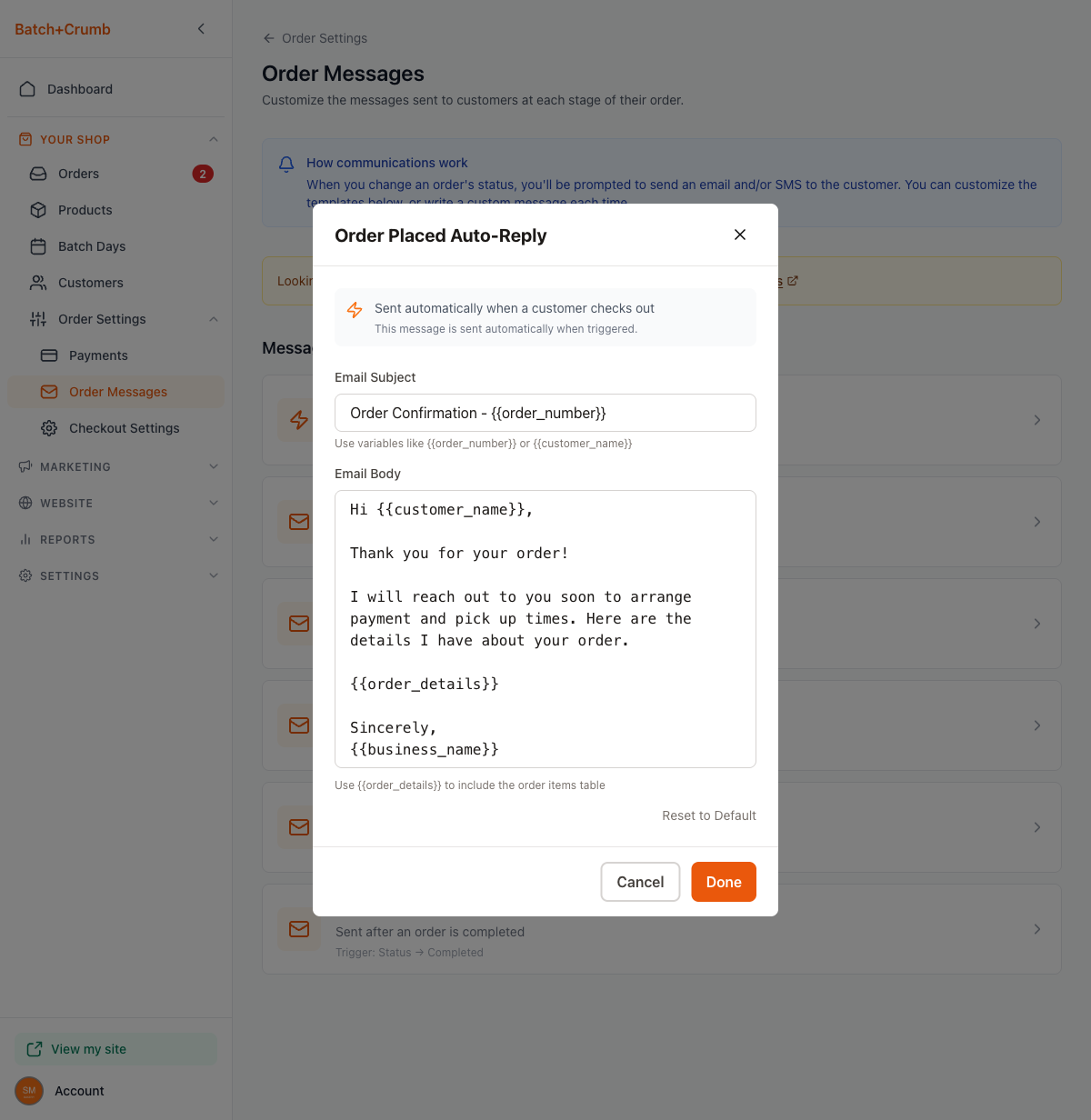
The default template uses these variables that get replaced with real data when the email is sent:
| Variable | What it becomes |
|---|---|
{{customer_name}} | The customer's name (e.g., "Sarah Johnson") |
{{order_number}} | The order number (e.g., "O-260215-0001") |
{{order_details}} | A formatted table of all items, quantities, prices, and the total |
{{business_name}} | Your business name (e.g., "Good Docs Bakery") |
To edit the template, go to Order Settings > Order Messages in the sidebar, click Order Placed Auto-Reply, make your changes, and click Done.
Tips
- This is the only order email that sends completely automatically. All other order status emails (accepted, ready, completed) give you a chance to review the message before it goes out.
- The baker notification includes the customer's phone number, so you can also text or call them to coordinate pickup.
- If you want to change what the confirmation email says (like adding your pickup hours or payment instructions), edit the Order Placed Auto-Reply template. Your changes apply to all future orders.
- You can use Reset to Default in the template editor if you ever want to go back to the original wording.