Order Ready Email
The "ready for pickup" email your customer receives when you mark their order as ready — and how to customize it.
The "ready for pickup" email your customer receives when you mark their order as ready — and how to customize it.
Overview
When a customer's order is packed up and ready to go, you can let them know with a single click. Batch52 sends them an email with their order total, a payment reminder, and a link to view their order details online. Unlike the order confirmation (which sends automatically), this one only goes out when you're ready — you stay in control of the timing.
How It Works
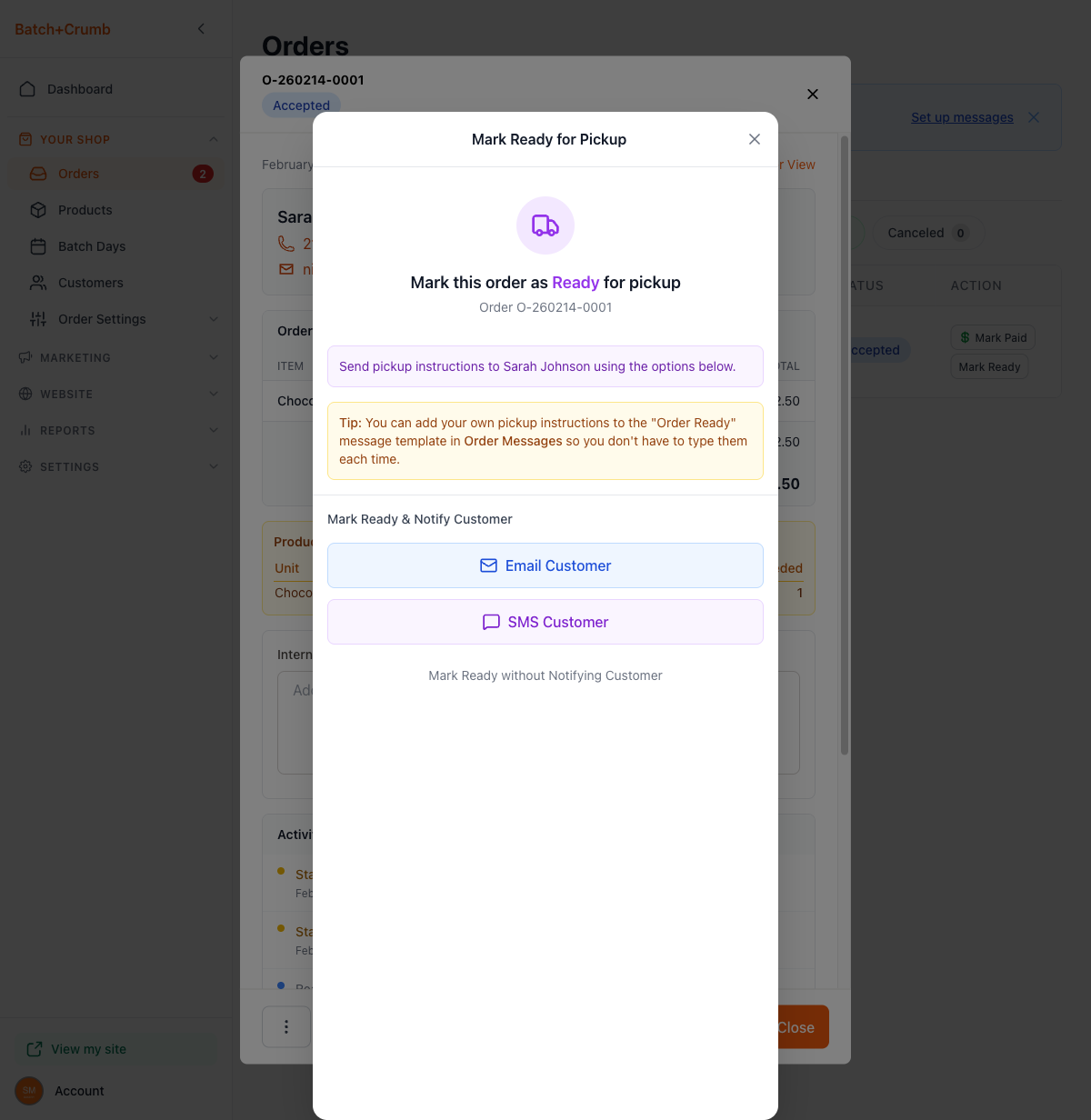
1. Open the order and click Mark Ready
From the Orders page, open an order that's in Accepted status. At the bottom of the order detail, click Mark Ready.
A dialog pops up titled Mark Ready for Pickup with three options:
- Email Customer — opens a pre-filled email you can review and edit before sending
- SMS Customer — opens your phone's messaging app with a pre-filled text
- Mark Ready without Notifying Customer — changes the status silently
The dialog also includes a helpful tip: you can add your own pickup instructions to the "Order Ready" message template in Order Messages so you don't have to type them each time.
2. Review and send the email
If you choose Email Customer, a composer opens with the message pre-filled. You'll see:
- To: the customer's email address
- Subject: "Your Order is Ready! - [order number]"
- Body: a greeting with the customer's name, the order total, a payment reminder, and a link to view their order online
- Your business name as the sign-off
You can edit the subject and body before sending if you want to add a personal note — like specific pickup instructions for this customer.
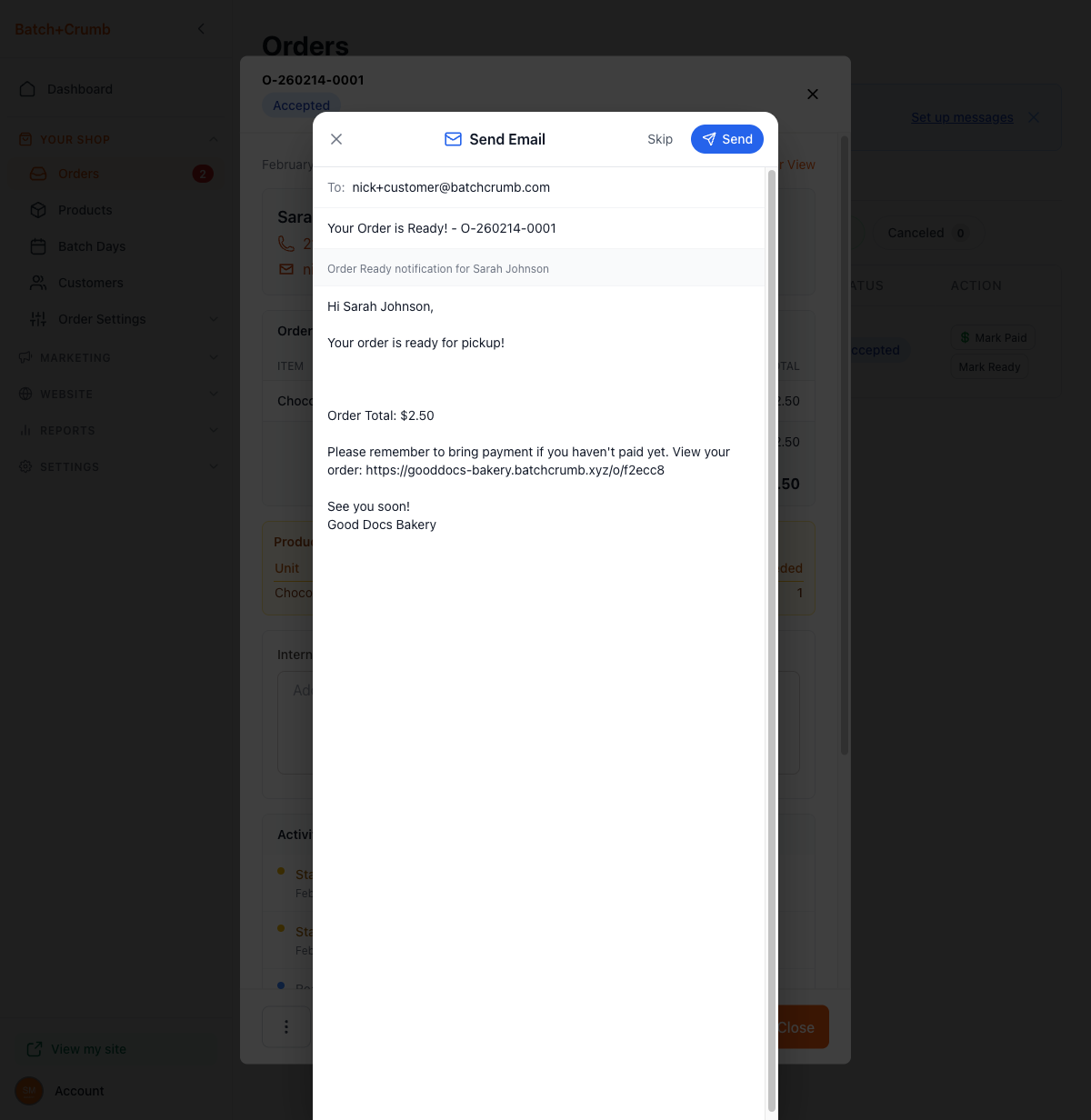
Click Send when you're happy with the message, or Skip if you change your mind.
3. Confirmation
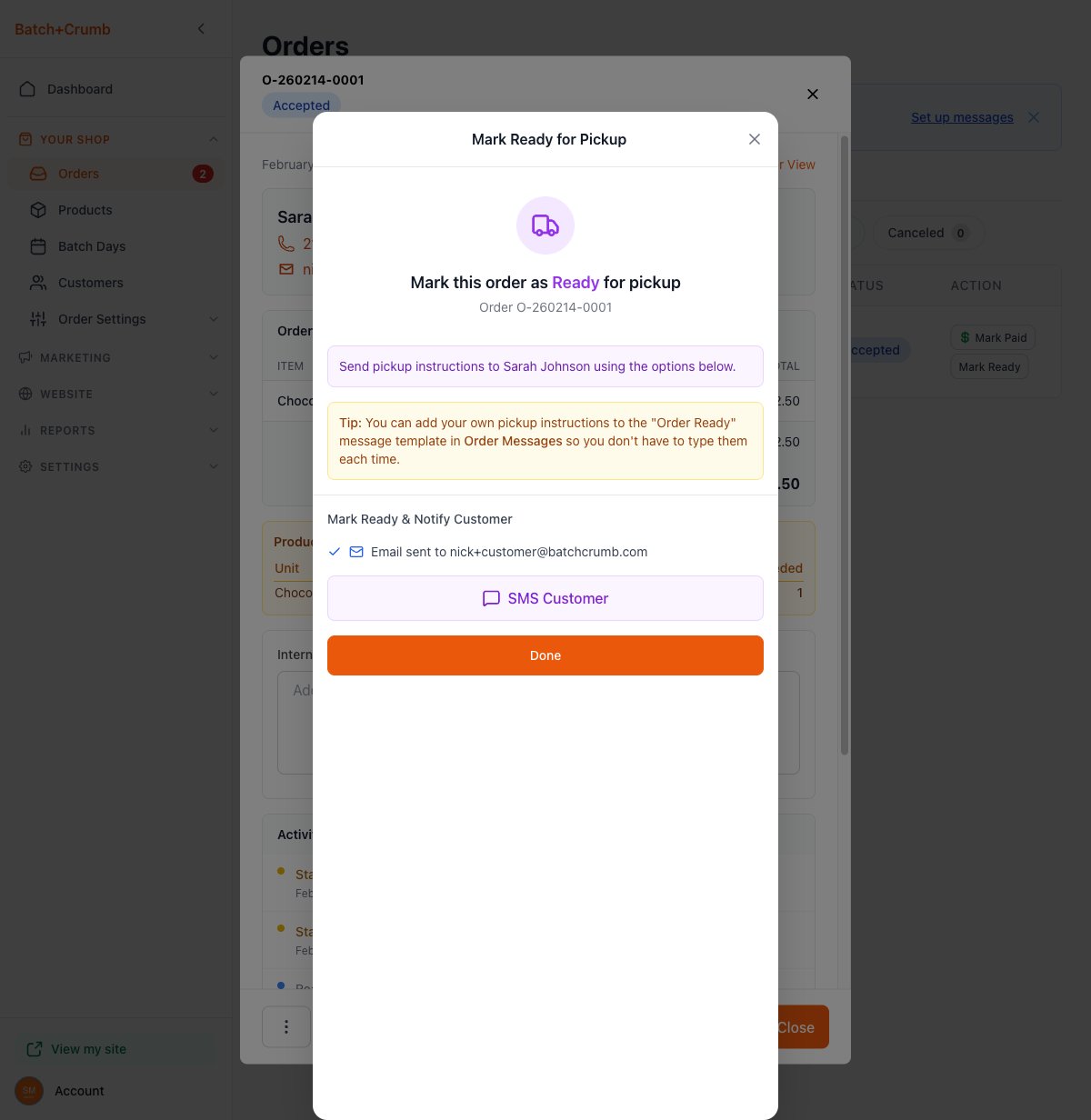
After sending, the dialog shows a checkmark confirming the email was delivered. You can still send an SMS too, or click Done to finish.
What the Customer Receives
The customer gets an email from your business name (for example, "Good Docs Bakery") with the subject line "Your Order is Ready! - [order number]".
The email includes:
- A personal greeting using the customer's name
- A "ready for pickup" message
- The order total
- A reminder to bring payment if they haven't paid yet
- A link to view their order details online
- A sign-off from your business name
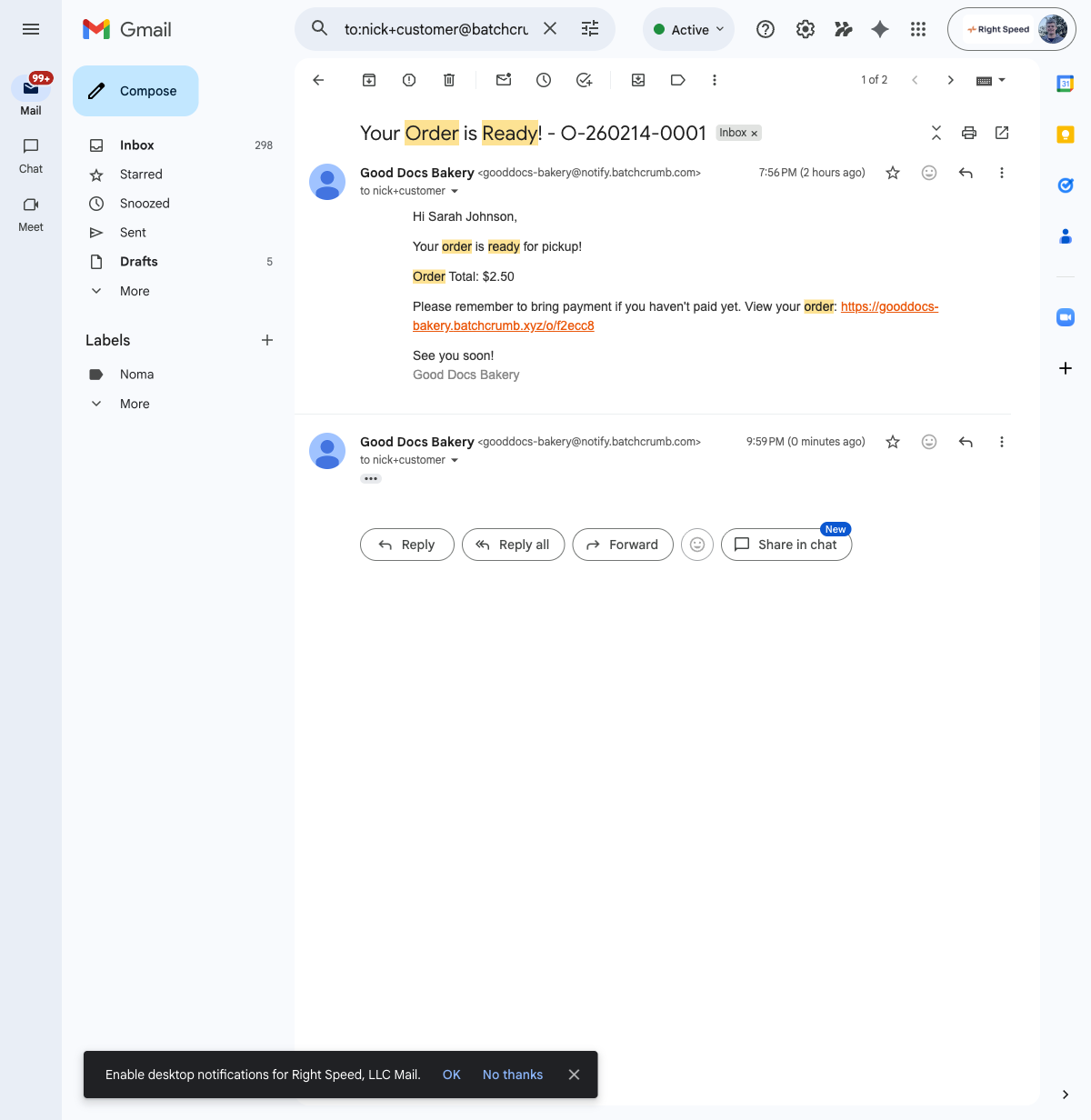
The email is sent from your-site@notify.batch52.com, but the display name shows your business name — so customers see "Good Docs Bakery" in their inbox.
Customizing the Order Ready Email
The email content comes from the Order Ready template. You can customize both the subject line and body text from Order Settings > Order Messages.
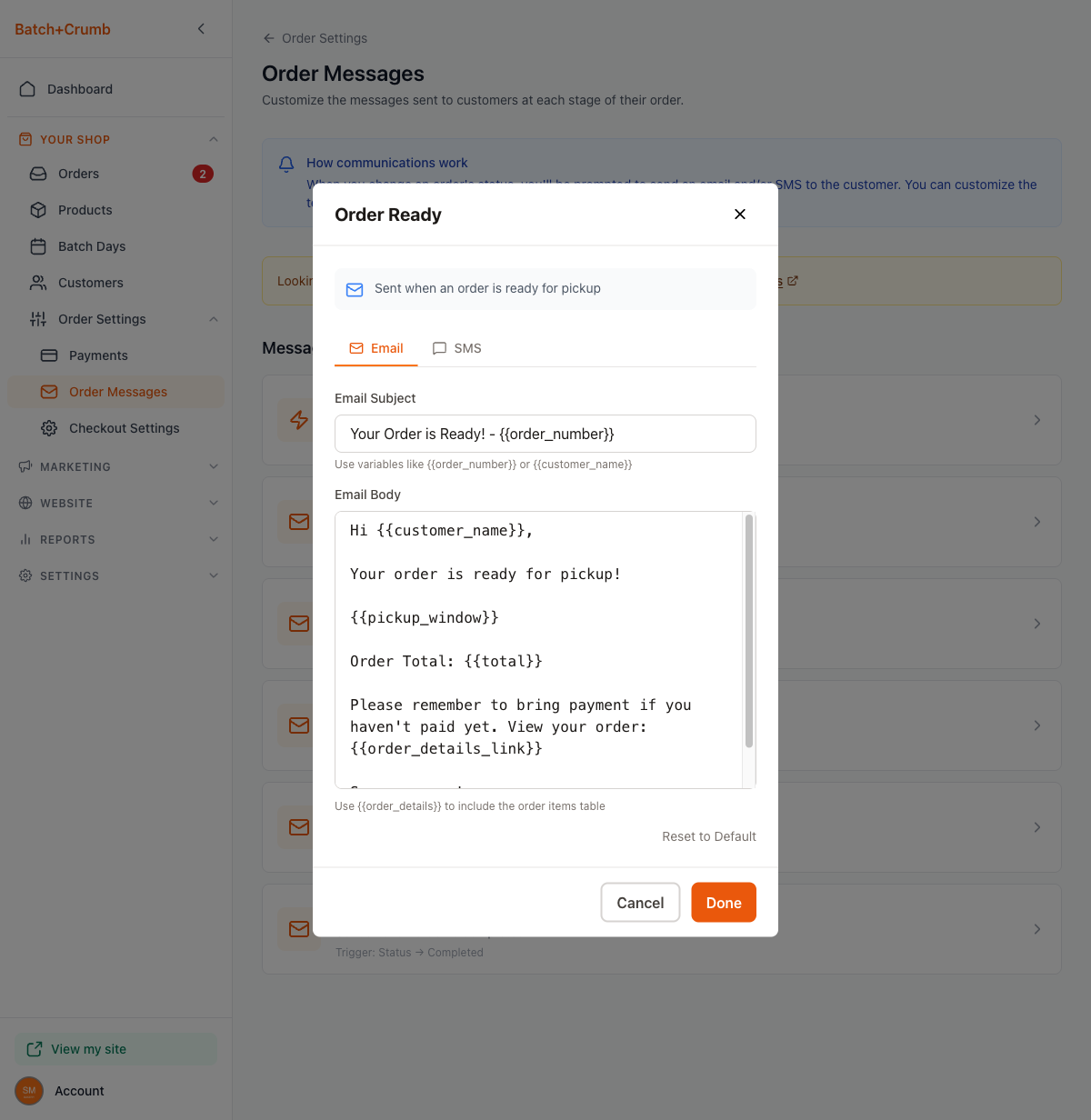
The default template uses these variables that get replaced with real data when the email is sent:
| Variable | What it becomes |
|---|---|
{{customer_name}} | The customer's name (e.g., "Sarah Johnson") |
{{order_number}} | The order number (e.g., "O-260214-0001") |
{{total}} | The order total (e.g., "$2.50") |
{{pickup_window}} | The pickup time window (if set) |
{{order_details_link}} | A clickable link to the customer's order page |
{{business_name}} | Your business name (e.g., "Good Docs Bakery") |
To edit the template, go to Order Settings > Order Messages in the sidebar, click Order Ready, make your changes, and click Done.
Tips
- This email only sends when you choose to send it — it's not automatic. You're always in control of when your customer hears that their order is ready.
- Add your standard pickup instructions (like your address or hours) to the Order Ready template so you don't have to type them every time. The
{{pickup_window}}variable will automatically include the pickup time if one was set on the order. - You can edit the message right before sending to add a personal touch — like "See you at the Saturday market!" for a specific customer.
- The email includes a link to the customer's order page, so they can double-check what they ordered without having to ask you.
- You can use Reset to Default in the template editor if you ever want to go back to the original wording.