Browsing Your Site
A walkthrough of what your customers see when they visit your Batch52 site — from the homepage to product pages and the shopping cart.
A walkthrough of what your customers see when they visit your Batch52 site — from the homepage to product pages and the shopping cart.
Overview
Your Batch52 site is the online home of your bakery. When customers visit, they'll find your products, learn about your business, and place orders — all without needing to download an app or create an account. Here's what the experience looks like from their side.
Your Homepage
When someone visits your site, the first thing they see is your homepage. It's designed to feel welcoming and make it easy for customers to find what they're looking for.
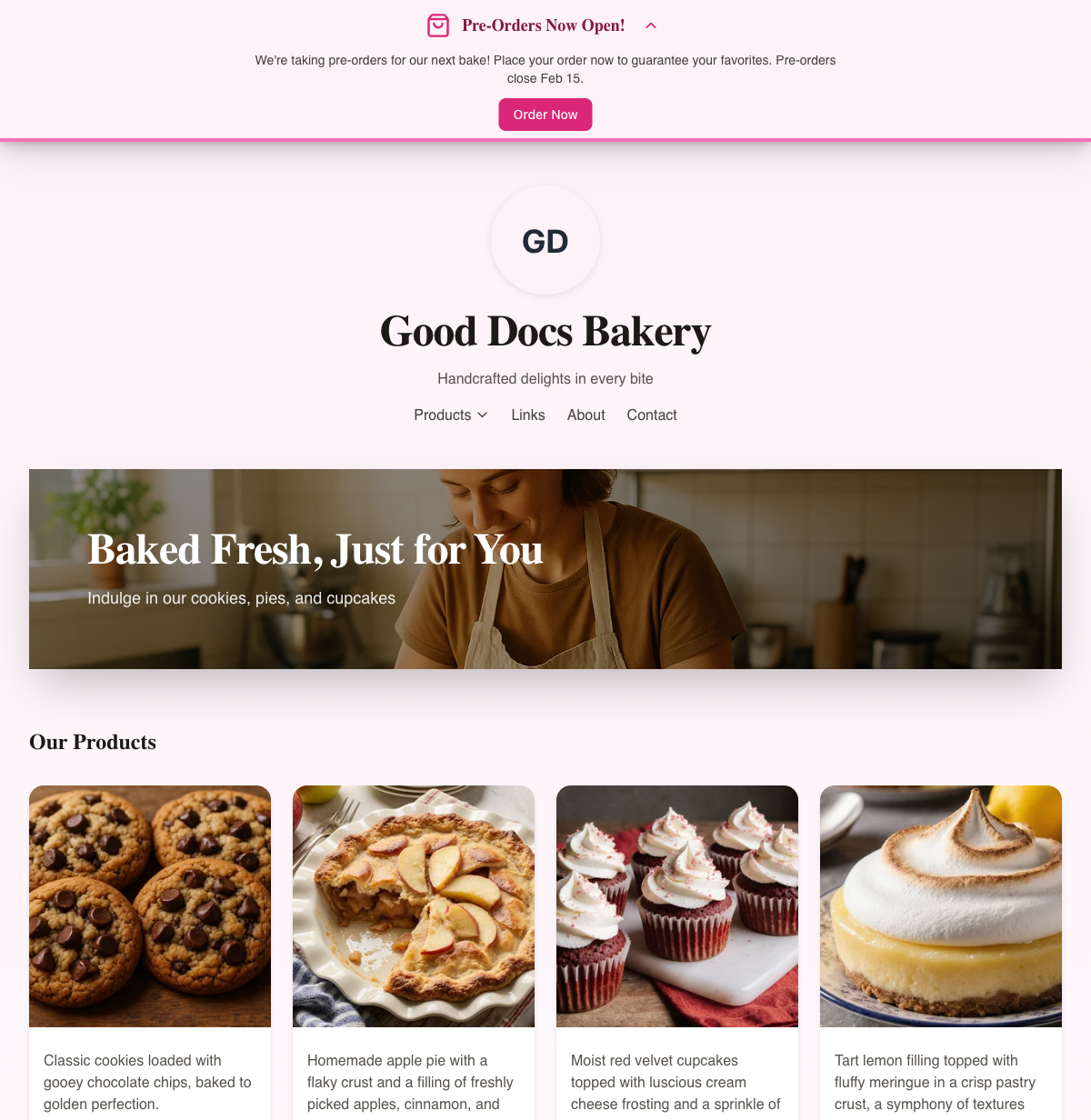
Here's what your homepage includes, from top to bottom:
- Announcement banner — If you have an active announcement, it appears at the very top of the page with a call-to-action button. Customers can collapse it by tapping the arrow.
- Your bakery name and logo — Displayed prominently at the top, along with your tagline.
- Navigation menu — Links to Products (with a dropdown for Featured and All Products), About, and Contact. If you've enabled a Links page, that appears here too.
- Hero section — A large banner image with your headline and a short description of what you offer.
- Our Products — A grid of your products showing photos, descriptions, prices, and an Add to Cart button (or Contact for Info for inquiry-only products).
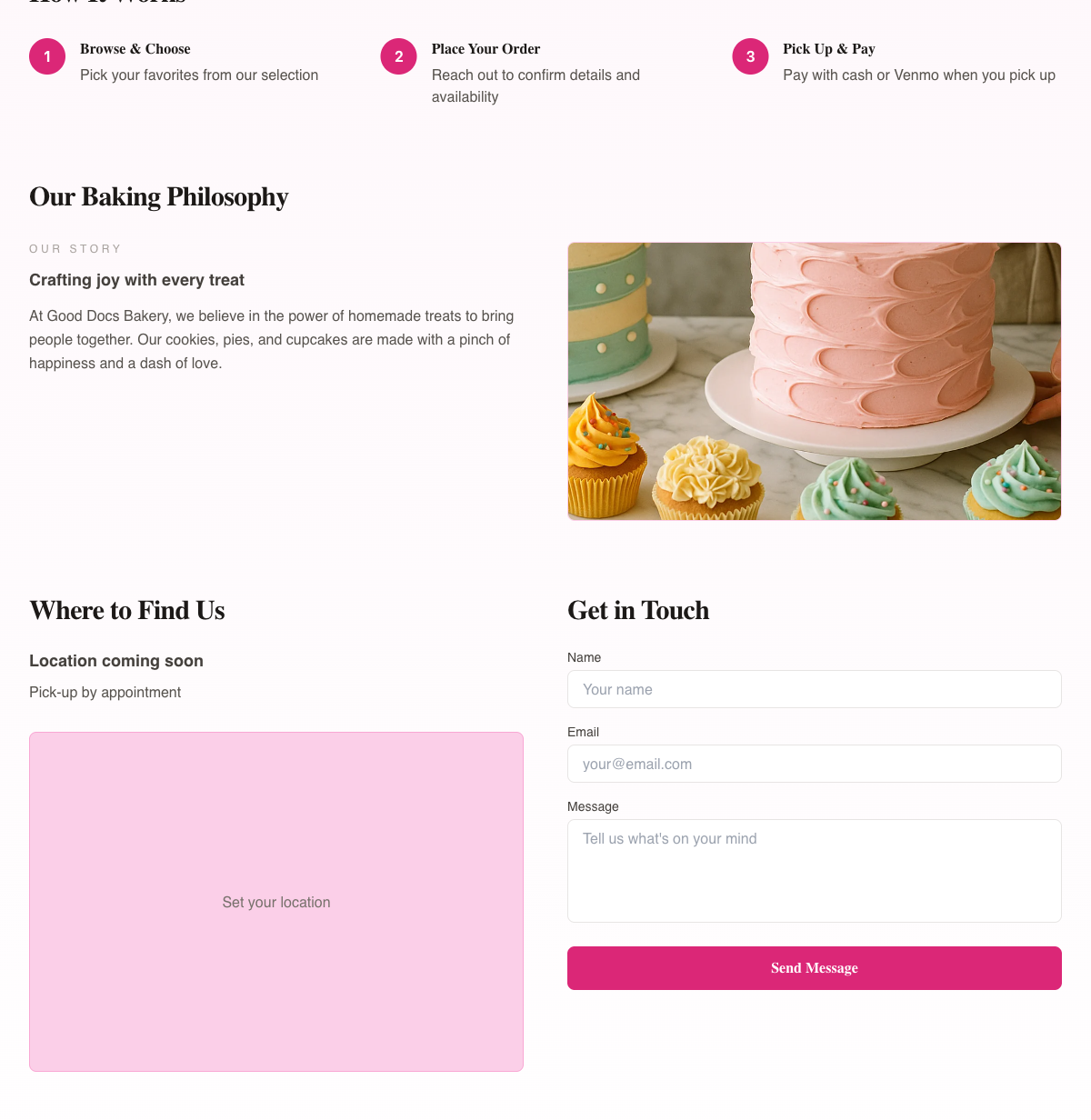
- How It Works — Three simple steps that explain your ordering process to new customers.
- Our Baking Philosophy — Your "About" section with your story and a photo.
- Where to Find Us — Your pickup location and hours (once you've set them up).
- Get in Touch — A contact form where customers can send you a message directly.
- Footer — Links to your Terms of Service and Privacy Policy.
Browsing Products
Customers can browse your products in a few ways:
From the Navigation Menu
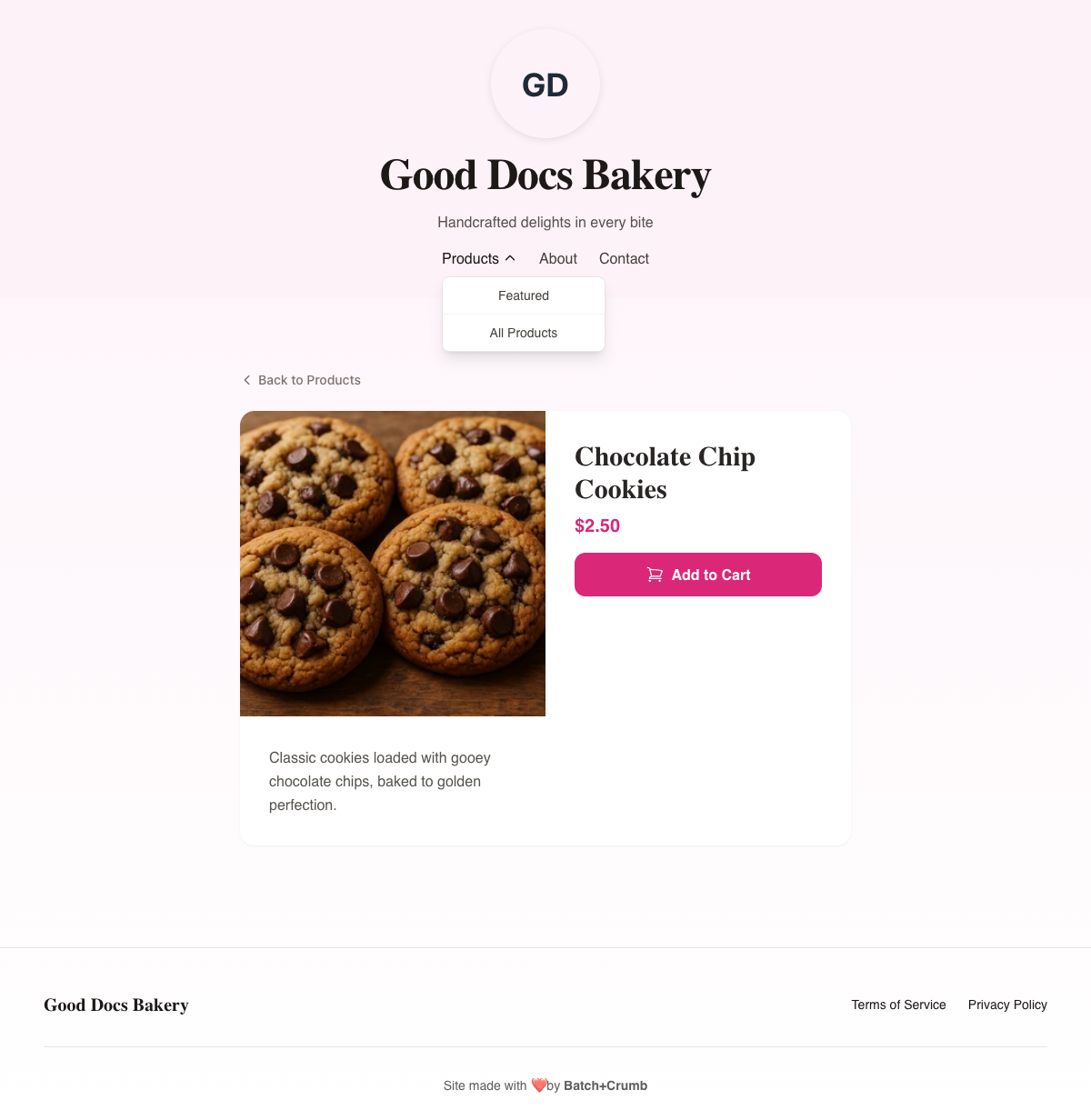
Clicking Products in the nav bar opens a dropdown with two options:
- Featured — Scrolls to the featured products section on the homepage.
- All Products — Goes to a dedicated page showing every product you offer.
The All Products Page
This page displays all your products in a grid. Each product card shows the photo, name, description, price, and a button to either Add to Cart or Contact for Info.
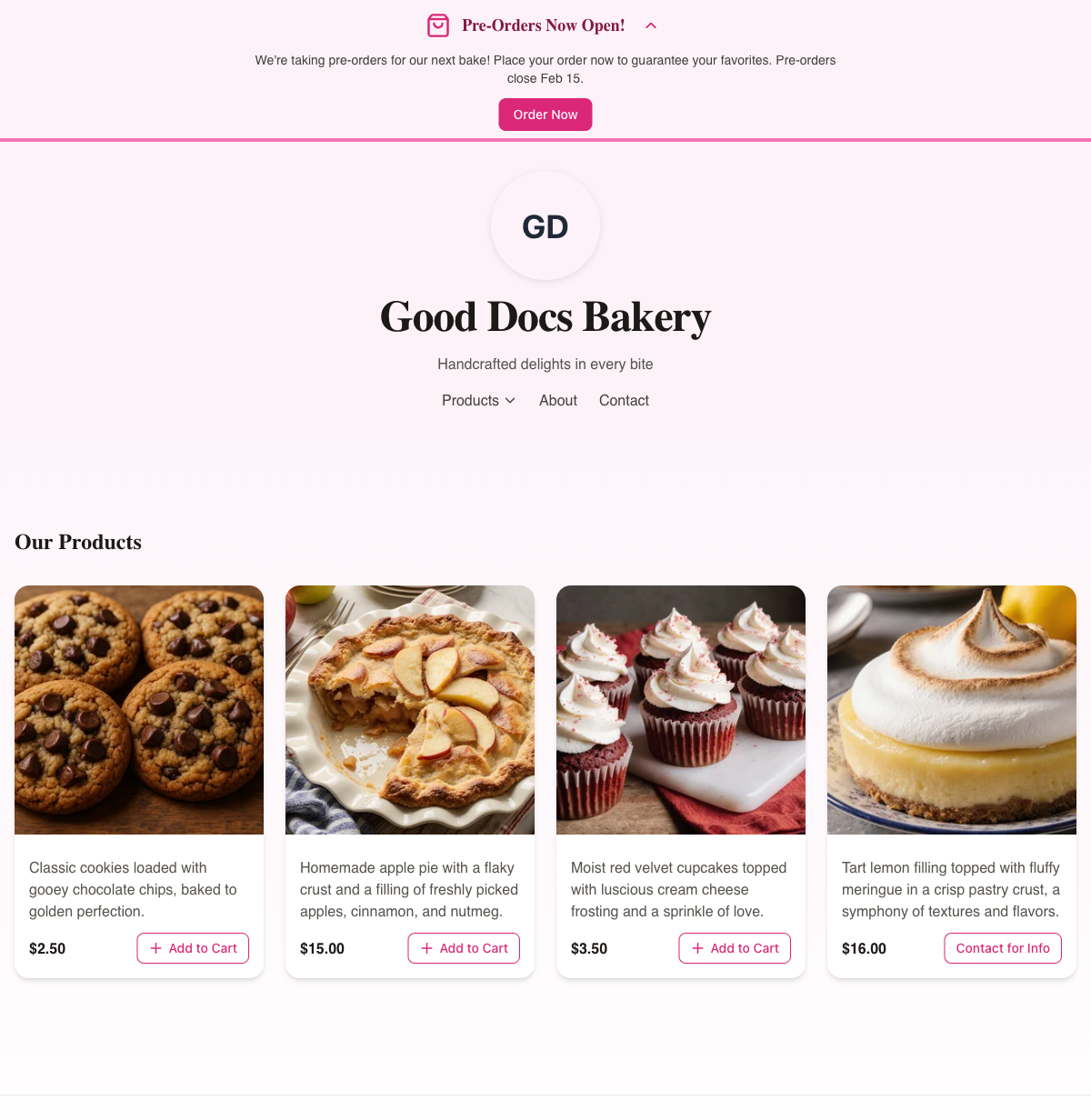
Customers can click on any product name or image to see more details.
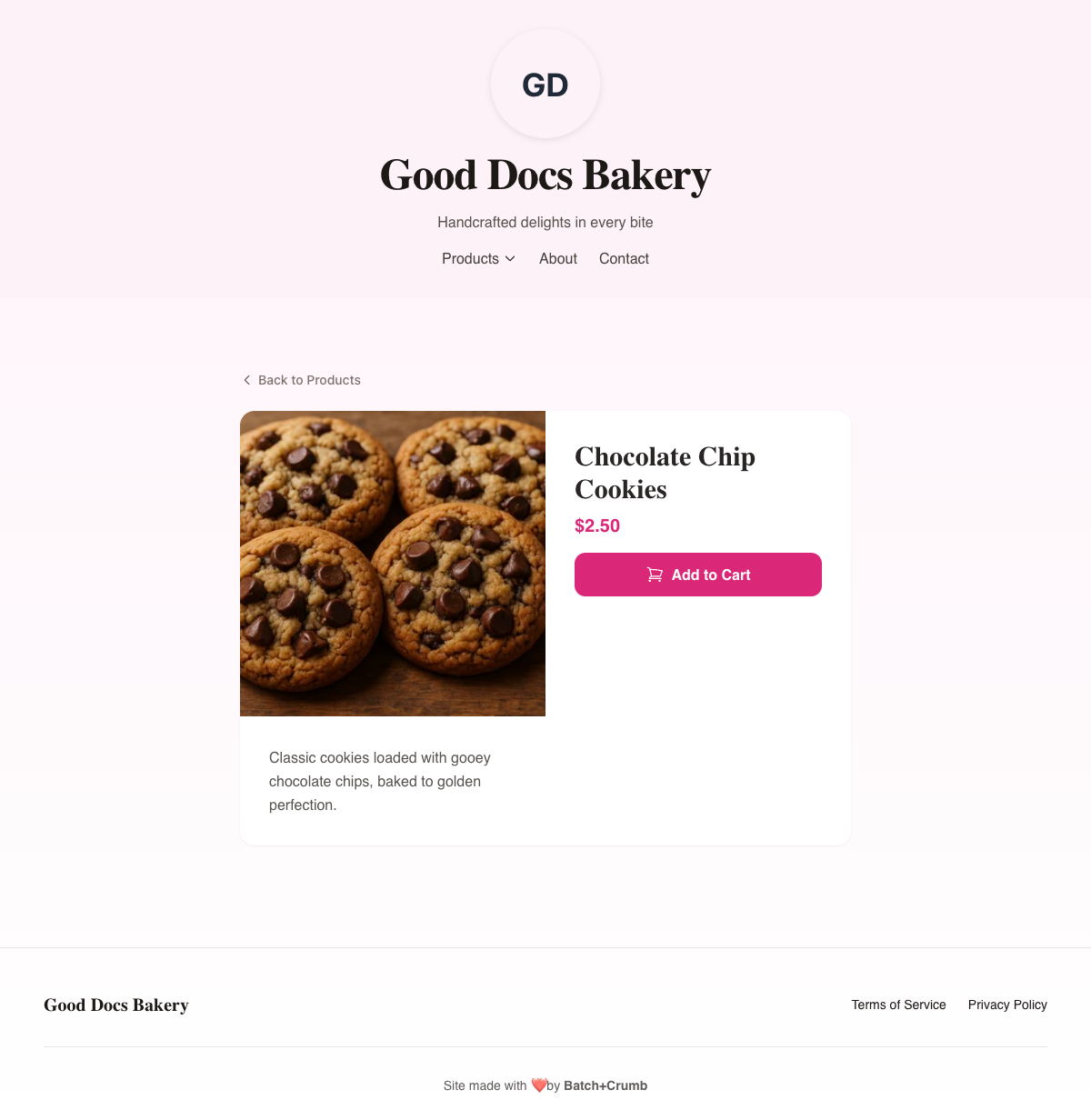
Product Detail Pages
Each product has its own page with a larger photo, the full description, the price, and an Add to Cart button. There's also a Back to Products link at the top to return to the full list.
The Shopping Cart
A floating cart button appears in the bottom-right corner of every page. It shows the number of items currently in the cart. When a customer taps it (or adds an item), the cart drawer slides open from the right side.
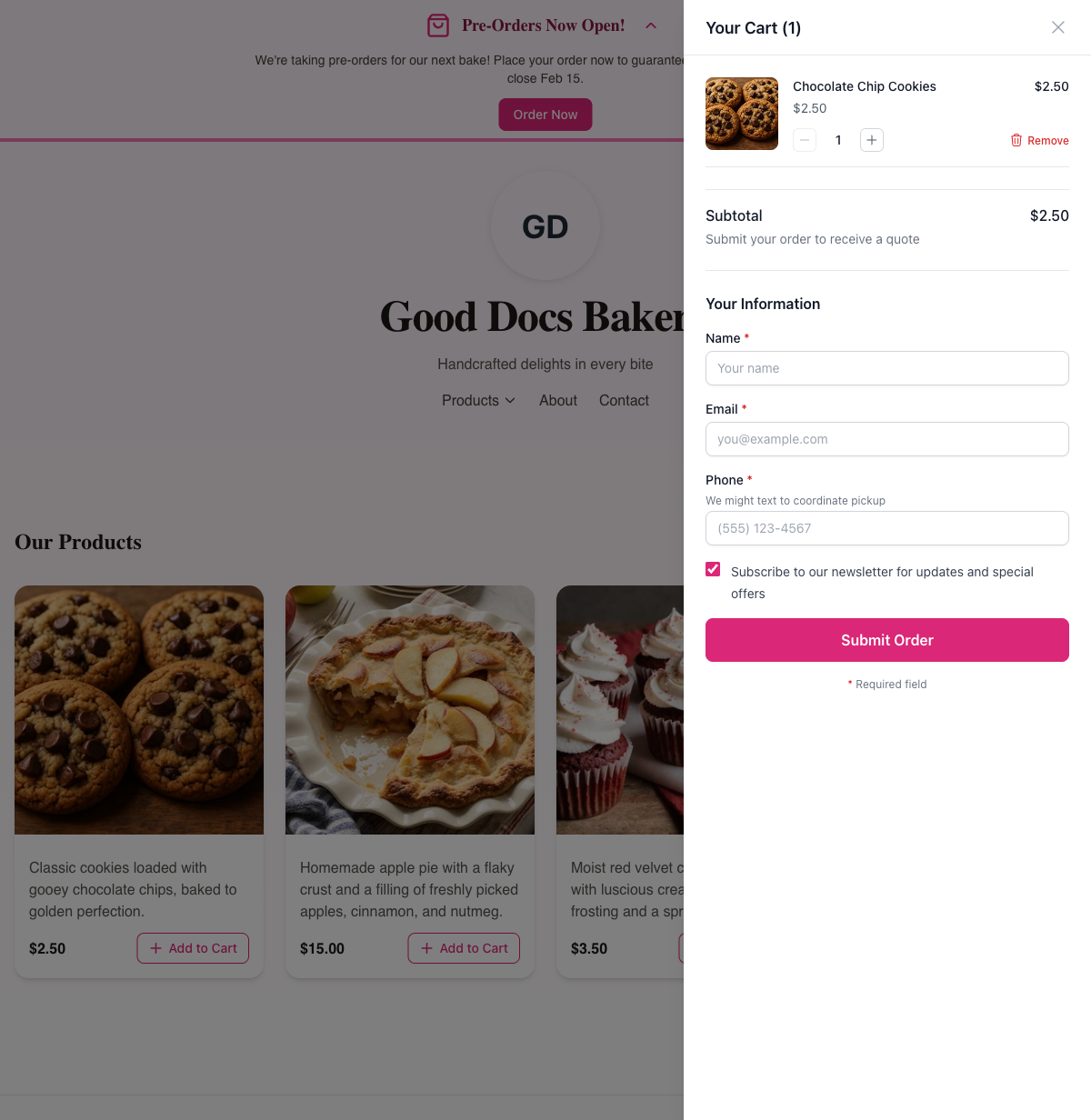
Inside the cart, customers can:
- See their items — Each item shows the product photo, name, unit price, and line total.
- Adjust quantities — Use the + and - buttons to change how many they want.
- Remove items — Tap the red Remove button to take something out of the cart.
- View the subtotal — The total updates automatically as they add or remove items.
Below the cart items, there's a Your Information section where customers fill in their details to place the order:
- Name (required)
- Email (required)
- Phone (required) — with a note that you might text to coordinate pickup
- Newsletter checkbox — Checked by default, lets customers opt in to your email updates
Once they're ready, they tap Submit Order to place their order.
Announcements
If you've created an active announcement, customers will see a banner at the very top of your site. It includes a headline, a short message, and a link button (like "Order Now"). Customers can collapse the banner by tapping the arrow icon.
Contact Form
Customers can reach you through the Get in Touch section at the bottom of your homepage. They fill in their name, email, and a message, then tap Send Message. You'll receive a notification, and they may get an auto-reply depending on your settings.
Tips
- Your homepage sections are controlled by your site settings in the admin — you can customize the hero text, about section, and more from Website Settings.
- Products marked as Featured in the admin will appear in the homepage products grid.
- The Contact for Info button appears on products where you've chosen that option instead of Add to Cart — great for custom orders or items that need a conversation first.
- Customers don't need to create an account to browse or place an order.