
Unsubscribing from Emails
How your customers can opt out of announcement and marketing emails using the unsubscribe link.
How your customers can opt out of announcement and marketing emails using the unsubscribe link.
Overview
Every announcement and marketing email sent through Batch52 includes an unsubscribe link at the bottom. When a customer clicks it, they're automatically removed from your email list — no extra steps needed on your end. This keeps you compliant with email best practices and makes sure your customers only hear from you when they want to.
How It Works
1. The customer receives an announcement email
When you send an announcement (like a pre-order alert, menu update, or event promotion), subscribed customers receive it in their inbox. The email includes your headline, message, and a call-to-action button.
At the very bottom of every announcement email, below the "Sent by [Your Business Name]" line, there's an Unsubscribe link.
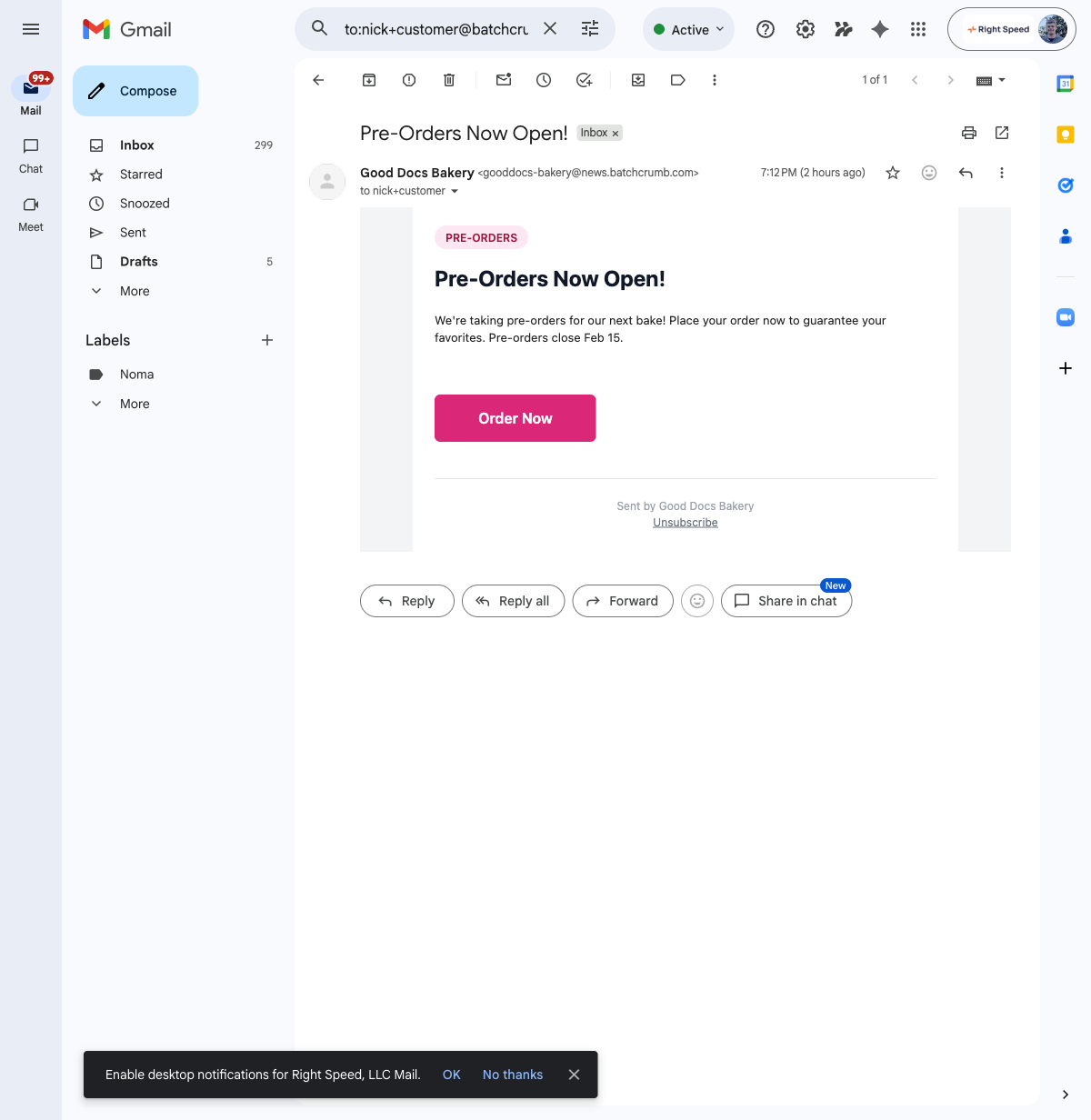
2. The customer clicks Unsubscribe
When a customer clicks the Unsubscribe link, they're taken to a Batch52 page that confirms they've been unsubscribed. That's it — one click and they're done. They don't need to log in or fill out any forms.
3. Their status updates automatically
Once a customer unsubscribes, their subscription status updates in your admin automatically. You'll notice the green Subscribed badge disappears from their profile in the Customers section. You don't need to do anything on your end.
What happens if the link expires
Unsubscribe links can expire over time. If a customer clicks an older unsubscribe link, they'll see an error page that says "Invalid or expired unsubscribe link."
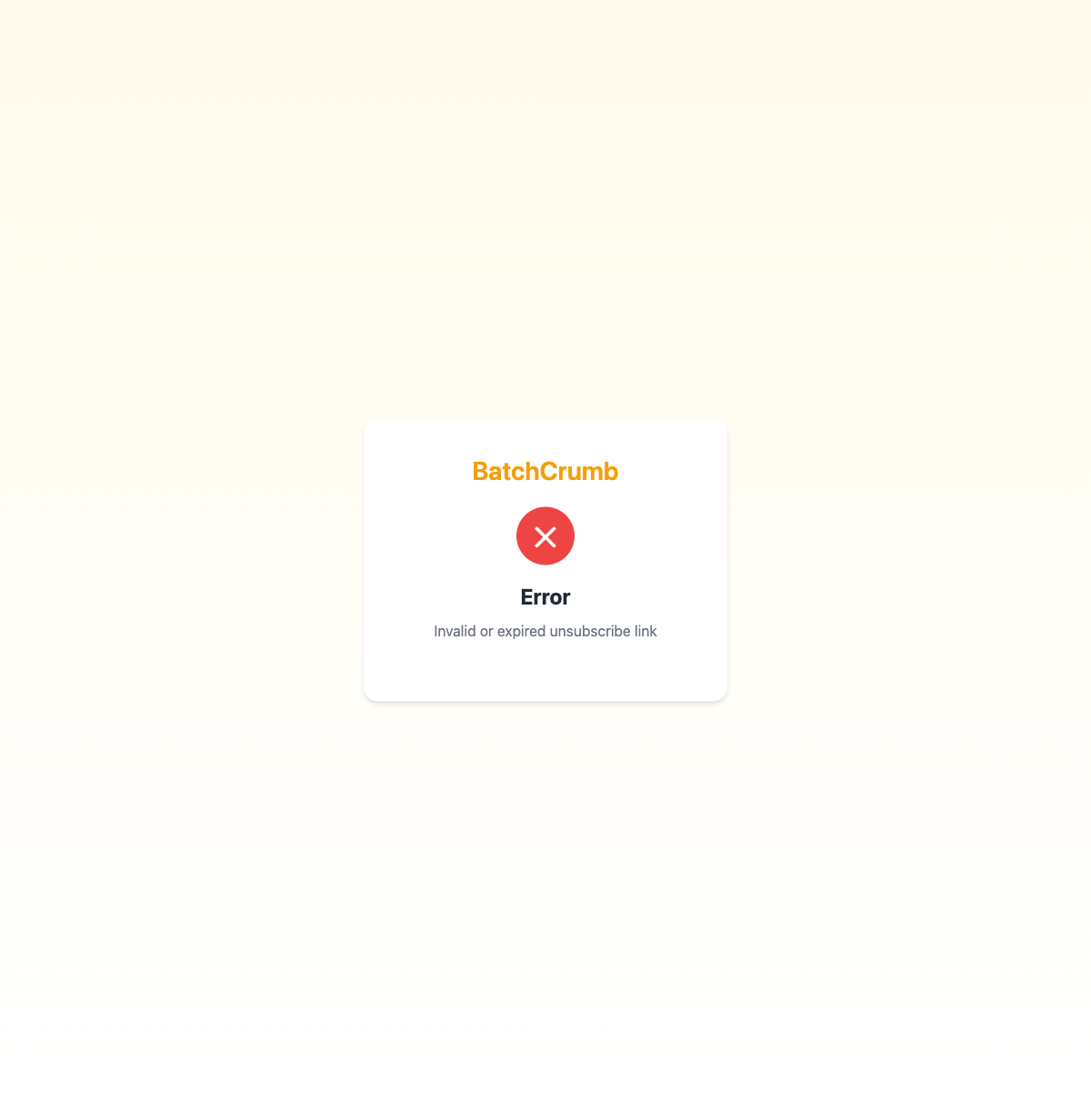
If this happens, the customer can unsubscribe by clicking the link in a more recent email, or they can reach out to you directly and you can unsubscribe them manually from the admin.
What unsubscribing affects (and doesn't)
| Email type | Affected by unsubscribing? |
|---|---|
| Announcements and marketing emails | Yes — unsubscribed customers won't receive these |
| Order confirmations | No — always sent regardless |
| Order status updates (ready for pickup, etc.) | No — always sent regardless |
| Contact form auto-replies | No — always sent regardless |
| Product inquiry confirmations | No — always sent regardless |
Unsubscribing only stops announcement and marketing emails. Your customers will still get all the transactional emails they need about their orders and inquiries.
Re-subscribing a customer
If a customer changes their mind and wants to hear from you again, you can re-subscribe them from the admin:
- Go to Customers in the left sidebar
- Click on the customer's name to open their profile
- Click Edit in the top right corner
- Toggle Subscribed to emails back on (orange means on)
- Click Save
Just make sure the customer has asked to be re-subscribed before you turn it back on — you want to respect their preferences.
Tips
- You can't customize the unsubscribe link text or remove it from emails — it's included automatically in every announcement to keep things compliant.
- If a regular customer mentions they stopped getting your announcements, check their profile in the Customers section. They may have accidentally clicked the unsubscribe link.
- The unsubscribe link only appears in announcement and marketing emails, not in order confirmations or other transactional emails.
- To see how many customers are currently subscribed, check the subscriber count shown when you create a new announcement (on the Channels step with Email enabled).