Tracking Order Status
How your customers can check the status of their order at any time using their personal order tracking page.
How your customers can check the status of their order at any time using their personal order tracking page.
Overview
After a customer places an order, they receive a unique link to a tracking page where they can see exactly where their order stands. This page updates automatically as you move the order through each status — so customers always know what's happening without needing to call or message you.
How Customers Find Their Tracking Page
Customers get a link to their order tracking page in two ways:
- Status update emails — When you mark an order as Ready (or send any status update email), the email includes a "View your order" link that goes straight to the tracking page.
- Order confirmation email — The confirmation email sent right after they place an order may include a link to view their order details, depending on your email template settings.
The tracking page URL looks something like yourbakery.batch52.com/o/abc123 — it's unique to each order and doesn't require any login.
What the Tracking Page Shows
The order tracking page is a clean, simple view with everything your customer needs to know.
Header
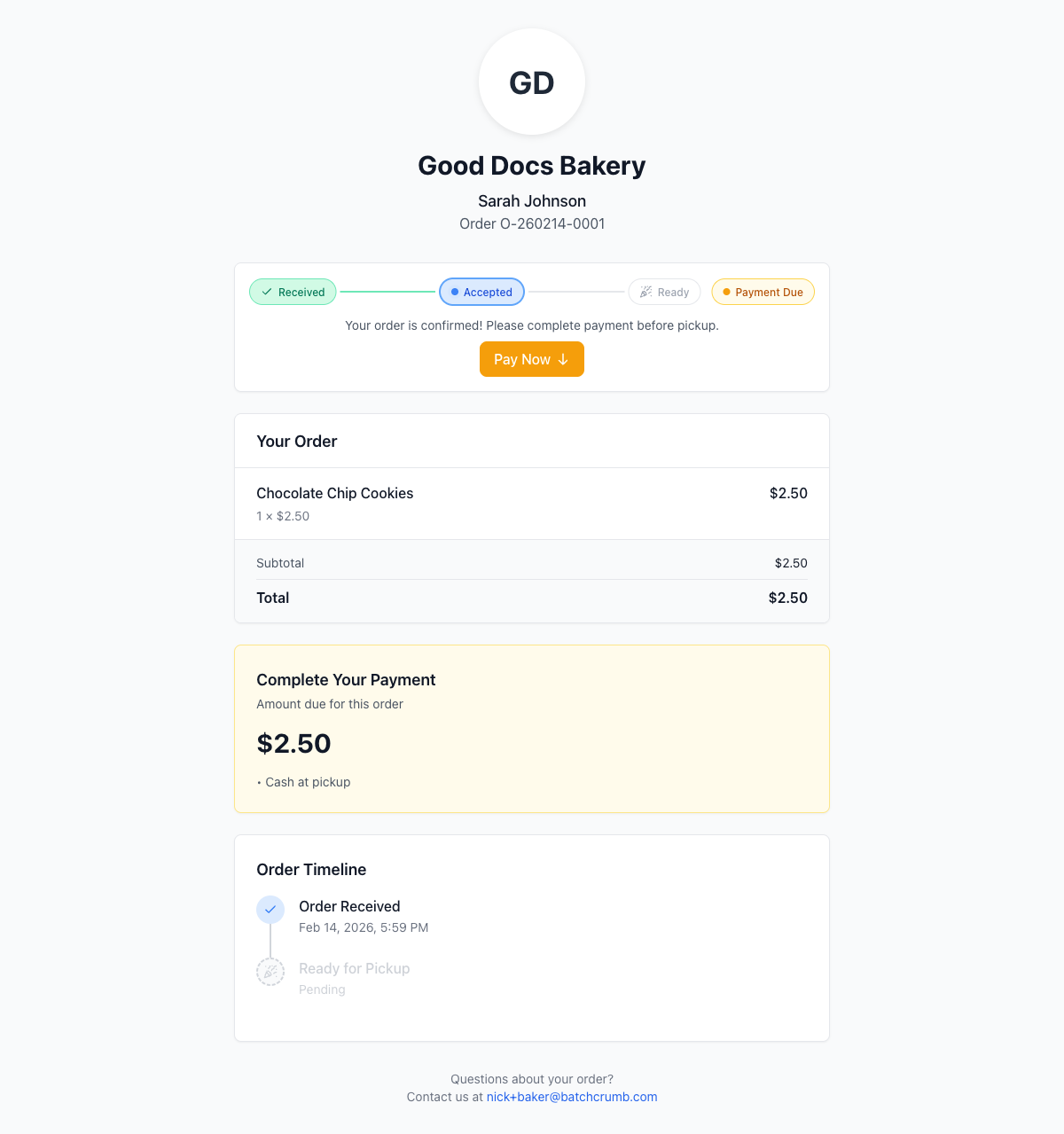
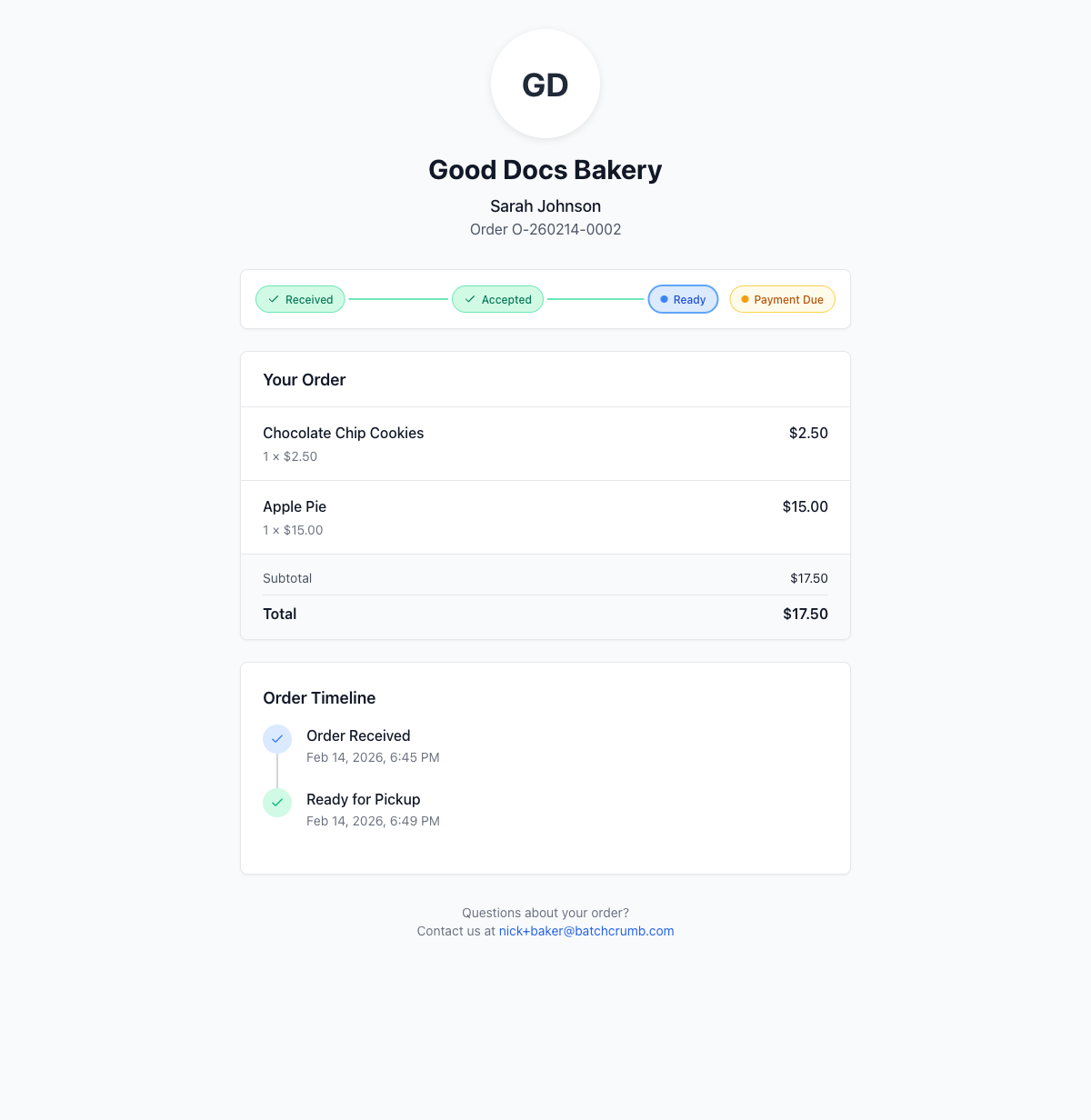
At the top, your bakery's logo (or initials) and name are displayed, along with the customer's name and order number.
Progress Bar
A visual progress bar shows where the order is in the workflow. The three steps are:
- Received — The order has been placed and is waiting for you to review it.
- Accepted — You've confirmed the order and are working on it.
- Ready — The order is ready for pickup!
Each step shows a checkmark when completed, a filled dot when it's the current step, and a grayed-out icon when it's still ahead.
If payment hasn't been collected yet, an orange Payment Due badge appears next to the progress bar.
Pay Now Button
When an order is accepted and payment is still due, a message appears below the progress bar: "Your order is confirmed! Please complete payment before pickup." along with a Pay Now button. This makes it easy for customers to take care of payment right from the tracking page.
Your Order (Itemized List)
A card showing each item in the order with quantity, unit price, and line total — plus the subtotal and total at the bottom.
Complete Your Payment
If payment is still outstanding, a highlighted section shows the amount due and the accepted payment method (for example, "Cash at pickup"). This section disappears once payment is marked as received.
Order Timeline
A vertical timeline at the bottom shows each major milestone with the date and time it happened:
- Order Received — with the timestamp of when the customer placed the order
- Ready for Pickup — with the timestamp of when you marked it ready (or "Pending" if it hasn't happened yet)
Contact Info
At the very bottom, a note says "Questions about your order?" with a link to your business email so the customer can reach out easily.
How the Page Updates as You Work
As you move an order through its lifecycle on the admin side, the customer's tracking page reflects each change:
| You do this in Admin | Customer sees on tracking page |
|---|---|
| Order arrives (New) | Progress bar at Received step |
| Accept the order | Progress bar moves to Accepted, Pay Now button appears if unpaid |
| Mark Ready | Progress bar moves to Ready, timeline shows pickup timestamp |
| Mark Completed | Page continues showing Ready (the final customer-facing step) |
The tracking page doesn't show a "Completed" step — from the customer's perspective, "Ready for Pickup" is the final milestone. Once they've picked up their order, the page simply stays on the Ready view.
Tips
- Customers don't need to log in or create an account to view their tracking page — anyone with the link can see it.
- The tracking page updates in real time, so customers can refresh the page at any time to see the latest status.
- If you use the Send Email option when marking an order as Ready, the email automatically includes a link to this tracking page.
- The Payment Due badge and Pay Now button only appear when the order is unpaid. Once you mark the order as paid in your admin, these disappear.
- You can find the customer tracking link for any order by opening it in your admin and looking for the Customer View link near the order date.