Buy Now Checkout
A walkthrough of what your customers experience when they purchase a product using the Buy Now checkout flow.
A walkthrough of what your customers experience when they purchase a product using the Buy Now checkout flow.
Overview
The Buy Now option gives your customers a streamlined way to purchase a single product directly with a credit card — no cart involved. When you set a product's call to action to Buy Now, customers see a See Details button on the product card. Clicking it takes them to a dedicated buy page where they can select options, enter their info, and pay in one smooth flow. The order is automatically accepted, so there's no manual review needed on your end.
Steps
1. Find a Buy Now product on your site
When browsing your shop, customers will notice that Buy Now products look a little different from regular products. Instead of an Add to Cart button, Buy Now products show a See Details button on the product card.
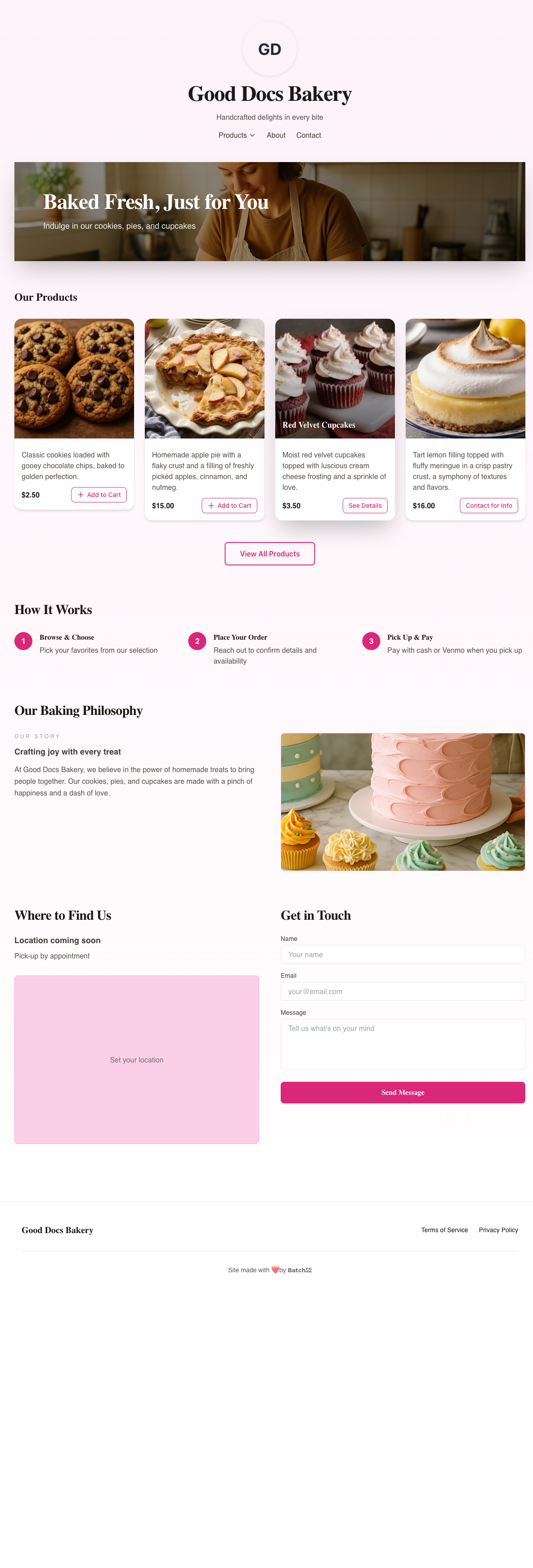
Clicking See Details takes the customer to a dedicated buy page for that product (the URL starts with /buy/).
2. Review the product and choose options
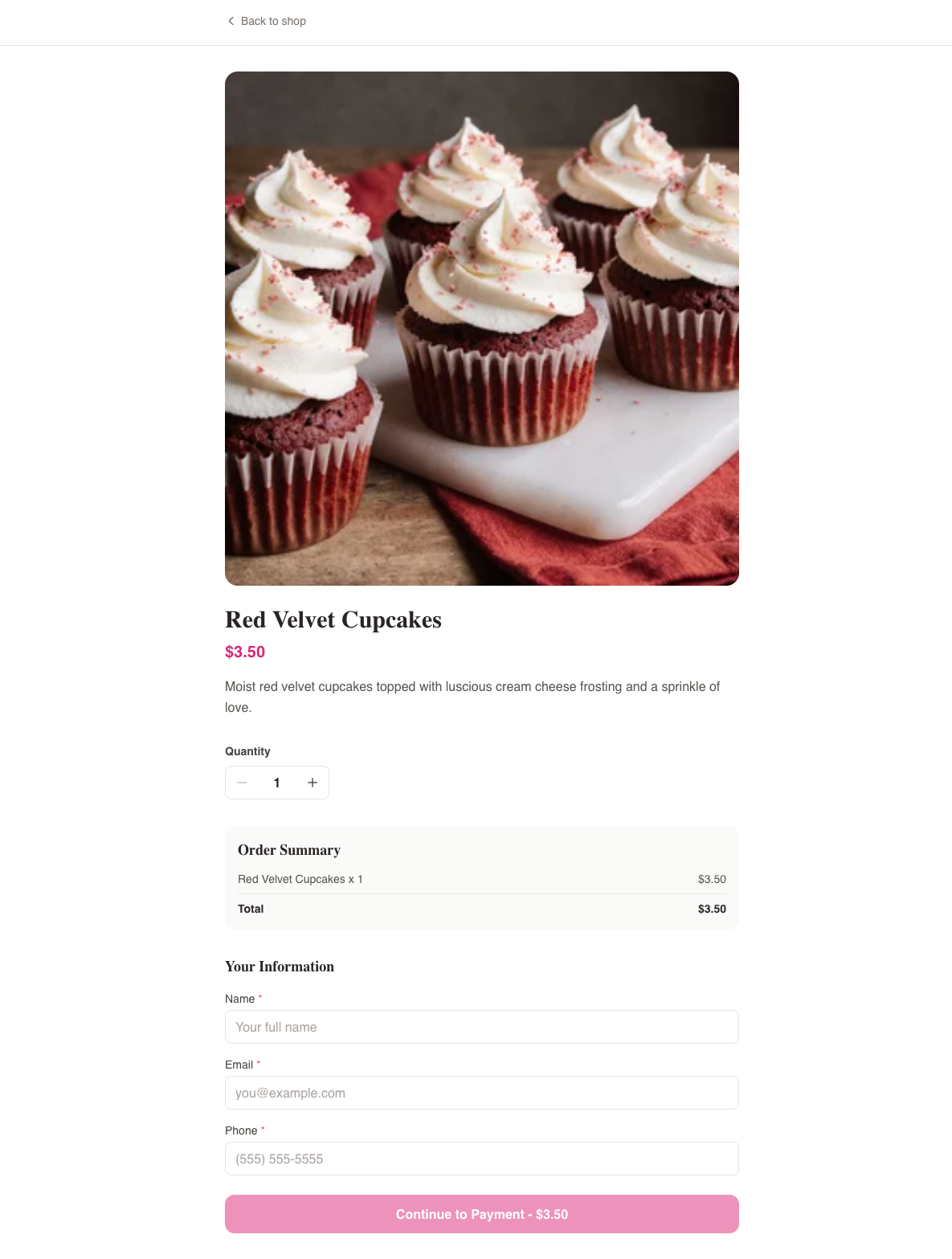
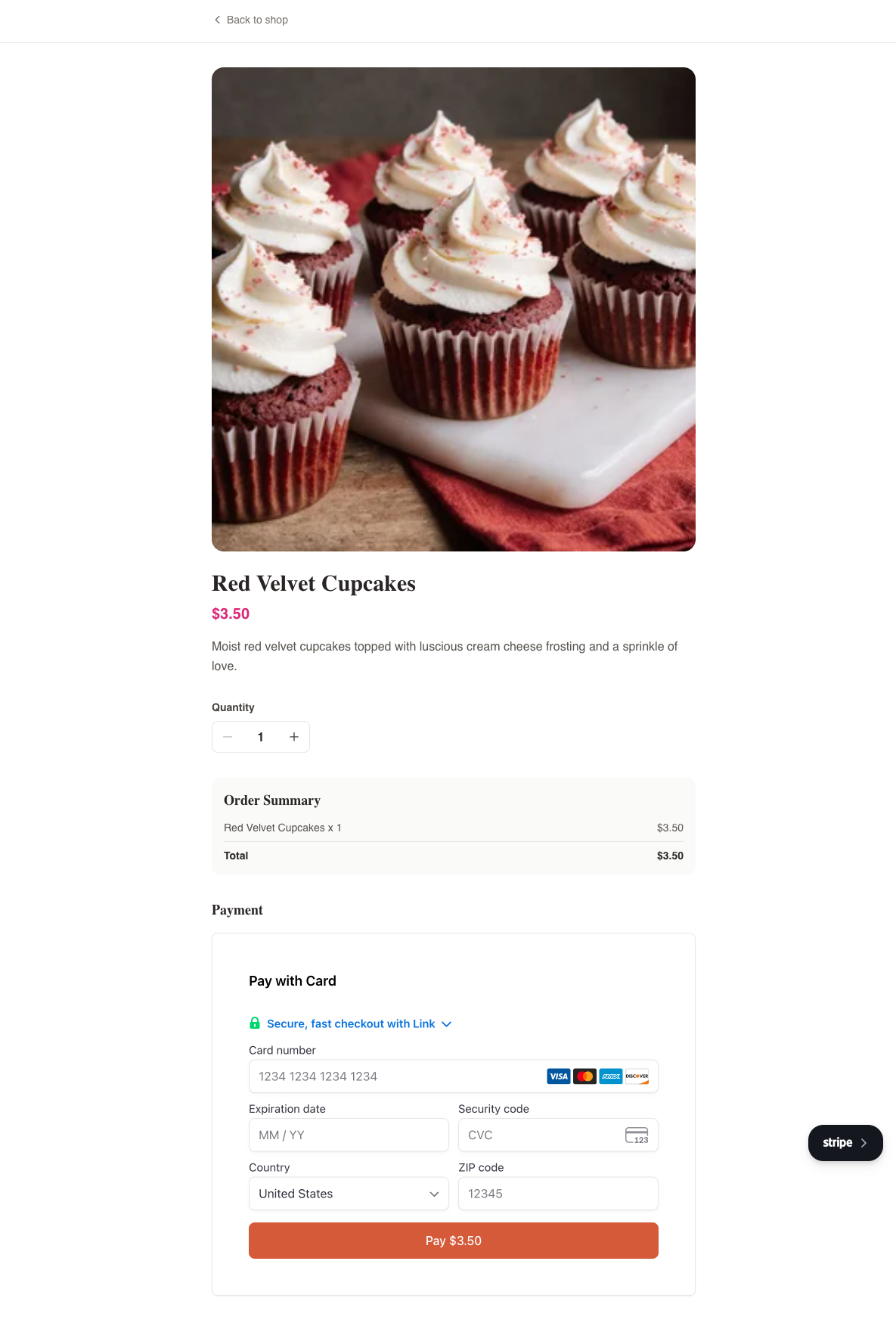
The buy page shows everything the customer needs to make their purchase:
- Product image — A large photo of the product at the top of the page.
- Product details — The product name, price, and description.
- Variant selector — If the product has size or style variants (like "Half Dozen" or "Large"), the customer picks the one they want. The price updates to match their selection.
- Add-on selector — If you've attached add-on groups to the product (like "Toppings" or "Gift Wrapping"), the customer can select their extras here.
- Quantity picker — Customers can use the - and + buttons to adjust how many they'd like to order.
- Order Summary — A running total showing the item, quantity, and price.
3. Fill in customer information
Below the product options, the customer fills in the Your Information section:
- Name (required)
- Email (required)
- Phone (required)
If you've enabled shipping in your checkout settings, the customer will also see shipping address fields on this page.
4. Continue to payment
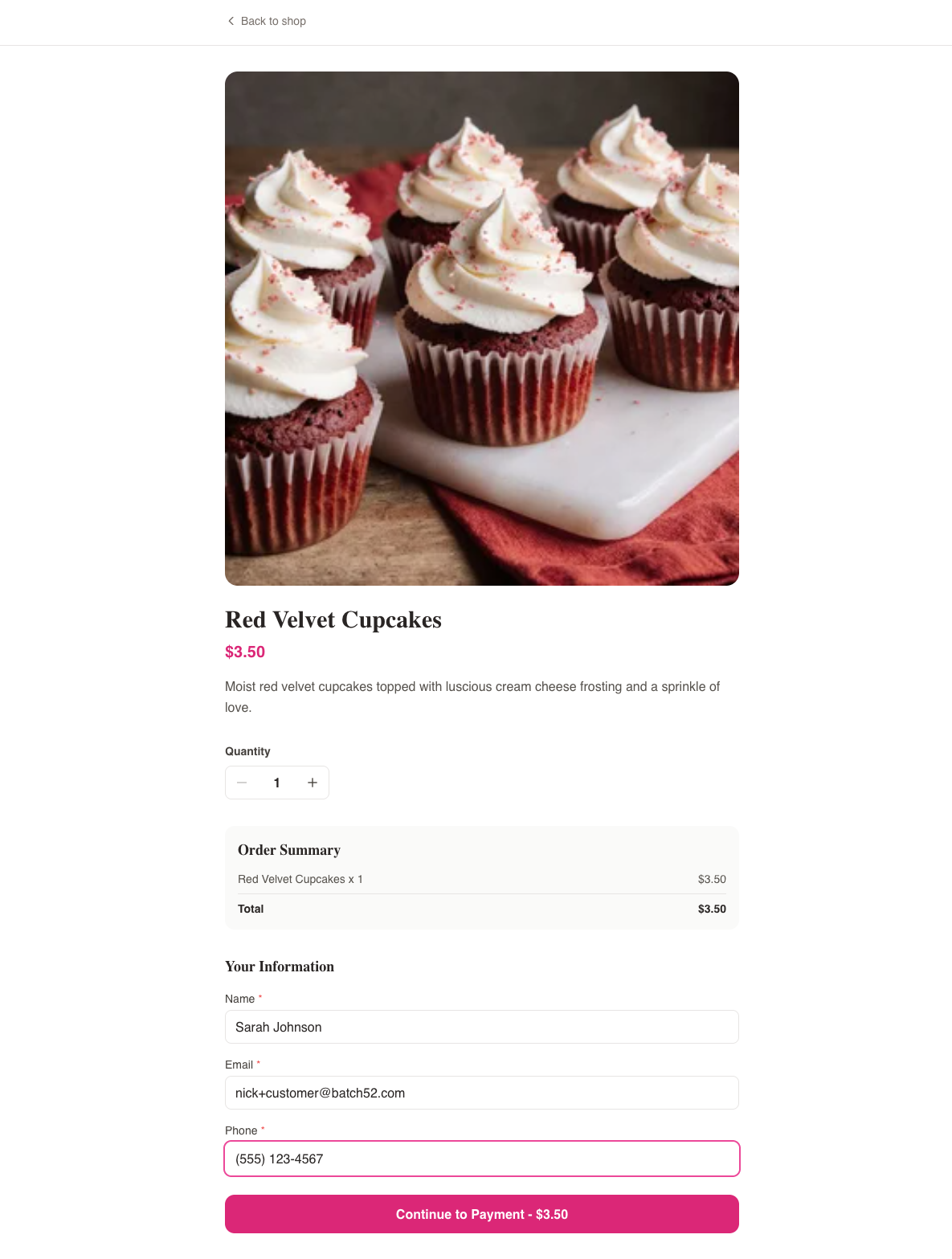
Once the customer has filled in their details, they click Continue to Payment. This reveals a Payment section with a secure Stripe card payment form directly on the page. The customer enters their:
- Card number
- Expiration date
- Security code (CVC)
- Country and ZIP code
Stripe handles all the payment processing securely — you never see the customer's card details. The button shows the exact amount they'll be charged (for example, Pay $3.50).
5. View the order confirmation
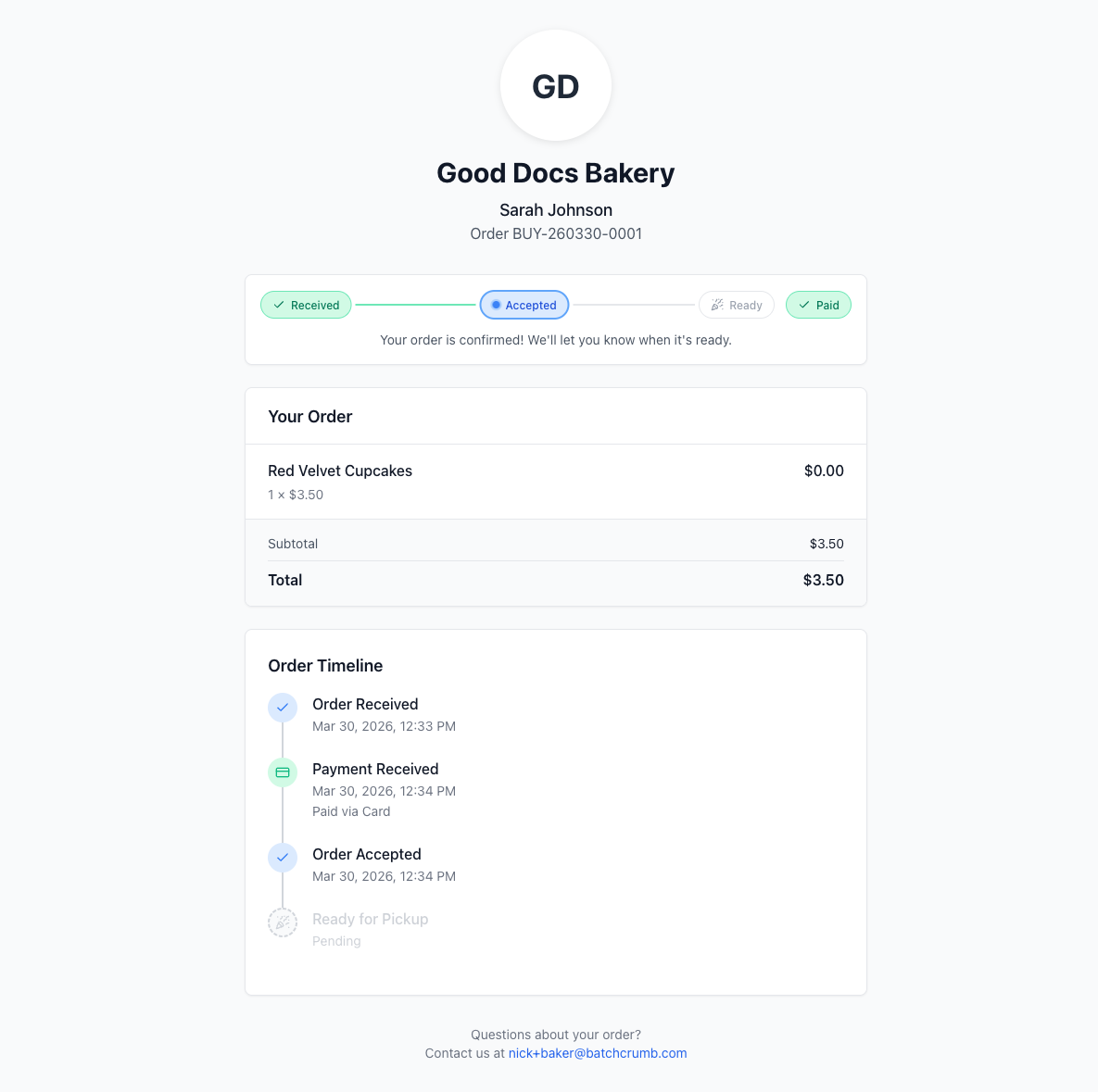
After the payment goes through, the customer is automatically redirected to an order confirmation page. This page shows:
- Shop name and customer name at the top
- Order number — Buy Now orders use a BUY- prefix (for example,
BUY-260330-0001) so you can easily tell them apart from cart orders - Progress bar — showing the order has already moved through Received and into Accepted, with a Paid badge
- Your Order — a summary of what they purchased and the total amount paid
- Order Timeline — a detailed log showing Order Received, Payment Received (Paid via Card), and Order Accepted, all with timestamps
The order is automatically accepted — unlike cart orders, there's no need for you to manually review and accept it. It goes straight to your orders list as an accepted order.
Tips
- Buy Now is perfect for products with a fixed price that you want customers to be able to purchase immediately — think gift boxes, seasonal specials, or your bestsellers.
- Since Buy Now orders are automatically accepted, make sure the product's price and availability are up to date before enabling this option.
- You can mix and match call-to-action types across your products. Some can be Add to Cart, others Contact for Info, and others Buy Now — whatever makes sense for each item.
- To enable Buy Now, you'll need to connect Stripe first. Go to Order Settings > Payments and click Connect Stripe to get started.
- Buy Now orders show up in your orders list alongside regular cart orders. Look for the BUY- prefix on the order number to identify them.
- Customers pay at the time of purchase, so there's no need to coordinate payment separately like you would with a cart order.