Submitting a Product Inquiry
How your customers can use the "Contact for Info" button to ask about custom orders, pricing, or special requests for specific products.
How your customers can use the "Contact for Info" button to ask about custom orders, pricing, or special requests for specific products.
Overview
Some products aren't a simple "add to bag" situation — maybe a customer wants a custom cake for a birthday, a bulk cookie order for an event, or just has questions before committing. That's where product inquiries come in. When you set a product's call-to-action to Contact for Info, customers can fill out an inquiry form right from the product page. You'll get an email with all the details, and the inquiry shows up in your admin orders list so you can build a quote and follow up.
How It Works from the Customer's Side
1. Find the product
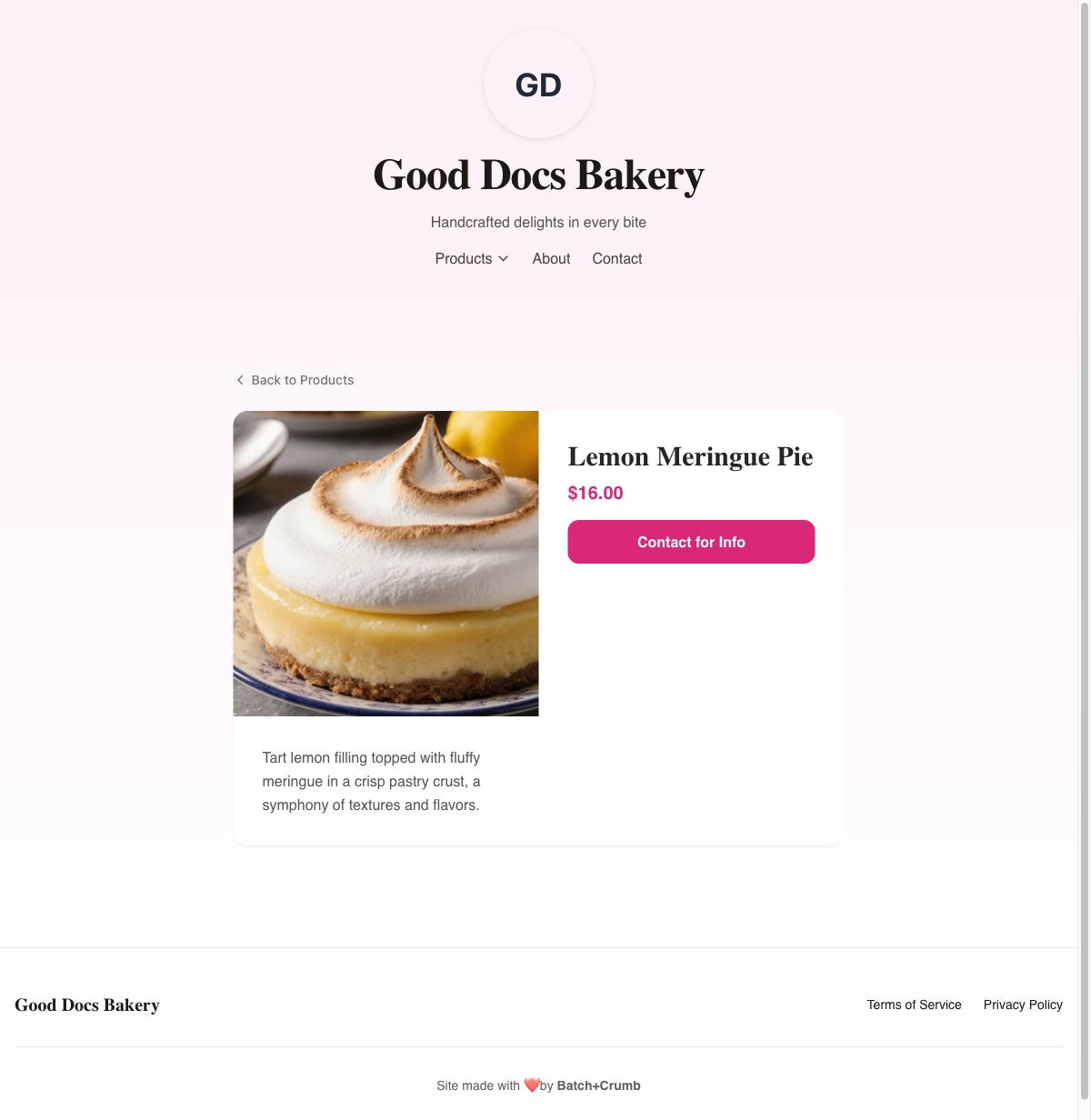
When a customer browses your site and taps on a product that's set to "Contact for Info," they'll see a pink Contact for Info button on the product detail page instead of the usual "Add to Bag" button.
2. Open the inquiry form
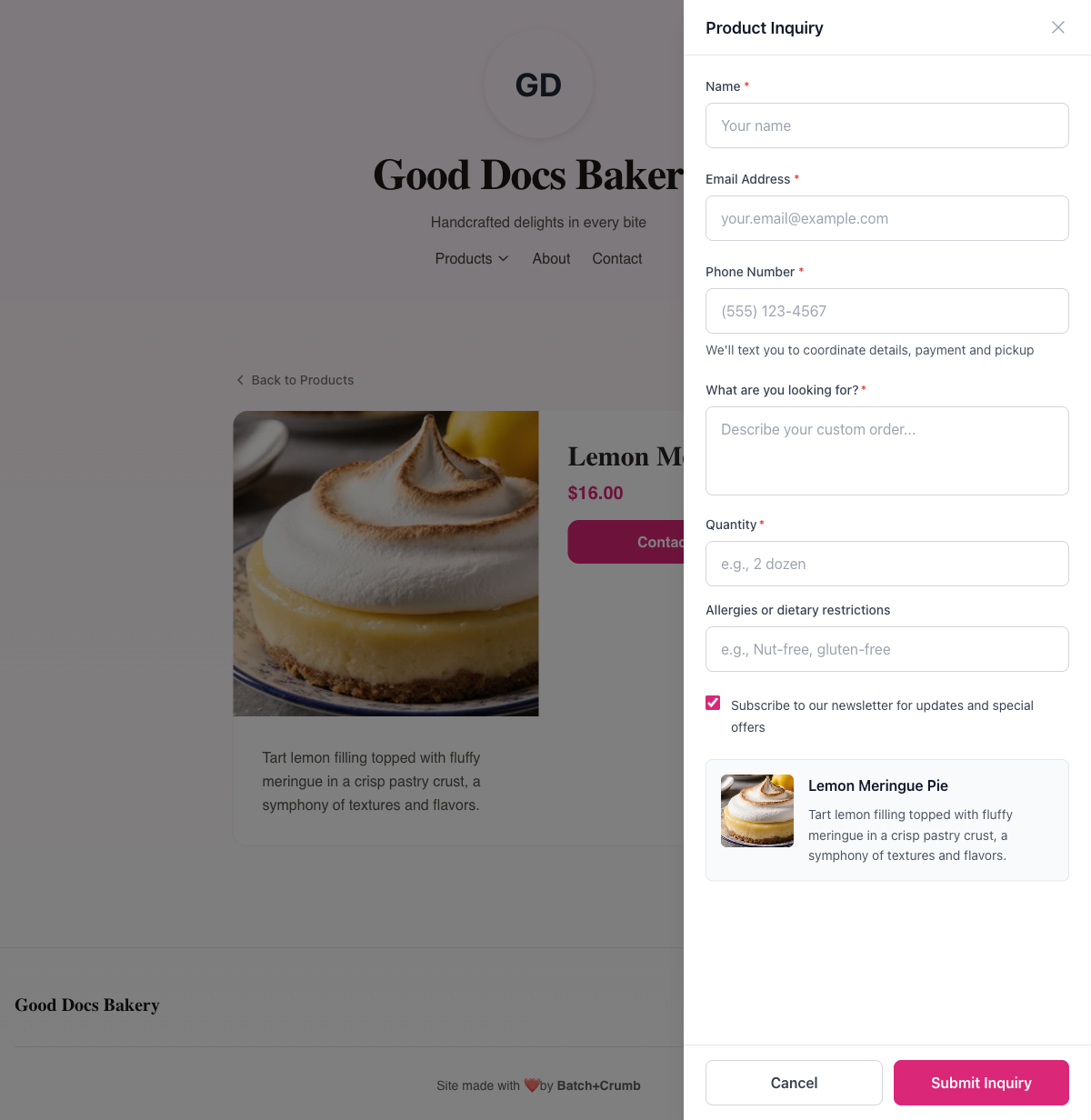
Tapping Contact for Info opens a Product Inquiry dialog. The form includes:
- Name — The customer's full name
- Email — So you can follow up
- Phone — Their phone number
If you've set up an inquiry template for the product (like "Simple Custom Order" or "Custom Cake"), the form will also include extra fields specific to that template — things like "What are you looking for?", "Quantity", and "Allergies/dietary restrictions."
3. Fill out and submit
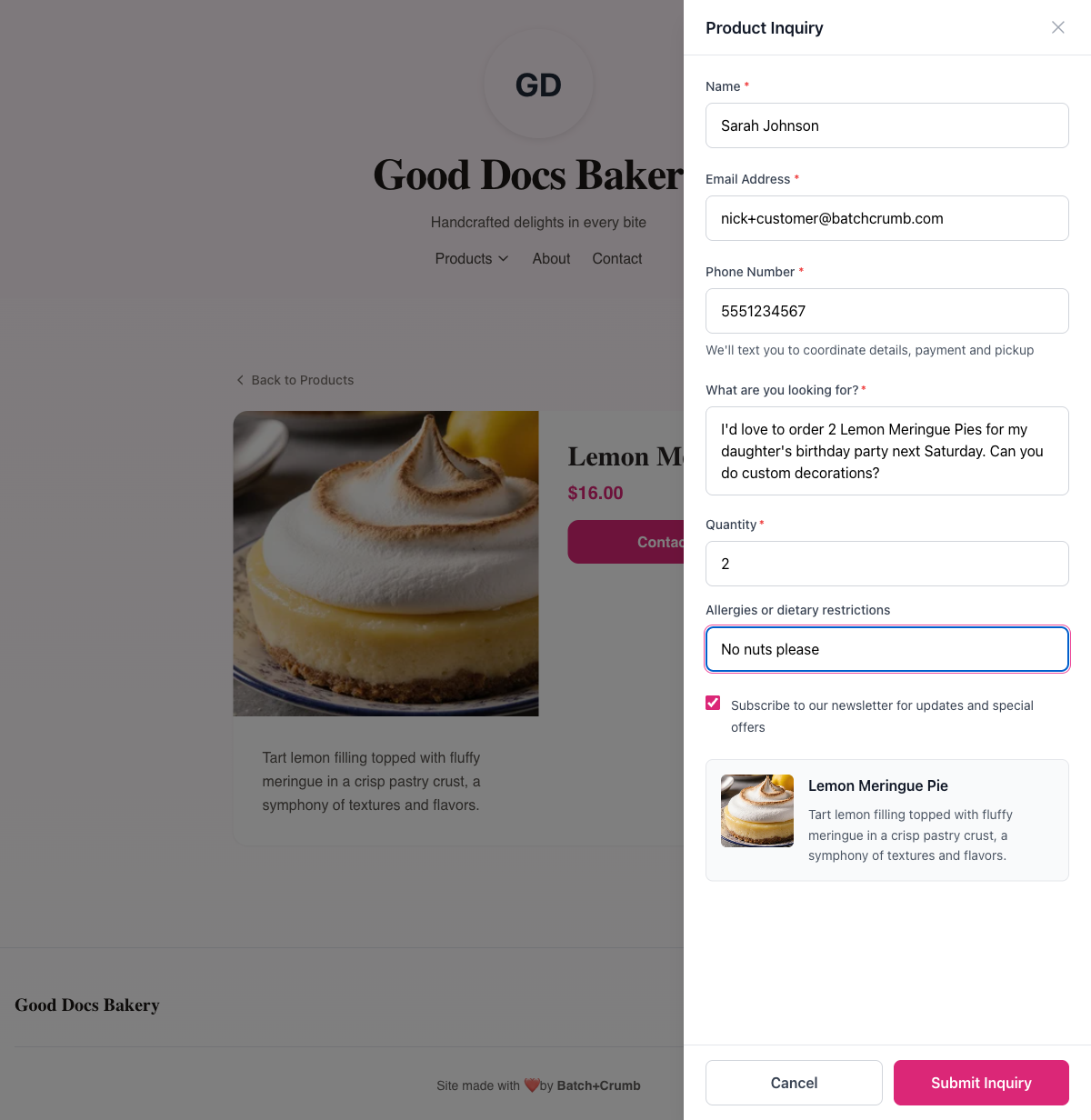
The customer fills in their details and any template questions, then taps Submit Inquiry.
4. Confirmation screen
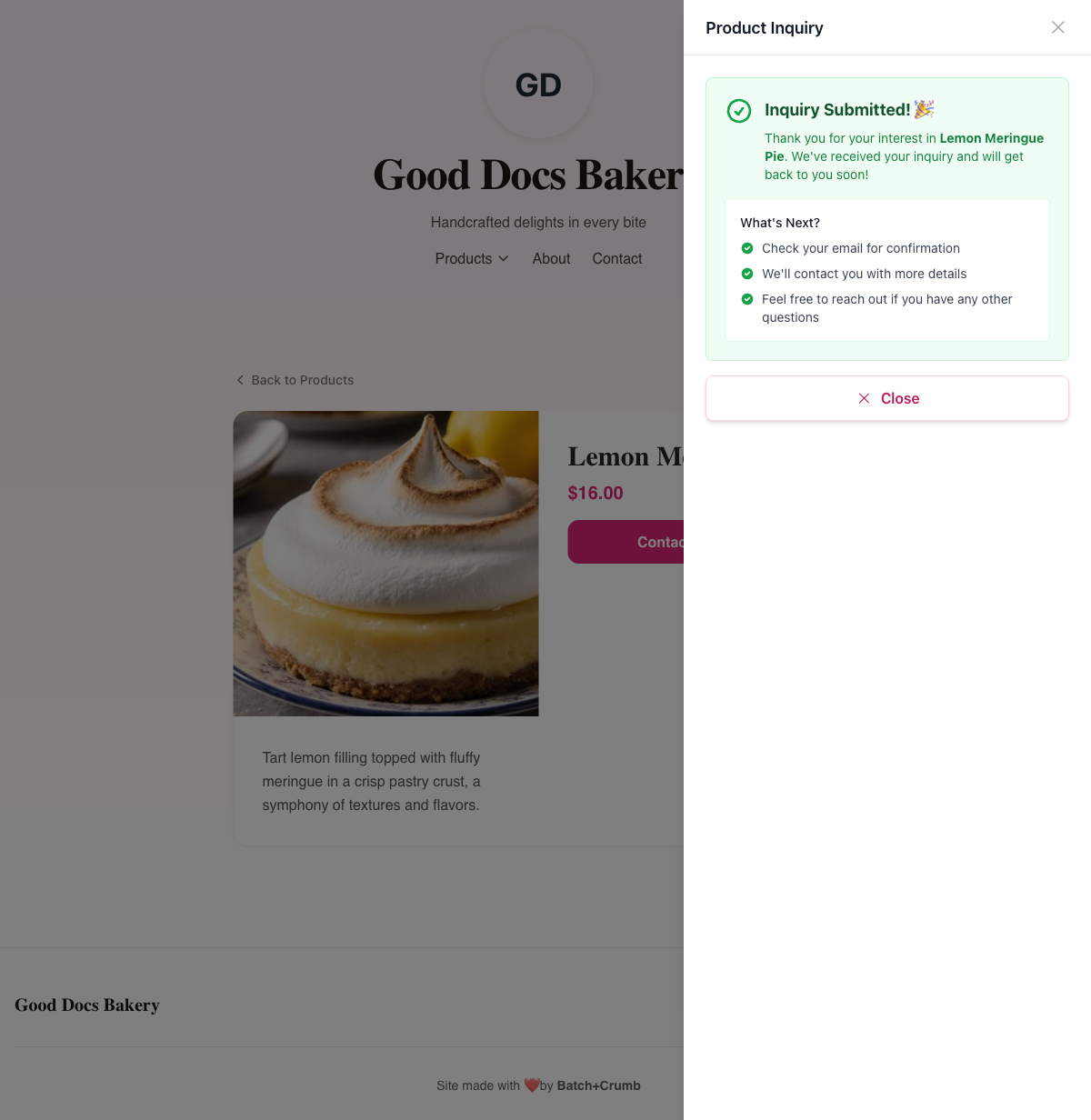
After submitting, the customer sees an "Inquiry Submitted!" confirmation with a green checkmark and their inquiry number (formatted like I-260215-001). The screen also tells them what to expect next: check your email for confirmation, we'll contact you with more details.
What Happens After the Inquiry
The customer gets a confirmation email
Right away, the customer receives an email confirming their inquiry was received. The subject line includes their inquiry number (e.g., "Product Inquiry Confirmation - I-260215-001"). The email shows the product they inquired about, their answers to any template questions, and your auto-reply message.
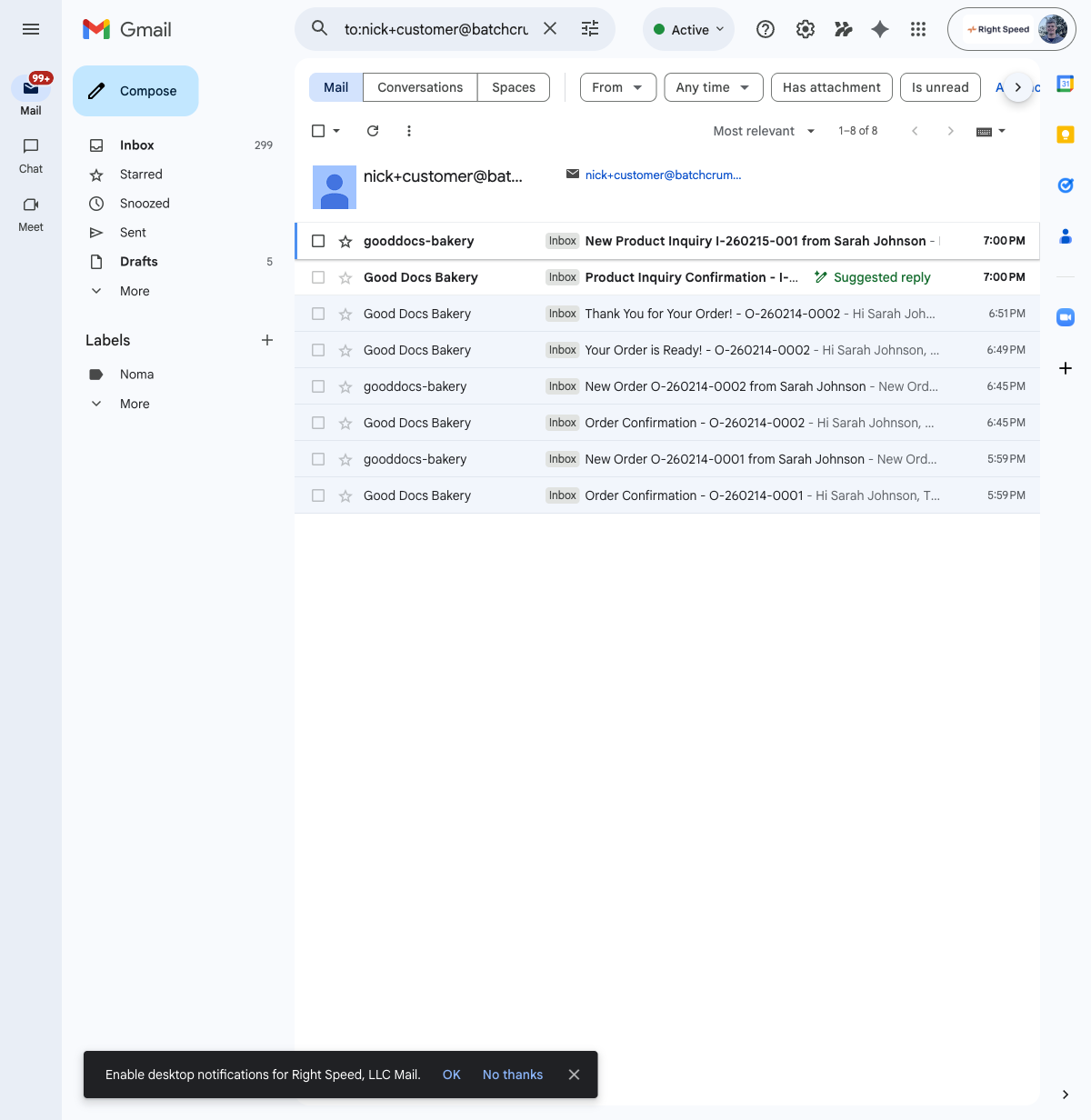
You can customize the auto-reply message customers receive under Website Settings > Auto-Reply Templates > Product Inquiry.
You get a notification email
At the same time, you receive an email with the subject "New Product Inquiry [inquiry number] from [Customer Name]." This email includes:
- The inquiry number and date
- Customer's name, email, and phone number
- The product they're interested in
- All their answers to your template questions
- A note that you can reply directly to the email to contact the customer
The inquiry appears in your admin
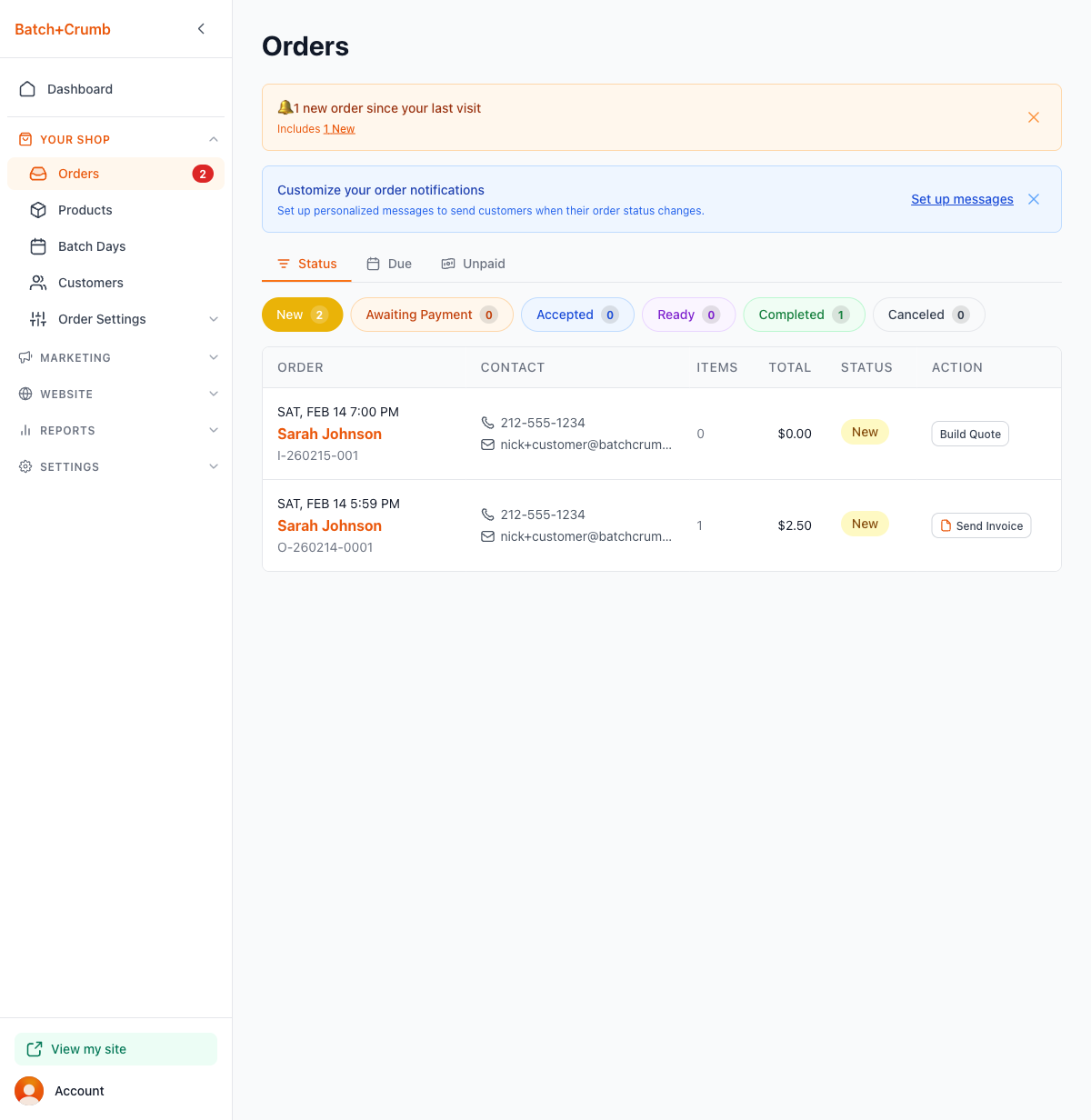
The inquiry also shows up in your Orders list in the admin panel under the "New" tab. You'll see it listed with the customer's name, inquiry number, and a Build Quote button so you can start putting together pricing.
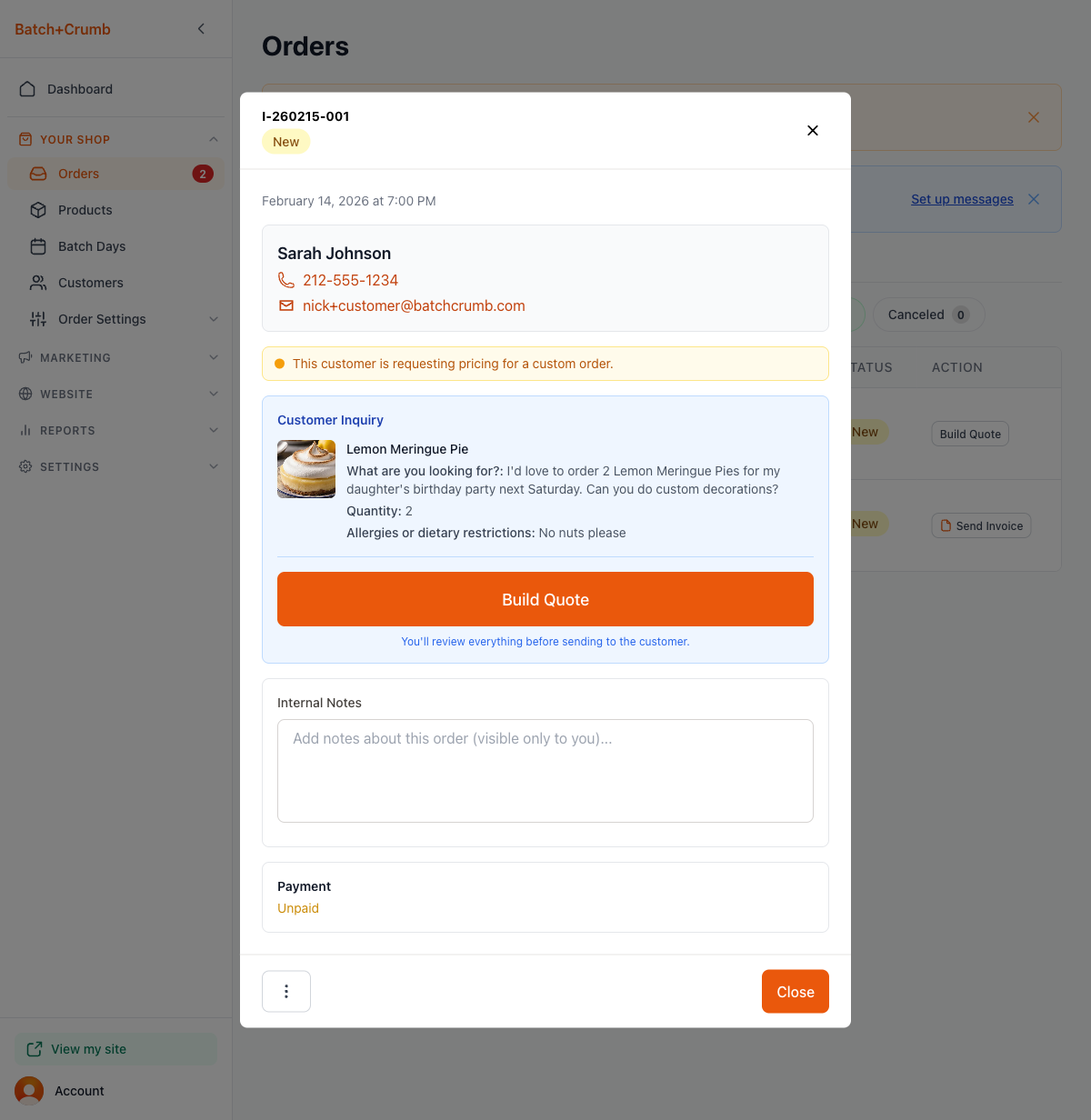
Tapping on the inquiry opens a detail view with all the customer's information, their inquiry answers, and options to build a quote, add internal notes, or track payment status.
Tips
- To set a product to "Contact for Info," edit the product in your admin and look for the Call to Action toggle — switch it from "Add to Cart" to "Contact for Info."
- You can choose an Inquiry Template when setting up a "Contact for Info" product. Templates like "Simple Custom Order," "Custom Cake," or "Bulk/Event Order" add relevant questions to the form so you get the info you need upfront.
- Product inquiries show up alongside regular orders in your admin, but with a Build Quote action instead of the usual order status flow. This lets you put together custom pricing before the customer pays.
- Customize the auto-reply customers receive after inquiring by going to Website Settings > Auto-Reply Templates and selecting the Product Inquiry tab.