Using the Contact Form
How your customers can reach out to you directly through the contact form on your site.
How your customers can reach out to you directly through the contact form on your site.
Overview
Every Batch52 site includes a built-in contact form so customers can send you a message without needing to know your email address. When someone submits the form, two things happen automatically: the customer gets a friendly auto-reply confirming you received their message, and you get an email with everything they wrote so you can follow up.
Where to Find the Contact Form
The contact form lives in the Get in Touch section near the bottom of your homepage. Customers can scroll down to find it, or tap Contact in your site's navigation bar to jump straight there.
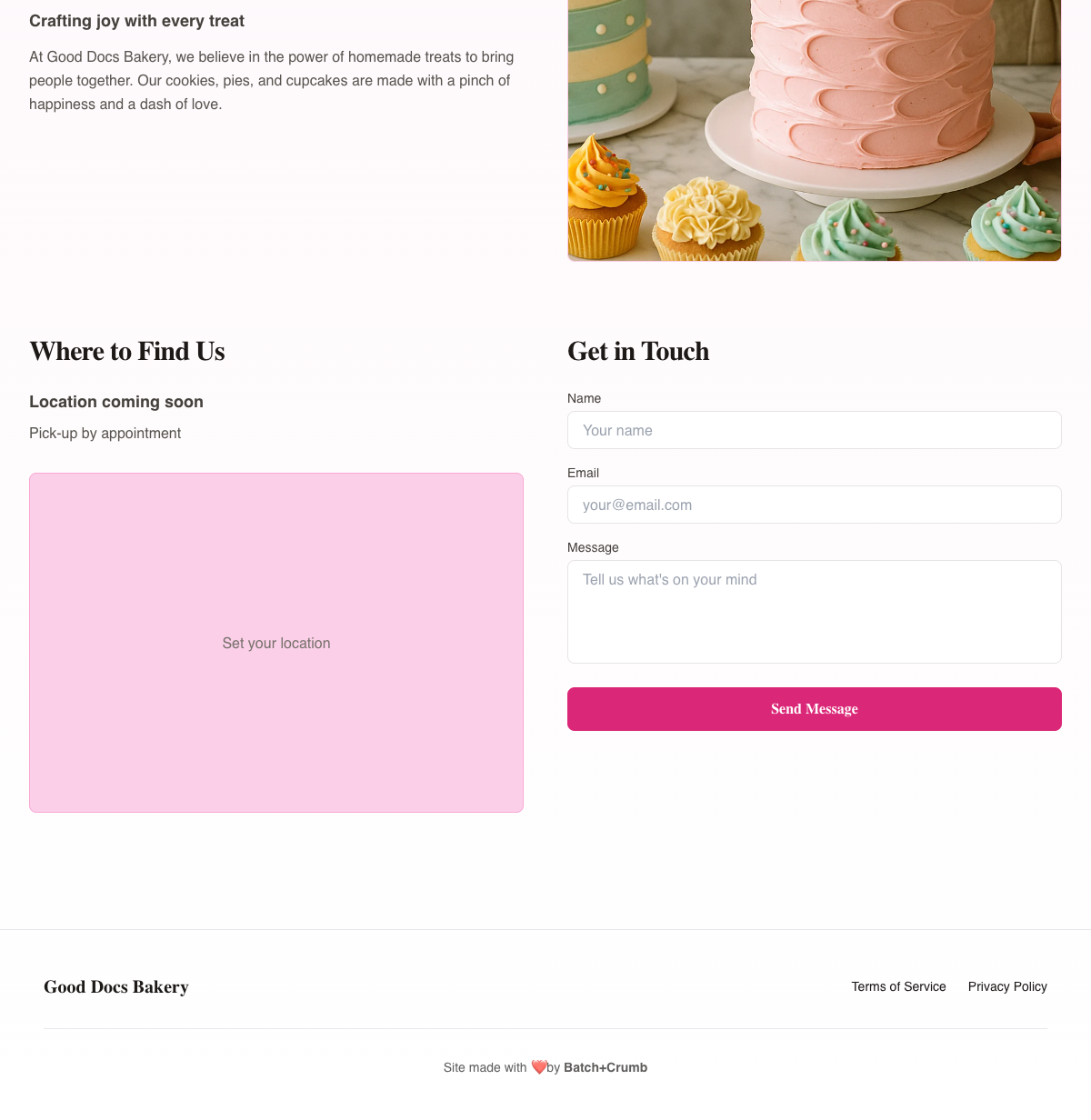
The form has three fields:
- Name — The customer's name
- Email — Their email address (so you can reply)
- Message — Whatever they'd like to tell you
Sending a Message
1. Fill out the form
The customer types their name, email address, and message into the form fields.
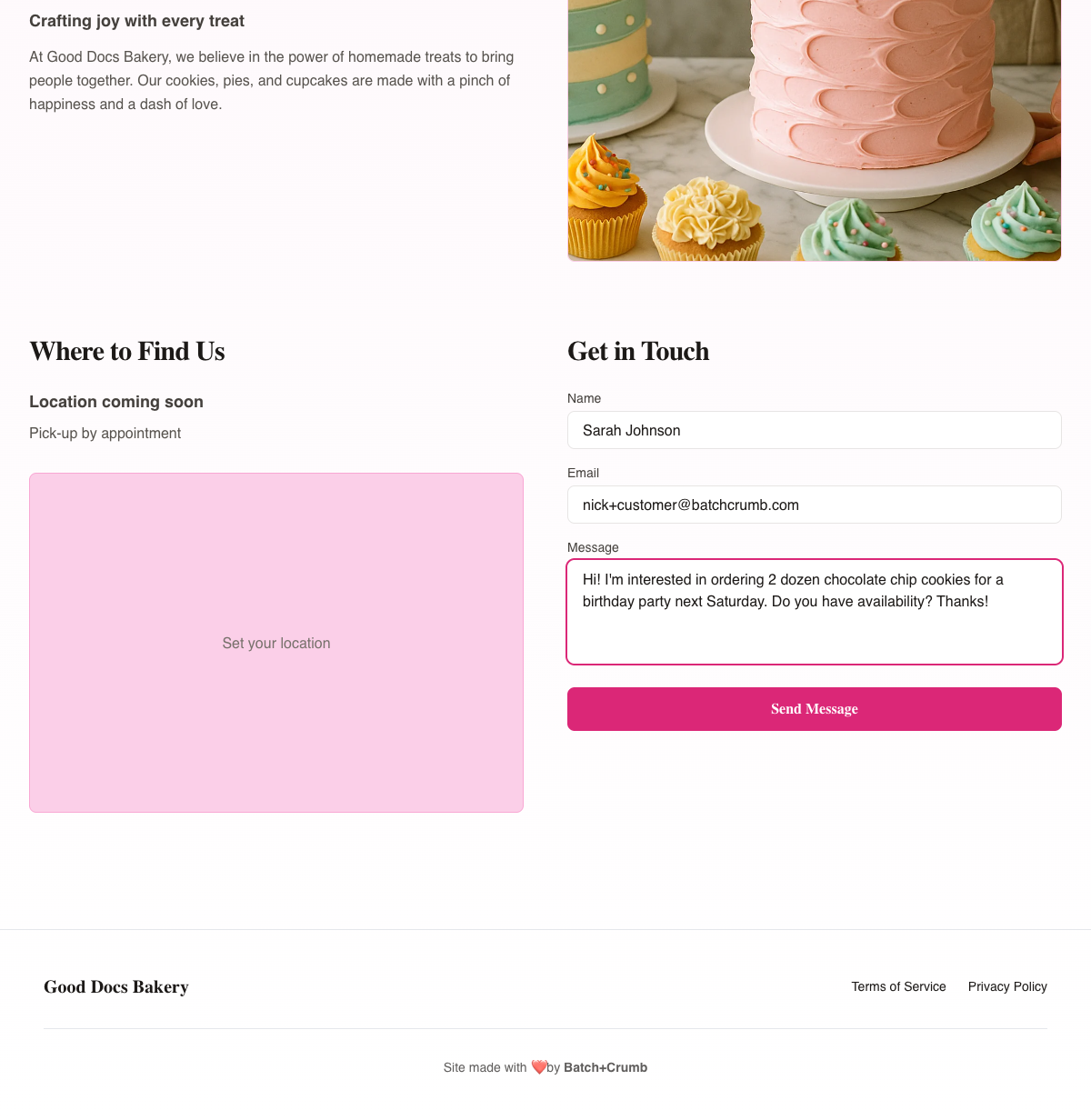
2. Tap "Send Message"
After filling everything in, they tap the pink Send Message button. A confirmation message appears: "Message sent successfully! We'll get back to you soon." The form fields clear automatically so they know it went through.
What Happens Next
The customer gets an auto-reply
As soon as the form is submitted, the customer receives an automatic email from your bakery confirming you got their message. The subject line is "Thanks for reaching out!" and the email includes a personalized greeting with their name.
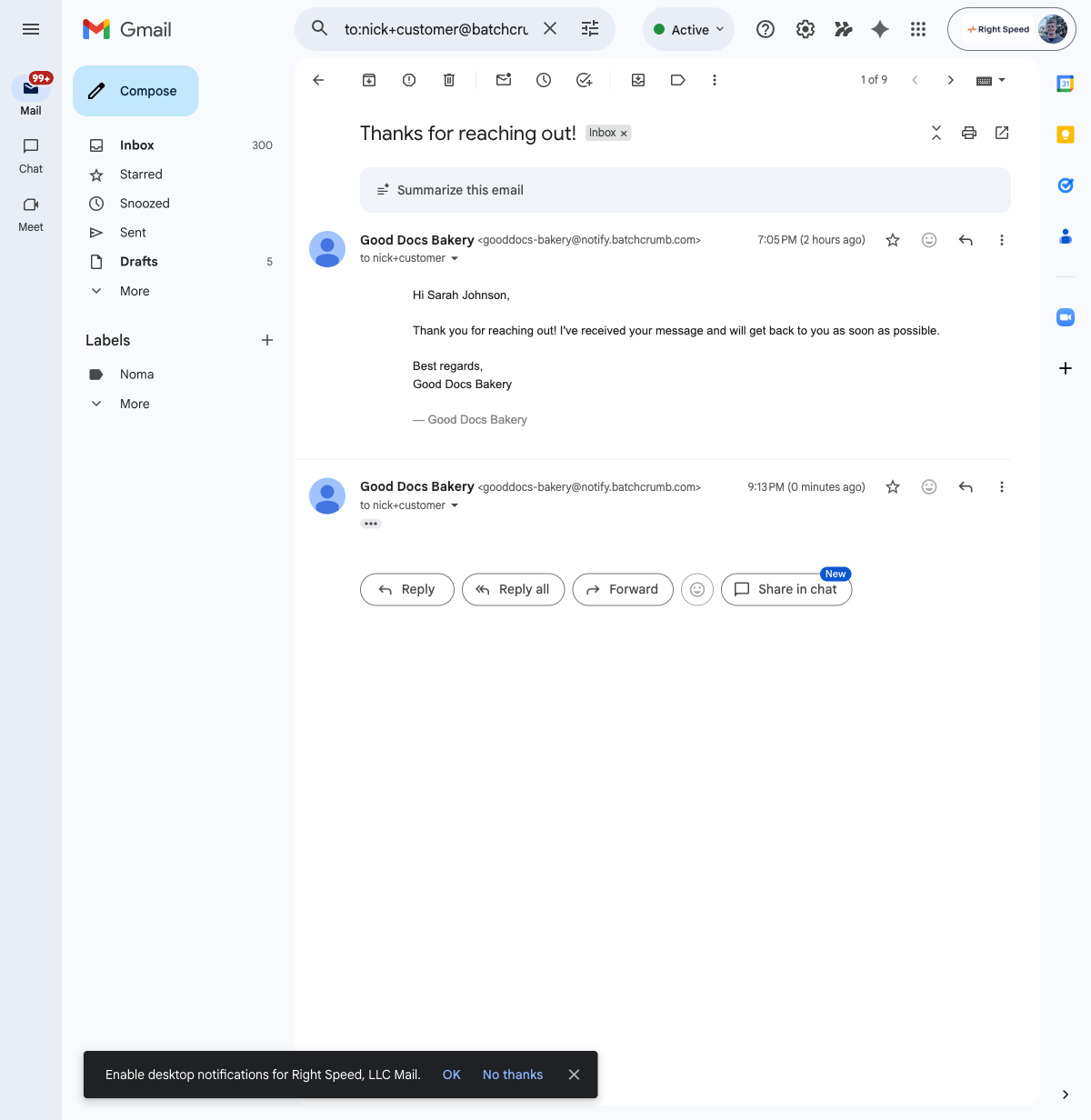
You can customize this auto-reply message in your admin settings under Website Settings > Auto-Reply Templates.
You get a notification email
At the same time, you receive an email with the subject "Contact Form Submission from [Customer Name]." This email includes all the details:
- The customer's name and email address
- Their full message
- A link to your site
- A note that you can reply directly to the email to respond
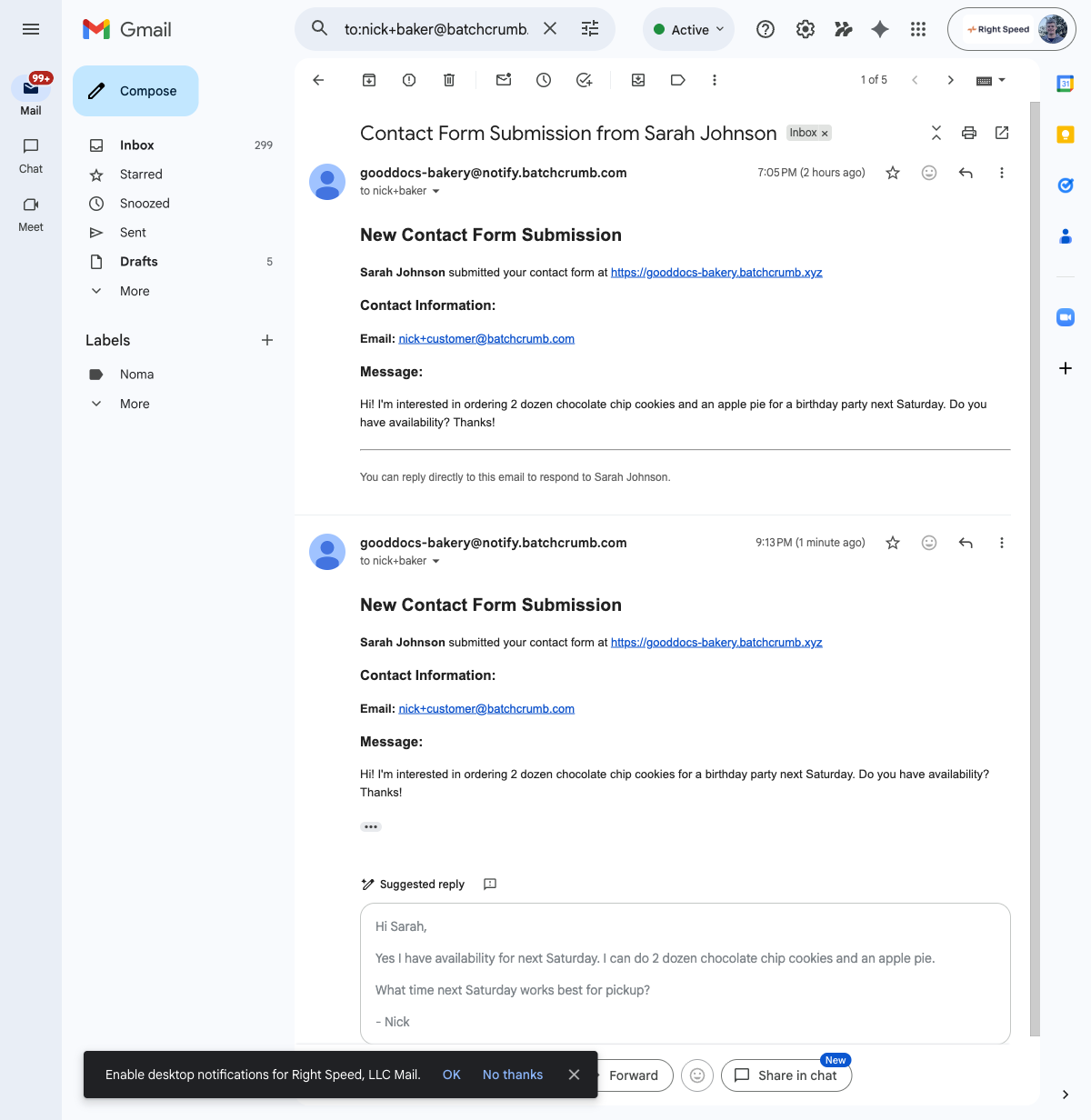
Just hit reply on this email to write back to the customer — it's that simple.
Tips
- You can customize the auto-reply your customers receive by going to Website Settings > Auto-Reply Templates in your admin panel. Make it sound like you!
- Contact form notifications are sent to whatever email you've set as your Contact Email in your business settings. If you want them going to a different inbox, you can change that under Settings > Business Info.
- Customers don't need to create an account to send you a message — the form is open to everyone who visits your site.